

Is Your Cloud Phone Laggy? Troubleshooting Network Latency, Low Specs and Graphics Settings
Is Your Cloud Phone Laggy? First Tell Network Lag from Performance Lag
Many people try a cloud phone for the first time, see the screen stutter, and immediately assume cloud phones are simply slow. In practice, lag usually comes from three overlapping causes: network latency, insufficient instance specs, and graphics settings that are too high. Work through them one by one and most lag can be located and fixed.
Start with this symptom table to see which case matches you:
| What you feel | Most likely cause | What to check first |
|---|---|---|
| The screen freezes, taps do nothing, then it jumps back | Network jitter or packet loss | Latency value, packet loss rate |
| Constant slow motion, consistently low frame rate | Insufficient instance specs | Memory usage, CPU load |
| Blurry picture, smeared view when panning, slow loading | Graphics or bitrate set too high | Resolution and frame rate preset |
| Smooth at first, lags after a while | Background apps piling up or low storage | Free storage, auto-start apps |
1. Network Latency: Check Latency, Jitter and Packet Loss
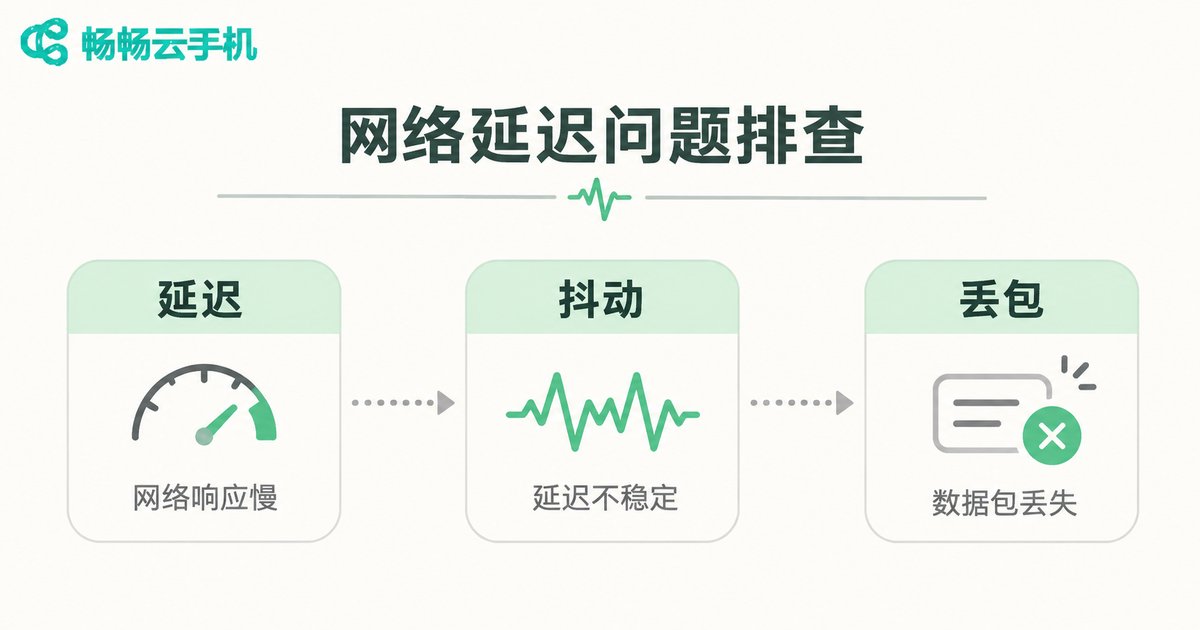
A cloud phone sends both video frames and touch commands over the network, so connection quality is suspect number one. Do not just look at download speed — look at latency, jitter and packet loss.
1. Read the latency number. Most cloud phone consoles or floating menus show real-time latency. As a rule of thumb, under 60ms feels instant; 60–120ms brings a slight delay; above 150ms the input lag becomes obvious; if the number keeps jumping up and down, jitter is high.
2. Compare networks. Try Wi-Fi and mobile data separately. If only Wi-Fi lags while a hotspot or 5G is fine, the router or broadband is the problem; if every network lags, move on to specs and graphics settings.
3. Avoid crowded public Wi-Fi. Shared networks in malls, hotels and offices can test fast yet still congest at peak hours, and packet loss rises quickly.
4. Stop local background downloads. System updates, cloud drive syncing and video buffering all eat bandwidth and make the cloud phone lag instantly.
5. Try a different time slot. Between 20:00 and 23:00 carrier links carry heavier load — the same cloud phone may be perfectly smooth during the day.
2. Insufficient Specs: Memory, CPU and Storage
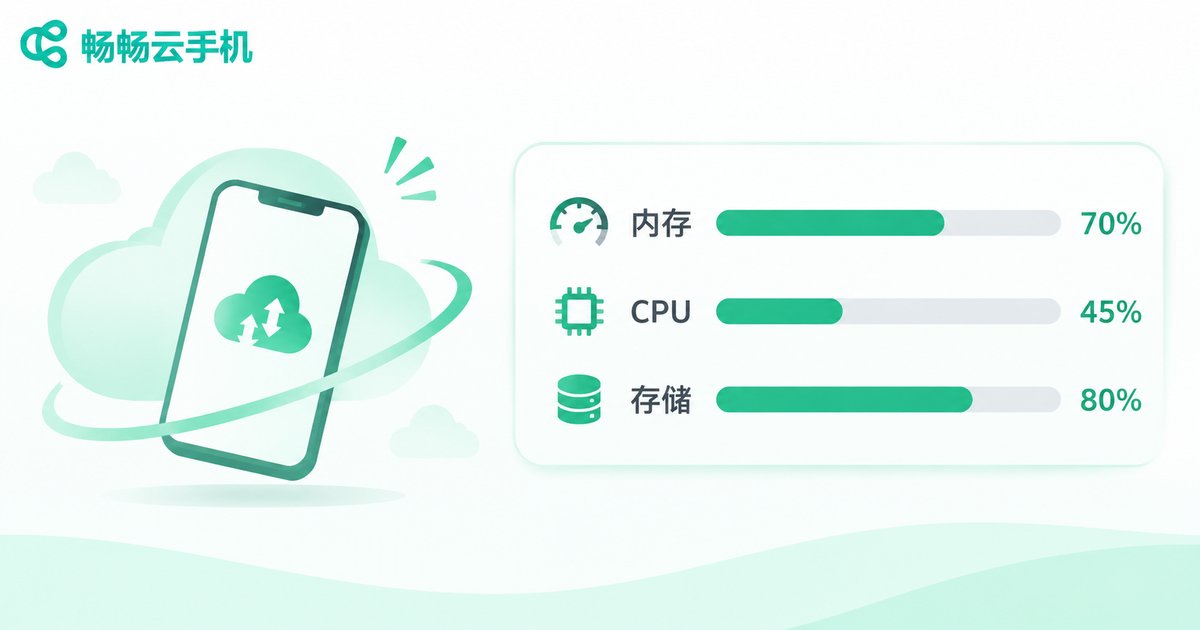
A cloud phone is essentially a virtual machine running in a data center, and its memory and CPU cores are fixed. When specs are not enough, the symptom is usually consistently slow rather than alternating fast and slow.
1. Check memory usage. Open too many apps or leave games running in the background and the system starts killing processes, which shows up as a stuttering picture.
2. Check CPU load. If it sits near full load for long stretches, the instance simply cannot carry the app, and no amount of network tuning will help.
3. Check free storage. Below 10% free space, write speed drops and app launches plus scene loading get dragged out.
4. Turn off auto-start and wake-up chains. Plenty of apps launch themselves and wake each other, quietly consuming resources.
5. Run fewer instances at once. With multiple cloud phones open, your local device decoding power and memory are shared too, so more instances mean more pressure.
3. Graphics Settings: Resolution, Frame Rate and Bitrate
Graphics settings decide how much data every frame carries. Higher resolution and higher frame rate mean more data, so a slightly weak connection shows up as stutter and blur.
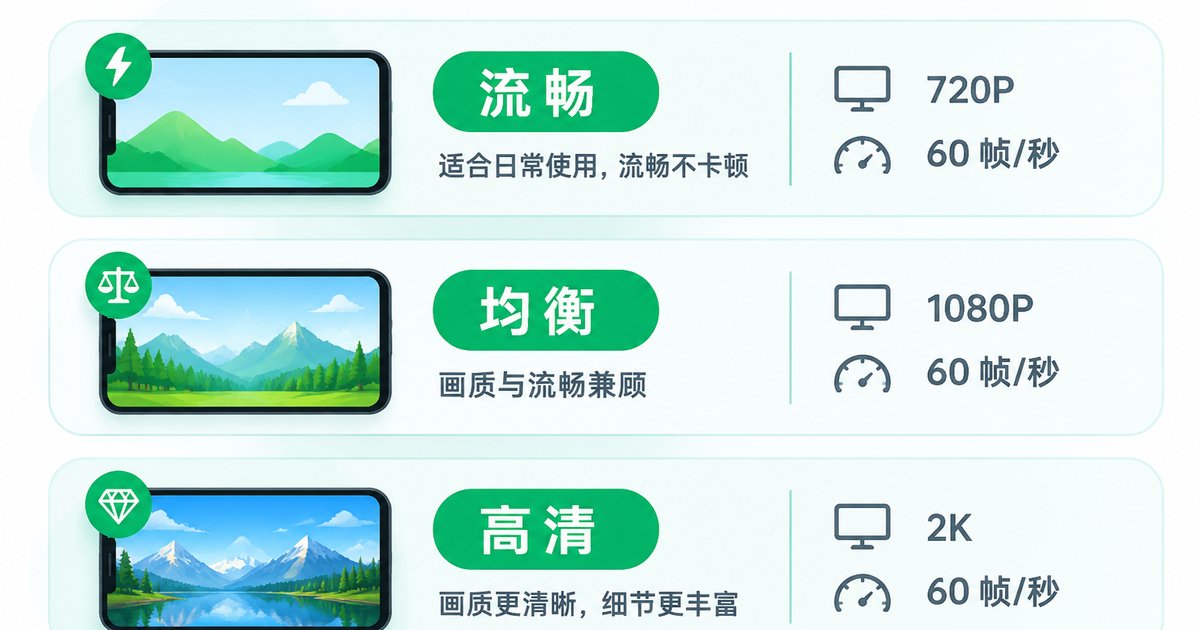
| Preset | Typical settings | Best for |
|---|---|---|
| Smooth | Lower resolution + 30 fps | Idle tasks, scripts, long online sessions |
| Balanced | Medium resolution + 30/60 fps | Short videos, social apps |
| HD | Higher resolution + 60 fps | Action games, detail-heavy scenes |
The recommended method: start from the lowest preset to confirm the connection is smooth, then step up one level at a time until lag appears, and drop back one level. That is the sweet spot for your current network. If you only run idle tasks or watch streams, a low or medium preset is more than enough — there is no need to max it out.
4. A Three-Step Self-Check Flow
Step one, measure latency. Open the cloud phone and watch the latency number and its fluctuation for one minute. If it exceeds 150ms or jumps constantly, fix the network first.
Step two, check resources. Open the task manager or settings inside the cloud phone and look at memory usage and CPU load. Sustained values above 80% mean the specs are stretched.
Step three, lower the graphics. Drop resolution, frame rate and bitrate one level each and watch for two minutes. If it becomes noticeably smoother, bandwidth and graphics settings were mismatched.
If it still lags after all three steps, the instance specs cannot carry your workload — this is no longer a tuning problem.
5. When to Move to a Higher-Spec Cloud Phone
If the network is stable and graphics are already low, yet the cloud phone stays at full load, apps keep reloading and games drop frames, the specs have hit their ceiling. Further tuning brings little benefit; switching to a higher-spec instance is the better deal.
ccloudphone offers cloud phone instances in multiple specifications, so you can pick the memory and CPU configuration that fits idle tasks, multi-instance use or gaming, and adjust graphics and frame rate on demand to balance smoothness against picture quality. For specific models, configurations and pricing, please refer to the official ccloudphone website.
One more reminder: when choosing a cloud phone, do not just check whether it can launch. Look at stability during long sessions. Lag often shows up only after several hours of use, and stability matters more than a good-looking spec sheet.
FAQ
Q1: If my cloud phone lags, is it always the server's fault?
No. Work through network, specs and graphics first — most cases come from the local connection or graphics settings, and only a small share really need a different instance.
Q2: What latency counts as normal?
A common reference: under 60ms feels instant, 60–120ms brings a slight delay, and above 150ms input lag becomes obvious. Different apps tolerate latency differently, and action games are the most sensitive.
Q3: Why is the same cloud phone smooth in the daytime but laggy at night?
Peak-hour network links carry heavier load, so jitter and packet loss are more visible. Switch Wi-Fi bands or compare against mobile data.
Q4: It still lags at the lowest graphics preset. What now?
That means graphics are not the bottleneck. Focus on memory usage and CPU load, close background apps, reduce the number of instances, and upgrade the instance specs if necessary.
Q5: Do multiple cloud phone instances affect each other?
Yes. Local decoding power, memory and bandwidth are shared, so more instances mean more pressure. Open only what you actually need.
Q6: Should I clean up my cloud phone regularly?
Yes. Clear caches and unused apps periodically and keep at least 20% storage free — it noticeably reduces loading lag.


