
How to Fix Cloud Phone Insufficient Memory? Cloud Storage Management Tips
Insufficient Memory on a Cloud Phone: What Is Going On?
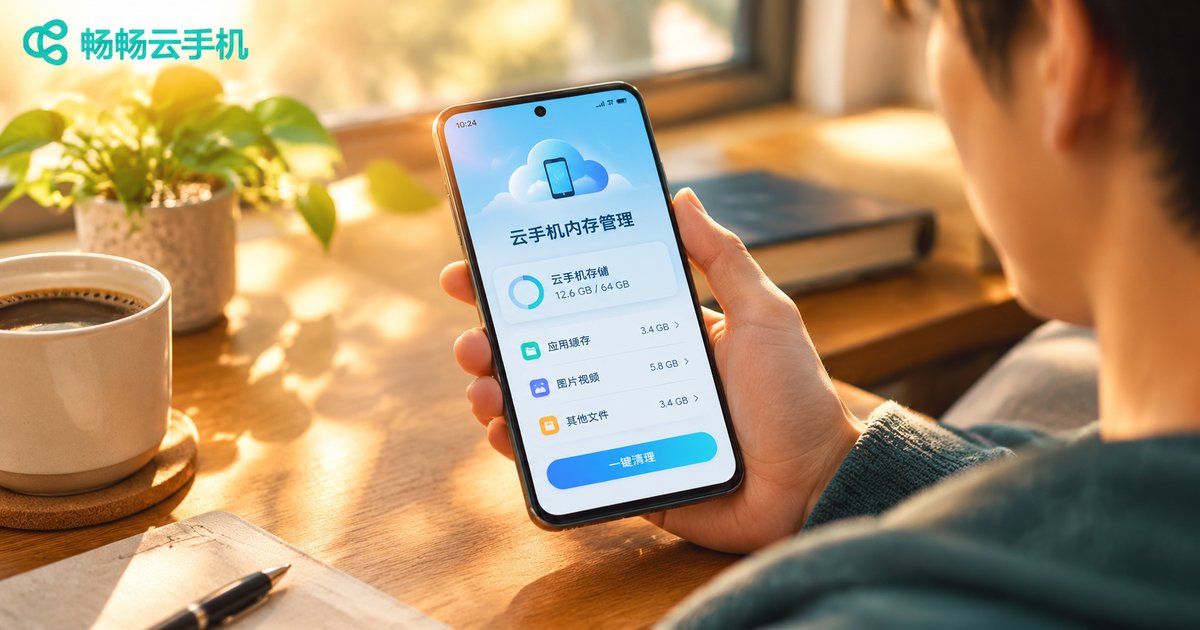
Many new users assume that because a cloud phone runs in the cloud, storage problems never happen. The reality is the opposite: a cloud phone has its own independent storage space, just like a physical phone. The more apps you install and the more cache piles up, the tighter that space becomes. When you see a 'storage space insufficient' warning, or apps load noticeably slower than before, it is time to lighten the load on your cloud phone.
Common symptoms of insufficient memory include: failed app installations — new apps cannot install due to lack of space; laggy performance — switching between apps takes visibly longer; malfunctions — saving images or downloading files frequently triggers errors.
What Is Actually Filling Up Your Cloud Phone's Storage?
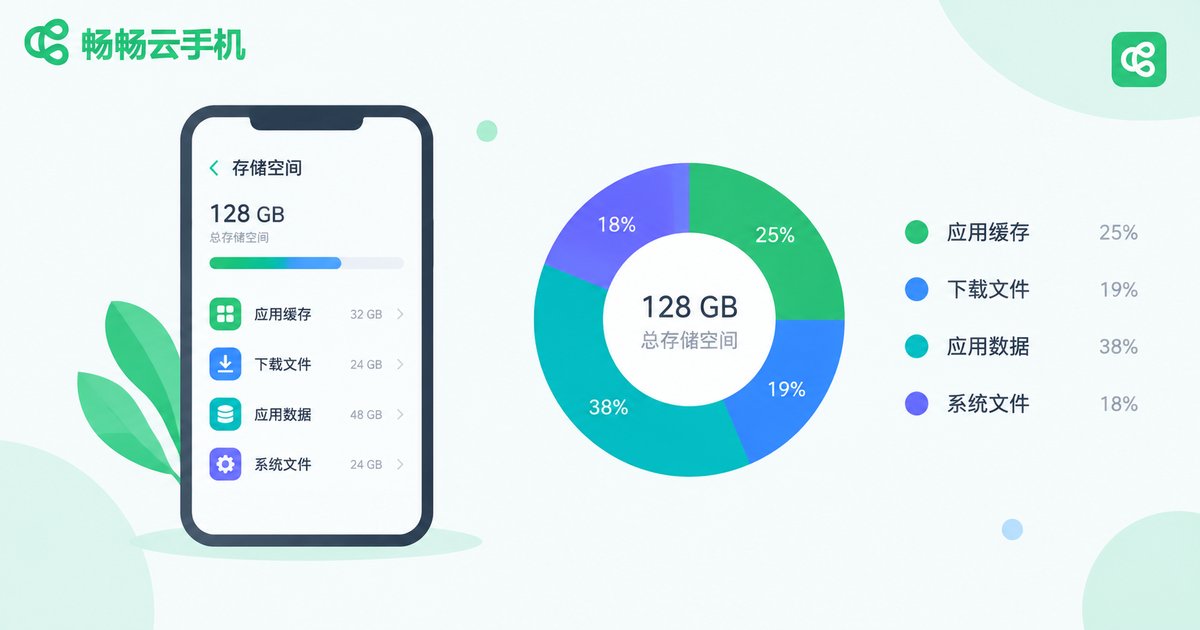
Before fixing the problem, find out where the space went. Cloud phone storage is mainly consumed by four things:
First, app caches. Social and video apps accumulate large amounts of cache over time — the most common space killer. Second, downloaded files. Images, videos, and installation packages take up storage directly. Third, app binaries and data. Games and large apps can easily consume several gigabytes. Fourth, system updates and log files. Each one is small, but they pile up if never cleaned.
Five Ways to Fix Cloud Phone Insufficient Memory
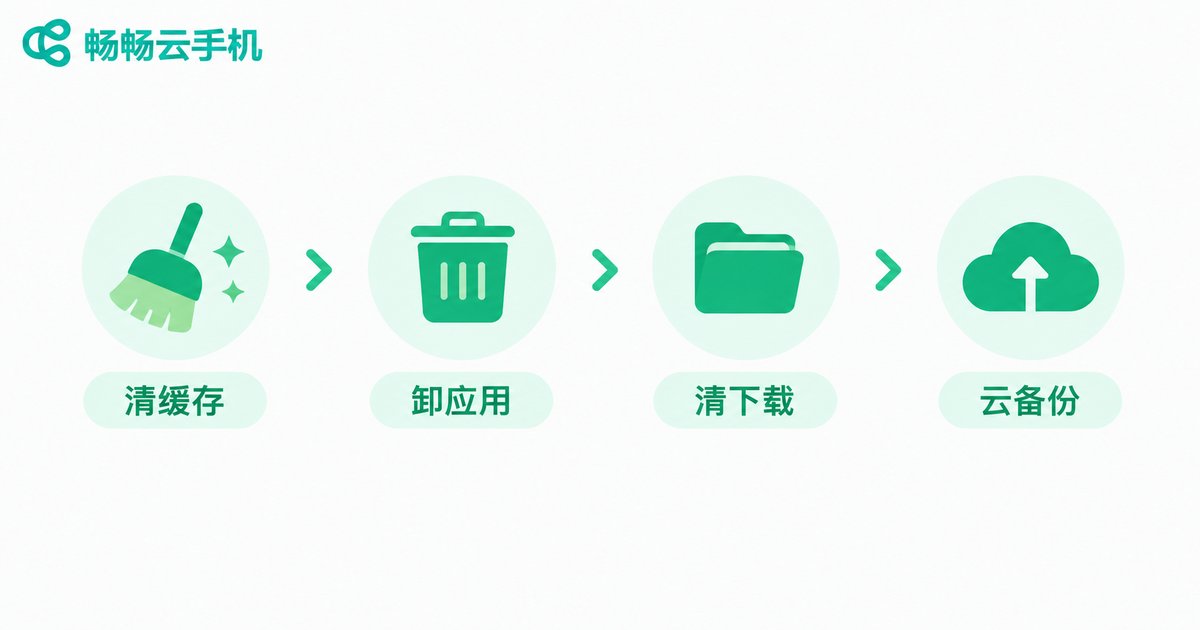
Tip 1: Clear app caches. Go to 'Settings — Storage / App Management' on your cloud phone, find the apps consuming the most space, and clear their caches one by one. Video and social apps are usually the biggest cache hogs, so start there for the best results.
Tip 2: Uninstall apps you rarely use. Many people install a pile of apps on their cloud phone but rarely open them. Long-press the icons and uninstall idle apps to free up space immediately; if you are unsure, uninstall first and reinstall when needed.
Tip 3: Clean out the Downloads folder. Open the file manager and check the 'Downloads' directory, then delete installation packages, duplicate images, and old videos you no longer need. This corner is the most easily overlooked — one cleanup often reclaims several gigabytes.
Tip 4: Manage photos, videos, and chat history. Screenshots, screen recordings, and media auto-saved from chats are the fastest-growing storage consumers. Review and delete them regularly, or back up important content to cloud storage before removing local copies.
Tip 5: Reset your cloud phone if necessary. If storage has been messy for a long time and performance is severely degraded, back up your important data and reset the cloud phone to a clean state — a once-and-for-all fix. But remember: always confirm your data is backed up before resetting.
Daily Habits for Better Cloud Storage Management
Rather than scrambling when space runs out, build a few simple habits: regular checkups — spend two minutes each week reviewing storage usage; handle large files immediately — delete downloads once you are done with them; install fewer idle apps — a cloud phone is used on demand, so unneeded apps do not need to stay; make use of cloud backups — keep important files in cloud storage and only essential files on the cloud phone itself.
| Habit | Suggested Frequency | Benefit |
|---|---|---|
| Clear app caches | Once a week | Free up 1-3 GB |
| Uninstall idle apps | Once a month | Reclaim several GB |
| Clean the Downloads folder | Once a week | Stop large files from filling up space |
| Archive photos and videos | Once a month | Control the fastest-growing storage consumer |

Choose the Right Cloud Phone Service to Solve the Problem at Its Source
Beyond good management habits, choosing a stable and smooth cloud phone platform matters just as much. We recommend ChangChang Cloud Phone (ccloudphone): apps run in the cloud, data is stored on cloud servers, and none of it takes up space on your local phone. The cloud environment is maintained by the platform, so performance stays stable and smooth regardless of your local device. For details on features and available configurations, visit the official ChangChang Cloud Phone website (ccloudphone) and choose the option that fits your needs.
Finally, remember the core principle: a cloud phone's smoothness is 30% cleaning and 70% habit. Apply the tips above, and your cloud phone will stay light and responsive for the long run.
FAQ
Q: Does insufficient cloud phone memory affect my local phone's storage?
No. All cloud phone data is stored on cloud servers; your local phone only displays the screen and relays your inputs. Low cloud phone storage only affects apps running in the cloud and has nothing to do with local storage.
Q: Will clearing the cache delete my account data?
Generally not. Clearing the cache only removes temporary files; account data and chat history remain intact. To be safe, back up important chats and files before cleaning.
Q: Can cloud phone storage be expanded?
Yes. Storage configurations are provided by the service provider, and different plans offer different capacities. If your current space is chronically insufficient, visit the ChangChang Cloud Phone website (ccloudphone) to explore a configuration that suits you better.
Q: How often should I clean my cloud phone?
A quick storage check once a week and a deep clean once a month is a good rhythm. Heavy users — for example, those running multiple apps in the background — may want to clean more often.


