
Cloud Phone Storage Full? 4 Tips for Expansion, Cleanup, and File Management
Why Does Cloud Phone Storage Always Run Out?
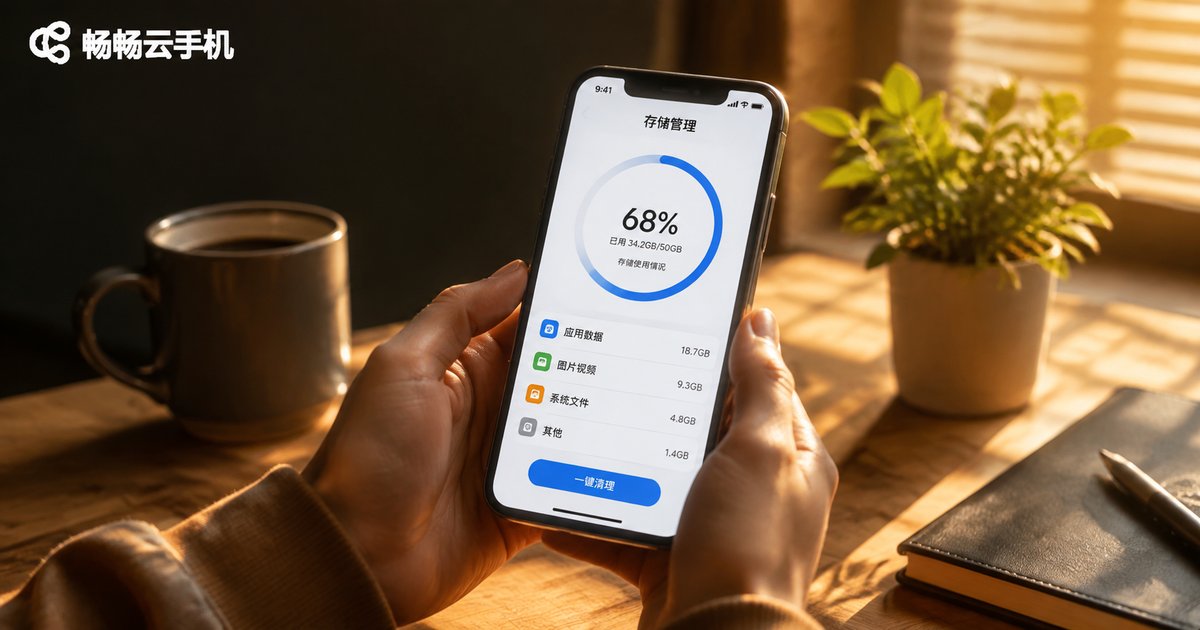
After using a cloud phone for a while, many users encounter the same frustration: despite installing only a few apps, storage keeps filling up. Like physical phones, cloud phones accumulate app caches, installer leftovers, chat records, screenshots, and downloaded files that quietly consume storage. When usage exceeds 90%, the system slows down noticeably, with apps crashing and new installations failing. Rather than panicking when storage runs out, master these cleanup and management methods in advance.
Tip 1: Regularly Clear App Caches and Junk Files
App caches are the "invisible giants" of storage consumption. Social apps, short video platforms, and browsers generate massive temporary files during use, accumulating to several GB over time. Build a weekly cleanup habit:
Cleanup steps: Open your cloud phone's 'Settings' → 'App Management' → select apps with larger storage usage → tap 'Clear Cache'. Clearing cache won't delete chat records or account data, so it's safe to proceed.
Additionally, your 'Download' folder often piles up with long-unused installers and documents. Regularly checking and deleting these useless files can often free up several GB at once.

Tip 2: Uninstall Unused Apps to Slim Down Your Cloud Phone
Many cloud phones carry dozens of apps, but fewer than half are used regularly. We recommend a monthly "app audit" using this reference:
| App Type | Recommended Action | Estimated Space Freed |
|---|---|---|
| Apps unopened for 30 days | Uninstall directly | 100MB-1GB each |
| Apps with duplicate functions | Keep the most-used one | 50-500MB each |
| Large games rarely played | Uninstall, reinstall when needed | 1-5GB each |
For users running multiple game accounts, keep only the apps needed for your current main account and install others from the app store when necessary, preventing storage from being consumed by idle apps.
Tip 3: Build File Organization Habits
Messy files not only waste space but also make important documents hard to find. Here's a simple, practical "four-step classification method":
1. Archive screenshots: Sort screenshots weekly—transfer important ones to cloud storage, delete useless ones immediately;
2. Centralize documents: Store all work documents in designated folders for easy backup and retrieval;
3. Clean media: Videos and images consume the most space—regularly delete duplicate, blurry, and worthless files;
4. Naming conventions: Add date prefixes to important files, like '20250115-Contract', for instant recognition.
Once you develop the habit of organizing as you go, you'll find storage stays at healthy levels and file-finding efficiency improves dramatically.

Tip 4: Leverage Cloud Storage and Expansion Solutions
When cleanup and uninstalling can't meet your needs, it's time to consider expansion. Two approaches work well:
Approach 1: Move files to the cloud. Sync photos, videos, and documents to cloud storage services, keeping only frequently used files on your cloud phone. This saves local space while enabling access from multiple devices anytime.
Approach 2: Choose a cloud phone service with flexible storage configurations. Take ccloudphone as an example—it offers cloud phone instances in multiple specifications, letting users choose storage configurations based on actual needs. When business growth demands more space, you can flexibly adjust your plan. Since cloud phone data is stored in the cloud, adjustments don't affect existing files—no data migration worries.
Compared to physical phones where "storage is soldered and can't be upgraded," cloud phones have natural advantages in expansion flexibility—one key reason more users are switching to cloud phones.

FAQ
Q: Will clearing cache delete my chat records?
No. Clearing cache only removes temporary files; chat records and account information remain intact. Note the difference between 'Clear Cache' and 'Clear Data'—the latter resets the app to its initial state.
Q: What happens when cloud phone storage is full?
Main symptoms include system lag, app crashes, inability to install or update apps, and failed screenshot saves. We recommend keeping storage usage below 85% for smooth performance.
Q: After uninstalling and reinstalling an app, can I recover my original data?
If the app supports account cloud sync (like social apps), data automatically restores after logging back in. For apps without cloud sync, local data is deleted upon uninstall—back up important data beforehand.
Q: Can ccloudphone storage configurations be adjusted?
Yes. ccloudphone offers cloud phone instances in multiple specifications. Check the official website for specific plans and configurations, and choose according to your usage scenario.


