
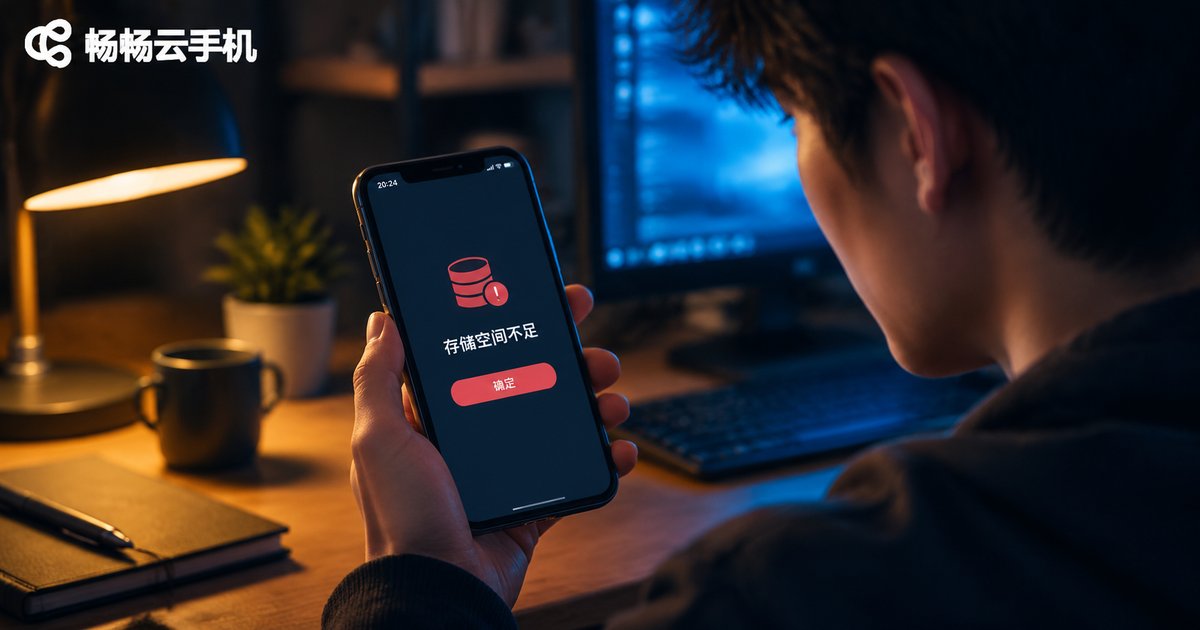
Cloud Phone Says Not Enough Memory? Storage Cleanup and Expansion Tutorial
First, Tell a RAM Shortage from a Storage Shortage
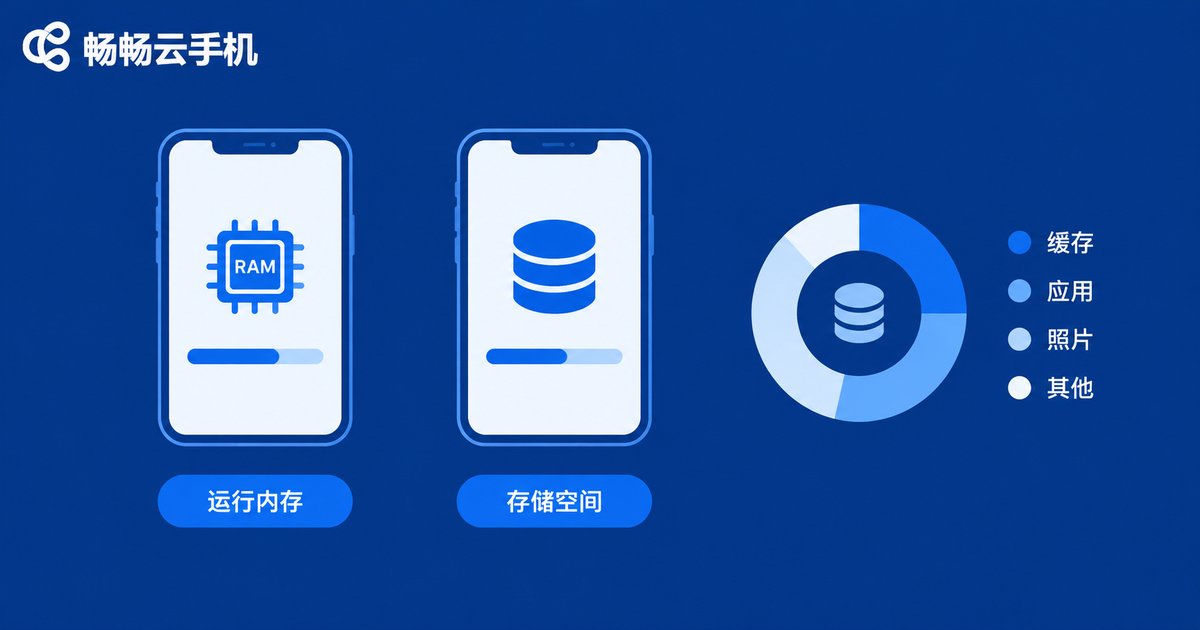
When a 'not enough memory' alert pops up, do not start deleting things at random. 'Memory' on a phone actually covers two different things: running memory (RAM) and storage space (ROM). Low RAM shows up as crashes and lag when switching apps; low storage is what triggers 'storage space full, please clean up' warnings. A cloud phone is no different — it is essentially an Android device running on a cloud server, with the same RAM-versus-storage distinction.
| Item | Running memory (RAM) | Storage (ROM) |
|---|---|---|
| Purpose | Holds apps currently in use | Keeps apps, photos and files long term |
| Symptoms when full | Lag, crashes, slow switching | Cannot install apps or save files |
| How to fix | Close background apps, reboot | Clear caches, delete large files, upgrade |
This guide focuses on insufficient storage — the real cause behind most 'memory full' warnings.
Step 1: See What Is Eating Your Space
Before cleaning anything, find out where the space went. Open Settings → Storage on your cloud phone to view the breakdown, and pay close attention to these items:
1. App caches: video and social apps quietly pile up several GB over time — the number one space killer.
2. Chat history: photos and videos auto-downloaded from group chats add up surprisingly fast.
3. Installation packages and downloads: APK files and archives used once and then forgotten.
4. Screenshots, recordings and saved pictures: often the single largest category.
Step 2: Clean Up, Starting with the Biggest Culprits
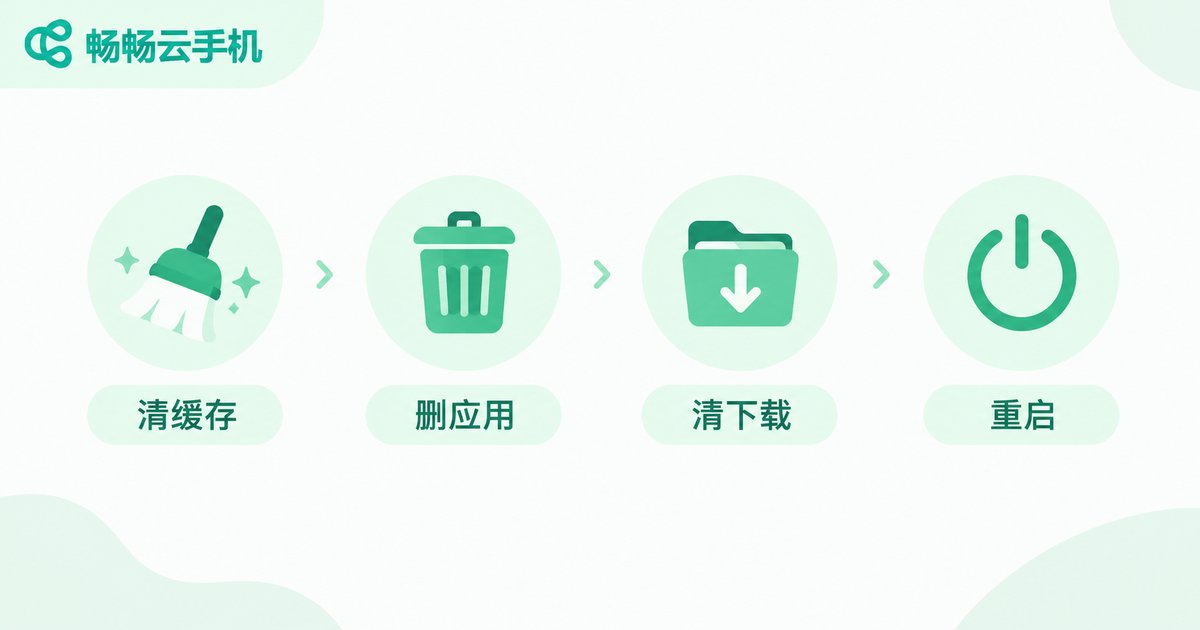
1. Clear app caches: go to Settings → Apps, open the largest app and tap 'Clear cache'. Be careful with 'Clear data' — it also wipes your login state, so know which button you are pressing.
2. Uninstall apps you no longer use: long-press icons to uninstall one by one, or use the system's batch uninstall. Gamers should especially check large games that have not been opened since completion.
3. Slim down chat apps: in the chat app's settings, find 'Storage' and delete old images and videos by period or by conversation; back up anything important first.
4. Empty the download folder: open the file manager, enter the Download folder and delete expired installers and archives.
5. Reboot the cloud phone: a restart releases temporary files and makes the whole system feel snappier.
Step 3: Still Tight on Space? Expand It the Smart Way
If warnings keep appearing after a thorough cleanup, your current configuration no longer matches your usage. There are two ways forward:
Option 1: Move data out. Back up photos, videos and installers from the cloud phone through cloud drive or file upload/download features, then delete the copies inside the cloud phone. Because cloud phone data already lives in the cloud, moving it is far easier than on a physical phone.
Option 2: Upgrade to a higher-storage plan. Take ChangChang Cloud Phone (ccloudphone) as an example: different plans provide cloud devices with different storage sizes, and larger-storage devices suit heavy users who run games unattended or keep many apps open. Check the exact plans and storage specs on the official ChangChang Cloud Phone website and choose based on your real needs.
Also, if you play several games or manage many accounts at once, spreading apps across multiple cloud phones keeps each device light and roomy.

Daily Habits That Keep a Cloud Phone Lean
Instead of panicking when the warning appears, build a few small habits:
1. Check storage weekly: glance at Settings → Storage and start cleaning once usage passes 80%.
2. Delete big games when done: uninstall large games once finished or abandoned; re-downloading on a cloud phone is fast, so the cost is low.
3. Turn off auto-download: disable automatic media downloads in chat apps and open files manually when needed.
4. Reboot regularly: a weekly restart clears temporary files and keeps the system stable.
One more bonus: all cloud phone data is stored in the cloud and takes up zero space on your physical phone — one of the biggest reasons people use cloud phones for idling and multi-account work in the first place.
FAQ
Q: Will clearing the cache delete my account or chat history?
No. Clearing cache only removes temporary files; your login state and chat history remain intact. 'Clear data', however, resets the app — know the difference before tapping.
Q: Can I expand cloud phone storage with a memory card like on a physical phone?
No. Cloud phones have no physical card slot; storage is determined by your plan. When you need more room, upgrade to a higher-spec plan — see the official ChangChang Cloud Phone website for current options.
Q: Why does the warning come back just days after cleaning?
Some app is continuously regenerating cache. Check the storage breakdown, find the fastest-growing item, and clean or restrict that specific app.
Q: Does resetting the cloud phone fix storage shortages?
Yes, but it is the nuclear option: resetting erases everything on the cloud phone, so back up important data to a cloud drive or local device first.


