

Cloud Phone Running Slow? Fix Lag by Tuning Resolution and Bitrate Settings
Where Does the Lag Come From? Understand the Streaming Pipeline First
When a cloud phone stutters, many users blame their own device — but the truth is the opposite. All the heavy computing happens on the cloud server; your device is only responsible for receiving the video stream and sending back touch inputs. The real cause of lag usually hides in the pipeline that carries the picture back to you:
Cloud rendering → video encoding → network transmission → local decoding → your screen. Among these five stages, whether the encoding quality (determined by resolution and bitrate) matches your bandwidth decides whether you get buttery-smooth motion or a slideshow.
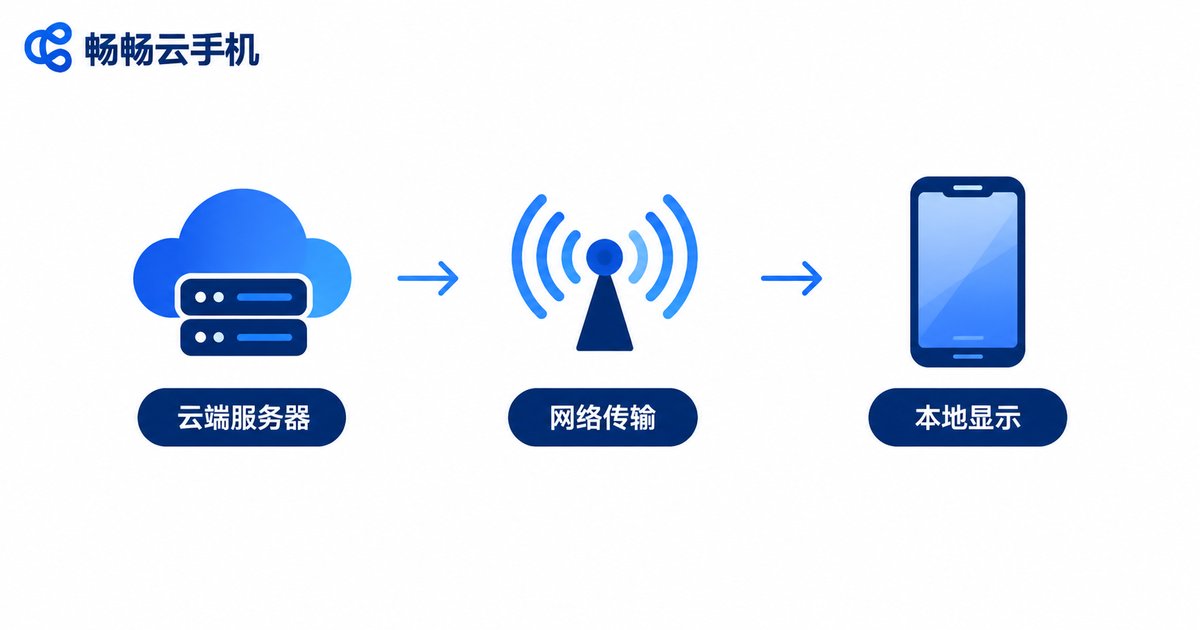
Here is an analogy: resolution decides “how large the photo is,” and bitrate decides “how aggressively it is compressed.” A huge, poorly compressed photo must still reach your eyes within tens of milliseconds — if any link stumbles, the image stutters, blurs, or latency spikes. Tuning parameters is essentially re-matching picture quality with your real network conditions.
Resolution: The First Trade-off Between Sharpness and Fluidity
Resolution is the number of pixels in the picture — common tiers are 720P, 1080P, and 2K. Higher resolution looks sharper, but it also pushes more data through the network and demands more decoding power.
| Resolution | Picture Quality | Network Demand | Best For |
|---|---|---|---|
| 720P | Decent, slightly soft text | Low | Commuting, weak networks, idle tasks |
| 1080P | Sharp and detailed | Medium | Mainstream games, daily use |
| 2K | Extremely fine | High | Big-screen video, premium experience |
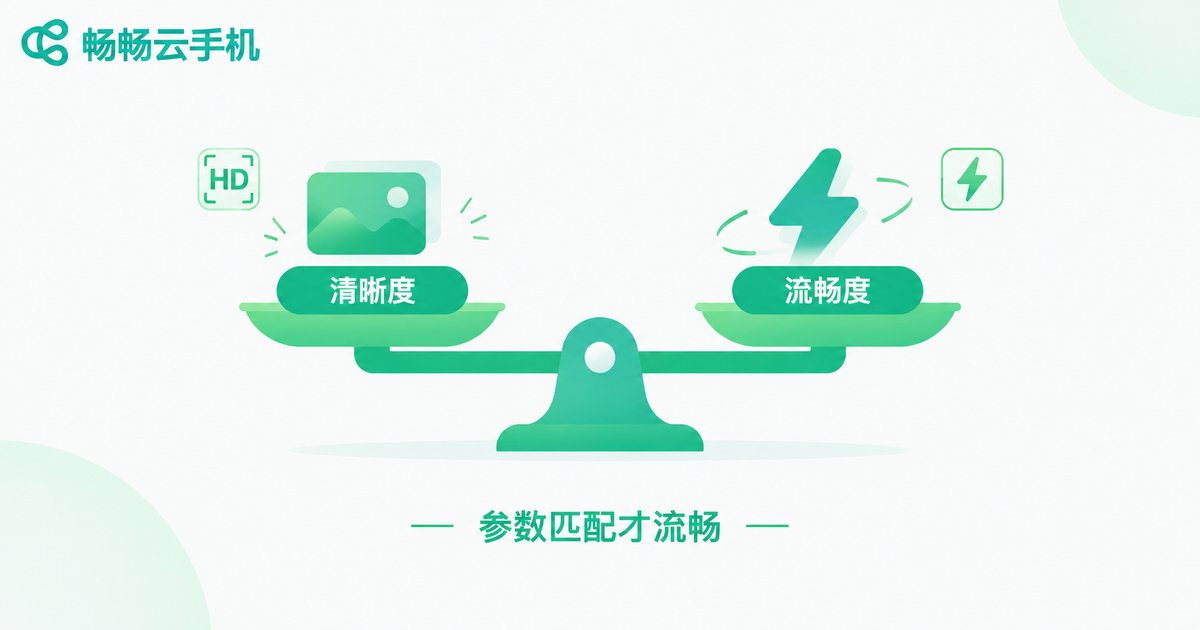
Common mistake: maxing out resolution right away, only to end up blurry AND laggy when the network cannot keep up. The right approach is to secure smoothness first, then raise resolution step by step until you hit the “sharp but not laggy” sweet spot.
Bitrate: The Hidden Switch That Controls Picture Information
Bitrate is the amount of data transferred per second, usually measured in Mbps. At the same resolution, a higher bitrate means richer detail and fewer blocky artifacts — but it also consumes more bandwidth.
Resolution and bitrate must be paired correctly: low resolution with high bitrate wastes data, while high resolution with low bitrate turns everything into mush. Use this rough formula as a starting point:
Suggested bitrate (Mbps) ≈ width(px) × height(px) × FPS ÷ 1,000,000 × 0.1
Example: 1080P @ 60FPS ≈ 1920 × 1080 × 60 ÷ 1,000,000 × 0.1 ≈ 12 Mbps
This is only a reference. In practice, cap the bitrate at about half of your measured download speed to leave headroom for network fluctuations.
Three Practical Steps to Find Your Smooth Settings
Step 1: Test your speed. Check your download speed with a speed-test tool — once on Wi-Fi and once on cellular, because cloud phone usage scenarios switch often.
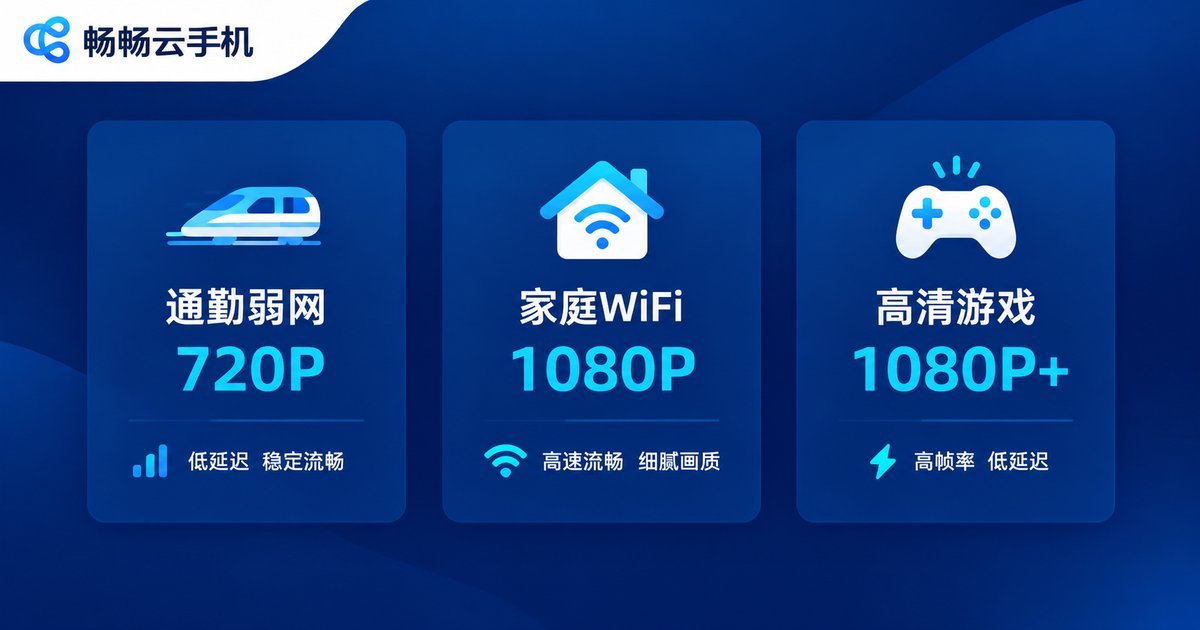
Step 2: Pick the resolution. Below 10Mbps, choose 720P; between 10–30Mbps, choose 1080P; above 30Mbps, you can consider higher clarity.
Step 3: Match bitrate and frame rate. Fine-tune around the formula’s estimate. For frame rate, 30FPS is enough for idle tasks and office work; competitive mobile games deserve 60FPS.
| Scenario | Resolution | Bitrate | Frame Rate |
|---|---|---|---|
| Commuting / weak-network idle | 720P | 2–4 Mbps | 30 FPS |
| Home Wi-Fi daily use | 1080P | 6–10 Mbps | 60 FPS |
| HD gaming / video | 1080P or above | 12+ Mbps | 60 FPS |
Beyond Parameters: Four More Things That Affect Smoothness
1. Prefer 5GHz Wi-Fi. The 2.4GHz band is crowded and interference-prone — the No.1 cause of home network lag. Switch to 5GHz or a wired connection whenever possible.
2. Clear background apps. Local decoding consumes performance too; a pile of background apps slows down rendering. Free up memory before you play.
3. Connect to a nearby node. The greater the physical distance, the higher the latency. Mainstream cloud phones (including ChangChang Cloud Phone) assign cloud nodes — if the client allows switching lines, choosing a closer one noticeably reduces latency.
4. Keep the client up to date. New versions usually ship with encoding and decoding optimizations, squeezing better picture quality out of the same bandwidth.

If stuttering persists after tuning, consider switching to a cloud phone with stronger servers and more stable routes. ChangChang Cloud Phone (ccloudphone) offers flexible picture-quality and performance configurations; combined with the parameter strategy in this guide, you can quickly find the smooth setup that fits your network. Visit the official website to learn more.
FAQ
Q: Will lowering the resolution make the picture very blurry?
Not necessarily. With sufficient bitrate, 720P looks fine on a phone screen. Blurriness usually comes from the wrong combo of “high resolution + low bitrate,” not from the resolution itself.
Q: Is a higher bitrate always better?
No. Once the bitrate exceeds what your network can carry, packet loss causes stutter and artifacts. Capping it at half your measured bandwidth is the safest bet.
Q: Why do I still get occasional stutters after tuning?
Sporadic stutter is usually network fluctuation — router congestion, signal handover, and so on. Try rebooting the router, switching to 5GHz, or testing at a different time.
Q: Should idle tasks and gaming use the same settings?
Not recommended. Idle and multi-app tasks do not need high quality — 720P + 30FPS saves resources. Switch back to 1080P + 60FPS for gaming to get both fluidity and sharpness.


