

Cloud Phones for App Compatibility Testing: One-Click Switching Across Multiple Android Versions
Android Fragmentation: The Compatibility Testing Challenge You Cannot Avoid
Android's open ecosystem brings enormous device variety—and severe fragmentation. From Android 9 to the latest Android 14 and 15, versions differ noticeably in permission handling, background policies, and API behavior. Add varying screen resolutions and vendor-customized systems, and a single app may need verification across dozens of environment combinations before release. A crash, blank screen, or malfunction in any one combination can quickly turn into negative store reviews and user churn.
For QA teams, the real challenge is not what to test, but how to obtain enough test environments at low cost and high efficiency. This is exactly where cloud phones shine.
Three Pain Points of Traditional Testing Approaches
Before cloud phones went mainstream, teams usually relied on three approaches—each with drawbacks:
1. In-house device walls: costly and heavy to maintain. Dozens of physical devices can cost tens of thousands of dollars upfront, plus depreciation, charging, OS upgrades, and dedicated staff. Devices lose value fast as new models launch.
2. Desktop emulators: unrealistic environments. Traditional emulators run on x86 PCs, differing from real ARM devices in instruction sets and GPU rendering, so many performance and compatibility issues simply cannot be reproduced on them.
3. Public real-device clouds: queues and clunky debugging. Popular models often require waiting, long sessions get expensive, and hooking up local debugging toolchains is rarely smooth.
How Cloud Phones Enable One-Click Switching Across Android Versions
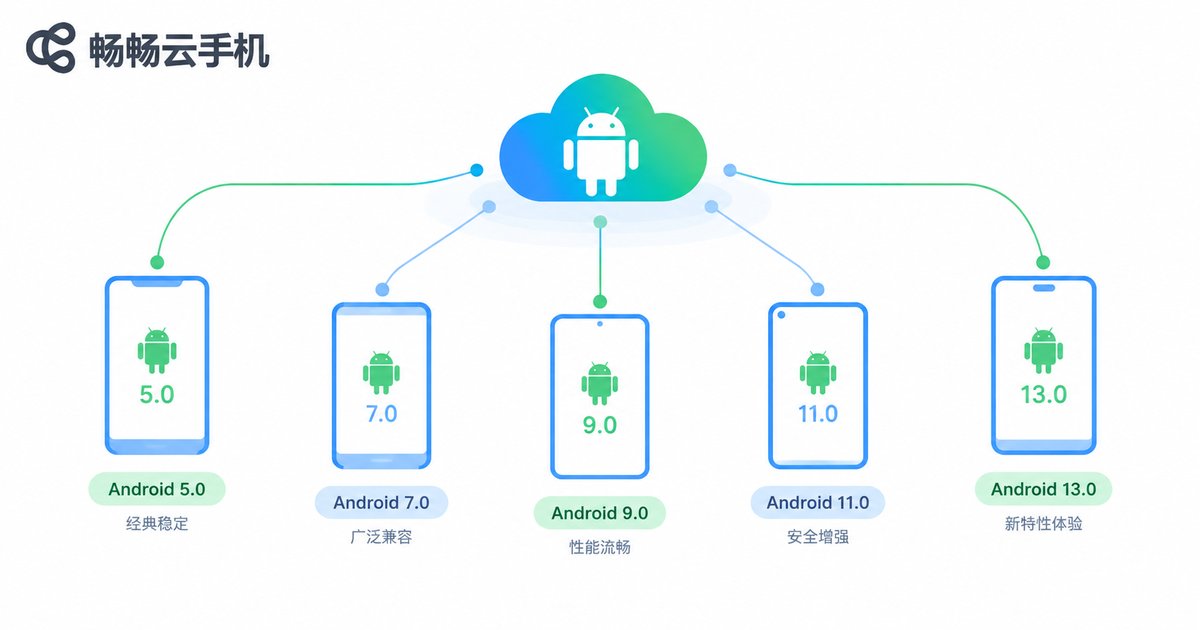
A cloud phone is a complete Android system instance running on cloud servers. Each instance has its own OS version, storage, and network environment. Testers control it remotely through a client app or web page—as if holding an extra phone that is always on hand.
Its core advantages are flexibility and reproducibility:
Multiple versions side by side: Run cloud phone instances of different Android versions under one account—in parallel, no flashing or rooting required.
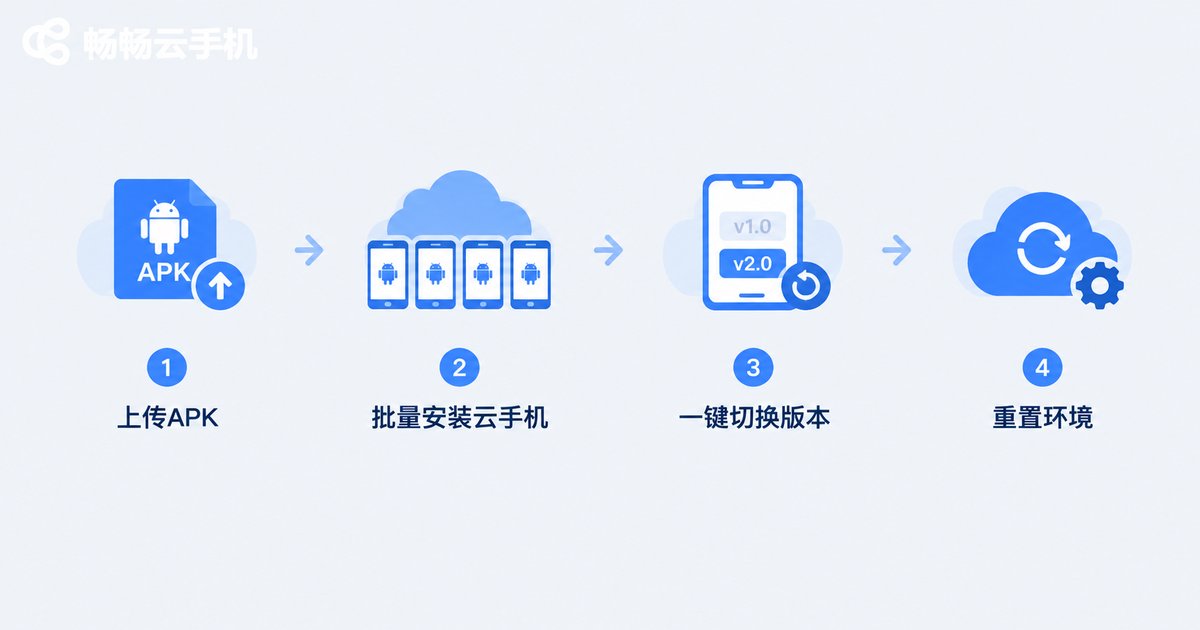
One-click switching: Click a target version in the device list and enter the new environment within seconds; install the same APK and start verification immediately.
Batch group control: Push the same APK to multiple cloud phones for synchronized installation and launch, observing behavior across versions in a single pass and multiplying efficiency.
Resettable environments: Reset a device with one click after testing to restore a clean state, preventing cached data from one round from polluting the next.
Four Typical Use Cases in the Testing Workflow
Use case 1: Multi-version regression testing. After each release, batch-install the new APK onto cloud phones running different Android versions and run core regression cases to quickly catch version-specific crashes.
Use case 2: Resolution and DPI adaptation checks. Cloud phones support different resolution and DPI profiles, letting you quickly verify whether UI layouts misalign or clip on small screens, large screens, or notched displays.
Use case 3: Weak-network and isolated network verification. Running in cloud data centers with independently controllable networking, cloud phones are ideal for testing app resilience under weak connections and reconnects.
Use case 4: Long-duration stability soak testing. Cloud phones run 24/7 in the cloud without occupying local resources—perfect for long stress tests, memory-leak observation, and Monkey testing that continue even after you shut down your PC.
Cloud Phone vs. Real Devices vs. Emulators: One Table to Decide
| Dimension | Cloud Phone | In-house Device Wall | Desktop Emulator |
|---|---|---|---|
| Environment fidelity | High (real ARM Android) | Highest | Medium (x86 translation) |
| Version switching speed | One click, seconds | Swap or reflash devices | Restart and reconfigure |
| Device cost | Pay as you go, no hardware | Tens of thousands upfront | Low but unrealistic |
| Batch parallelism | Group control supported | Limited by physical units | Consumes local resources |
| Maintenance | Fully managed in the cloud | Needs dedicated staff | Environment conflicts |
In short: choose real devices for deep low-level debugging and emulators for quick smoke checks—but for daily compatibility testing that must cover multiple versions, multiple environments, and run in parallel, cloud phones deliver the best cost-performance ratio.
Hands-on: Building a Multi-Version Test Matrix with ChangChang Cloud Phone
Among available services, ChangChang Cloud Phone (ccloudphone) is particularly friendly to testing workflows. Its cloud phones run a real Android environment and support managing multiple devices simultaneously in the client. Testers can name and group devices by Android version or purpose—for example, an Android 9 regression group and an Android 12 adaptation group—and jump into the target environment with a click.
With batch group control, the same APK can be pushed to multiple cloud phones for synchronized installation; then check launch logs and UI behavior device by device, covering multiple version combinations in one round. After testing, use the reset function to restore a clean state for the next round. For the latest plans and device specifications, refer to the official ChangChang Cloud Phone website (ccloudphone).
Best Practices: Four Recommendations
1. Define the matrix before provisioning resources. Use your app's backend version distribution to identify the Android versions and resolutions covering most users, prioritize the top 80% of environments, and avoid spreading too thin.
2. Layer your test cases. Run core smoke cases on all versions and full regression only on primary versions—use cloud phone batch capabilities for smoke tests and a small set of environments for deep regression to save time.
3. Reset environments before every round. Clean devices are the prerequisite for trustworthy results; make resetting the cloud phone the first step of your test workflow.
4. Capture environment snapshots. When issues appear, record the cloud phone's OS version, resolution, and reproduction steps so developers can reproduce them in the same environment, shortening fix cycles.
FAQ
Q: Is a cloud phone's Android environment identical to a real device?
Cloud phones run real ARM-based Android, so daily functional testing, UI adaptation, and the vast majority of compatibility issues are faithfully reflected. For the few hardware-dependent scenarios such as low-level drivers and sensors, supplement with real devices.
Q: How many apps can one cloud phone hold for testing?
It depends on the storage included in your plan. Best practice: dedicate one cloud phone to one version environment and reset promptly after testing to keep it clean.
Q: Is test data retained? Is it secure?
Cloud phone data lives in independent cloud storage and persists until reset. Choosing a reputable provider like ChangChang Cloud Phone ensures better data security; when testing sensitive services, avoid storing credentials on the device.
Q: Is team collaboration easy?
Cloud phones run in the cloud, so team members can log in from their own clients and manage devices in project-based groups—far more efficient than passing physical devices around.
Q: Will app risk-control systems flag cloud phone testing?
Reputable cloud phones run real Android environments, so normal functional and compatibility testing is unaffected. For apps with strict risk-control policies, validate with a few devices before scaling up.


