
Does a Cloud Phone Use Your Mobile Data for Downloads and Videos? How Data Attribution Works
Quick Answer: The Bulk of the Data Lives in the Cloud, Your Phone Only Pays for the Picture
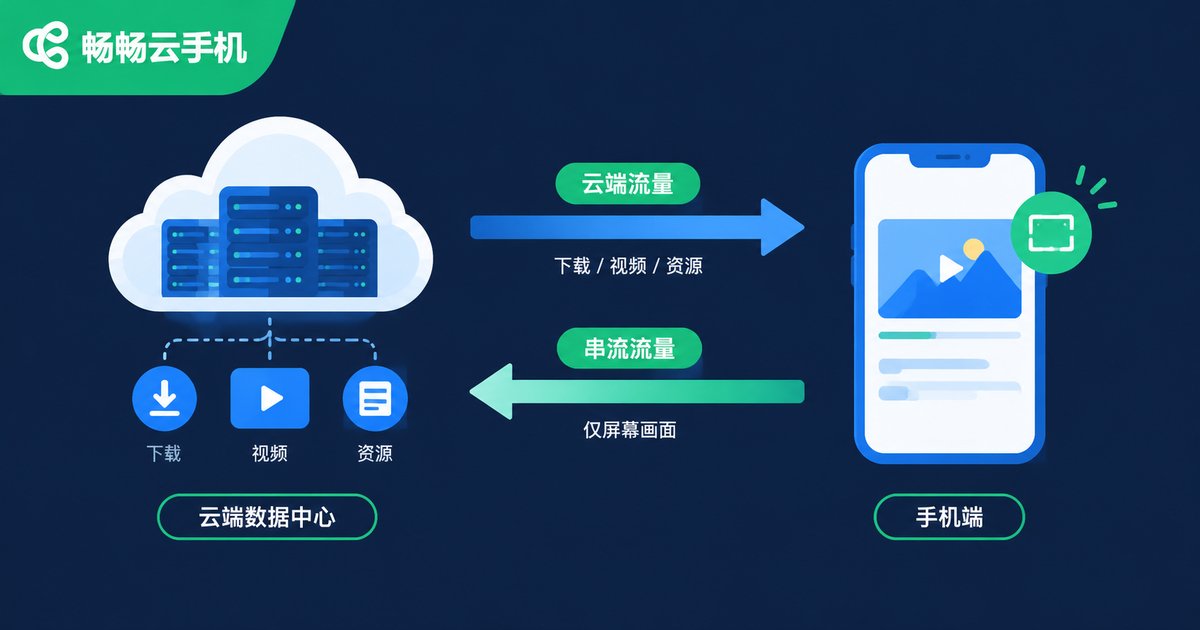
Here is the direct answer: when you download files, update games, or watch videos inside a cloud phone, that traffic is consumed on the cloud side, not from your local mobile plan. What your physical phone actually uses is only the screen-streaming feed, meaning the live video of the cloud phone's display sent back to your device. That part is usually far smaller than the content itself and stays relatively stable and controllable.
How a Cloud Phone Works — and Why That Explains the Data Bill
Many people assume a cloud phone means using their own phone's connection to control another device. That is only half right. The key point: all apps are installed and run on servers in the cloud. When you stream videos, download games, or update apps inside a cloud phone, everything happens on that virtual device in a data center, with no direct connection to your local network.
Your real phone does something much lighter: it receives the video stream of the cloud screen and sends back your taps and swipes. Think of watching a livestream — no matter how busy things are on the streamer's side, you only consume the stream itself, not everything happening behind it.
The Data Attribution Mechanism: Two Separate Ledgers
The trick to understanding cloud phone data is to keep two ledgers: one for the cloud, one for your device.
| Scenario | Cloud-side usage | Local usage |
|---|---|---|
| Downloading a 2GB mobile game in the cloud phone | About 2GB, borne by the cloud | Nearly 0, minor streaming only |
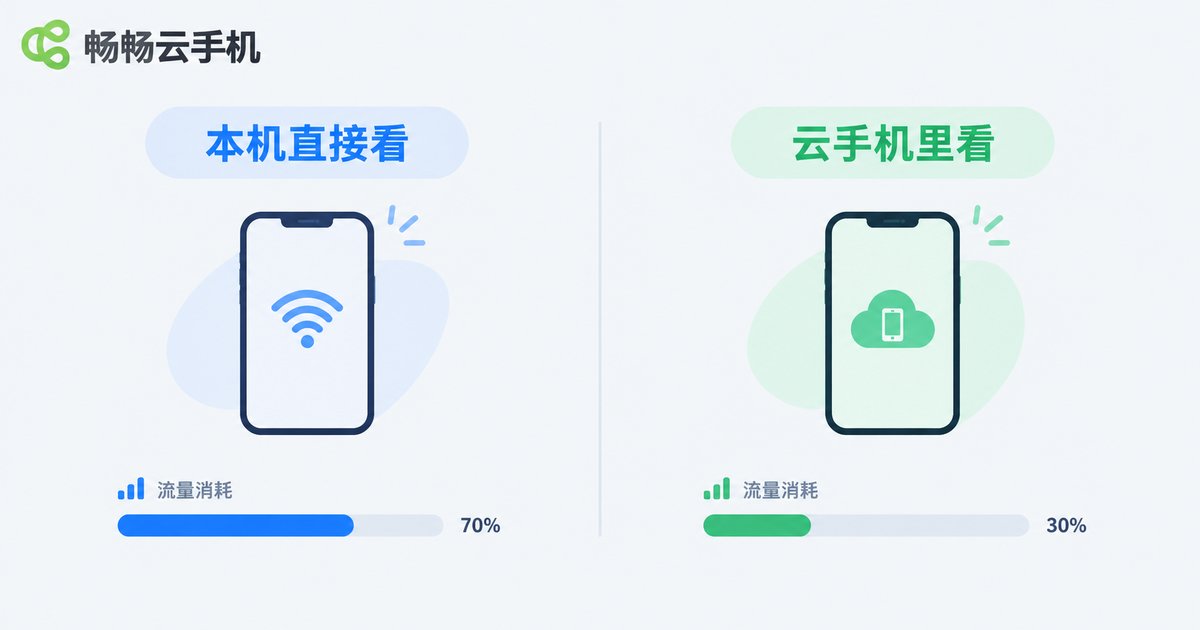
| Watching a full episode in the cloud phone | Video traffic consumed in the cloud | Streaming traffic, usually tens to a couple hundred MB |
| Running background tasks in the cloud phone | Cloud keeps running normally | Near 0 once the stream is closed |
| Downloading the same game directly on your phone | None | About 2GB, on your own plan |
In one sentence: the content's traffic is billed to the cloud, while only the screen-streaming traffic is billed to your phone. That is the core of cloud phone data attribution.
Downloads and Updates: Almost Zero Local Data
This is one of the most practical cloud phone scenarios. Downloading large games or updating a batch of apps inside a cloud phone happens entirely in the cloud — even a dozen gigabytes barely touches your local plan.
Even better, a cloud phone keeps running in the cloud around the clock. Take ccloudphone as an example: the virtual device can keep download tasks running in the background even after you close the streaming window. You can issue a download command over Wi-Fi, disconnect, and let the cloud finish the job while consuming almost no local data, then reconnect anytime to check progress.
Watching Videos: Local Data Depends on Stream Quality, Not Video Quality
Video is the scenario everyone asks about. One key point: your local usage reflects the streaming quality setting, not the resolution of the video you watch. Even if the video inside the cloud phone is in high definition, setting the stream to a data-saver mode means your phone only receives data-saver-level traffic.
As a rough guide, cloud phone streaming typically runs from a few MB to a dozen or so MB per minute, so an hour of video may cost your phone a few hundred MB, depending on the streaming quality setting and how much the image moves. Watching the same video natively in high definition on your phone could easily use more. To save data, simply lower the streaming quality one notch in the cloud phone's display settings.
Where Does Local Data Actually Go? Three Factors
1. Streaming quality: higher clarity means higher bitrate and more data. Switching to data-saver mode makes an immediate difference.
2. Streaming time: streaming data scales roughly with time. Close the stream while tasks run in the background and local usage drops to nearly zero.
3. On-screen motion: fast-moving content such as games increases the bitrate; static pages are extremely cheap.
Practical Data-Saving Tips
· Hand all downloads, updates, and background tasks to the cloud, then disconnect the stream;
· Lower the streaming quality in the cloud phone settings before long video sessions;
· Schedule heavy operations while on Wi-Fi;
· Choose a cloud phone service with stable cloud-side operation, such as ccloudphone, so data-heavy work stays in the cloud while your phone only handles light streaming. See the official website for details.
FAQ
Q: When I download a game inside a cloud phone, does it use my mobile data?
A: No. The download happens on the cloud server and consumes cloud bandwidth; your phone only uses a small amount of streaming traffic.
Q: Does video quality inside the cloud phone affect my local data?
A: Hardly. Local usage is driven by the streaming quality setting, not the resolution of the video you watch. Lower the stream quality to save data.
Q: Will cloud-side downloads continue after I disconnect?
A: A cloud phone keeps running in the cloud, so tasks generally continue after you close the stream. Reconnect to check progress; meanwhile local usage is nearly zero.
Q: Does connecting over Wi-Fi still use data?
A: Over Wi-Fi the traffic goes through your broadband, not your mobile plan, so you can comfortably use higher streaming quality.
Q: What should I look for in a cloud phone for background downloads?
A: Focus on stable cloud-side operation and background task support, for example ccloudphone. Check the official website for exact capabilities.


