

What to Do When Your Cloud Phone Runs Out of Memory? A Practical Cleanup and Expansion Guide
Why Does Your Cloud Phone Keep Saying 'Not Enough Memory'?
There is no need to panic when the warning pops up. A cloud phone's 'memory full' alert usually comes in two forms: one is low running memory (RAM), which shows up as lag, app crashes, and slow switching; the other is low storage space (ROM), which stops you from installing new apps, saving files, or taking screenshots. Working out which one you are facing is half the battle.
Just like a physical phone, a cloud phone keeps piling up cache data in daily use: chat histories, video buffers, game resource packs, leftover installers... Over time, even the largest storage gets stuffed. Below we tackle the problem from two angles — cleanup and expansion — step by step.
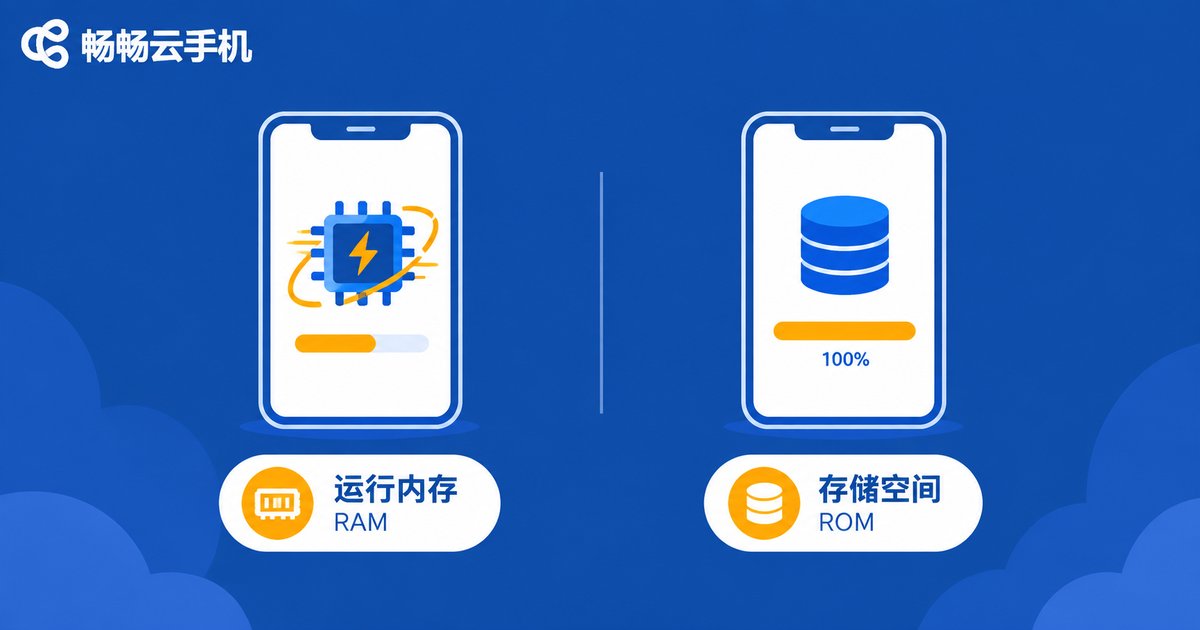
Step One: Tell Running Memory Apart from Storage
The two concepts are often mixed up. This quick comparison clears things up:
| Item | Running Memory (RAM) | Storage (ROM) |
|---|---|---|
| What it does | Temporary workspace while apps run | Where apps, photos, and files are kept |
| When short | Lag, crashes, slow app switching | Cannot install apps or save files |
| How to fix | Close background apps, cut resident apps | Clean junk files, upgrade your plan |
Easy to remember: lag means RAM, 'cannot install' means storage. Most 'not enough memory' alerts are actually about storage.
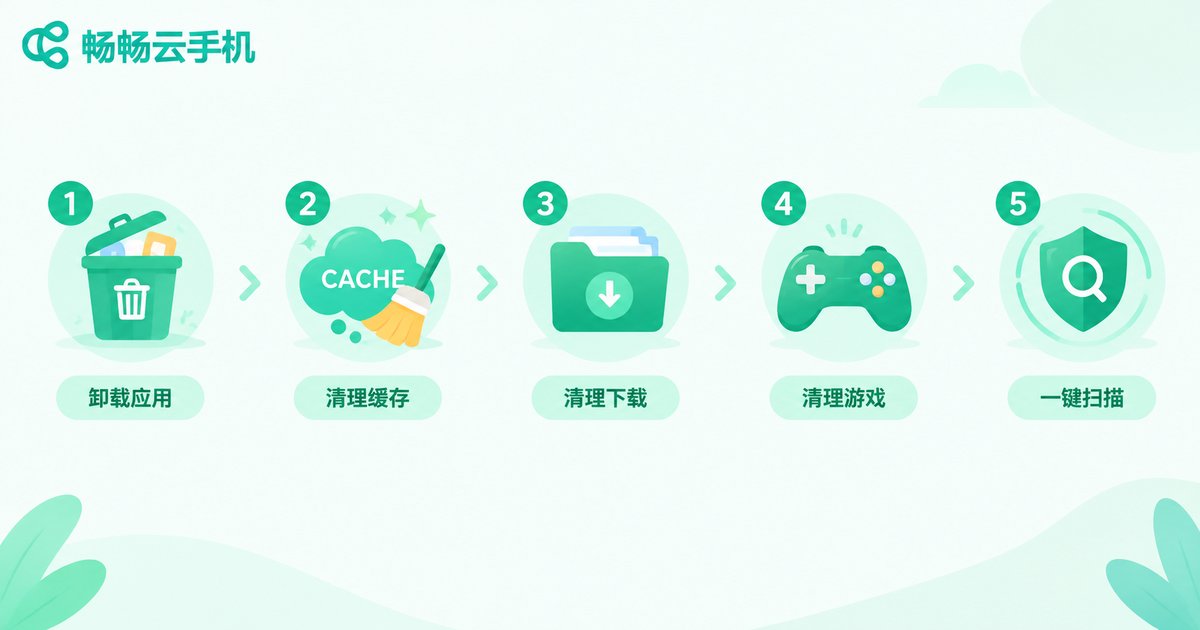
Cleanup: Five Ways to Free Up Cloud Phone Storage
Tip 1: Uninstall apps you rarely use. Go through your app list and remove anything you have not opened in a month. Many games and apps take up several GB each, so uninstalling just one or two can free up a surprising amount of space.
Tip 2: Clear app caches. Open 'Settings → Apps', check the apps that take up the most space (chat tools, short-video apps, browsers), and tap 'Clear cache'. Clearing the cache generally does not delete chat histories or other important data, but backing up first is always the safer play.
Tip 3: Empty the downloads folder. Download folders tend to fill up with old installers, archives, and duplicate images. Deleting them has zero impact on daily use.
Tip 4: Purge game resource packs. Large games often keep old resources after updates. Many games have a built-in 'resource cleanup' option — using it regularly can save several GB.
Tip 5: Run the built-in one-tap cleanup. Most cloud phone systems ship with a junk-cleaning tool that scans caches, leftovers, and large files in one tap — perfect for a quick, effortless tidy-up.
Expansion: When Cleaning Is Not Enough, Upgrade
Cleanup only treats the symptom. If what you do genuinely needs more room — running multiple games, keeping apps alive for long sessions, or stockpiling assets — then expansion is the real cure.
This is where cloud phones beat physical phones hands down: you can upgrade the configuration on demand without changing any device. Take ChangChang Cloud Phone (ccloudphone) as an example: on the official website, you can pick a cloud phone whose storage and performance match your needs. All data lives in the cloud and takes up no space at all on your physical phone.
Use this quick reference to size up your needs:
| Use case | Recommended direction |
|---|---|
| Light daily use, one or two apps | Basic configuration plus regular cleanup |
| Multiple game instances, long idle sessions | Choose a plan with larger storage and RAM |
| Storing lots of media and files | Prioritize large storage, pair with cloud backup |

Prevention: Three Habits That Keep Storage Healthy
Habit 1: a monthly deep clean. Spend ten minutes each month checking storage usage and clearing caches and leftovers, so problems never build up.
Habit 2: move important files out promptly. Screenshots, videos, and documents you rarely touch should be moved to cloud drives or your local device instead of sitting in the cloud phone taking up room.
Habit 3: check an app's size before installing. Pay attention to installer and update sizes before downloading, so you never run out of space right after installing.

Why We Recommend ChangChang Cloud Phone
If you are thinking about moving to a roomier cloud phone, ChangChang Cloud Phone (ccloudphone) is worth a serious look. First, its configurations are flexible, so users with different needs can find a matching plan and adjust when space runs short. Second, data is stored in the cloud, occupying none of your physical phone's space and staying safe across device changes or reinstalls. Third, multi-device management is convenient, whether you are idling apps, running multiple instances, or just using it day to day. For the latest plans and specifications, please visit the official ChangChang Cloud Phone website, as the official pages prevail.
FAQ
Q: Will clearing the cache delete my chat history?
Generally no. Cache is temporary data created while apps run; your chat logs and other core data remain after clearing. That said, backing up important data beforehand is always a good habit.
Q: Can I expand a cloud phone's storage myself?
Yes. Flexible configuration is a core advantage of cloud phones. Services like ChangChang Cloud Phone let you choose plans with larger storage on demand, no hardware swap needed. See the official website for details.
Q: Why is storage still full after I deleted so much?
App caches and leftover files may not have been fully removed, or chat data from messaging apps may be taking up significant space. Run a deep scan with the built-in cleanup tool and uninstall rarely used apps to reclaim space.
Q: Which matters more, running memory or storage?
Both matter, in different ways: low RAM mainly causes lag and crashes, while low storage blocks installs and saves. If you often run many apps at once, prioritize enough running memory.


