
How to Choose a Cloud Phone System Version: Android 12 vs 13 vs 14 Compatibility Comparison
Why Does the Android Version of a Cloud Phone Matter?
When picking a cloud phone, many users only look at specs and price while overlooking a key factor — the Android system version. It directly determines whether your apps can be installed, whether your games can run, and how stable your idle sessions are.
For example, some new games require Android 13 or higher, while certain older games are more likely to crash or show black screens on Android 14. Choose the right version and everything runs smoothly; choose the wrong one and even top-tier specs go to waste.
Android 12: The Battle-Tested Veteran
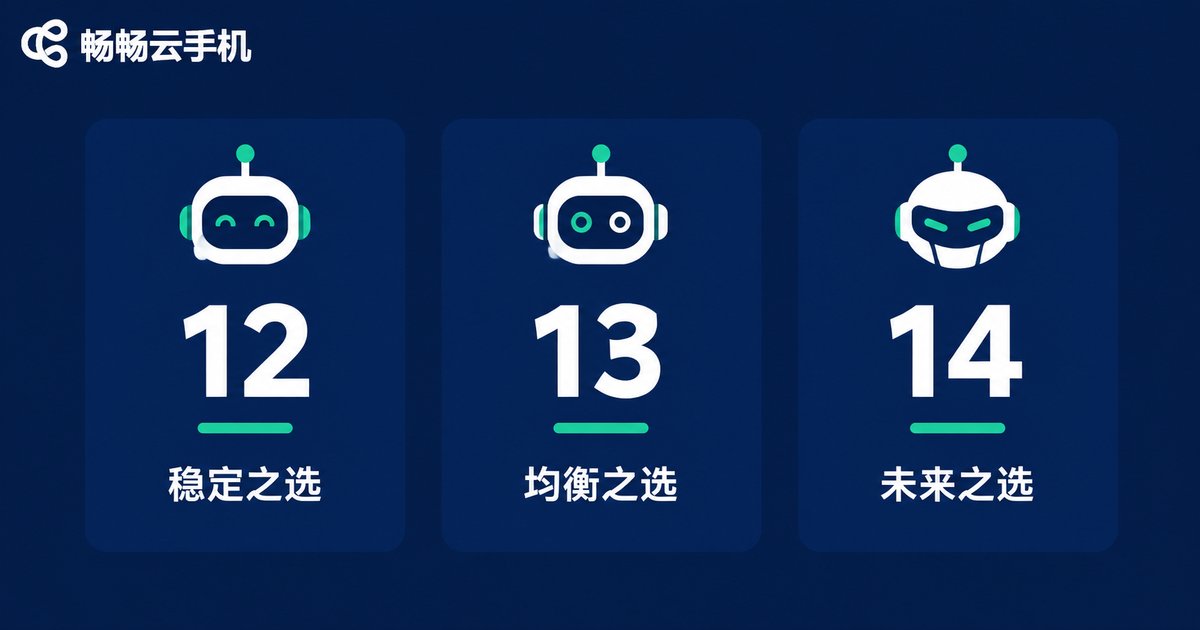
Released early and polished over many years, Android 12's biggest strength is stability. The vast majority of older games and legacy apps run smoothly on it, with lower resource usage. It suits long idle sessions in older games, users who depend on legacy apps, and anyone who wants more concurrent instances on the same hardware.
The downside is clear: some new apps and games already require Android 13 or above, so Android 12 may gradually fall behind.
Android 13: The Balanced Mainstream Choice
Android 13 strikes an excellent balance between compatibility and stability: it keeps the mature stability of Android 12, supports newer apps better, and strengthens privacy permission management. For most users, Android 13 is currently the safest all-around choice — great compatibility with mainstream mobile games, full support for common productivity and social apps, and moderate resource usage.
Android 14: The Future-Ready Platform
Android 14 is the newest version of the three, bringing finer permission controls and better performance scheduling. Some newly launched games and apps are optimized for Android 14 first, and certain apps even check your system version — if it is too low, you may not be able to log in at all. Note, however, that a few older games and apps may have compatibility issues on Android 14; if you mainly play older games, test before committing.
Compatibility Comparison at a Glance
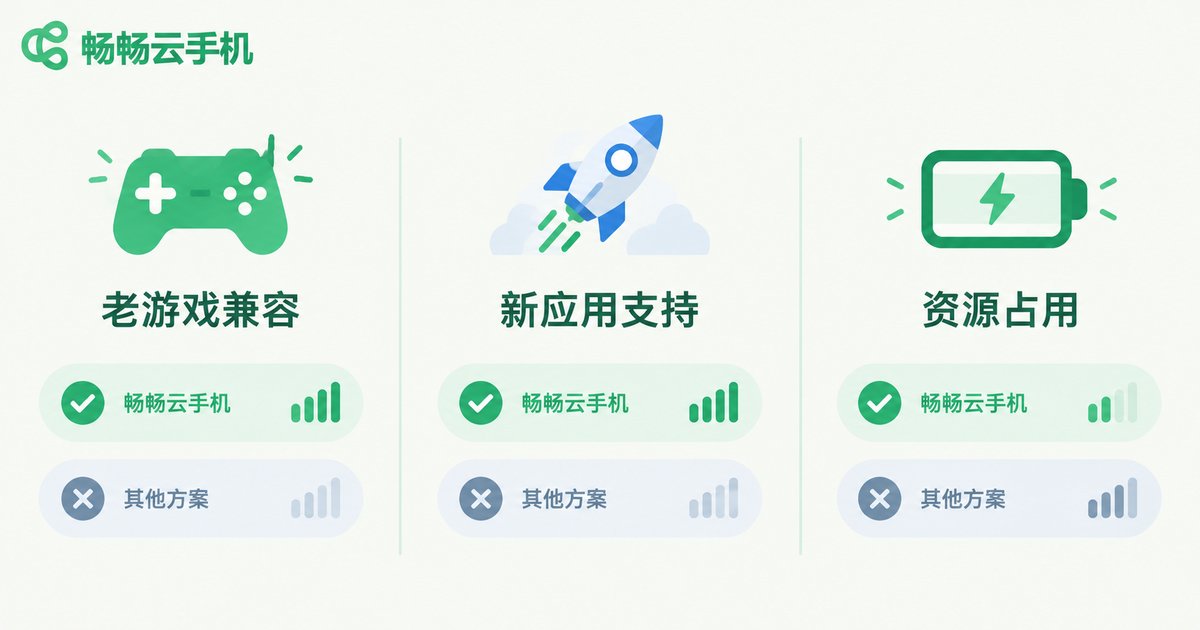
| Dimension | Android 12 | Android 13 | Android 14 |
|---|---|---|---|
| Older game compatibility | Excellent | Excellent | Good |
| New app/game support | Average | Good | Excellent |
| System stability | Very stable | Stable | Stable |
| Resource usage | Low | Moderate | Moderate to high |
| Future-proofing | Average | Good | Excellent |
Which Version Fits Your Scenario?
Scenario 1: Idle farming and multi-accounting
Go with Android 12 first — low resource usage and stable older-game performance mean more instances on the same hardware.
Scenario 2: Daily gaming plus social and work apps
Android 13 is the worry-free pick — it handles both old and new apps with a solid balance of compatibility and stability.
Scenario 3: New game releases and latest apps
Go straight to Android 14 for day-one support of new apps and to avoid the system-version-too-low error.
CCloudPhone: One Platform, Multiple Versions to Choose
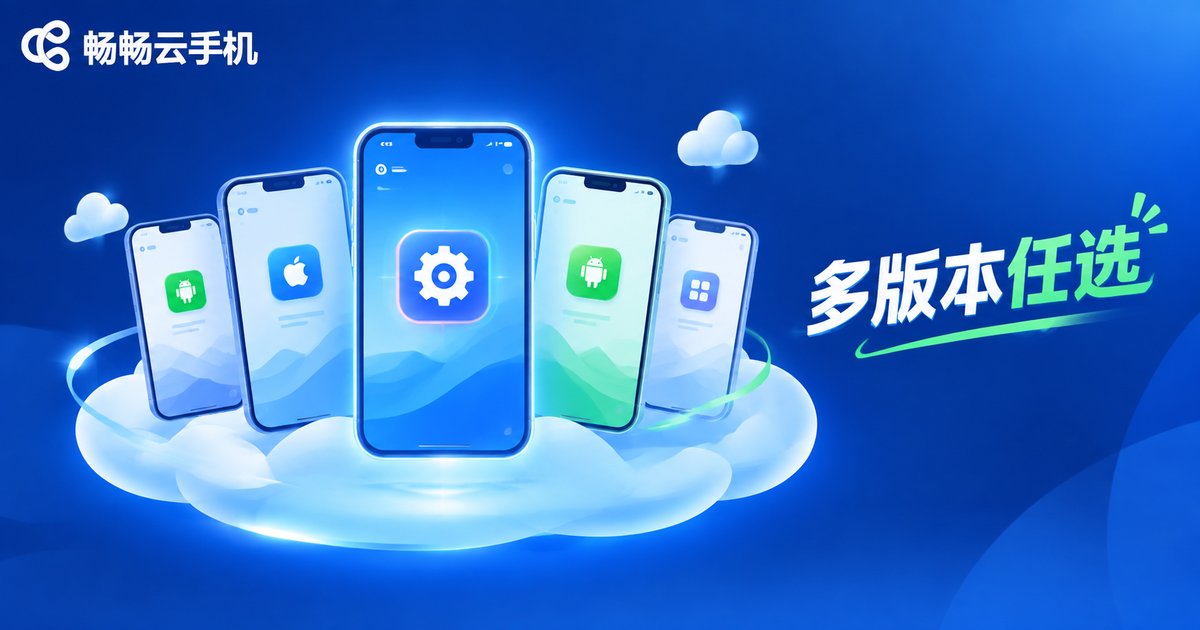
The good news: with CCloudPhone (ccloudphone), you do not have to agonize over versions — the platform offers devices with multiple Android system versions, and you simply pick the one you need when creating a cloud phone. Check the official website for the latest list of supported versions.
Whether you are a veteran running multiple idle accounts or an early adopter chasing the newest games, CCloudPhone has a system version that fits. Combined with common features like multi-instance management and group control, a single cloud phone covers all your scenarios.
FAQ
Q: Can I change the Android version of a cloud phone later?
Generally, the system version is fixed once a cloud phone is created, though some platforms let you recreate a device with a different version. It is best to confirm the version before creating one — CCloudPhone lets you choose devices with different system versions at creation time.
Q: Is a higher Android version always better?
No. A higher version does not mean better compatibility — what matters is the apps and games you run. Choose Android 12/13 for older games, and Android 14 for the latest apps.
Q: What if an older game crashes on a newer system?
Switch to a cloud phone running Android 12. Older systems usually offer better compatibility with legacy games and apps.
Q: How do I check the Android version of my cloud phone?
Open Settings and tap About phone inside the cloud phone to see the current version; the system version is also shown when you create a device.


