

Cloud Phone Storage: How to Check Capacity, Clean Up, and Organize Files
Why Cloud Phone Storage Keeps Filling Up
Many people assume that because a cloud phone runs in the cloud, local phone storage is never affected — so they install apps, save videos and upload materials without a second thought. In reality, a cloud phone still has its own dedicated cloud space for system files, app data, downloads and the materials you upload. That space has a limit, just like a physical phone, and it will eventually show a storage warning.
The usual culprits are: app caches that keep piling up, images and videos auto-downloaded by chat apps, installer packages left in the download folder, screenshots and screen recordings, and duplicate uploads of the same assets. Individually they look harmless — together they can easily eat several gigabytes.
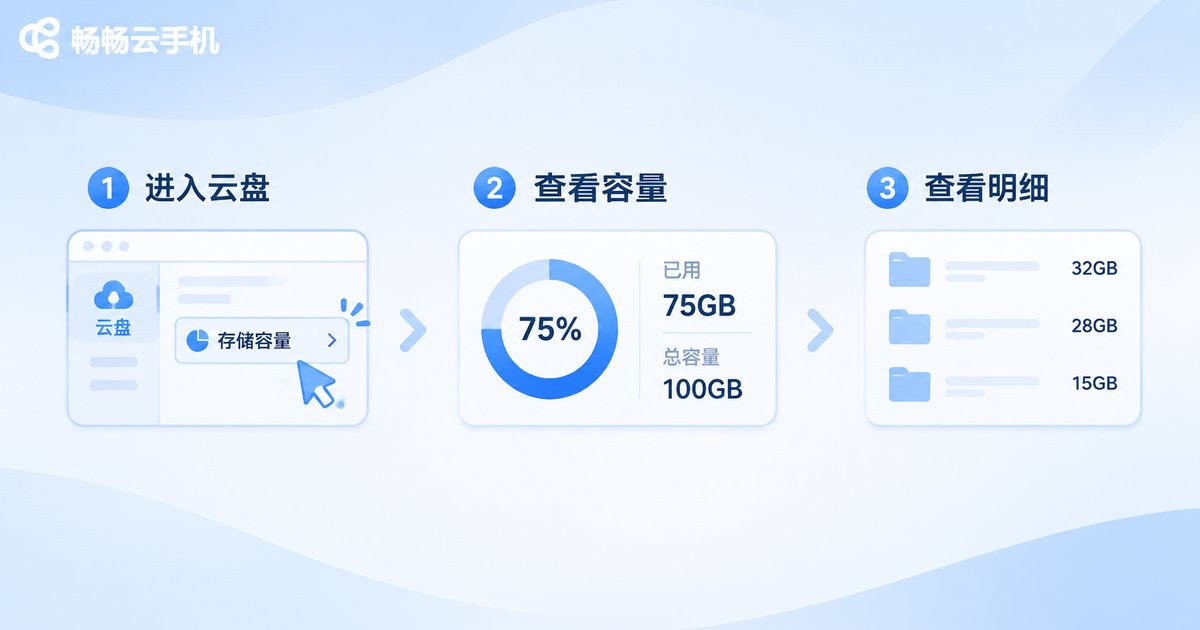
Step 1: Check How Much Cloud Space Is Actually Used
Before deleting anything, run a quick health check so you know where the space went.
1. Check total and used capacity. Log in to the ccloudphone console and open the device management page. You will typically see a storage overview for each cloud phone, including total, used and remaining capacity.
2. Check usage by category. Open the system Storage settings inside the cloud phone to see how much space apps, images, videos, audio, documents and system files each take up. This quickly reveals the real offender.
3. Check by folder. Use the file manager to browse common directories such as Download, DCIM, Pictures, Tencent and Android/data, then sort by size with the largest first.
Step 2: Clear the Five Biggest Hidden Space Hogs
Working from high to low priority is usually the most efficient order:
App caches. Social, short-video and shopping apps tend to have the largest caches. Go to Settings – General – Clear Cache inside the app, or clear the cache from system settings. Your account stays logged in.
Chat files. Messaging apps auto-download images, videos and documents by default. Turn off auto-download and clean up history conversation by conversation to reclaim a large amount of space at once.
Download folder. Installer packages, archives and temporary documents should be deleted once used. Deal with them right after downloading instead of letting them stack up.
Screenshots and recordings. Many files, each small — and the easiest to overlook. Filter and delete them in batches on a regular basis.
Duplicate assets. Re-uploading the same image or video is a common habit. Before uploading, check whether the file already exists in cloud space.

Step 3: Build a File Organization Habit That Lasts
Cleanup is first aid; organization is the cure. A few simple but effective practices:
Set a fixed folder structure. Create folders by project or by month, for example /ProjectA/2025-01/ and /Assets/Images/. Name files consistently with date plus content, such as 20250115-product-shot-01.jpg — future searches become far easier.
Separate active work from archives. Keep files you are currently using in a visible location, and compress completed projects into an archive folder so daily browsing stays light.
Make good use of batch upload and download. For large files, batch transfer is faster than moving items one by one inside the cloud phone and less likely to be interrupted.
Do a regular checkup. Pick one fixed day per month to review storage usage and watch the trend. It is far more comfortable than reacting to a full disk.
| Item | Local phone storage | Cloud phone storage |
|---|---|---|
| Capacity scaling | Limited by hardware, basically fixed | Adjustable through the management console |
| Cleanup method | Must be done on the device itself | Can be done in the console and inside the cloud phone |
| Multi-device access | Single device only | Log in to the same cloud phone from multiple terminals |
| Recovery after deletion | Depends on local backup | Pair it with a regular cloud backup habit |
Why Managing Files in ccloudphone Is Less Hassle
ccloudphone puts the cloud phone runtime and file management in a single console. Checking capacity, uploading assets, downloading files and running batch operations can all be done from the web, so you do not have to sit in front of one physical device. Cloud phones stay online for long sessions, so app updates, material uploads and task execution are not interrupted when your local phone is switched off. For users who manage several devices and a large library of assets at once, this centralized approach saves a lot of back-and-forth.
Two small habits are worth adopting: keep a local copy of important materials, and run a storage checkup at the end of each month. Do that, and you will rarely be caught out by a sudden “not enough space” message.

Frequently Asked Questions
Q: Does a low-storage warning affect apps that are currently running?
Yes. When space approaches the limit, apps may fail to write caches, fail to save files, or even crash. Clean up early rather than late.
Q: Will clearing an app cache delete my data?
Your account and chat history stay intact, but some temporary files and offline content will need to reload. Make sure there is no unsaved work before clearing.
Q: Is cloud phone storage the same as a cloud drive?
Not exactly. Cloud space is the system storage allocated to that cloud phone — it holds apps and runtime data. A cloud drive is better suited to long-term storage and file backup. The two work well together.
Q: How often should I clean up?
If you store videos and run apps heavily, check every two weeks. For light daily office use, once a month is enough.
Q: What is the simplest rule for file organization?
Consistent naming, folders by category, archive when done. Those three rules alone will noticeably speed up file retrieval.


