

Cloud Phone Cloud Drive: File Management, Uploads, Downloads, and Storage Cleanup
What a cloud drive actually solves on a cloud phone
A cloud phone is an Android device that runs in a data center, and you control it from a local screen. It has no physical SD card slot, and its system storage is fixed from the moment it is created. Install a couple of large games, keep a few screen recordings, and space gets tight quickly. A cloud drive is essentially an external hard disk you can plug into a phone that has no expansion slot, one that grows whenever you need it to.
Using it well pays off immediately: files you need are always within reach, and local storage holds only what you are actively using. Switching devices, reinstalling an app, or hunting down one old document no longer means starting over.
File management: know the three key directories first
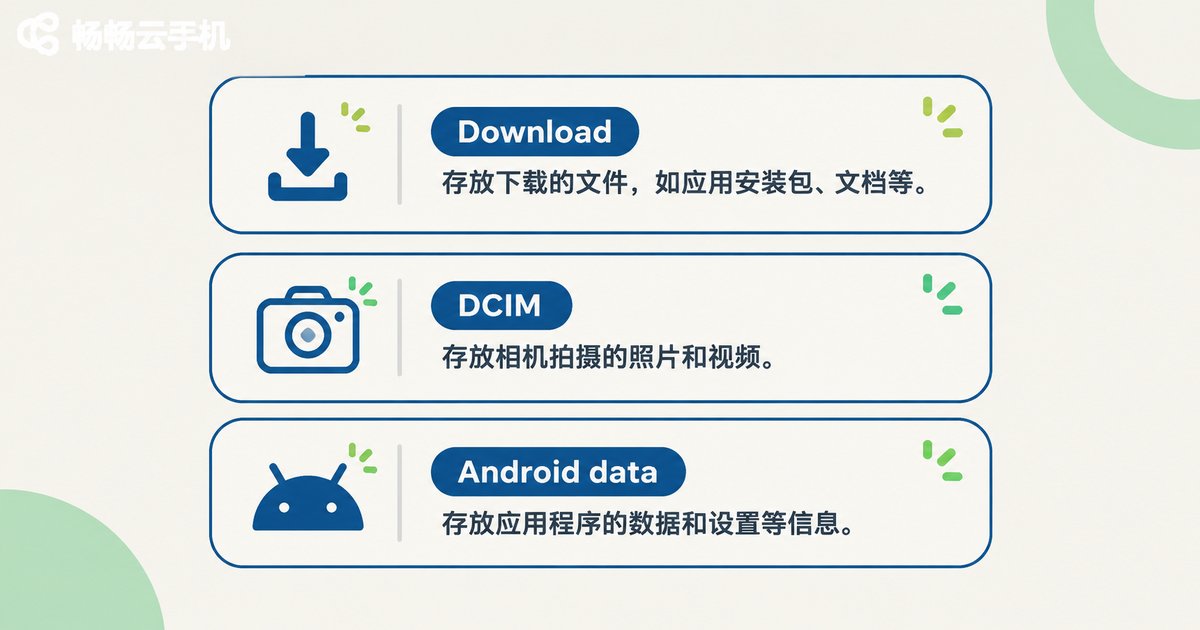
A cloud phone uses the same directory layout as a real device, and scattered saving is the number one reason storage blows up. Remember these three locations and most problems can be traced in seconds.
| Directory | What it holds | What to do |
|---|---|---|
| /sdcard/Download | Default landing spot for browser and chat downloads | Temporary files, clear weekly |
| /sdcard/DCIM | Screenshots, recordings, camera photos | Large, archive to the cloud drive promptly |
| /sdcard/Android/data | App data and caches | Do not delete by hand, use in-app cleanup |
Habits matter more than tools: create folders by project or by month and put the date in the file name, for example 20250612-project-assets. When cleanup time comes, you can judge a whole folder at once instead of opening files one by one, which also makes accidental deletion far less likely.
Uploads and downloads: don't let transfers slow you down
Traffic on a cloud phone goes through the data center, so transfer speed depends on both your local network and the cloud-side bandwidth. A few practical approaches:
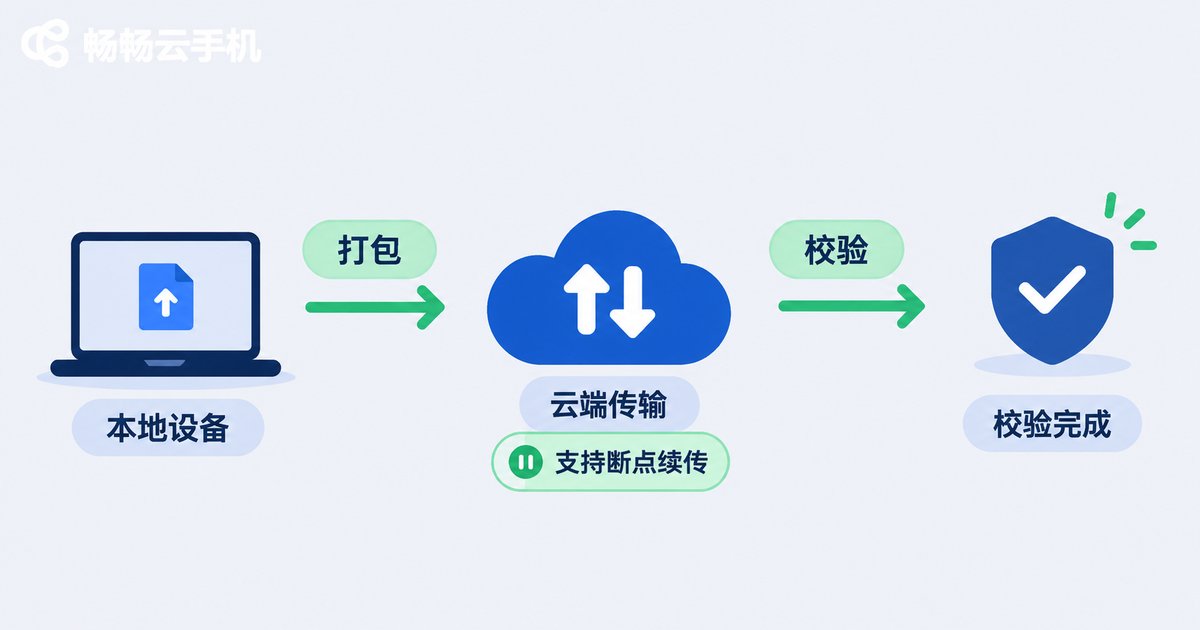
Package small files into one archive: turning dozens of small files into a single compressed package cuts the overhead of opening and verifying many connections.
Send large files off-peak: move anything over a few hundred MB into quieter hours so it does not compete with live interaction.
Verify before deleting locally: confirm the cloud copy opens correctly and is complete, then remove the local duplicate.
Keep categories apart: account backups and identity documents deserve their own folder, well away from general assets.
Resumable transfer is the key detail: when a large upload fails halfway, a resumable method sends only the missing part instead of starting again from zero. The bigger the file, the bigger the difference.
Storage cleanup: a three-step slimming routine
When space runs low, work through these three steps in order. They usually free up a noticeable amount.
Step one, clear caches. App caches are the biggest single block, especially for video, social, and browser apps. Clearing cache in the app settings does not remove chat history or sign-in state.
Step two, delete installers and recordings. An apk is useless once installation finishes, and screen recordings plus bursts of screenshots are often hundreds of MB each and rarely needed later.
Step three, archive first, delete second. Upload files you do not need now but may need later to the cloud drive, confirm the upload succeeded, then remove the local copies. This is the safest way to slim down.
| Cleanup action | Typical space freed | Risk |
|---|---|---|
| Clear app caches | Hundreds of MB to several GB | None, apps simply reload |
| Delete apk installers | Tens to hundreds of MB each | None |
| Delete recordings and old screenshots | Depends on your habits | Confirm they are archived |
| Archive old projects to the cloud drive | The most significant gain | Verify upload, then delete |

Make the cloud drive part of your routine
ccloudphone provides Android cloud phones that run in the cloud, staying online continuously while your local device only handles display and input. Paired with a cloud drive, a few patterns work well:
Keep assets in the cloud drive and only the active set on the cloud phone, which immediately reduces local storage pressure.
Let output files land directly in cloud directories so long-running tasks save their results automatically without back-and-forth downloads.
Restore from the cloud drive when switching devices or reinstalling apps, bringing files and folder structure back together and skipping the reorganization work.
For cloud drive capacity, plans, and specific features, refer to the details published on the official ccloudphone website, and choose according to your own file volume.

Frequently asked questions
Q: Are cloud drive files the same as the files stored locally on the cloud phone?
No. The cloud drive is separate storage and the cloud phone's local directories are another copy. Uploading copies a file to the cloud drive; deleting the local file does not affect the cloud copy, and deleting from the cloud does not affect the local file.
Q: What if a large upload fails halfway?
Use a resumable transfer method first, since reconnecting then only sends the missing portion. Alternatively, split a large file into a few smaller packages so a failure costs less.
Q: Does clearing the cache lose data?
Generally no. A cache is temporary content an app stores for speed, and it reloads on demand. Chat history, accounts, and photo albums are data rather than cache, so handle those deliberately and avoid bulk-deleting directories in a file manager.
Q: If a cloud phone is always short on space, what works best?
Clear caches first, then delete installers and recordings, and finally archive long-unused files to the cloud drive and remove the local copies. The three steps together usually free several GB.
Q: How do I move files to a new cloud phone?
Upload the files you want to keep to the cloud drive, then sign in on the new device and download them. It is far less work than exporting app by app.


