

Cloud Phone Services: Accounts, Data, Sync and FAQs
What Exactly Is the Cloud in a Cloud Phone?
Most people assume a cloud phone is simply a remote view of a phone. That is only half true. A cloud phone is a virtual Android device running on a server in a data center. Your phone, tablet or laptop only displays the screen and sends input commands; the actual processing, storage and network connection all happen in the cloud.
Once that clicks, the three topics that matter most fall into place: the account is your key, the data is your property, and the sync is the channel that keeps nothing lost when you switch devices.
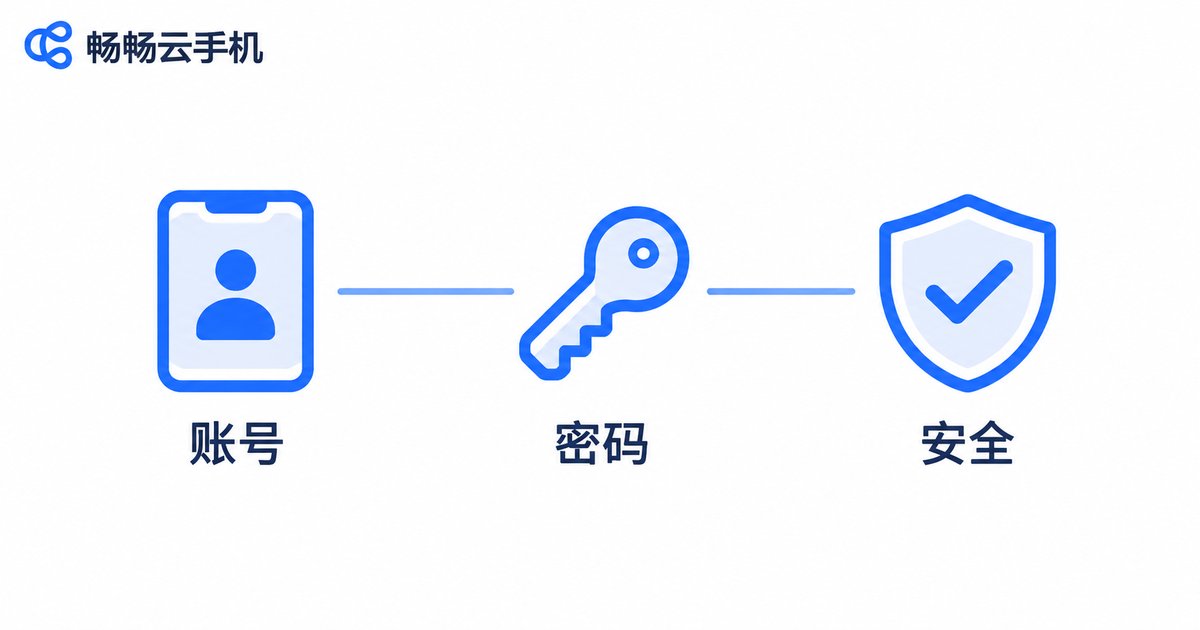
Accounts: One Key That Manages Every Device
A cloud phone account is not just a login credential. It is the binding relationship between you and the virtual device in the cloud. Only after signing in can you see the cloud phone instances under your name, power them on remotely, install apps and view the screen.
Because that account carries so much power, it deserves real attention. Three rules are worth following:
- Never reuse the same password you use on other platforms, especially your email password;
- Change the password regularly, and keep it long, with mixed case and numbers;
- Never share the account; when several people share one cloud phone, nothing can be traced afterwards.
If you manage several cloud phones at once, label them by purpose, for example long-running tasks or test environments, so you never log into the wrong instance or delete the wrong app.
Data: Where Does Everything Actually Live?
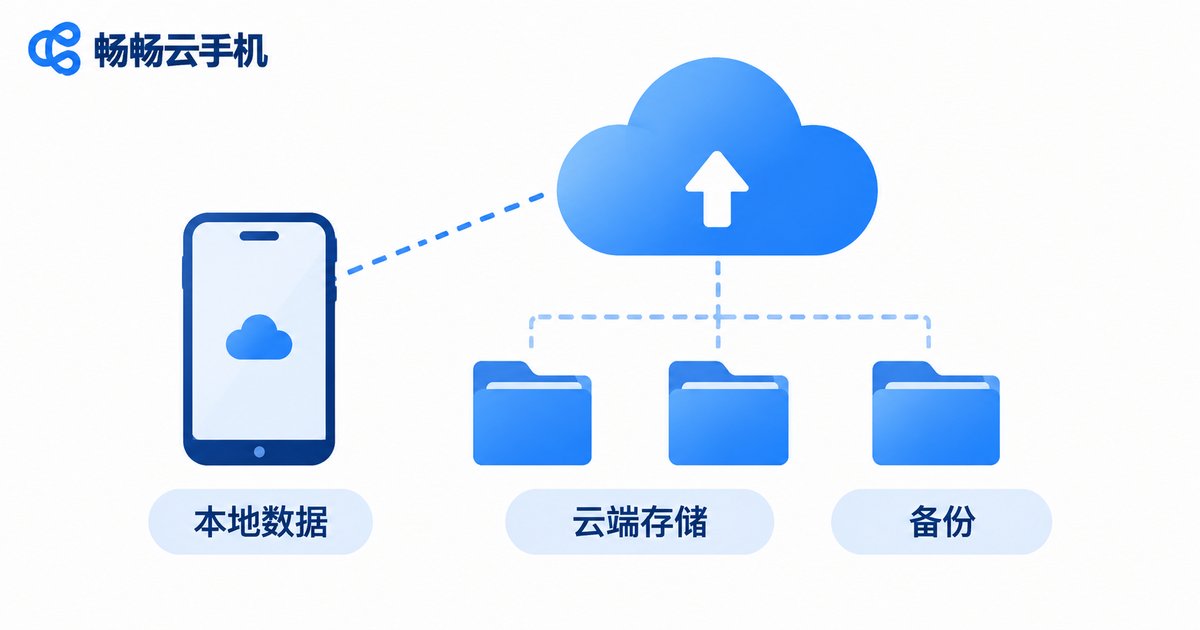
This is the question users ask most. Data inside a cloud phone falls into roughly two layers.
The first layer is data inside the instance: the apps you installed, the login states inside those apps, downloaded files, screenshots and recordings. All of it travels with the instance and sits on a virtual disk in the cloud.
The second layer is cloud backup or cloud drive storage: documents you need to keep long term, account records, important screenshots. Anything that matters should be backed up on purpose.
The biggest difference from a local phone is simple. If a local phone is dropped or lost, the data usually goes with it. With a cloud phone, the data stays in the data center and your local device is just a window. But that does not mean data can never be lost. Deleting files, uninstalling an app and clearing its data, or resetting an instance will still wipe content. Backing up important material as you go is far easier than trying to recover it later.
| Item | Local phone | Ccloudphone |
|---|---|---|
| Where it runs | On the phone chip | On cloud servers |
| After the local device is off | Tasks stop | Keeps running in the cloud |
| Switching devices | Migrate and sign in again | Sign in and continue |
| Where data lives | Local storage | Cloud instance disk |
| Local hardware needed | The better, the smoother | Modest devices work fine |
Sync: Moving Between Devices Without Losing Your Place
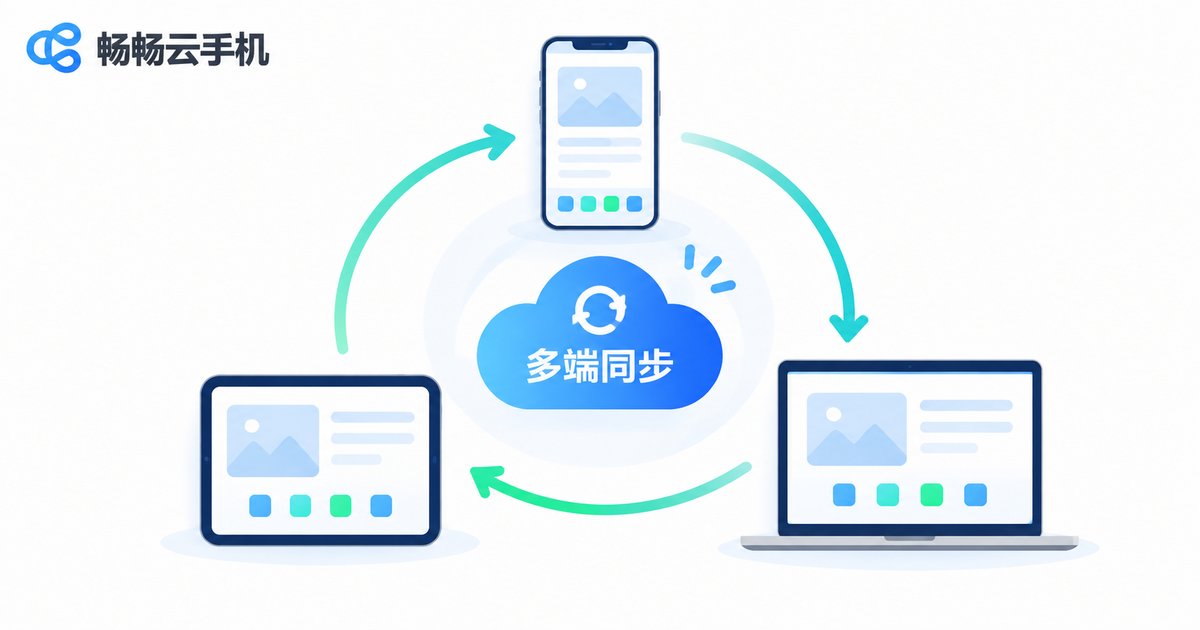
Syncing is the most comfortable part of a cloud phone. Because the device already lives in the cloud, whatever you started on your phone is still there when you open the web client on your laptop.
There is one common misunderstanding here: syncing is not backing up. Syncing means the same data is visible on several devices. Backing up means keeping an extra copy in case something goes wrong. No amount of syncing protects you from a deletion, because the deletion syncs too. Do both.
A few practical habits:
- Let long-running tasks (idle sessions, downloads, extended runs) live in the cloud and switch your local device off;
- Create a manual backup at key moments, such as after configuring an account or before a batch operation;
- When working across devices, confirm the instance ID first so you never edit the wrong cloud phone.
Choosing the Right Setup for Your Scenario
Not everyone needs the same configuration. Start with what you actually plan to do:
- Long-running sessions: prioritize stable uptime and network quality, and switch off local devices freely;
- Multiple accounts: prioritize isolation between instances and tidy account management, with several cloud phones under one account;
- Testing and trials: prioritize fast resets and app compatibility, spinning up a clean instance whenever needed;
- Light work and entertainment: prioritize multi-device sync, so half-watched content continues on the laptop.
Security and Privacy: Three Small Habits Matter Most
Once the device moves to the cloud, your security habits should move with it:
- Keep your login environment clean and avoid staying signed in on shared computers;
- Classify sensitive files and avoid storing ID photos or bank card images on a cloud phone long term;
- Clean up regularly by uninstalling unused apps and clearing caches to reduce unnecessary exposure.
Why Many Users Choose Ccloudphone
Ccloudphone makes these steps work well by default. Sign in to your account and your cloud phones are there to take over, from either the web client or the desktop app. Cloud devices stay online, so shutting down your local phone or laptop does not interrupt anything. App installation, file management and backup entry points sit where you expect them, with no extra setup required.
For people new to cloud phones, the most reassuring thing is rarely a spec sheet. It is a clear account, data that has a real home, and a switch between devices that costs nothing. Those three points are exactly what a cloud service should solve.
Frequently Asked Questions
Q1: If I buy a new phone, is everything still in my cloud phone?
Yes. The cloud phone runs in the data center and the data follows your account. Sign in on the new device with the same account and continue where you left off.
Q2: Does the cloud phone keep running when my local device is off?
Yes. It runs on cloud servers, and your local device is only a control window. Shutting down or losing connection does not stop cloud-side tasks.
Q3: If syncing works well, can I skip backups?
No. Syncing distributes one copy of the data across devices, and deletions sync too. A backup is an extra copy kept for accidents and mistakes. The two complement each other.
Q4: Can every Android app run on a cloud phone?
Most common Android apps install and run normally. A few that depend heavily on specific hardware, such as deep camera or sensor access, may offer a limited experience, so try one instance first.
Q5: What if I forget my account password?
Use the recovery flow with your linked phone number or email. Keep a working contact method bound to the account and update the password from time to time.
Q6: Can one account hold several cloud phones?
Yes. You can manage multiple cloud phone instances under one account for different purposes. Check the instance ID when switching so you never operate on the wrong device.


