

Cloud Phone Cloud Account: Registration, Binding, Login and Security Settings
What a Cloud Phone Account Really Is
Think of a cloud phone as an Android handset that lives in a data centre and never sleeps. You open a client or a browser tab on your own laptop, tablet or phone, and the screen you control is that remote device. Your cloud account is both the key and the ID card: sign in with the same account and you always land on the same cloud phone, with the same home screen layout, the same installed apps and the same files waiting for you.
That makes four things worth understanding: registration gets you the account, binding insures it, login is the door you open every day, and security settings decide how solid that door is. Get these four right and you will rarely hit trouble; get them wrong and you will be hunting for support at the worst possible moment.
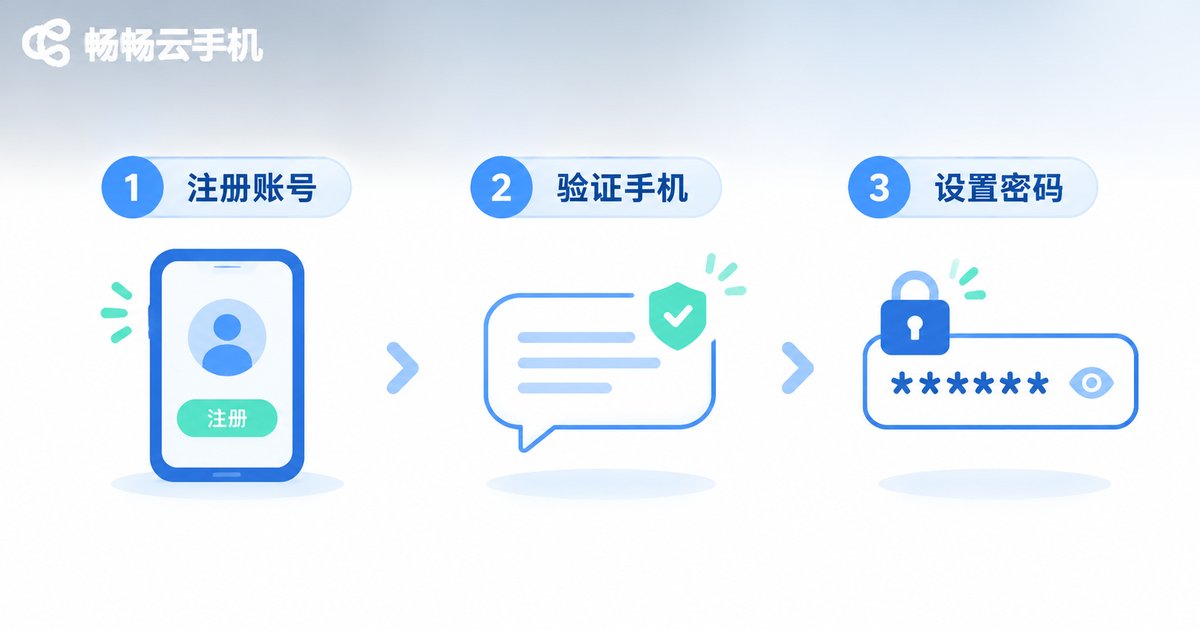
Step One: Register in About Three Minutes
Registering a cloud phone account works much like signing up for any online service. No special documents are needed.
1. Open the official site. Visit the ccloudphone website in your browser and click the registration entry point.
2. Enter your phone number. Use a number you actually keep, then request the SMS verification code, which usually arrives within a minute.
3. Set a password. Eight characters or more, mixing letters and numbers. Avoid birthdays or the last six digits of your phone number.
4. Accept the terms and submit. Once the account exists, add an email address straight away as a backup recovery channel.
Two common snags: if you see the number is already registered, you have used it before — go through the password recovery flow instead of starting over with a new number. If the code never arrives, check whether your phone's spam filter swallowed it, then confirm you did not mistype a digit.
Step Two: Binding Adds a Safety Net
Many people skip binding the moment registration finishes, and only panic later when they change phones or forget a password. Prioritise your binding options like this.
| Binding item | Main purpose | Recommendation |
|---|---|---|
| Phone number | Receiving codes, recovering the password | Required, and must be a number you keep long term |
| Email address | Backup recovery, security notifications | Recommended, stored separately from the phone |
| Trusted devices | Recognise your own devices, flag odd logins | Recommended to enable |
| Third-party quick login | Sign in without typing a password | Optional, based on your habits |
One detail is easy to miss: the bound phone number is not the account itself. Some users assume the account dies with an old number. In fact, as long as you update the bound number while you can still sign in, the apps and data inside your cloud phone are untouched.
Step Three: Logging In from Web or Client
ccloudphone supports signing in through a browser and through the desktop client, both using the same account system. Borrowing a computer on a business trip? A browser tab is enough. For daily use, the client is more comfortable and keeps a long session more stable.
When a login fails, work through this checklist — it resolves most cases on your own.
1. Verify the account: phone number / email exactly as registered
2. Request a fresh code: verification codes expire within minutes
3. Switch networks: try Wi-Fi and mobile data in turn
4. Check your input: passwords are case sensitive, and an IME stuck in Chinese mode can break them
5. Still stuck: contact official support with the number used at registration
If you hop between several devices, sign out when you finish, especially on shared computers in cybercafés or hotel business centres.

Step Four: Security Settings That Actually Matter
A cloud account often links to your app accounts, chat history and files, so security deserves more than a passing thought. These are the highest-value actions.
Use a unique password. Do not reuse the password from your social or payment accounts. When one site is breached, shared credentials drag everything else down with it.
Turn on two-step verification. A second check at login means a leaked password alone is not enough to get in.
Watch login alerts. When you see a notice about a new device or an unusual location, change the password immediately and review the signed-in device list.
Clean the device list regularly. Remove authorisations for devices you do not recognise or no longer use.
Never save passwords on shared machines. When a browser offers to remember it on a public computer, always decline.
Also keep one distinction clear: your cloud account password is not the lock screen password inside the cloud phone. The first signs you in to the service; the second is a separate Android lock screen on the virtual device. Keeping them different is safer.

Putting It Together: A New User's Standard Routine
Register, bind a phone number and email, sign in through the client, open security settings, then enable two-step verification and login alerts. After those five moves your account is in the workable-and-hard-to-break state. ccloudphone's account system is built around exactly these steps; for specific instance specifications, available configurations and supported regions, refer to what is published on the official ccloudphone site at the time, rather than second-hand plan claims from third parties.
Frequently Asked Questions
Q: How many cloud accounts can one phone number register?
Usually one phone number maps to one primary account. If you need several, register them with different numbers. The exact rule follows the official documentation.
Q: If I forget my password, do I lose the data in my cloud phone?
No. After resetting the password through the bound phone number or email and signing back in, the apps and files inside your cloud phone instance are exactly where they were. Changing a password does not wipe the device.
Q: What should I do if I change my phone number?
Update the bound number in your account settings while you can still sign in, then retire the old number. If you can no longer sign in, contact official support as early as possible.
Q: Is logging in from the web different from the client?
The account system is the same and you reach the same cloud phone either way. The difference is experience: the client holds a long session more steadily, while the browser is handy when you are on a borrowed device.
Q: I received a login alert from another location and it was not me. What now?
Change the password at once, enable two-step verification, remove unfamiliar devices from the signed-in list, and check whether the bound phone number or email was altered without your knowledge.
Q: Is my cloud account password the same as the cloud phone lock screen password?
No. The account password signs you in to the service, while the lock screen inside the cloud phone is a separate Android password. Set them to different values.


