

Cloud Phone App vs Official Version: Know These 3 Versions Before You Download
Plenty of people get stuck on the very first step of using a cloud phone. They type cloud phone download into a search box and get a pile of packages with nearly identical names: one calls itself the cloud phone app, another calls itself the official version, plus a whole family of turbo editions and helper editions. They install whichever comes first, and then nothing works: login fails, the screen stutters like a slideshow, and ads start popping up.
The problem is usually not the cloud phone technology itself. It is that you never sorted out what the word version actually refers to. This article separates the three easily confused versions and then gives you the right download order.
1. A cloud phone is not one app, it is two ends
Start with the most basic idea: a cloud phone consists of two parts.
The control client: the app installed on your own phone or computer. It displays the remote screen and sends your taps and swipes upward. It does not run any apps itself. It is a remote control.
The cloud instance: a virtual Android phone actually running on a data center server. The games, social apps and scripts you install all live inside that invisible phone, staying online around the clock without eating your local memory.
The two ends connect through real-time screen streaming and a command channel. Once this clicks, the version confusion becomes much easier to untangle.
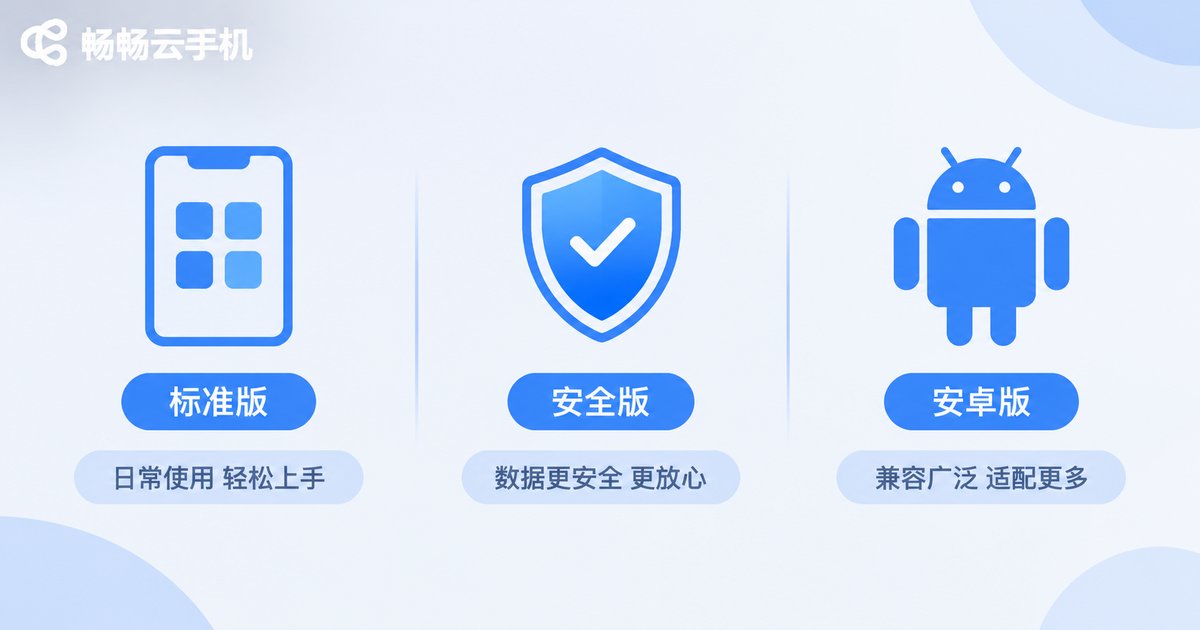
2. What the three versions actually mean
When people say version, they are usually mixing up three completely different things:
| Common wording | What it really means | What goes wrong |
|---|---|---|
| Cloud phone app | The control client installed on your local device | Repackaged or wrapped builds put your account and privacy at risk |
| Official version | A genuine package released through official channels | Getting an official version from an unofficial source gives you no guarantee |
| Cloud system version | The Android version and image inside the cloud instance | App incompatibility, crashes and missing features |
In other words, cloud phone app tells you which end it is installed on, official version tells you where it came from, and cloud system version tells you what system runs inside the cloud. Three dimensions. Do not treat them as one.
3. Four real differences between the app and the official version
1. Source and signature
The official version is packaged and signed by the official team, so the package can be verified. A cloud phone app circulating on third-party sites may be repackaged, sometimes with promotional SDKs baked in.
2. Update cadence
The official version updates together with the server side, so new features and compatibility fixes arrive on time. Unofficial packages often freeze at some old build and get worse the longer you use them.
3. Permissions requested
A control client that only displays a screen and forwards commands has no business reading your contacts or SMS. If a package demands a pile of unrelated permissions on first launch, be suspicious.
4. Account system
With the official version, login, device management and instance power control form one complete chain. Wrapped builds can only borrow an interface, so dropped connections and failed logins are routine.
4. Four traps you hit after installing the wrong build
① Login failures and constant disconnects: the client and server protocols do not match, so even a successful connection does not last.
② High latency and out-of-sync controls: unofficial clients are usually not optimized for streaming.
③ Privacy risk: extra permissions plus unknown SDKs can expose your credentials.
④ Wasted money: paying for a so-called acceleration service from an unknown channel that delivers nothing.
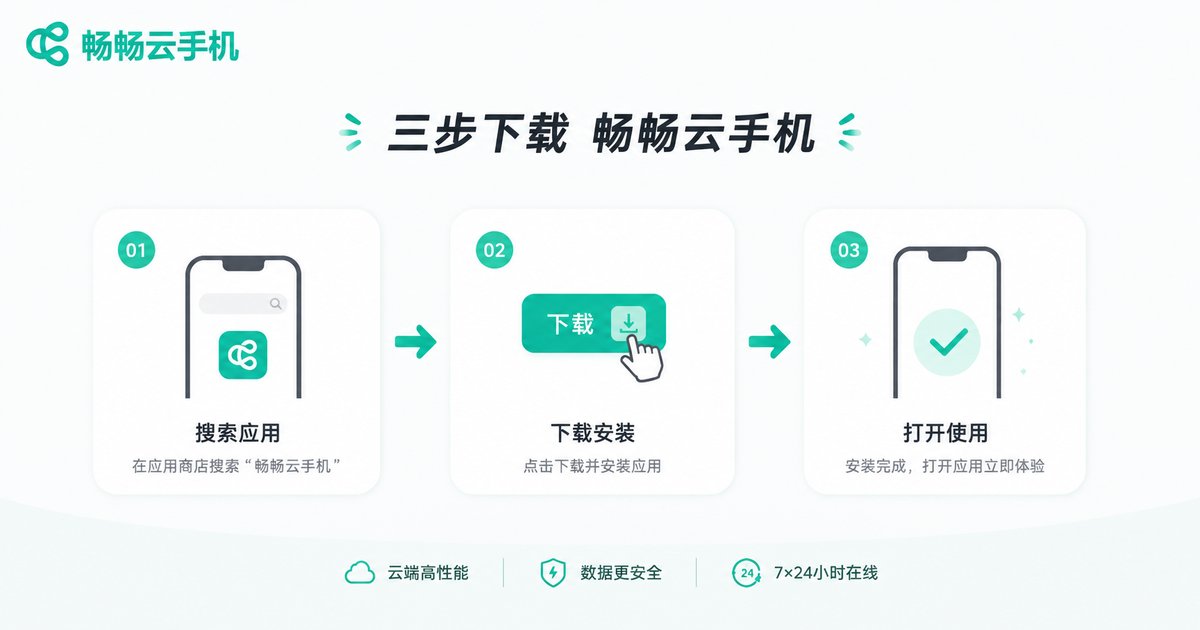
5. The right order: pick the service, download the client, then choose the instance
Many people do it backwards. They install a random app first and only then figure out what it can do. The correct order is:
Step one, define your use case. Idle farming, multiple accounts, app testing or mobile productivity? The use case decides what cloud instance specs you need.
Step two, download the control client from official channels. Stick to the provider official site or a legitimate app store. Do not grab installers from forum attachments or cloud drive links.
Step three, choose your cloud instance after logging in. Android version, CPU, memory and storage are selected in the cloud. Swapping client installers will never solve that.
6. What an official build should look like, using Ccloudphone as an example
Take Ccloudphone (ccloudphone) as an example. A legitimate cloud phone service, and its official client, should show these traits:
· A clear download entry point: you reach the download page from the Ccloudphone official site, and the package source is single and traceable.
· A clear functional boundary: the client only displays the screen and transmits input, while the cloud instance runs the apps.
· Instances that stay online: the cloud phone does not depend on your local device being powered on. Turn your own phone off and cloud tasks keep running.
· Transparent configuration: different use cases map to different instance specs. Actual configurations and pricing follow what the official site shows, not verbal promises from some inside channel.
If you previously installed a turbo edition or a cracked build, uninstall it cleanly and go through the process again from the official site. Most of the so-called cannot connect and too laggy complaints disappear once you switch back to the official version.
FAQ
Q1: Are the cloud phone app and the official version the same thing?
They describe different dimensions. Cloud phone app emphasizes that it is the control client installed on your local device, while official version emphasizes that the package came from a legitimate source. The ideal state is both: an official cloud phone control client released through official channels.
Q2: Is anything from an app store automatically the official version?
Not necessarily. Check whether the developer name matches the service provider, and whether the update date and version number track the official site. The safest route is still downloading from the official site entry.
Q3: Can I choose the Android version inside the cloud phone?
Yes, depending on which images your provider offers. The Android version determines app compatibility, so confirm which version the app you need supports before you install.
Q4: What if I already installed the wrong build?
Uninstall it, clear leftovers, then download the official version from the official site and log in again. If you logged in with the same account on an unofficial client, change your password as a precaution.
Q5: Does a cloud phone drain my local hardware and data?
The control client is lightweight. It mainly consumes network bandwidth and data, while local memory and battery usage are far lower than running the same apps directly on your own phone.
Q6: Do I really need a cloud phone?
If you need long unattended sessions, several accounts online at once, or testing across different Android environments, a cloud phone saves a lot of hassle. If you only use it occasionally, your local phone is enough. Clarify the use case first, then decide what to install.


