
How to Set Up a Sticky Proxy on a Cloud Phone: Keep the Same IP Throughout a Session
What Is a Sticky Proxy? A One-Minute Explainer
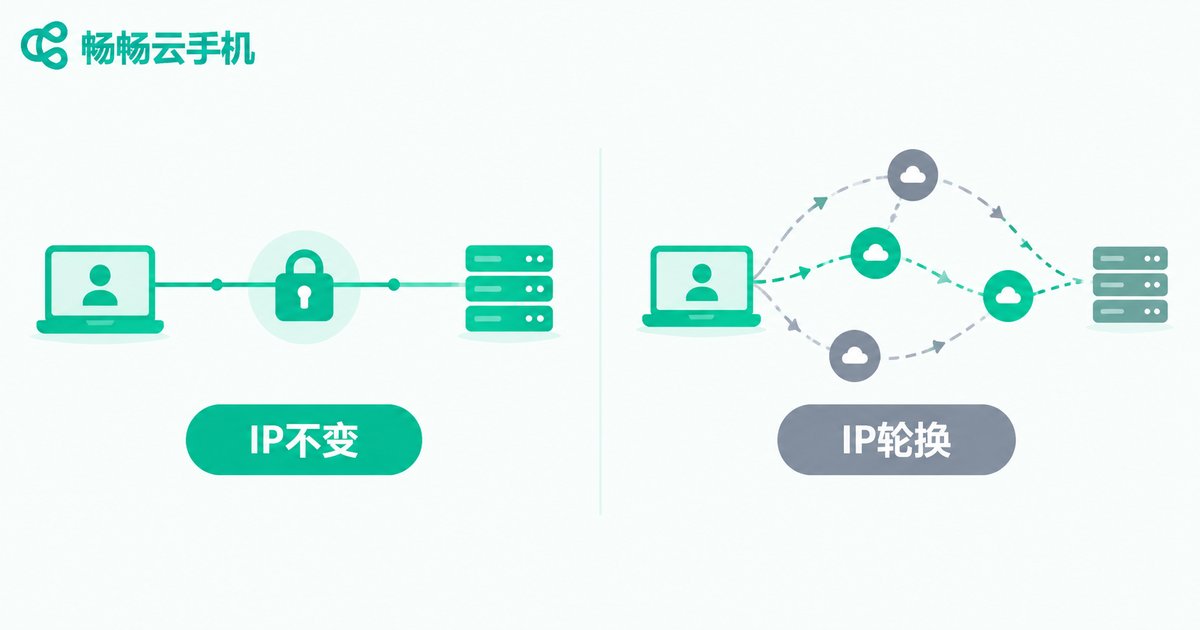
A sticky proxy — also called a session-based proxy — has one defining trait: your exit IP stays the same for the entire duration of a session. The IP only rotates when the session expires, the service restarts, or you deliberately change the session ID.
The opposite is a rotating proxy, where each request may exit through a different IP. Here is how they compare:
| Aspect | Sticky Proxy | Rotating Proxy |
|---|---|---|
| IP during a session | Unchanged | Changes frequently |
| Login stability | High, sessions rarely drop | Low, frequent verifications |
| Best for | Account nurturing, AFK tasks, long-term operations | Scraping, one-off anonymous requests |
| Risk-control exposure | Low | Relatively high |
Why Cloud Phone Users Need Sticky Proxies the Most
Cloud phones are widely used for multi-account operations, game AFK farming, and app account nurturing. These tasks share three traits: they run for hours, they require persistent logins, and they are sensitive to environment consistency. When the IP changes every few minutes, platforms may flag the environment as abnormal — at best a CAPTCHA, at worst an account restriction.
Pairing a sticky proxy with a cloud phone gives every device a fixed and independent network identity: device isolation plus IP stability, a double layer of protection. This is the standard setup for matrix-style account operations.
Prepare These Four Things Before You Start
1. Proxy host and port — the connection address from your provider, e.g., gateway.xxx.com:8000.
2. Username and password — credential authentication is recommended for cloud phones; it is more flexible than IP whitelisting.
3. Session ID rules — sticky sessions are usually enabled by appending a session field to the username, such as user-session-abc123. Follow your provider's documentation for the exact format.
4. Session duration — commonly 10 to 30 minutes; set it slightly longer than a single task.
Step-by-Step: Sticky Proxy Setup on a Cloud Phone (Using ChangChang Cloud Phone as an Example)
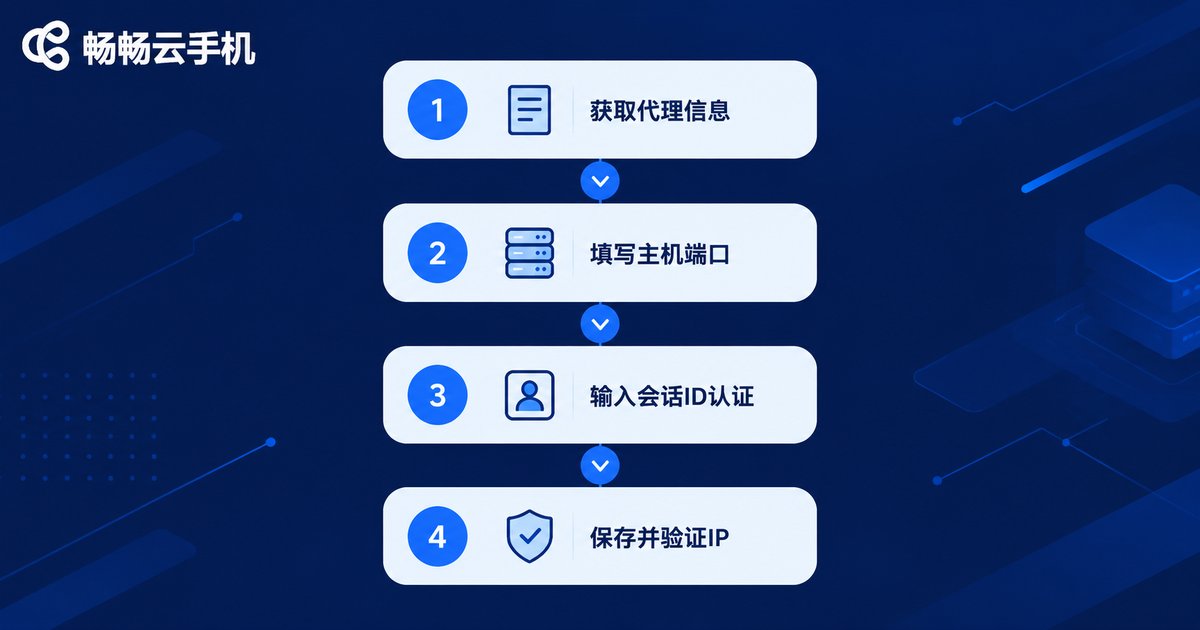
The whole process takes about five minutes:
Step 1: Open the network settings
Launch ChangChang Cloud Phone and enter the settings of the specific cloud phone you want to configure, then locate the network or proxy section. Each cloud phone can be configured independently, so different accounts can run on different IPs.
Step 2: Switch to manual proxy
Set the proxy mode to manual and enter the proxy host and port provided by your service provider.
Step 3: Enter credentials with the session ID
Fill in the username following your provider's sticky-session format, for example:
Host: gateway.proxy.com
Port: 8000
Username: user-region-hk-session-task001
Password: your-proxy-password
The session-task001 part is the session identifier. As long as it stays the same, the exit IP will not change within the session window.
Step 4: Save and reconnect
Save the settings, then toggle the network off and on (or restart that cloud phone) so the proxy takes effect.
Step 5: Verify the IP
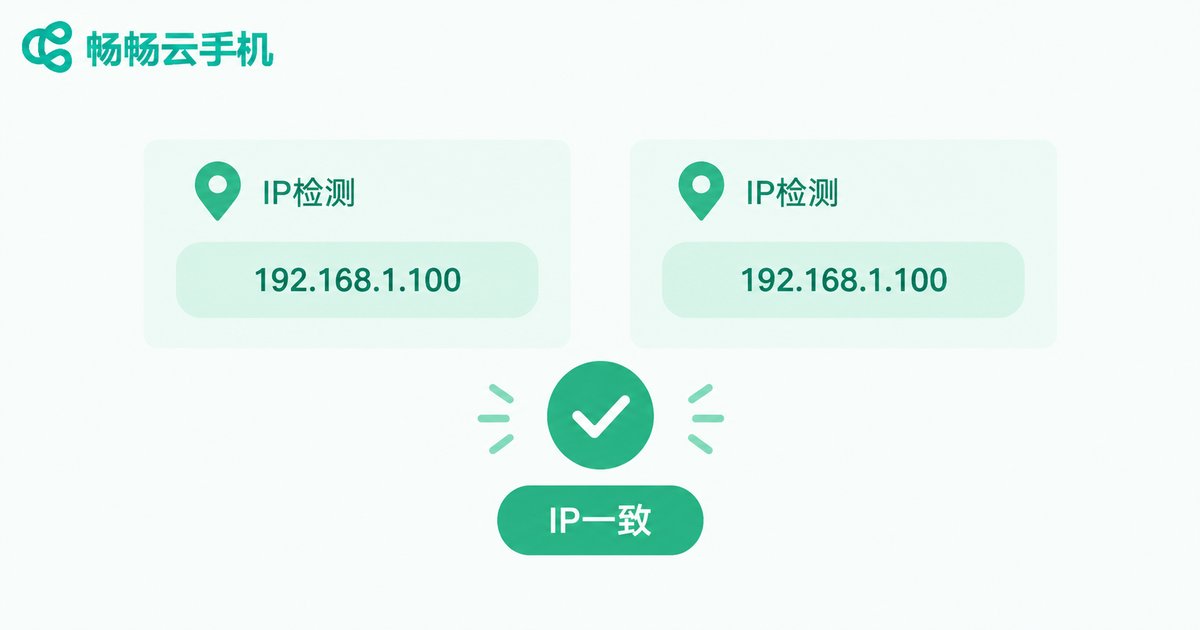
Open the browser inside the cloud phone, visit any IP-checking website, and note the displayed IP and location. Confirm they match the region you selected in your provider's dashboard.
If your version of ChangChang Cloud Phone looks slightly different, search for 'proxy' in the settings or contact official customer support for the current menu path.
How to Confirm the IP Never Changes Mid-Session
Configuration alone is not enough — run a simple continuity test:
1. Minute 0: check and record your current IP.
2. Use the phone normally for 10–15 minutes (open apps, scroll pages).
3. Check the IP again and compare it with the first result.
4. Near the end of the session window, check once more to see the IP rotate as expected.
If the first two results match, your sticky session is working. Make this test a habit after every proxy change.
Quick Troubleshooting Table
| Symptom | Likely Cause | Fix |
|---|---|---|
| No internet after setup | Wrong credentials, expired plan, or data exhausted | Re-check authentication and plan status |
| IP still changes mid-task | Session ID missing or duration too short | Verify the session field in the username; extend duration |
| Slow connection | Distant node or congested route | Switch to a nearer region node |
| Some apps bypass the proxy | Apps using their own network stack | Use a cloud phone environment with global proxy support |
Typical Ways to Combine Sticky Proxies with Cloud Phones
Multi-account matrices: bind one fixed session IP per cloud phone so each account keeps a consistent environment.
AFK gaming and account nurturing: stay online for hours without IP changes, fewer disconnects and verifications.
Cross-border social and e-commerce: lock the IP to your target region so the account's activity location matches its audience.
Practical Tips That Save You Trouble
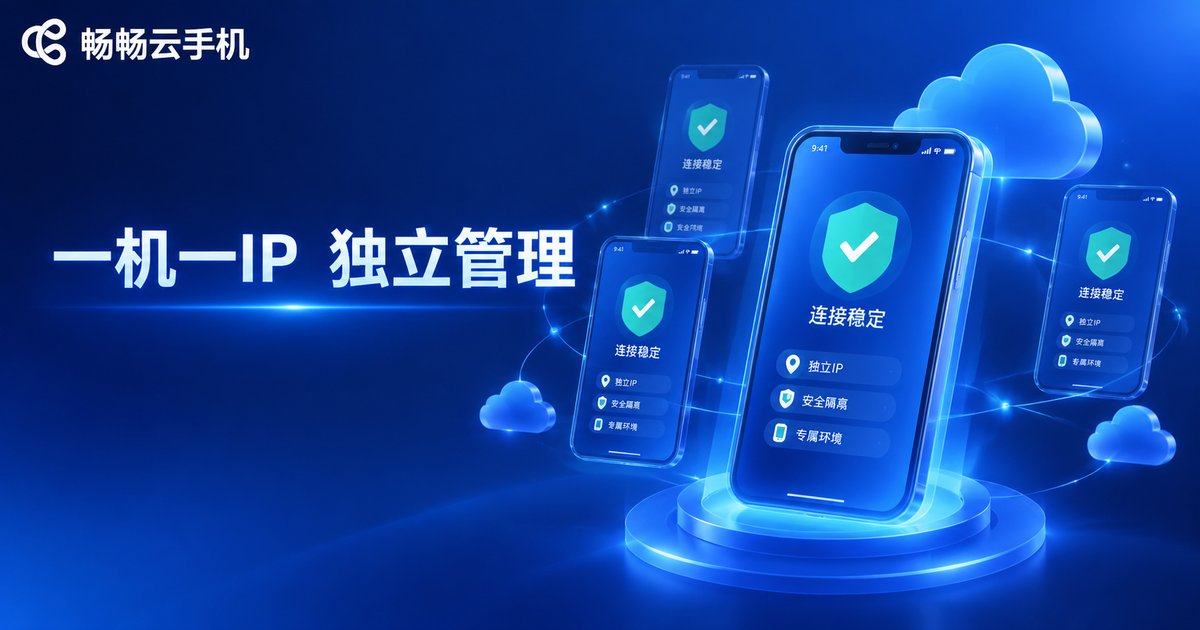
1. One session ID per device: never share one sticky session across multiple cloud phones, or they will share the same exit IP and lose isolation.
2. Leave headroom in session duration: for a 30-minute task, set a 40-minute session to avoid a mid-task IP change.
3. Always re-verify: rerun the IP continuity test after any proxy change.
4. Choose nearby nodes: nodes closer to you or your target users mean lower latency and better stability.
Frequently Asked Questions
Q: Does a sticky proxy keep the IP forever?
A: No. It only guarantees stability within a session. Once the session expires, the service restarts, or you change the session ID, the IP may rotate. For a long-term fixed IP, choose a dedicated static product instead.
Q: Can I get the same IP again after the session ends?
A: Not guaranteed. Released IPs return to the pool. If your business depends on a permanent IP, buy a static IP from your provider rather than relying on sticky sessions.
Q: How many sticky sessions can one cloud phone use?
A: Normally one cloud phone applies a single proxy configuration — one session — at a time. For multiple IPs, run multiple cloud phones; ChangChang Cloud Phone supports managing many devices independently, which fits the one-device-one-IP workflow perfectly.
Q: Is a sticky proxy the same as a static residential IP?
A: No. Sticky means 'unchanged for a period of time'; static means 'fixed long term'. Sticky is flexible and cheaper, static is more stable but usually pricier — choose by workload.
Q: Should I choose HTTP or SOCKS5?
A: Follow the protocols your proxy provider actually supports and confirm before purchasing. HTTP(S) is sufficient for most cases, while SOCKS5 offers broader compatibility — just make sure the protocol type matches what your provider issued.


