

How to Bind a Purchased Static IP to a Specific Cloud Phone Instance: Complete Single-Instance Single-IP Tutorial
Why “Single Instance, Single IP” Binding Matters
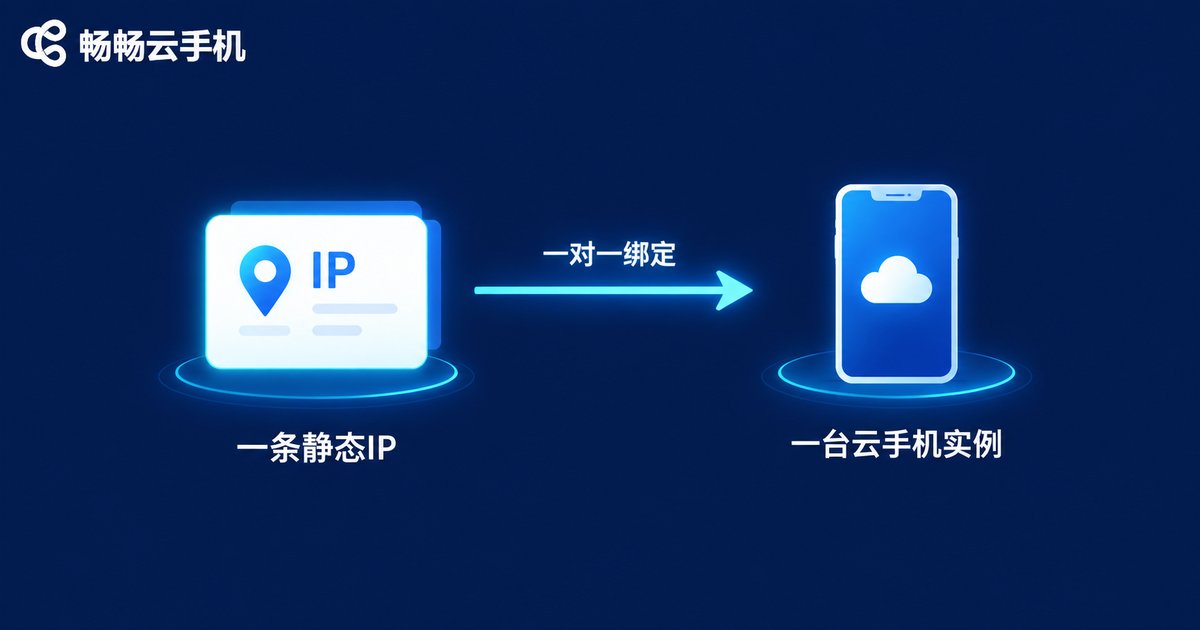
Anyone running a matrix of accounts on cloud phones has likely hit this problem: dozens of instances all sharing one exit IP, and once the account count grows, platforms start flagging them as the “same environment” — first with throttling, then with bans. The idea behind single instance, single IP is simple: bind one dedicated static IP to each cloud phone instance so every account runs inside its own exclusive network environment.
The benefits are immediate:
1. Deeper environment isolation. Accounts never share an exit IP, so platforms have a hard time linking them together.
2. Long-term IP stability. A static IP does not look different every day the way a dynamic IP does — your accounts always appear to log in from the same place.
3. Easy troubleshooting. When an instance misbehaves, its bound IP points you straight to the cause — no more digging through piles of shared records.
Static IP vs. Dynamic IP: What Is the Real Difference?
Before touching the console, clear this up with a quick comparison — and you will see why long-term accounts need static IPs:
| Item | Static IP | Dynamic IP |
|---|---|---|
| Address | Fixed, reserved for you long term | May change on every reconnect |
| Account stability | Consistent login location, high trust | Frequent changes trigger risk controls |
| Best for | Long-term account nurturing, store operations, matrix management | Temporary tasks, IP-insensitive workloads |
| Management cost | One IP per instance, clean and controllable | Drifting IPs, hard to keep records |
In one sentence: a static IP is not something you “use” — it is something you “bind.” Pairing it one-to-one with a designated instance is where its real value shows up.
Do These 3 Things Before Binding
Good preparation prevents 90% of binding failures. Complete this quick checklist before you start:
1. Count your instances. Decide which instances need static IPs, and give each one a recognizable remark such as “Store-01” or “Account-A2” so you will not pick the wrong target later.
2. Check the IP region. Static IPs usually come in different regional nodes. Choose the region that matches where your accounts were registered or where your target market is — the IP location should agree with the account profile.
3. Start a binding ledger. Prepare a simple sheet listing “instance name — bound IP — purpose,” and fill it in as you go so future maintenance is effortless.
Step 1: Log In and Open the IP Management Page
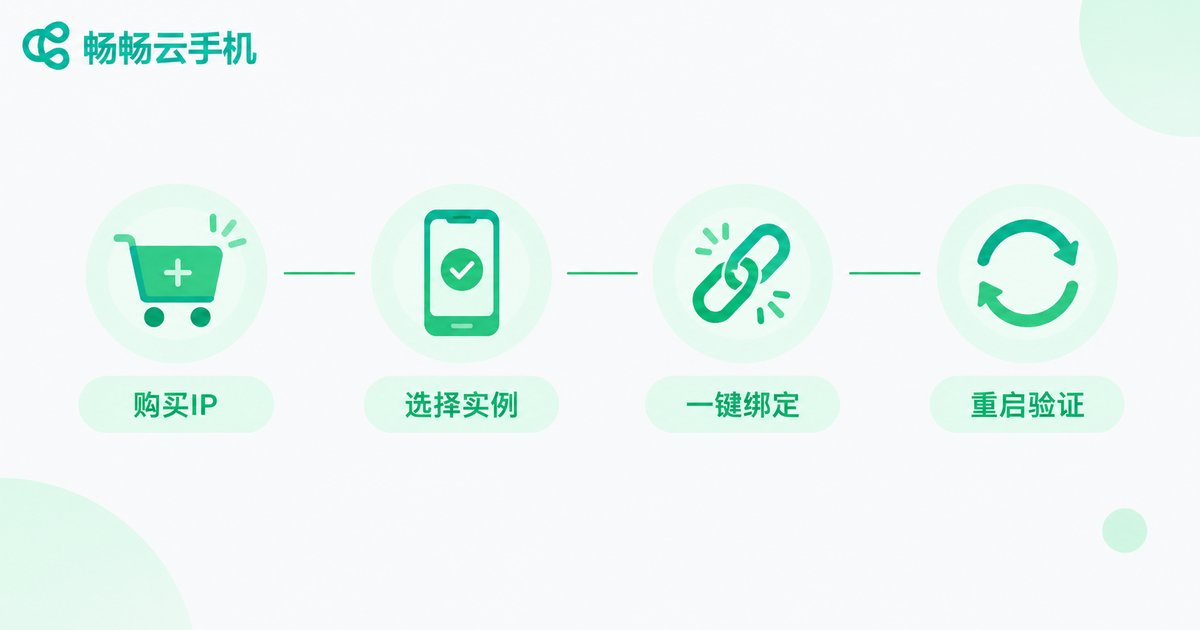
Open the official website of ChangChang Cloud Phone (ccloudphone), sign in, and enter the device management console. In the sidebar, find the “Static IP” or “IP Management” section, which lists every static IP you have purchased together with its region and current binding status.
An IP that has just been purchased and not yet assigned usually shows a status of “Unbound” or “Idle” — that is the resource you are about to allocate.
Step 2: Select the Target Instance
In the IP list, locate the static IP you want to assign and click “Bind Instance” on the right. A dialog will pop up for choosing the target. Keep two things in mind:
Choose only one. The whole point of single-instance-single-IP is one-to-one: one IP goes to exactly one instance. Never tie a single IP to multiple devices — that throws away the isolation you paid for.
Choose the right one. Match the instance against your ledger and remarks before confirming. A wrong binding can be undone, but it costs you time and an extra restart.
Step 3: Confirm the Binding and Restart the Instance
After selecting the instance, click confirm. The console will show “Binding,” which typically completes within seconds to a minute. Once binding finishes, restart that instance once — the new exit IP only takes effect inside the instance after a restart. This is the step people miss most often: if the IP “did not change,” you probably skipped the restart.
After the restart, the IP status flips from “Unbound” to “Bound” and shows the associated instance name. That is it — binding complete.
Step 4: Verify the IP Is Actually Live
Binding is not the same as being in effect, so always finish with a real test:
Method 1: Check inside the instance. Open the cloud phone you just bound, search “IP” in the built-in browser or visit any IP lookup page, and the exit IP you see should exactly match the static IP shown in the console.
Method 2: Verify from the command line in bulk. If you manage a batch of instances, connect over ADB and run a lookup command on each one to compare results:
adb shell curl ifconfig.meIf the detected IP matches your binding record, your single-instance-single-IP setup is live. If not, walk through the checklist in the next section.
Binding Failed or Not Taking Effect? Check These 5 Causes
1. No restart after binding. The most common cause — one restart fixes it.
2. A stale connection is still hanging. Shut the instance down properly from the console before powering it back on; a hard power-cut restart can leave the network module unrefreshed.
3. IP and instance in different regions. Some scenarios require the IP region to match the instance data center — check the region label before binding.
4. The IP is double-assigned. Check the IP list to confirm it is not bound to another instance; if there is a conflict, unbind first.
5. The instance itself is abnormal. Expired, overdue, or under-maintenance instances cannot complete binding — restore the instance first.
What Happens to the IP When You Replace or Reset an Instance?
A common after-sales question with a simple answer: a static IP follows the binding relationship, not any particular device.
When an instance is destroyed or reset, the binding is released automatically and the IP returns to “Unbound,” ready to be re-bound to a brand-new instance at any time — the address itself never changes. In other words, as long as the subscription stays active, your IP asset is reusable for the long run; replacing hardware does not mean replacing IPs.
Conversely, when you retire an IP you no longer need, remember to unbind it manually in the console to keep your ledger clean.
Batch Operations: Managing Dozens or Hundreds of IPs Without Chaos
Once instance and IP counts grow, management complexity multiplies. Three habits keep it under control:
1. Standardized naming. Use one numbering scheme for both instances and IPs, for example “IP-001 pairs with Instance-001,” so the mapping is never ambiguous.
2. Update the ledger in real time. Record every bind, unbind, and device swap on the spot — never batch it up for later.
3. Periodic spot checks. Verify the exit IP on a few random instances every week to catch silent drift — an essential habit for long-term account matrices.
Where Can You Get Hassle-Free Single-Instance-Single-IP?
If you want a cloud phone that supports static IP binding out of the box, take a look at ChangChang Cloud Phone (ccloudphone). Its console offers static IP purchase and instance binding directly — the workflow is exactly the steps in this article: buy the IP, pick the instance, bind in one click, restart to activate. No complicated configuration required.
For matrix operators, the key advantage is that IP resources and cloud phone instances are managed in one closed loop on the same platform: binding relationships stay clearly visible, and combined with group control and batch operations, the single-instance-single-IP scheme rolls out smoothly. Check the official ccloudphone website for current plans and available IP regions, then buy according to your instance count.
FAQ
Q: Can one static IP bind to multiple cloud phones at once?
Some platforms technically allow one-to-many, but it is strongly discouraged. The entire value of single-instance-single-IP is isolation; sharing one IP across devices defeats the purpose. Stick to one-to-one for real account safety.
Q: Will the IP change after binding?
No. A static IP keeps the same address for the life of the subscription — across restarts and even after re-binding to a new instance. That is exactly why it suits long-term account nurturing.
Q: After unbinding, can the IP be bound to a different instance?
Yes. Once unbound, the IP returns to the assignable pool and can be bound to any other instance under your account — no repurchase needed.
Q: Will binding a static IP slow down my instance?
Normally not. A static IP is a dedicated resource and is usually more stable than shared lines. If you feel lag, check the instance's plan tier and your local network first.
Q: As a beginner, should I buy IPs or instances first?
Set up your instances and finish basic configuration first, then buy static IPs to match the instance count and bind them immediately. That keeps your ledger clean and avoids wasting IP subscription time.


