
Cloud Phone for Short Video: Upload, Download, Asset Management and Batch Operations
The hidden efficiency sink in short-video teams
Every short video goes through a chain of steps before it goes live: shooting, editing, uploading assets, designing a cover, writing the caption, scheduling the post. With one account, that is manageable. With five or six accounts running at once, the thing that slows a team down is rarely the creativity — it is moving files back and forth between devices: the phone is full, last week's raw footage cannot be found, and dozens of finished clips have to be pushed into different devices one at a time.
A cloud phone moves that repetitive work into the cloud. Each cloud phone is an independent phone environment running on a server, so it does not take up the storage of the device in your hand; assets can go in and out in batches, and actions can be issued in batches. Below we cover the three parts that affect efficiency most: uploading and downloading, asset management, and batch operations.
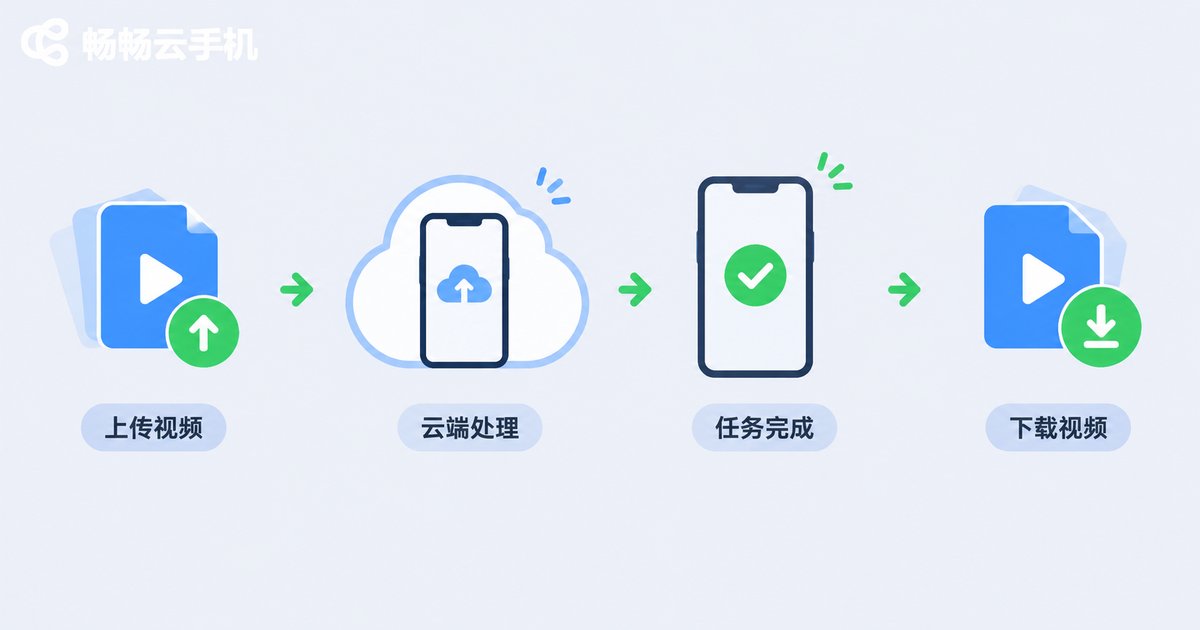
Uploading: get every asset in place in one pass
The first time people use a cloud phone, they tend to pick files one by one inside the phone interface — which can take ten minutes for a few dozen clips. A faster approach is organise first, package second, upload last.
Step one: name files locally. Use a format like date_account_project_version, for example 0428_accountA_unboxing_v2.mp4. If local filenames are messy, the cloud will be messy too.
Step two: package in batches. Compress the assets for one account and one episode into a single archive before uploading. Once decompressed in the cloud, everything unfolds at once — much faster than uploading clip by clip, and less likely to break halfway.
Step three: one folder per account. Give every account a fixed folder in the cloud. Finding an asset later then means opening a folder, not scrolling through a gallery.
A few details that are easy to miss:
- Use the desktop web interface when you can — selecting many files is far more stable there than in a phone UI;
- 1080P is enough for publishing, so compress before uploading and save more than half the transfer time;
- Do not run too many large uploads at once, or they will compete for bandwidth.
Downloading: archive finished clips on time
The cloud is a workbench, not a warehouse. Once a clip is published, download it back to local storage or an archive drive as soon as possible — cloud storage is a shared resource, and a full drive directly slows down the next upload.
Batch download: select the whole set of finished clips and export once, not one by one.
Rename after publishing: put platform_publish date_performance into the filename. Future you will be grateful during review.
Double backup: one copy on a local drive, one on the team cloud drive. Keep only active projects on the cloud phone.
Clean regularly: clear published intermediate files once a week and leave the space for new material.
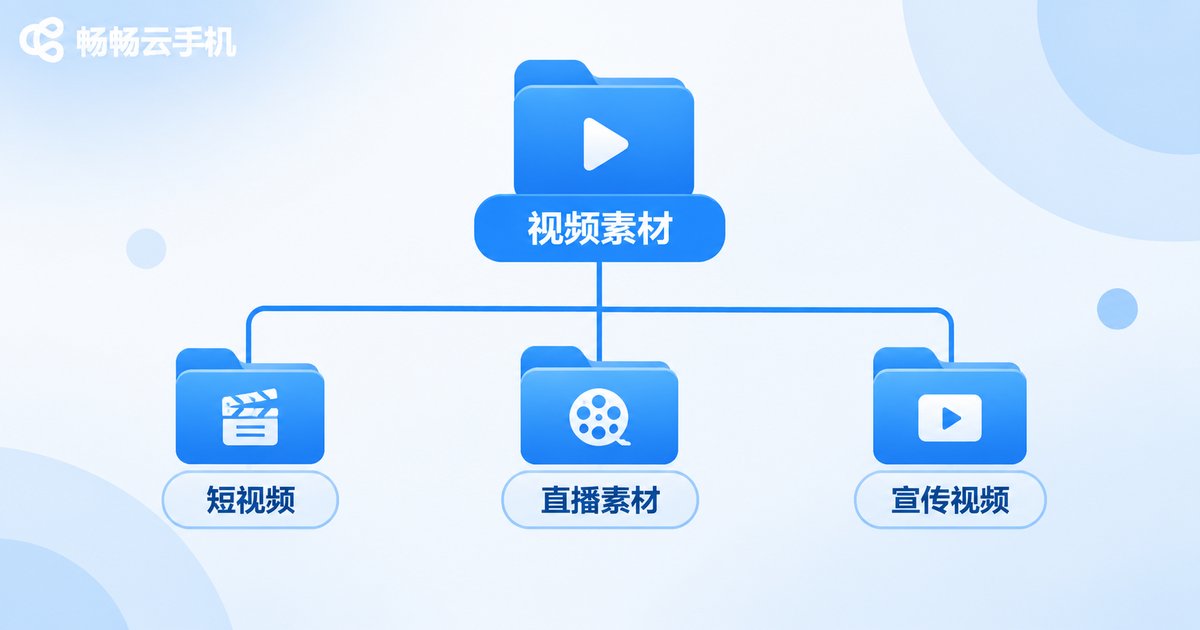
Asset management: three types of material, three places to keep them
Short-video material falls roughly into three categories. Storing them all together is where the chaos starts.
| Asset type | Typical content | Where to keep it | Retention |
|---|---|---|---|
| Raw footage | Unedited original clips | Local drive or team cloud archive | 3–6 months |
| Working files | Editing projects, subtitles | Project folder on the cloud phone | During the project |
| Finished clips | Published or scheduled videos | Local + cloud, double backup | Long term |
Two small habits keep a library clean over time. First, deduplicate: compare files with the same name and size before uploading. Second, use version numbers: save revised edits as v2, v3 instead of overwriting the original, so you can roll back immediately if something goes wrong.
Batch operations: one person, ten cloud phones
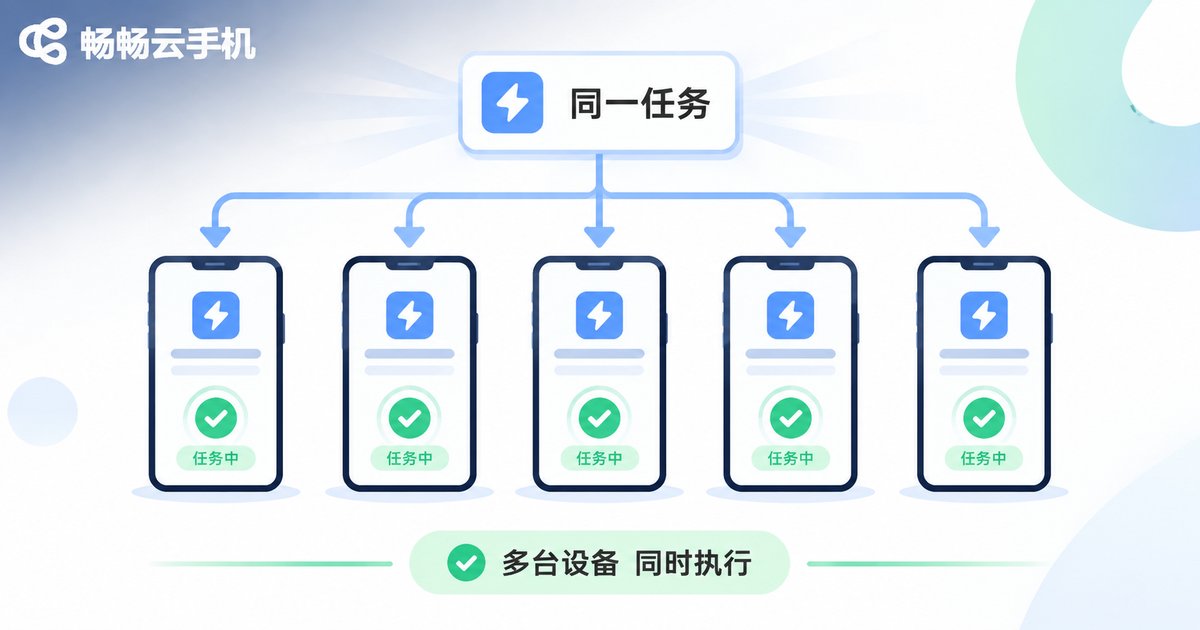
The real efficiency gain of a cloud phone is batching. Turning repeated actions into a single instruction is what makes the jump from one account to ten possible.
- Batch install and update: set up every needed app on new devices in one go instead of tapping through each phone.
- Batch upload assets: distribute the same set of material to several devices at once, skipping repeated transfers.
- Batch run the same flow: open an app, reach a specific screen, complete fixed steps — issue it once and let multiple devices execute.
- Batch export results: pull finished clips off all devices in one action.
One reminder: batch operations do not mean doing the exact same thing at the exact same second. Devices starting up together and performing identical actions in perfect sync looks unnatural. Stagger the timing slightly and the rhythm feels much closer to real use.
A daily routine you can copy as-is
- Morning: package yesterday's finished clips and upload them in one go into the right account folder.
- Late morning: prepare covers, captions and publishing settings on the cloud phone.
- Afternoon: run the publishing flow in batch, staggered across devices.
- Evening: batch download all finished clips locally and rename them with platform_date.
- Weekly: clear intermediate files in the cloud, archive raw footage, check version numbers.

Why use Ccloudphone for short video
Ccloudphone provides independent phone environments that run in the cloud and can be operated from a web browser, which suits short-video work that involves multiple devices, multiple accounts and constant movement of assets. Batch upload and download, unified management of several devices, and unified execution of the same action can all happen in one interface — no more shuffling files between physical phones.
For an individual creator it saves phone storage and device switching time. For a team it gives assets a fixed set of rules, so whoever takes over can find the file.
FAQ
Q: Will assets on a cloud phone get lost?
A cloud phone is a workbench, not a warehouse. Download finished clips promptly and keep two backups; store raw footage on a local drive or team cloud drive.
Q: How much should I upload at a time?
Upload per project. Keep individual archives reasonably sized — very large ones are more likely to break mid-transfer, so splitting into a few packages is safer.
Q: Can batch operations look unnatural?
The key is staggering the timing so the rhythm resembles real usage, and avoiding every device doing the identical action at the same second.
Q: Why rename finished clips after downloading?
It makes later review and searching much easier. Putting platform, date and performance data in the filename beats scrolling through a gallery.
Q: Can I operate a cloud phone from my own phone?
Yes, but batch file selection and batch downloads are more comfortable on the desktop web interface.


