
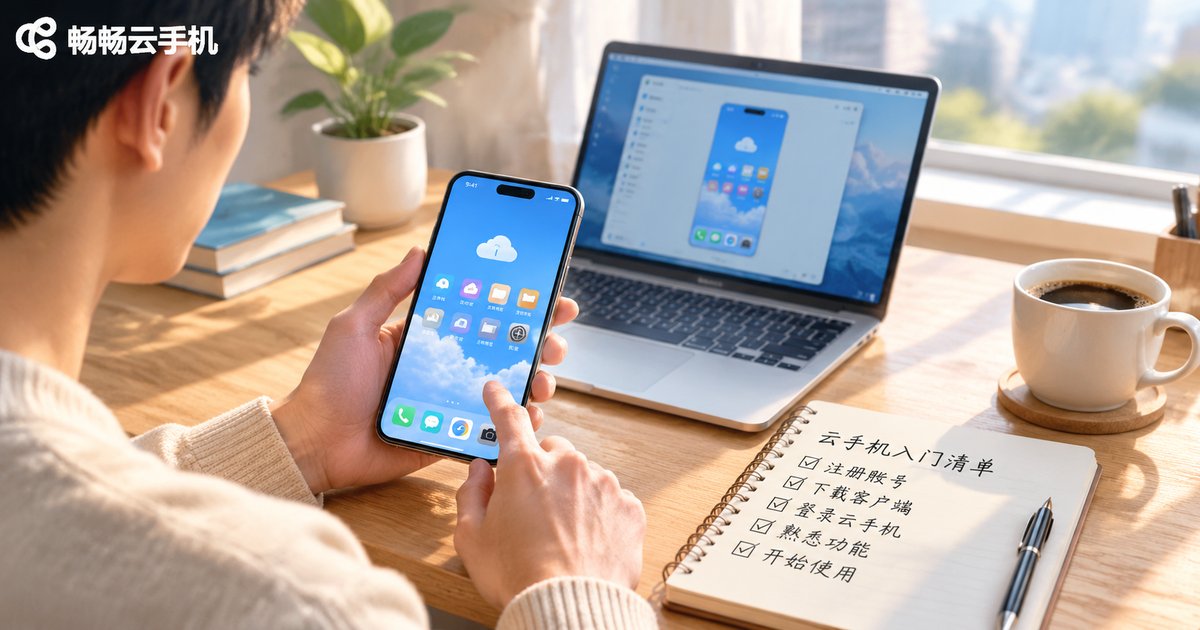
What to Prepare Before Using a Cloud Phone: Accounts, Network & Peripherals Starter Checklist
Why Prepare Before You Start?
Many first-time users assume a cloud phone works smoothly the moment the app is installed, only to stumble at registration or battle lag and high latency. In reality, a cloud phone is an Android device running in a cloud data center, which you control remotely from your own phone, tablet, or computer. Because everything happens remotely, three things — your account, your network, and your control device — set the ceiling of your experience. Spend ten minutes on the checklist below before you start, and you will avoid most of the frustration later.
Step 1: Account Preparation — One Mobile Number Is All You Need
Your account is the key to your cloud phone. Preparation is simple, but a few details are easy to get wrong:
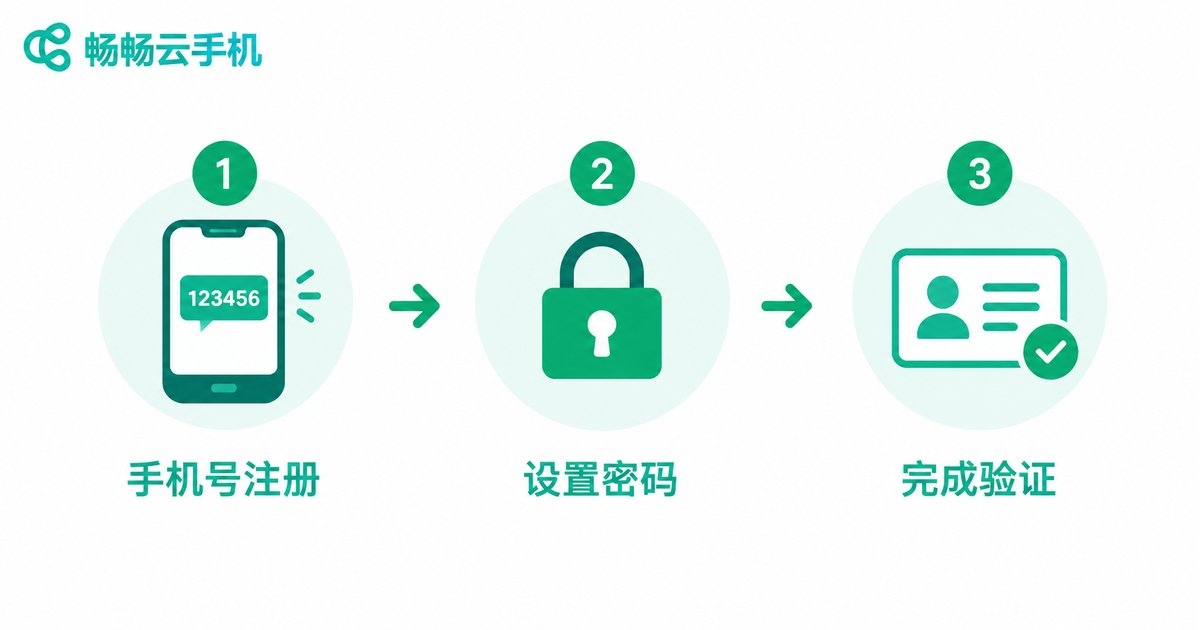
1. Use a mobile number you actually keep. Registration and login usually require an SMS code, so pick a number you use daily and can receive messages on. Avoid temporary or dormant SIM cards, or recovering your account and switching devices later becomes painful.
2. Choose a password you will remember. Your cloud phone may eventually run your games, social apps, and daily tools, so account security matters. Avoid weak passwords, do not reuse them across platforms, and store them somewhere reliable.
3. Complete verification in one go. Keep your phone at hand during sign-up so you can finish any SMS or identity verification in a single session instead of quitting halfway.
Step 2: Network Check — Stability Matters More Than Raw Speed
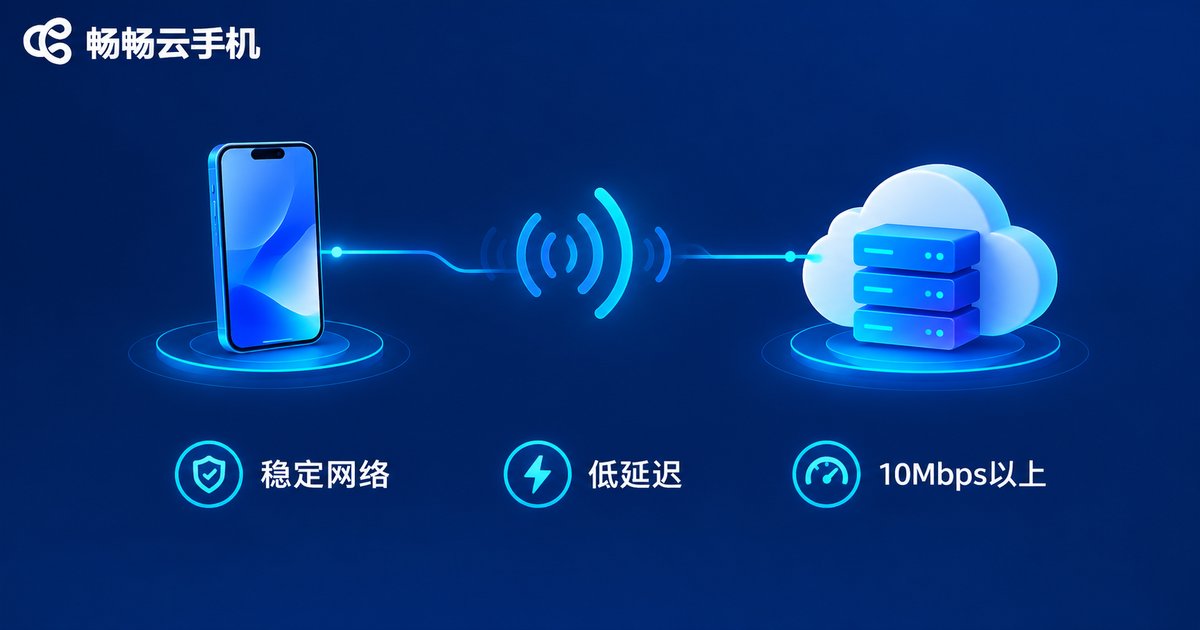
Every frame and every tap travels over the network, so connection quality directly decides how smooth your cloud phone feels. Focus on three things:
Bandwidth: a single cloud phone needs at least 10 Mbps of download bandwidth, and the requirement stacks when you run several at once. Most home broadband connections handle this easily.
Latency: lower is better. Below 50 ms feels smooth for everyday use; for action-heavy games, pick the environment with the lowest and most stable ping.
Connection type: prefer stable home WiFi or wired broadband and avoid crowded public WiFi. Mobile data works fine too, but streaming video or long sessions consume noticeable data, so keep an eye on your plan.
Not sure whether your network is good enough? Open any speed-test website on your control device and check two numbers: download speed and ping. That tells you everything.
Step 3: Control Device and Peripherals — Start With What You Already Own
The cloud phone places almost no demands on your control device, which is one of its biggest advantages:
Control device: an old smartphone, an ordinary laptop, or a tablet can all act as the remote. All the heavy lifting happens in the cloud, so the control device only displays the screen and sends inputs — no high specs required.
Peripherals are optional; add them as needed:
| Peripheral | Best for | Suggestion |
|---|---|---|
| Bluetooth keyboard and mouse | Multi-account management, batch tasks | Great for power users |
| Game controller | Game apps in the cloud | Personal preference |
| Headphones | Apps with sound | Use anytime |
| Large screen or monitor | Monitoring multiple instances | Great for multi-instance users |
If you are just testing the waters, one phone and one finger are enough. Add peripherals later once you know you have long-term or multi-instance needs.
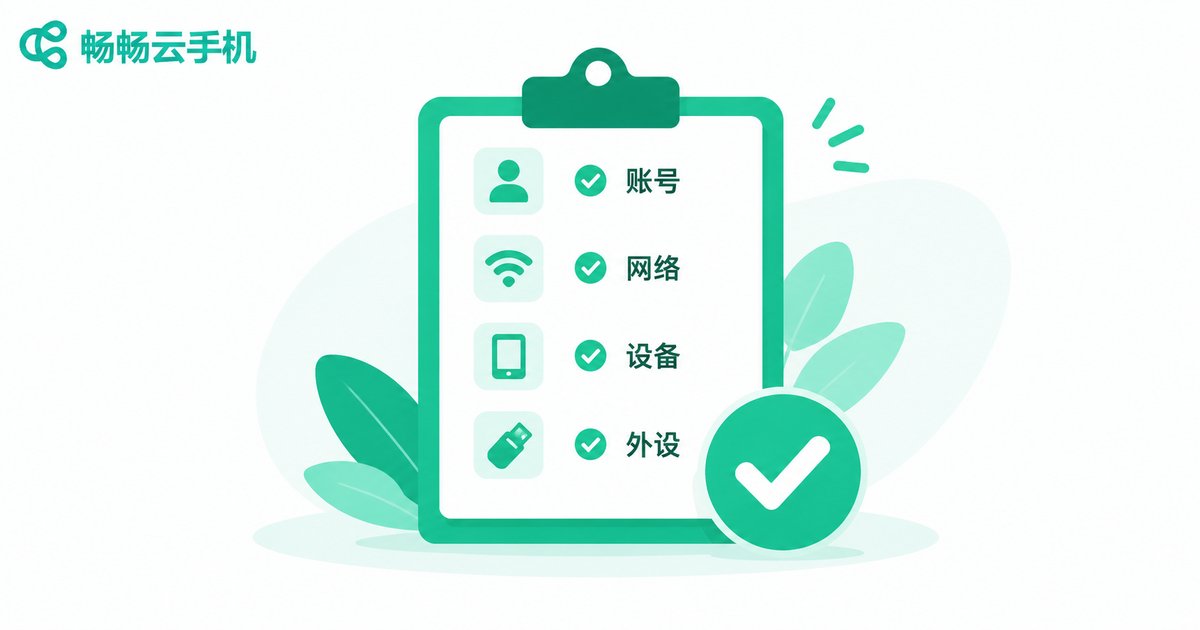
Beginner's Quick-Reference Checklist
| Item | Minimum | Recommended |
|---|---|---|
| Account | One mobile number in daily use | A dedicated, well-stored password |
| Network | Stable WiFi or 4G/5G | 10 Mbps+ broadband with low latency |
| Control device | Any internet-connected phone or PC | A larger screen for multi-instance comfort |
| Peripherals | None (touchscreen is fine) | Bluetooth keyboard/mouse or controller as needed |
Pick the Right Platform and Your Preparation Pays Off
With the checklist complete, the final step is choosing a reliable cloud phone service. We recommend ccloudphone: after registering an account, you can activate your own Android phone in the cloud, where app downloads and multi-instance management all happen on the server side, so even an old phone or a low-spec computer controls it smoothly. Beginners can simply visit the official website or download the app, follow the guided sign-up, and have their first cloud phone ready in minutes — then put every item on the checklist above to work.
FAQ
Q: Does the control phone need high specs?
No. Any device that can browse the web smoothly works, because all the computing happens in the cloud — even an old phone makes a fine remote.
Q: Can I use mobile data instead of WiFi?
Yes. What matters is a stable, low-latency connection. Just watch your data usage during long sessions; WiFi is preferable for all-day use.
Q: How much bandwidth does one cloud phone need?
At least 10 Mbps of download bandwidth per instance, stacking with more instances. Typical home broadband is more than enough.
Q: Do I have to buy peripherals?
No. Touchscreen controls work perfectly well; keyboards, mice, and controllers are optional efficiency upgrades best added once you know your needs.
Q: What should I prepare before registering?
A mobile number that can receive SMS is basically all you need. Follow the platform's verification steps and the whole process takes just a few minutes.


