
2026 Cloud Phone Quick Start Guide: Master Common Settings and Features
What Is a Cloud Phone? Understand the Concept First
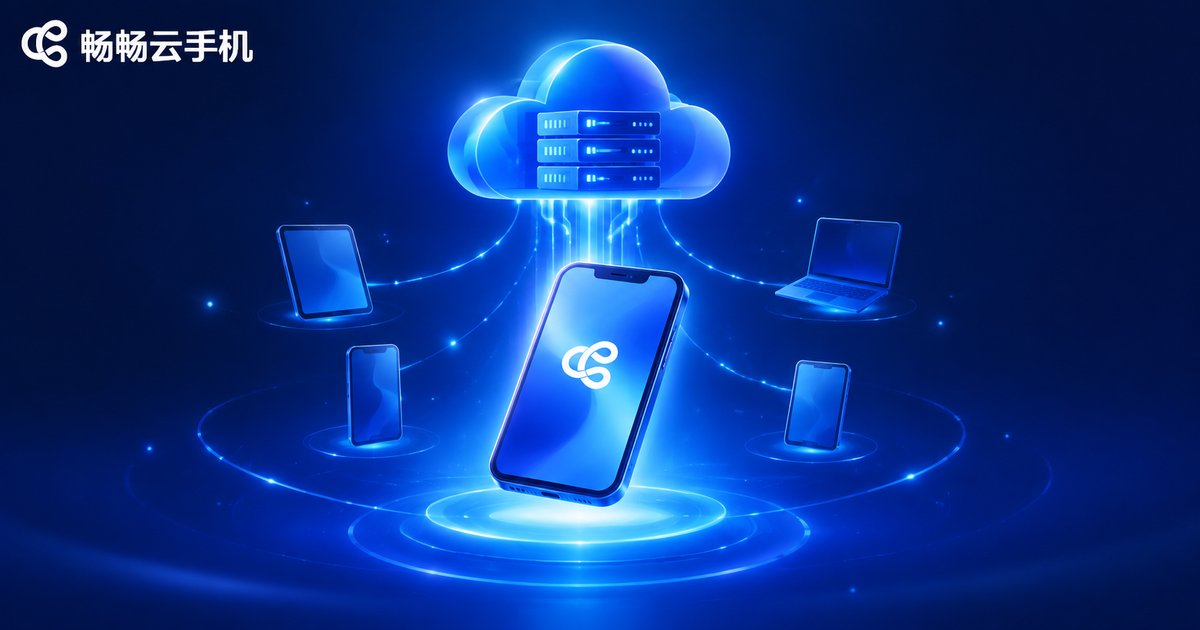
Simply put, a cloud phone is a virtual smartphone that runs on cloud servers. Just like the physical phone in your hand, it has its own system, apps, and storage, but all the computing happens in the cloud. All you need is any internet-connected device — log in via an app or a web page and start using it anytime.
For everyday users, the biggest benefits are no local storage usage, no overheating, and no battery drain. For users who manage multiple accounts, one cloud phone account can spin up many independent devices that stay online 24/7 without keeping any physical phone powered on.
Get Started in Three Minutes
Take ChangChang Cloud Phone as an example — the setup process is extremely simple:
Step 1: Visit the official website ccloudphone.com or download the app, and register with your phone number.
Step 2: Pick a cloud phone in the console, click start, and after a short moment you are inside an Android desktop.
Step 3: Use it like a normal phone — open the app store, install the apps you need, sign in, and you are ready to go.
The whole process requires no technical skills and no changes to your physical phone. Switching devices or networks never loses your cloud data.
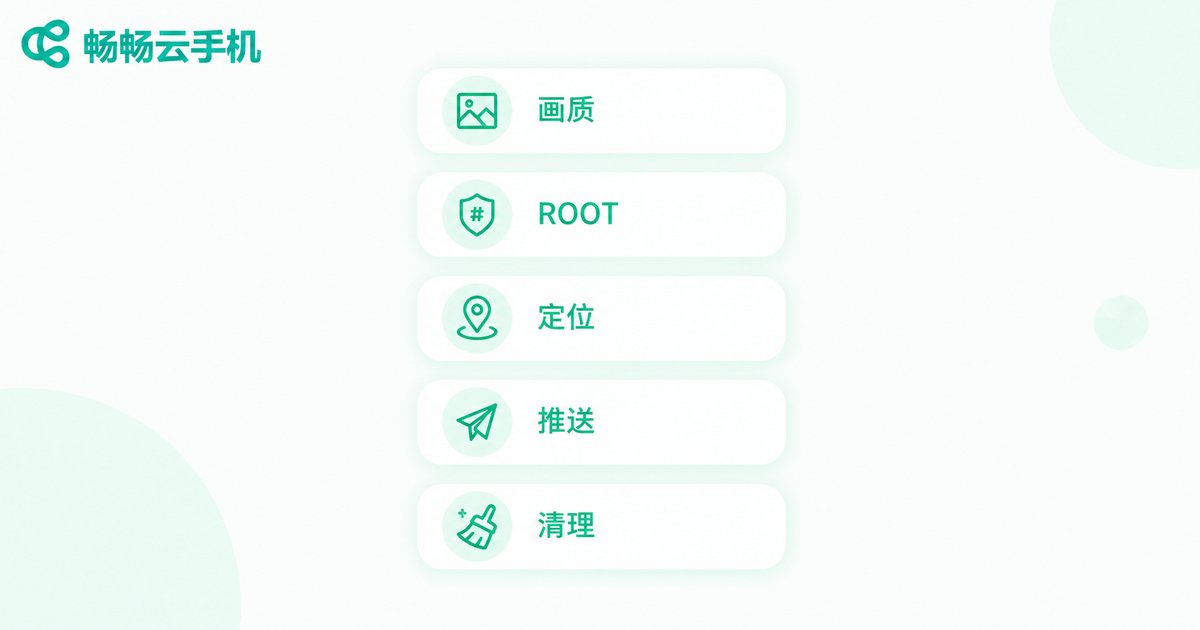
Five Essential Settings for Beginners
After getting a new cloud phone, complete these settings first to make everything smoother later:
| Setting | What It Does | Suggestion |
|---|---|---|
| Resolution and quality | Affects clarity and smoothness | Choose HD on fast networks, smooth mode otherwise |
| ROOT access | Required by some scripts and tools | Enable only if needed |
| Virtual location | Simulates a different region | Set per your needs, restore afterwards |
| Push notifications | Receive cloud messages while offline | Recommended for idle running |
| Auto cleanup | Clears cache regularly | Recommended for long-term running |
All of these can be found in the Settings Center on the cloud phone or in the console. Changes take effect immediately and can be reverted anytime.
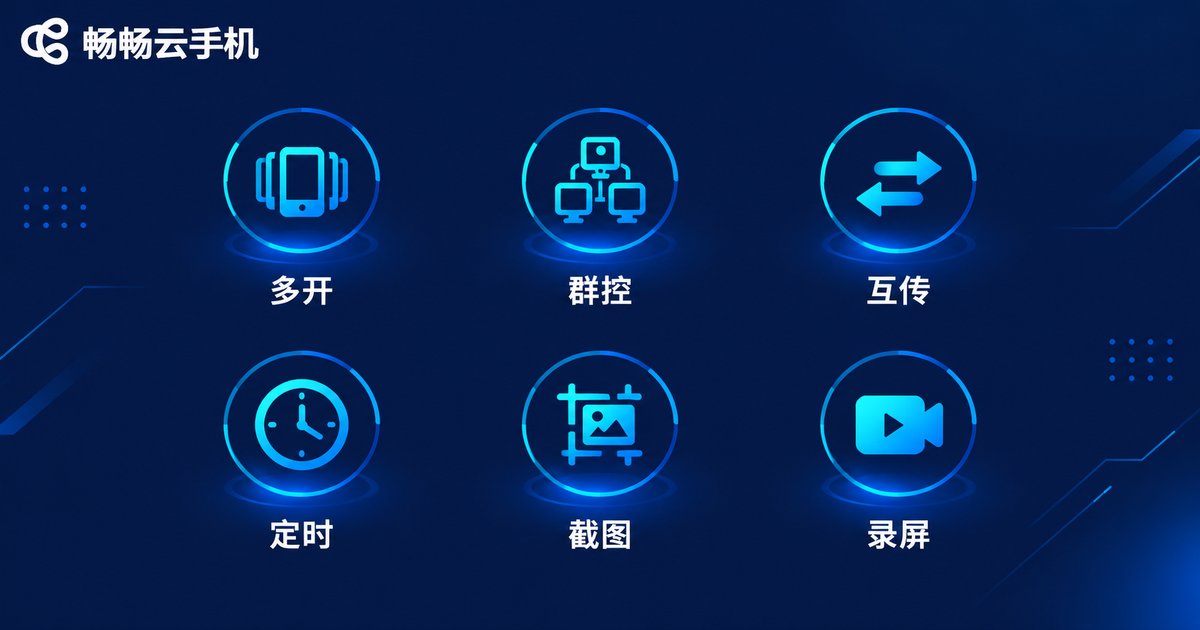
Common Features Explained at a Glance
Cloud phones offer many features, but these are the ones you will actually use every day:
Multi-instance management: Add more cloud phones with one click in the console. Each one is a fully independent environment — perfect for keeping multiple accounts separate.
Group control: Operate many cloud phones from a single screen; batch install, batch launch, and repeated actions only need to be done once.
File transfer: Move photos and files between your physical phone and cloud phones directly, no cable needed.
Scheduled tasks: Set times to auto-start or auto-stop tasks, so things keep running while you sleep.
Screenshot and recording: Capture screenshots or record sessions directly in the cloud; files are saved automatically.
Who Benefits Most from a Cloud Phone?
| User Type | Typical Use Case |
|---|---|
| Mobile gamers | Idle farming and leveling alt accounts without occupying your real phone |
| Content creators | Managing multiple platform accounts and uploading content anytime |
| Studio operators | Bulk multi-instance plus group control for centralized device management |
| Everyday users | Storing large files in the cloud, testing apps without filling local storage |
Why We Recommend ChangChang Cloud Phone
Among cloud phone services, ChangChang Cloud Phone (ccloudphone) stands out for stability and ease of use: a clean interface that beginners can deploy quickly, reliable and smooth performance for both daily use and long-term idle running, and full support for multi-instance and group control — covering everyone from solo players to studios. If this is your first time using a cloud phone, starting with ChangChang Cloud Phone keeps the learning curve as low as possible.
FAQ
Q: How is a cloud phone different from an emulator?
A cloud phone runs on cloud servers and does not depend on your local hardware — tasks keep running even when your computer is off. An emulator runs on your local machine, consumes its resources, and stops when the computer shuts down.
Q: Will using a cloud phone get my account banned?
Not with normal use. A cloud phone provides a genuine Android environment. As long as you follow platform rules and avoid policy violations, it is no different from using a regular phone.
Q: How many accounts can one cloud phone hold?
We recommend one main account per cloud phone. For multiple accounts, simply spin up additional cloud phone instances for cleaner, safer isolation.
Q: Does a slow network affect usage?
Yes, somewhat. The cloud phone screen is streamed over the network, so use Wi-Fi or a strong 4G/5G signal for the best experience. Idle tasks run in the cloud, so local network fluctuations do not interrupt them.
Q: If I switch phones or log in from another place, is my data still there?
Yes. Cloud phone data is stored in the cloud. Log in with the same account on any device and your desktop, apps, and data are exactly as you left them.


