
How to Respond to a Cloud Phone Service Outage: Temporary Alternatives and Data Protection Plans
When Your Cloud Phone Suddenly Goes Offline, Don't Panic-Swap Devices
A cloud phone keeps its computing power and data in a remote data center, which means the phone, tablet or laptop in your hand is really just a screen. That is exactly why a shaky local network, scheduled maintenance or an expired session can leave you staring at a loading page. Replacing your device or reinstalling the system rarely helps. What actually matters is deciding two things in advance: how to keep working temporarily, and how to make sure no data is lost.
This guide is written for individual users and small teams, and gives you a checklist you can follow step by step. You do not need to understand server architecture. You just need to check in the right order and switch to a prepared plan.
First, Identify Which Link Broke
The same symptom — 'it won't open' — can have completely different causes. Two minutes of diagnosis saves hours of pointless fiddling.
| Possible cause | Typical symptom | Usual recovery time | What you can do right now |
|---|---|---|---|
| Local network problem | Only your device fails; web pages are slow too | Seconds to minutes | Switch between Wi-Fi and mobile data, restart the router |
| Cloud data center maintenance | Several devices on the same provider drop at once | Minutes to hours | Check the provider's status page and activate your backup plan |
| Account or session issue | It opens but says session expired or you were kicked out | A few minutes | Log in again and check for duplicate sessions |
| Outdated client | Blank screen or crashes after an update | A few minutes | Update to the latest version or log in from another device |
| Instance resource pressure | Startup queue or obvious lag | Depends on load | Use off-peak hours and keep a second instance ready |
The test is simple: log into the same account from another device on another network. If it still will not open, the problem is almost certainly in the cloud, so stop restarting your own phone.
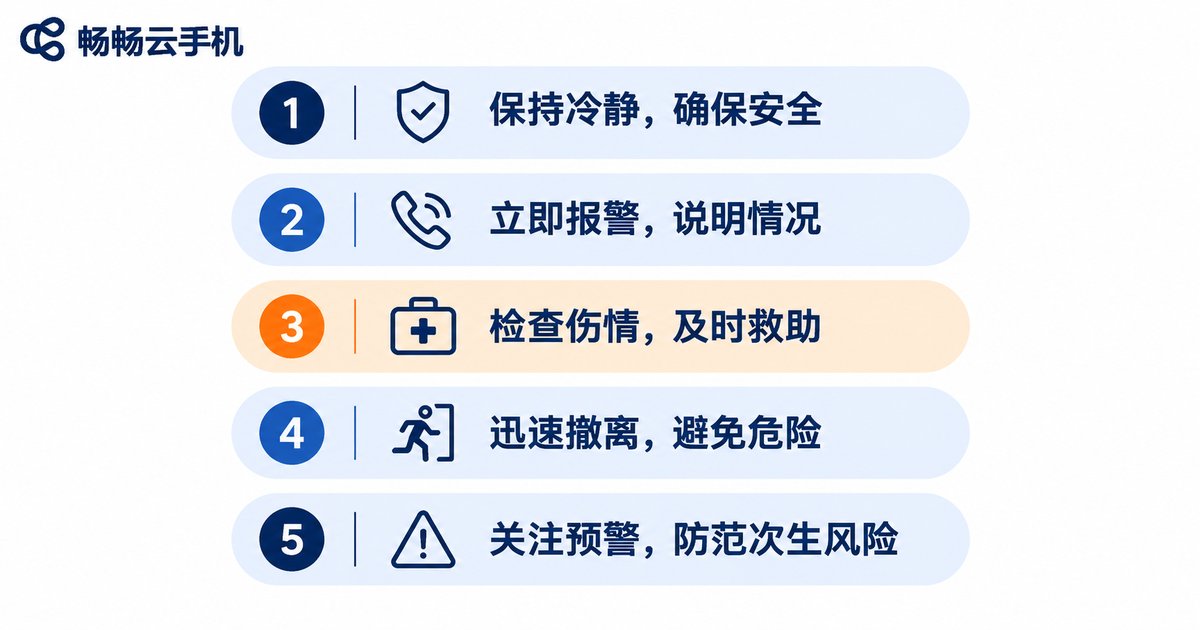
The Five-Minute Emergency Checklist
Save these five steps in your notes app and follow them in order when something actually breaks.
- Confirm the scope: is it only you, or are colleagues and teammates offline too? A single-person problem usually starts locally.
- Switch network paths: move from Wi-Fi to 4G/5G, or share a phone hotspot to your laptop to rule out a broadband failure.
- Restart the client and change endpoints: if mobile fails, try desktop; if desktop fails, try a tablet.
- Check service status: look at the provider's official page for maintenance or incident notices instead of guessing in a group chat.
- Activate the backup plan: once you know it will not recover soon, switch to your prepared alternative instead of waiting.
Choosing a Temporary Alternative: Four Common Options
No alternative reproduces a cloud phone perfectly. The goal is to get the most critical task back online first. List what must be finished during the outage, then match it to an option.
| Alternative | Best for | Advantages | Trade-offs |
|---|---|---|---|
| Your own physical phone | Handling one or two urgent tasks | Available instantly, no preparation | Local storage and account environment differ from the cloud, risk of mixing identities |
| A second cloud phone instance | Multi-account operations, long-running online tasks | Identical environment, nearly seamless switch | Must be prepared in advance; think of it as a standby shift |
| Remote desktop connection | Operating a desktop backend | Takes over your existing working environment | Heavily dependent on local network quality; limited experience |
| Web client login | Checking messages, sending files temporarily | No local storage, works from any computer | Features may be incomplete; not for long, intense sessions |
Practical advice: treat a second cloud phone instance as standard equipment. It lives in the same cloud environment as your main one, uses familiar accounts, apps and file structures, requires no relearning, and keeps work data off your personal phone.

Data Protection: Three Layers from Account to Files
The advantage of a cloud phone is that data is not stored locally — and that is also the risk, because you cannot physically reach that device. Back up in layers so that a failure in one layer does not take everything down.
Layer one: accounts and login information
List the account, bound phone number and two-factor method for every cloud phone instance, then store that table encrypted on your local device or in a password manager. Never bind all your second-factor verification to a single device; if that device goes offline, you cannot authenticate either.
Layer two: regular in-app data export
For chat history, forms, creative assets and customer lists, use the app's built-in export or cloud sync and pull a copy to your local machine weekly. It takes only a few minutes, and it is the single most valuable action during an outage.
Layer three: archive key screens and configurations
For complex environments — multi-account groups, automation tasks, permission settings — save screenshots or screen recordings along with a short written note. Rebuilding from a document after recovery is far faster than rebuilding from memory.
Turning Emergency Response into a Process: Three Team Rules
Individuals rely on memory; teams rely on process. If several people share cloud phones in your business, set three simple rules.
First, name the on-call owner. Write down who watches service status during which hours and who has authority to spin up the backup instance, so nobody has to call a meeting mid-incident.
Second, use one notification channel. Publish outage updates in a single fixed channel to avoid the confusion of 'some say it is fixed, some say it is not'.
Third, rehearse quarterly. Actually shut down the primary instance, switch to the backup and run the whole workflow once to find where it stalls. One rehearsal costs far less than a chaotic real incident.
Choose the Right Provider and Half the Incidents Disappear
A good plan catches you when you fall, but the best outcome is never needing it. Beyond specs and price, look at three things when choosing a cloud phone service: stable instance hosting with clear incident notices, centralized management of multiple instances, and data kept in the cloud rather than tied to a local device.
ccloudphone is aimed at users who need multiple devices online and long-term hosting. It offers cloud instance management and multi-instance management, keeps data in the cloud, and lets you log in from another device without rebuilding your environment. For current features, editions and how to get started, check the official website directly and pick a configuration that matches your actual workload — do not decide based on second-hand summaries.
One more reminder: whichever provider you use, always keep your own copy of account details and critical data. That rule never fails.
After Recovery: A Ten-Minute Review
While the memory is fresh, answer four questions: how long did the outage last? What did you do right and wrong in the first reaction? Which data almost could not be recovered? What should be prepared next time?
Write the answers into your emergency checklist and it becomes your own experience library. Most teams build real resilience one small incident at a time.
Frequently Asked Questions
Q1: My cloud phone will not connect — have I lost my data?
Usually not. Most outages happen at the network or data center level, and data remains in the cloud. After recovery, logging in again normally shows everything as before. That is also why regular exports matter as a safety net.
Q2: How do I quickly tell whether it is my network or the cloud?
Log into the same account from a different device on a different network. If it still will not open, the problem is in the cloud — check the provider's status page instead of restarting your router again.
Q3: What are the risks of using my own physical phone as a stopgap?
Mostly account-environment mixing. Login states, caches and the cloud instance differ, which can cause identity mix-ups or accidental actions. Use it only for the one or two most urgent tasks, then switch back.
Q4: Should I prepare a second cloud phone instance in advance?
If your work depends on a cloud phone being online for long periods, yes. A second instance runs in the same cloud environment, so switching requires no relearning — it is the least stressful temporary alternative.
Q5: How often should I back up data?
It depends on how fast your data changes. Routine communications can be exported weekly, while orders and customer lists should be exported daily or after every significant change, together with configuration screenshots.
Q6: How should a team divide emergency responsibilities?
Name at least one on-call owner and one backup, specify who checks service status, who is authorized to start the standby instance, and which channel carries official updates. Rehearse quarterly to confirm the process still works.


