

2026 Cloud Phone Data Export and Backup Strategy: Scheduled Archiving and Recovery Drills
Why Backing Up a Cloud Phone Is Different from a Physical Phone
If a physical phone breaks or gets lost, the data may disappear with it, so most people already think about backups. Cloud phone data lives in a data center from day one, so many teams assume that cloud means safe. That is a dangerous misconception: the cloud only guarantees that the hardware keeps running. It does not guarantee that your data won't be deleted by mistake, overwritten, or wiped along with an instance reset.
In 2026, more and more teams run ad campaigns, customer support, QA, and livestream matrices on cloud phones, with dozens of instances per project. At that scale, the real questions are not whether to back up, but three practical ones: how often to archive, where to archive, and how fast you can recover. This article walks through a workflow you can actually execute: scheduled archiving plus recovery drills.
Step 1: Identify the Four Types of Data You Must Export
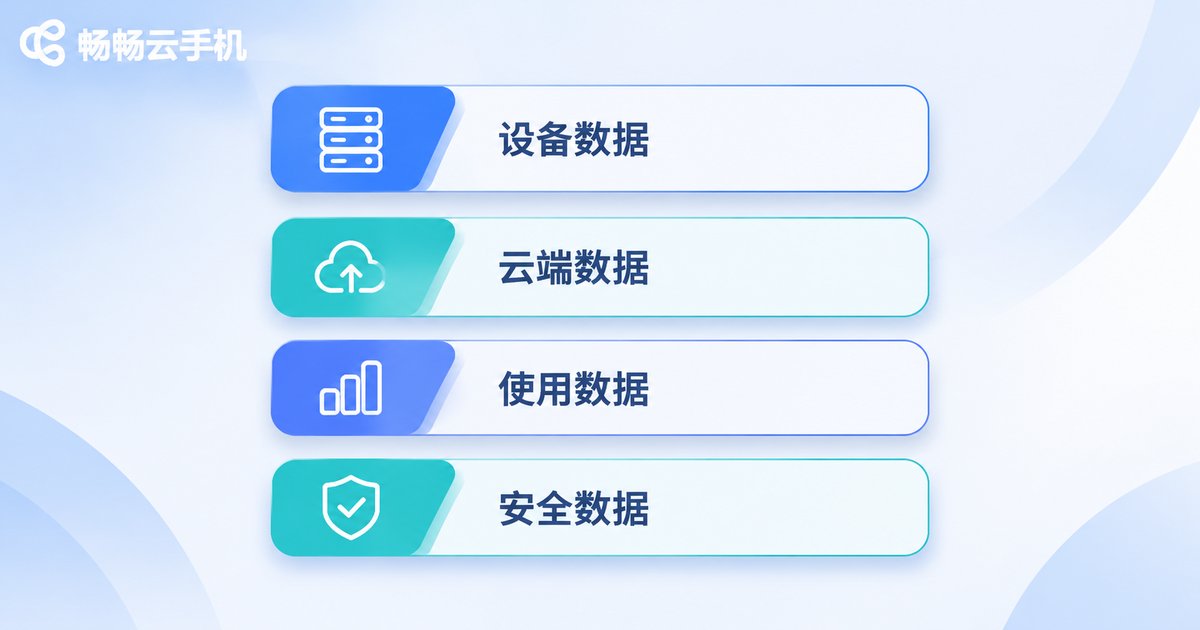
Many people jump straight to how do I export files from a cloud phone without first deciding what to export. Split your data into four layers first. Each layer has a different export frequency and a different storage location.
| Data Type | Typical Content | Export Frequency | Suggested Storage |
|---|---|---|---|
| Accounts and credentials | Login accounts, two-factor methods, bound phone numbers or emails | Update immediately on change | Password manager + encrypted text |
| Apps and configuration | Installed app list, system settings, permission switches | Once a month | Team wiki + version history |
| Business data files | Images, videos, spreadsheets, exported reports, chat files | Weekly delta | Object storage + local disk |
| Instance state | Full snapshots, images, system version info | Monthly or before major changes | Cloud snapshot area |
A good rule of thumb: you must export and store the first three layers yourself in a separate location. Only the fourth layer depends on platform-side instance features. Relying entirely on a single platform means putting all your eggs in one basket.
Step 2: Choose the Right Export Method, Not the Most Tiring One
The export method determines whether you can keep the habit going. The four common approaches each fit a different situation, so look before you leap:
| Method | Best For | Pros | Limitations |
|---|---|---|---|
| Manual file transfer | 1 to 3 instances, one-off exports | No setup required, do it right away | Unmanageable at scale, easy to miss files |
| In-instance sync tools | Continuous sync of fixed folders | Delta transfer saves bandwidth | Requires the instance to stay online |
| Scripted batch pull | Dozens of instances, with technical staff | Schedulable, verifiable, traceable | One-time effort to write the script |
| Full snapshot or image | Before major upgrades, project handover | Most complete restore | Large size, not suitable for high frequency |
The practical recommendation is a combination of scripted batch pulls and a monthly full snapshot. Pull business files back weekly with a script, and keep one full snapshot at month-end or before major version changes as a safety net. This keeps costs down and still protects you at the critical moment.
Step 3: Set an Archiving Cadence You Will Actually Follow
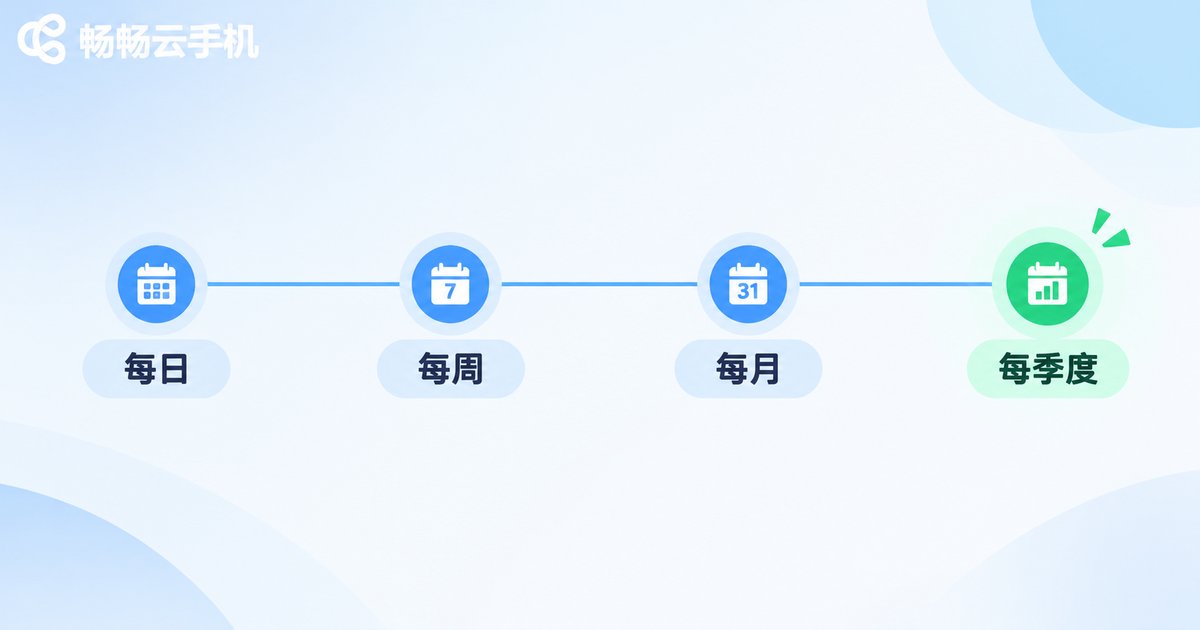
The most common reason backups fail is not technology, it is a cadence that was too ambitious. A full backup every day, encryption every time, manual confirmation every time, and the process dies within three days. Adapting the classic 3-2-1 rule to cloud phones works better: at least 3 copies, on 2 different media, with 1 copy in a separate location or under a separate account.
| Cadence | Action | Retention |
|---|---|---|
| Daily | Incremental export of new business files | Keep the last 14 days |
| Weekly | One full archive plus a checksum manifest | Keep the last 8 weeks |
| Monthly | Package the whole month and store a copy off-site | Keep 12 months |
| Quarterly | Run a recovery drill and write a retrospective | Keep drill records long term |
Naming conventions matter too. Standardize on a pattern like project_instance_date_type, for example shop-07_20260301_full. When you need to restore, you will thank yourself for writing that name down.
Step 4: Recovery Drills, Because an Untested Backup Is Not a Backup
This is the most important section of the article. A successful backup only proves that files were copied somewhere. A recovery drill proves that those files can actually become a working cloud phone again. Run one every quarter; a basic drill takes about 30 minutes:
- Pick one archive from one random instance. Do not choose the instance you know best.
- Restore the data onto a clean instance, and record the start and end times.
- Compare file hashes against the checksum manifest to rule out silent corruption.
- Log in to the key apps for real and confirm that credentials and settings work.
- Write the recovery time (RTO) and the possible data loss window (RPO) into the retrospective document.
After doing this, you will find two kinds of problems: files that exist but won't open, and files that open but are missing configuration. Only drills expose these problems, and these are exactly the ones that hurt the most.
Copy-Ready Archiving and Verification Scripts
The script below is designed to run on an always-on machine, organizing, verifying, and retaining the archive directories you pull back. Adjust the variables to your own paths:
#!/bin/bash
# Weekly full archive plus checksum manifest
DATE=$(date +%Y%m%d)
SRC=/data/cloudphone
DST=/data/archive/weekly

mkdir -p $DST/project_$DATE
rsync -av --delete $SRC/ $DST/project_$DATE/

# Generate a SHA256 checksum manifest
cd $DST/project_$DATE
find . -type f -print0 | xargs -0 sha256sum > ../checksums_$DATE.txt

echo 'archive done: project_'$DATE
When restoring, verify the archive is complete before pushing any data into an instance:
sha256sum -c checksums_20260301.txt --quietNo output means every file passed verification. Any line that says FAILED means this archive cannot be used for a restore, and you should fall back to the previous week's package.
Using ccloudphone in This Archiving Workflow
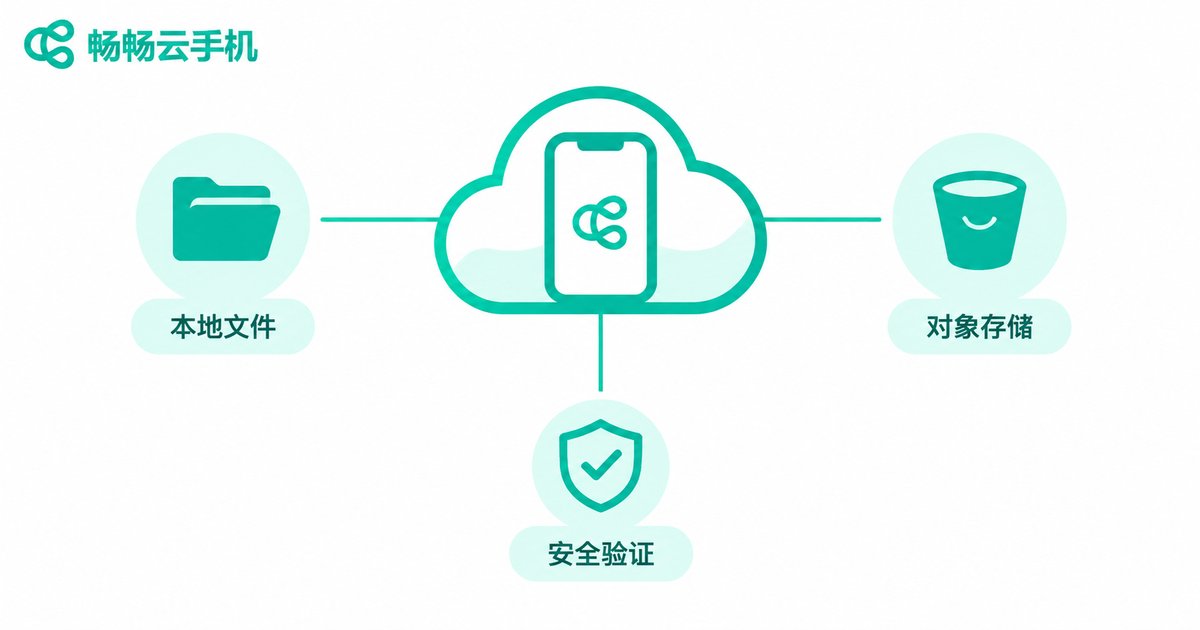
ccloudphone provides Android instances that run in the cloud. You operate them directly in a browser or desktop client, and app installation, file upload and download, and multi-instance management all happen in one place. For an archiving workflow, its biggest value is that it shortens the distance between data being created and data being exported:
- Instances stay online in the cloud, so export jobs are not interrupted by a local network drop or a powered-off device.
- Files can be downloaded straight from an instance to your local machine, or uploaded to object storage first and then archived in bulk.
- Multiple instances can be switched and managed in the same interface, which suits organizing data project by project.
- No dependency on a high-spec local machine: switch to another computer and you can carry on with the archiving work.
One thing to be clear about: no matter how good the platform is, it is only the container. Data ownership always stays with you. Treat ccloudphone as the place where data is created, and keep archiving and verification in storage you control. That division of labor is the most robust combination.
Five Common Mistakes
- Backing up without verifying: files were copied, but nobody ever opened them, and the restore turns out to be empty.
- Keeping only one copy on the same platform: when the account or instance has a problem, the backup disappears along with the original.
- Leaving credentials out of the backup: the data is restored but you cannot log in, so you have to start over anyway.
- No naming convention: hundreds of packages pile up and you cannot find the one that works.
- Drilling on the easiest instance: the instance that actually fails is usually the most complex one.
Frequently Asked Questions
Q1: Isn't cloud phone data already in the cloud, so why export it?
The cloud guarantees that the machine stays up, not that your data will never be deleted, overwritten, or wiped by an instance reset. Exporting to storage you control is what gives you a genuine second copy.
Q2: How many times a day should I back up?
It depends on how fast your data changes. Content and chat data can be handled with daily deltas; settings and accounts should be updated the moment they change; a full snapshot once a month is enough, no need to do it daily.
Q3: Do I really need to run a recovery drill every quarter?
At least once a quarter is recommended, and monthly spot checks if your business changes quickly. A drill does not need to be exhaustive: one instance and one archive package will expose most problems.
Q4: How long should archive packages be kept?
Keeping weekly archives for 8 weeks and monthly archives for 12 months is common practice. For compliance or long delivery projects, extend to match the project cycle.
Q5: Can we follow this workflow without an engineer on the team?
Yes, you can run a lighter version: manual exports, plus a quarterly restore check on one instance, plus one off-site copy. Doing those three things already puts you ahead of most teams.


