

How to Use a Cloud Phone Server: Connection Methods, Configuration Choices, and FAQs
What Is a Cloud Phone Server, Really?
In plain terms, a cloud phone server is a “virtual phone” running in a data center. The screen in your hand only handles display and input; the actual CPU, memory, and storage live in the cloud, and the picture is streamed back to you over the network. It never overheats, never runs out of battery, and keeps running after you shut down your computer — that is the biggest difference from a physical device.
Many first-time users assume they need to buy a server, install an operating system, and configure an environment. You don't. In most cases you simply pick a cloud phone in the provider's console, connect through a browser or client, and you're up and running within minutes.
Connection Methods: Pick the One That Fits Your Habits
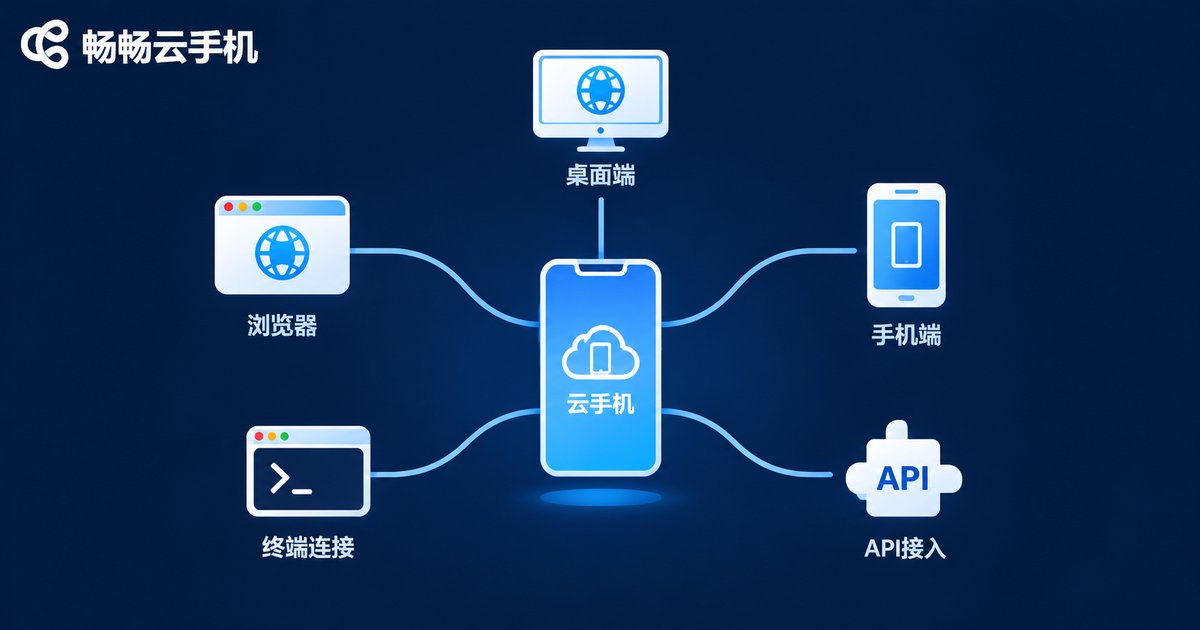
There is more than one way to connect to a cloud phone, and each one suits a different kind of work.
Web console: Log in through a browser and start using it. Great for quick checks and settings changes. Because all the computing happens in the cloud, a low-spec laptop on your side doesn't slow you down.
Desktop client: Windows and macOS clients usually offer lower latency and support multiple windows, so you can run several cloud phones at once. This is the most efficient option when you manage a dozen or more devices.
Mobile app: Connect from your phone when you're away, check whether tasks are still running, and handle urgent issues on the go.
ADB remote debugging: A favorite for developers and QA engineers. Treat the cloud phone as a remote Android device to install apps, pull logs, and run automation scripts.
API / SDK: Use these when you need to create, boot, or install apps in bulk, or integrate cloud phone capabilities into your own system.
If you're new, start with the web console to get familiar with the interface. Once you know you'll use it long term, move to the desktop client or API for a clear productivity boost.
How to Choose a Configuration: Match the Use Case, Not the Spec Sheet
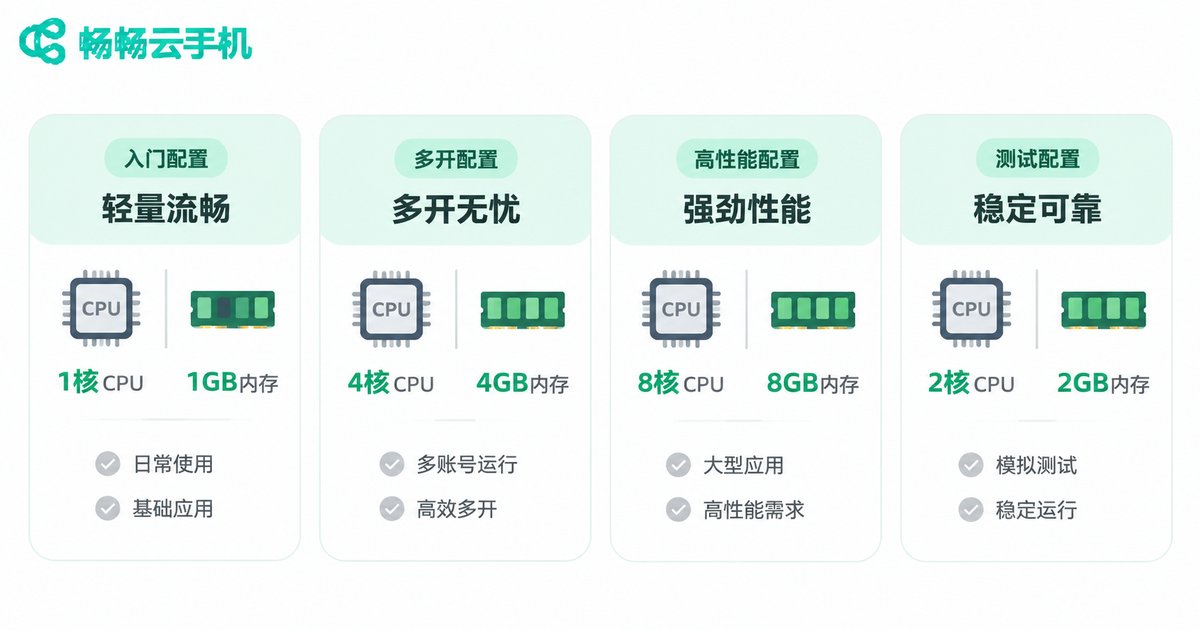
Over-specifying wastes money; under-specifying makes everything lag. There is really only one rule: whatever you plan to run determines how much resource you need.
| Use Case | Suggested Direction | What to Watch |
|---|---|---|
| Single-account idling, video watching | Entry-level CPU, 2-4 GB RAM, standard resolution | Long-session stability |
| Multi-account operations, group control | Multiple mid-to-low spec instances, 4 GB RAM and up | Batch management and synchronized operations |
| Short video, live streaming | Mid-to-high CPU, 6-8 GB RAM | Frame rate, image quality, bandwidth |
| Game testing, automation scripts | Mid-range instance with ADB support | Android version and debugging permissions |
| App compatibility testing | Several instances on different Android versions | Device model and OS coverage |
Beyond CPU and RAM, a few parameters are easy to overlook:
Android version: some apps only support specific versions, so confirm before you order. Resolution: higher resolution looks sharper but consumes more bandwidth. Storage: many apps and large caches need extra headroom. Network route: latency matters more than raw bandwidth — responsiveness depends on it. Online duration: for long-running tasks, choose a plan that supports persistent uptime.
From Sign-Up to Running: Five Steps
1. Register an account, log in to the official web console, and complete the basic setup such as identity verification.
2. Click “New” in the cloud phone list, choose the configuration and Android version for your use case, then boot it.
3. Enter the screen and, just like on a real phone, sign in to an app store and install what you need.
4. Choose your connection method: web or desktop client for daily use, API for bulk operations, ADB for debugging.
5. Set up scheduled tasks, backups, and status monitoring, then let it run in the cloud — you only check the results when needed.
Small Habits That Keep Things Stable
Prioritize the network: use wired or stable Wi-Fi, and avoid long sessions on a weak mobile signal.
Save resources: close background apps you don't need and don't pile too many tasks onto one instance — most lag comes from overloading it yourself.
Back up regularly: save login states and app configurations in advance so you can restore quickly when switching instances.
Use groups: name and group devices consistently so you can spot the problem instance at a glance.
Stay secure: enable two-factor authentication and never share console credentials with people who don't need them.

Why Many Teams Choose ccloudphone
ccloudphone provides Android cloud phones that run entirely in the cloud. You can connect through the web or a client, manage multiple instances, run batch operations, and call APIs — suitable for idling tasks, multi-account operations, and app testing. For specific specs and plan details, check the latest information on the official site at ccloudphone.com, and pick based on your actual workload rather than stacking up maximum specs.
Frequently Asked Questions
Q: Will a cloud phone feel laggy?
Two factors decide this: whether the instance has enough resources, and the network latency between you and the data center. Match the configuration to your workload and use a stable connection, and everyday operation stays responsive.
Q: Do I need technical skills to use one?
No. The web console looks and feels almost like a normal phone. ADB and API access are advanced options you can learn later, when you need bulk processing or debugging.
Q: Do tasks keep running after I shut down my computer?
Yes. The cloud phone runs in the data center, independent of your local device. Closing your laptop or phone does not stop the instance.
Q: Can several people operate one cloud phone at the same time?
It's generally not recommended, since simultaneous input interferes with each other. A safer approach for teams is to assign each person an independent instance and manage them in groups.
Q: Can I upgrade the configuration later?
Most platforms let you adjust specs or create a higher-spec instance. If your needs are temporary, start with a mid-to-low spec, confirm actual usage, then decide whether upgrading is worth it.
Q: Is data stored in the cloud safe?
Choosing a reputable provider and using strong passwords, two-factor authentication, and group-based permissions is the baseline. Keep sensitive accounts isolated in dedicated instances.


