

Cloud Phone Server Connection Failed: Troubleshooting Network, Account, and Client Issues
Start Here: A Connection Failure Usually Has Only Three Causes
Most people uninstall and reinstall the app the moment they see a server connection error, spend half an hour on it, and still cannot connect. In reality, the connection path of a cloud phone is very clear: your device → local network → public route → account authentication → cloud instance. A problem anywhere along this chain produces a very similar message, but matching the symptom to the right stage usually narrows it down in a minute or two.
| What you see | Most likely cause | What to check first |
|---|---|---|
| A spinner that says connecting to server | Local network or DNS resolution issue | Whether other apps on the same device can get online |
| Login expired or account abnormal message | Account status or multi-device login conflict | Sign in again and check if another device is online |
| Client opens, but the instance is black or frozen | Client version, cache, or instance state | Update the client, clear cache, confirm the instance is running |
| Fails only on one network, works on another | Office or campus network port and policy limits | Switch to mobile data and compare |
Work through the three lines below in order: network → account → client. In most cases this is enough to solve the problem.
Step 1: Rule Out the Local Network
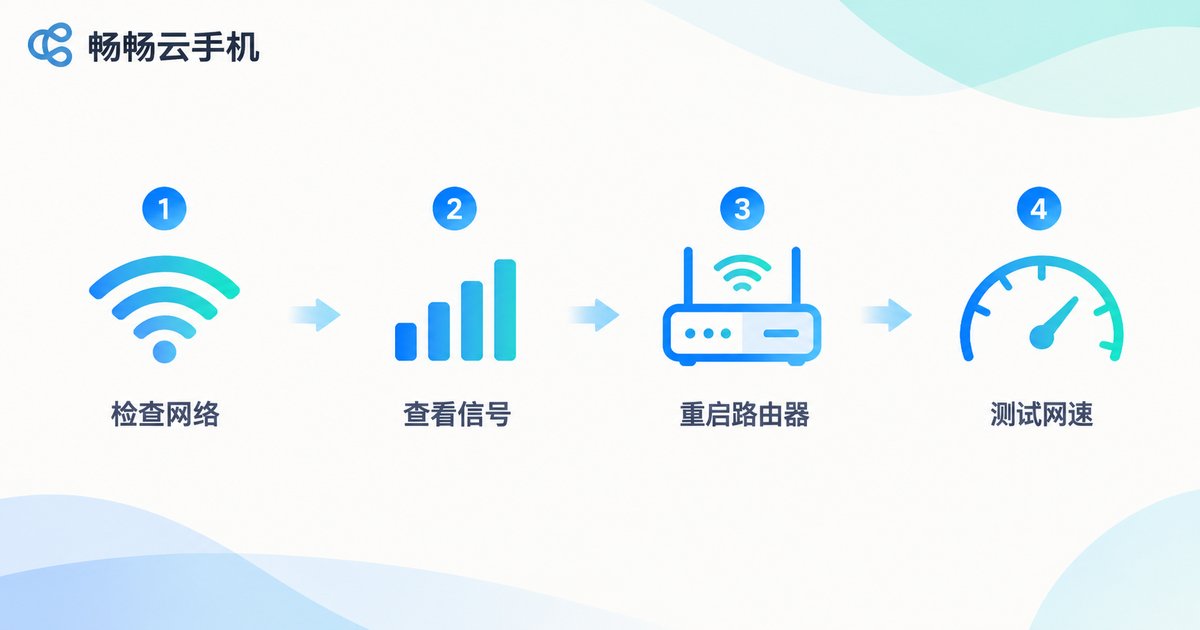
A cloud phone streams live video and input commands in both directions, which makes it far more sensitive to network quality than an ordinary app. So network checks come first, and they should start with the simplest action.
1. Run a network switch test. If the home Wi-Fi fails, switch to mobile data immediately and try again. If it works, the problem is your Wi-Fi or router. If it still fails, the problem is on the account, client, or route side, and you can skip all the router tinkering.
2. Check proxy and DNS settings. A global proxy, custom DNS, or corporate network policy can interfere with the long-lived connection a cloud phone needs. Turn the proxy off, set DNS back to automatic or the carrier default, and reopen the client.
3. Restart the router and the device. Routers that run for weeks accumulate NAT entries, which can make new long connections fail. Power-cycle the router, restart the phone and the client, then try again. Also confirm airplane mode is off and that battery saver is not restricting background networking.
4. Cross-check on a second device. Sign in with the same account on another phone or on a computer. If the other device connects, the issue is local to your device or its client environment. If nothing connects anywhere, look at account status and the service-side routes.
Step 2: Check Account Status
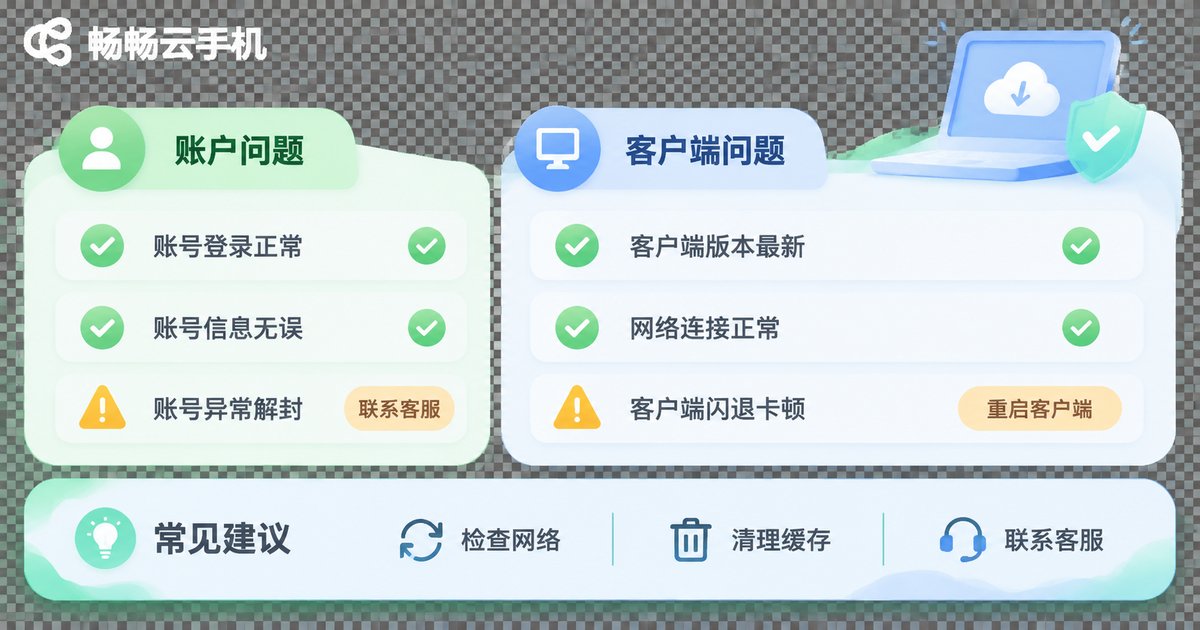
If the network is fine and you still cannot connect, the next suspect is the account. Cloud phone accounts are stricter than ordinary apps, because each account is tied to real cloud instance resources.
Multi-device login conflicts are the most common cause. Many cloud phone services cap how many devices can be online with the same account at once. A new device signs in and pushes the old one offline, and every action on the old device then reports a connection failure. Sign out on the other devices and sign in again.
Old sessions expire after a password or security change. Changing your password, updating the bound phone number, or triggering a login verification from a new location all require a fresh sign-in. Cached credentials in the client are no longer accepted.
Confirm the instance state itself. Check whether the instance is running, whether it is still within its service period, and whether it was reclaimed after long inactivity. A stopped instance often surfaces as a vague connection failure, which is easily mistaken for a network fault.
Read the account-side message carefully. If the prompt mentions incomplete verification or a security risk, follow the verification flow. Reconnecting repeatedly will not help.
Step 3: Check the Client and Its Environment
With network and account ruled out, the third cause lives in the client itself. These checks are simple, but they are the ones people skip most often.
Update to the latest version. An outdated client may use a communication protocol the server no longer accepts, which looks exactly like being able to sign in but not connect to the instance. Check the app store or the official site for an update.
Clear the cache and sign in again. Corrupted cache files from long use can make the handshake fail before it even starts. Clearing the cache does not delete cloud data: the instance, its apps, and its files all live in the cloud, and the local client is only a display window.
Correct the system time. This is a genuinely hidden trap. If the device time or time zone drifts too far from real time, security validation of the login credential fails and the result is a failed connection. Set date and time to automatic and retry.
Check app permissions. If storage permission is denied, the client cannot write the files it needs to connect. If background running is restricted, the connection drops right after it opens. Grant storage, background, and notification permissions.
Reinstall only as a last resort. Uninstalling is a last step, not a first one. Note your account details and take a screenshot of the error before reinstalling, then sign in again afterwards.
Step 4: If Everything Checks Out, Look at the Route
When network, account, and client all pass, the problem is usually on the public route or the service side. At that point the right move is to take a different path, not to keep retrying from the same device.
Switch to a different route or data center node in the client's connection settings so traffic takes another link. When you cross carriers or regions, some routes genuinely fluctuate at certain hours, and switching nodes often fixes it immediately.
If switching nodes does not help, submit a support ticket and include everything at once: a screenshot with the full error text, the exact time the failure occurred, your city and carrier, your network type (Wi-Fi or mobile data), and the instance ID. Complete information dramatically speeds up diagnosis.
Why Cloud Phones Depend on Network Quality More Than Ordinary Apps
People often wonder why a cloud phone fails on the same Wi-Fi where videos stream and games run fine. The reason is the working model. An ordinary app sends a request and waits for a result, and brief hiccups are tolerable. A cloud phone maintains a continuous two-way stream of live video and input commands, so any jitter is amplified into visible stutter or a dropped connection.
| Network metric | Real impact on a cloud phone | Recommendation |
|---|---|---|
| High latency | Slow response, taps feel disconnected from the screen | Prefer the nearest node |
| Noticeable packet loss | Artifacts, mosaic blocks, repeated reconnects | Switch routes or compare with mobile data |
| Insufficient bandwidth | Blurry image, dropped frames, long loading | Avoid peak hours on shared networks |
| Limited connection count | Handshake fails outright with a server error | Disable proxies and avoid extra forwarding layers |
Build in Stability: What to Look for in a Cloud Phone Service

Troubleshooting only fixes failures that already happened. The real time saver is choosing a service with a stable connection from the start. A few things are worth checking:
Route coverage and nearby access. The more nodes and the more flexible the scheduling, the more easily traffic moves to another link when one route jitters, and users never notice the interruption.
Whether instances run persistently in the cloud. A reliable cloud instance keeps running in the cloud, so a local network drop or a closed client does not interrupt the task. When you reconnect, the session continues from where it was rather than starting over.
Multiple access methods. Support for both a desktop client and a web entry point means you can immediately verify a problem through another entry when one device misbehaves, which multiplies troubleshooting efficiency.
Data stored in the cloud. Apps, files, and login state all live inside the cloud instance, and the local device is only a window. Switching devices loses nothing, and reinstalling the client loses nothing either. That matters a lot during troubleshooting, because you can safely clear local cache and reinstall.
ccloudphone (畅畅云手机) is built around exactly these points: instances run persistently in the cloud, multiple instances can be managed side by side, both client and web access are available, and data is kept in the cloud. For specific features and plan details, always check the latest information on the official website and treat that page as the source of truth.
A Troubleshooting Checklist Worth Saving
Next time a connection fails, work down this list and you will not get stuck:
1. Switch to mobile data and compare.
2. Disable the system proxy and set DNS back to automatic.
3. Restart the router, the phone, and the client.
4. Sign out on other devices and sign in again.
5. Confirm the instance is running and within its service period.
6. Update the client to the latest version.
7. Clear the cache and set system time to automatic.
8. Grant storage and background running permissions.
9. Switch to another route or data center node.
10. Submit a ticket with screenshots, time, location, network type, and instance ID.
Frequently Asked Questions
Q: I switched Wi-Fi networks and still cannot connect. Why?
If several networks all fail, the problem is probably not your local network but account status, client version, or the route side. Sign in again first, then update the client, and finally switch route nodes.
Q: Will clearing the cache or reinstalling the client delete my cloud phone data?
No. Apps, files, and login state are stored in the cloud instance, and the local client is only a display and control window. Clearing cache or reinstalling affects local files only.
Q: The client says my account is signed in on another device. What should I do?
This usually means you have reached the limit of simultaneous devices. Sign out on the other devices, or change your password so all old sessions expire, then sign in again on the current device.
Q: Can an inaccurate phone clock really cause a connection failure?
Yes. When the system time or time zone drifts too far, security validation of the login credential fails, which surfaces as an inability to reach the server. Setting date and time to automatic often fixes it immediately.
Q: What information should I include in a support ticket?
A screenshot with the full error text, the exact time the failure occurred, your city and carrier, your current network type (Wi-Fi or mobile data), and the cloud phone instance ID. The more complete the details, the faster the diagnosis.


