

Cloud Phone Security Testing: Account, Permission, Data and Privacy Checks
Why a Cloud Phone Also Needs Security Testing
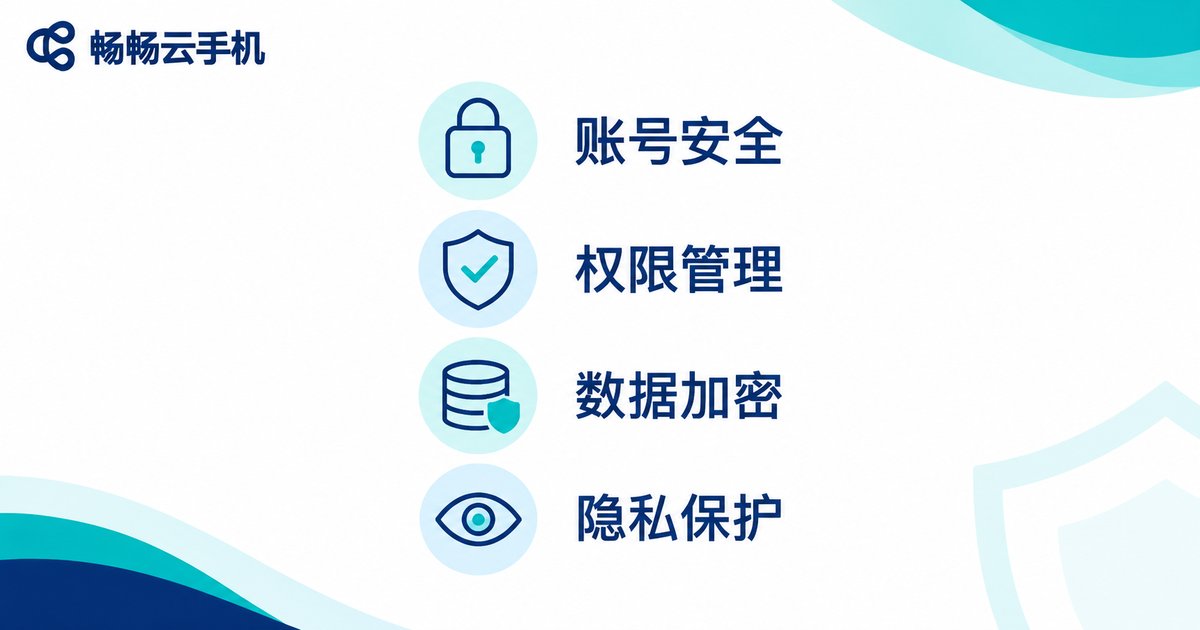
Many people assume that because a cloud phone runs in a remote data center, security is entirely the provider's job and all they need to do is log in. In reality, risk usually comes from daily habits: reusing the same password across a dozen platforms, tapping agree on every permission prompt, dropping ID photos into a cloud folder, or forgetting to log out on a shared device. The cloud only moves the phone somewhere remote. The four gates of account, permission, data, and privacy still need you to guard them.
The process below needs no special tools. An ordinary user can finish it in about fifteen minutes, and it is best to fix any unreasonable settings as you go.
Step 1: Account Security, Guard the Entrance First
Your cloud phone account is the key to the whole environment. Lose the key, and the apps, files, and chat history inside are effectively open to others.
- Use a dedicated password: never share it with email, payment, or social accounts. Once it is leaked in a credential-stuffing attack, other platforms suffer too.
- Turn on two-factor verification: SMS or an authenticator app both work. One extra step is one extra layer.
- Review login records regularly: if you see an unknown device or an unusual region, change the password and kick that device out immediately.
- Log out on public computers: do not tick the keep-me-signed-in box just to save a few seconds.
- Do not store recovery methods inside the cloud phone: keep the linked email and phone number on your local device.
Step 2: Permission Management, Grant Only What Is Needed
Apps throw permission prompts at you one after another, and most people simply approve everything. Apps inside a cloud phone can equally read the clipboard, location, and contacts, or start themselves in the background. Work through the table below item by item.
| Permission | Possible risk | Recommended action |
|---|---|---|
| Contacts / SMS | Contact lists uploaded, verification codes read | Grant only to apps that truly need it |
| Location | Reveals your usual whereabouts and routines | Set to allow while using, or turn off |
| Clipboard | Passwords and addresses read in the background | Clear it right after copying |
| Camera / Microphone | Background access leaks private moments | Deny unless genuinely necessary |
| Background auto-start | Long-term residency, resource drain, hard to notice | Keep only frequently used apps |
Checking is easy: open the app permission page in system settings, read the authorized list from top to bottom, and revoke anything unfamiliar or unreasonable.
Step 3: Data Checks, Everything In and Out Should Be Visible
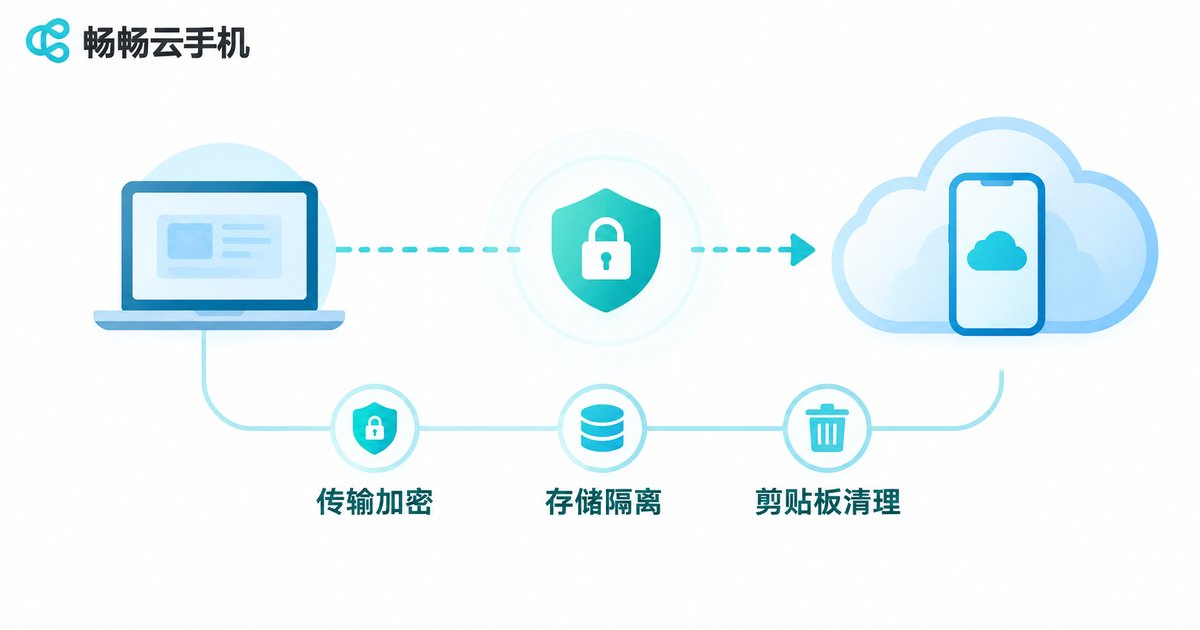
Data security has two parts: transmission and storage location. For transmission, check whether it is encrypted (does the address start with https). For storage, check whether environments are isolated.
- The clipboard is an invisible data channel: content copied from one app may be read instantly by another. Clear it right after copying a password.
- Do not leave sensitive files in the cloud long-term: delete ID photos, contracts, and bills after use. Do not treat cloud folders as a temporary warehouse.
- Watermark screenshots and recordings: when account information is involved, a watermark makes leaks easier to trace.
- Clear the cache before logging out: after using a shared environment, wipe browsing history and the download folder.
Step 4: Privacy Checks, Do Not Let the Virtual Environment Become Transparent
One advantage of a cloud phone is environment isolation, but isolation is not invisibility. Device model, system version, sensor data, and advertising identifiers can all become clues that identify you. Run a privacy checkup and focus on these items:
- Turn off personalized advertising tracking and reset the advertising identifier;
- Check the camera and microphone for background access by any app;
- Prefer virtual numbers for sign-ups so your main number is not flooded with marketing messages;
- Use different instances for different purposes: work, games, and testing kept apart;
- Review permissions regularly: revoke access for apps unused for three months.
All Four Checks in One Table
| Check | Core question | Suggested frequency |
|---|---|---|
| Account | Is the password unique, is two-factor on | Once a month |
| Permissions | Are grants necessary, anything resident in background | Every new app install |
| Data | Is transmission encrypted, are sensitive files cleaned | Once a week |
| Privacy | Are identifiers reset, is background access visible | Once a quarter |
Choose the Right Platform and Halve the Work
No matter how detailed a checklist is, it needs a reliable environment to run in. ccloudphone runs the phone system in the cloud, with each cloud phone instance isolated from the others, so apps, files, and accounts stay independent and are not mixed with data on your local device. For people who need multiple accounts and multiple environments, this isolation itself reduces the chance of cross-contamination.
As for habits, aim for the following: log in with a dedicated password, group instances by purpose, shut down instances you no longer use, and never store sensitive files long-term. The platform takes care of the infrastructure, you take care of the habits, and only then is security genuinely in place.

Frequently Asked Questions
Q: If the cloud phone runs remotely, can my local device not get infected?
The cloud phone and your local device are two separate environments, and risk does not flow directly between them. But if both share the same account and password, or sync files through a cloud drive, risk can still travel across. Separate passwords and separate files are what real isolation looks like.
Q: What actually happens if I approve every permission?
The most direct consequences are contact lists being uploaded, location being logged, and clipboard content being read in the background. Each single data point may seem harmless, but combined they can reconstruct your daily routine. Do not grant what you do not need.
Q: How often should I run a security check?
Review login records monthly, check permissions whenever you install a new app, clean sensitive files weekly, and reset privacy identifiers and revoke old permissions quarterly.
Q: Do I really need to clear the clipboard every time?
If you often copy passwords, verification codes, or addresses between apps, yes. Much of the reading happens in the background where you cannot see it, and clearing is the easiest protection available.
Q: Can virtual numbers fully protect my main number?
They reduce marketing messages and spam calls, but for critical accounts such as banking, payment, and your primary social account, it is still better to bind a number you control long-term, so account recovery does not become a problem.


