

Cloud Phone Development Testing: Environment Setup, Debug Permissions, and Issue Reproduction
Why Development Testing Needs Cloud Phones
Testing on physical devices often runs into the same problems: not enough devices, inconsistent system versions, and intermittent bugs that are hard to reproduce. Cloud phones put remote Android devices in the cloud, so developers can install apps, check logs, and simulate actions through a client or ADB. ccloudphone provides cloud Android instances that fit compatibility checks, automation script debugging, and issue reproduction.
For teams, the value is not just saving money on hardware. It is about standardizing the test environment so every test run uses the same image and system version, which makes results easier to trust.
Environment Setup: Build a Reusable Test Environment from Scratch
The first step is not writing code. It is locking down the environment. Follow this order:
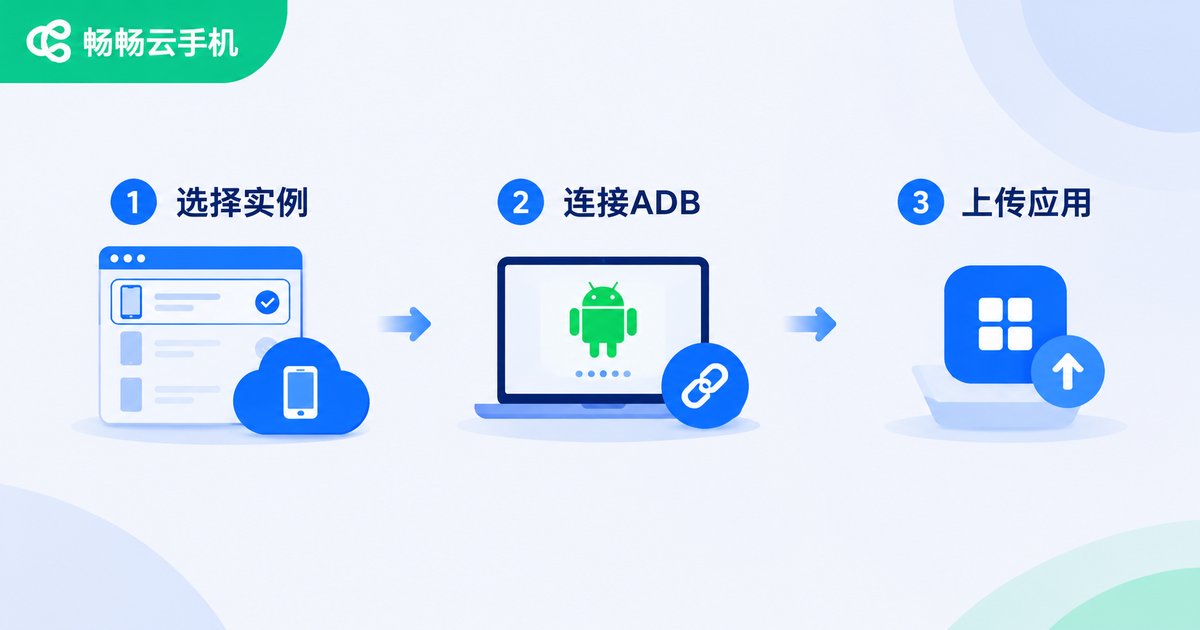
1. Choose the instance image: Pick the Android version, resolution, language, and time zone based on your target users. Record the configuration in your test docs so it can be reused later.
2. Connect the debug channel: Cloud phones usually support ADB. After you get the address and port, run this in your local terminal:
adb connect 127.0.0.1:5555
adb devices
adb install -r app-debug.apk
3. Install dependencies and test tools: Set up your automation framework, traffic capture tools, and log tools in advance, then script the initialization. This helps every new instance become test-ready quickly.
4. Fix network and system settings: Disable auto updates, keep the screen awake, and set language and time zone. When you need weak network simulation, use in-app or test framework features rather than changing system network settings at will.
| Item | Local Physical Device | Cloud Phone |
|---|---|---|
| Device count | Limited by procurement | Create instances on demand |
| Environment consistency | Easily affected by personal settings | Unified images, fast reset |
| Remote collaboration | Device must be shipped or onsite | Team members connect remotely |
| Issue reproduction | Depends on available devices | Keep instance snapshots and logs |
Debug Permissions: Get Enough Access to Do the Work
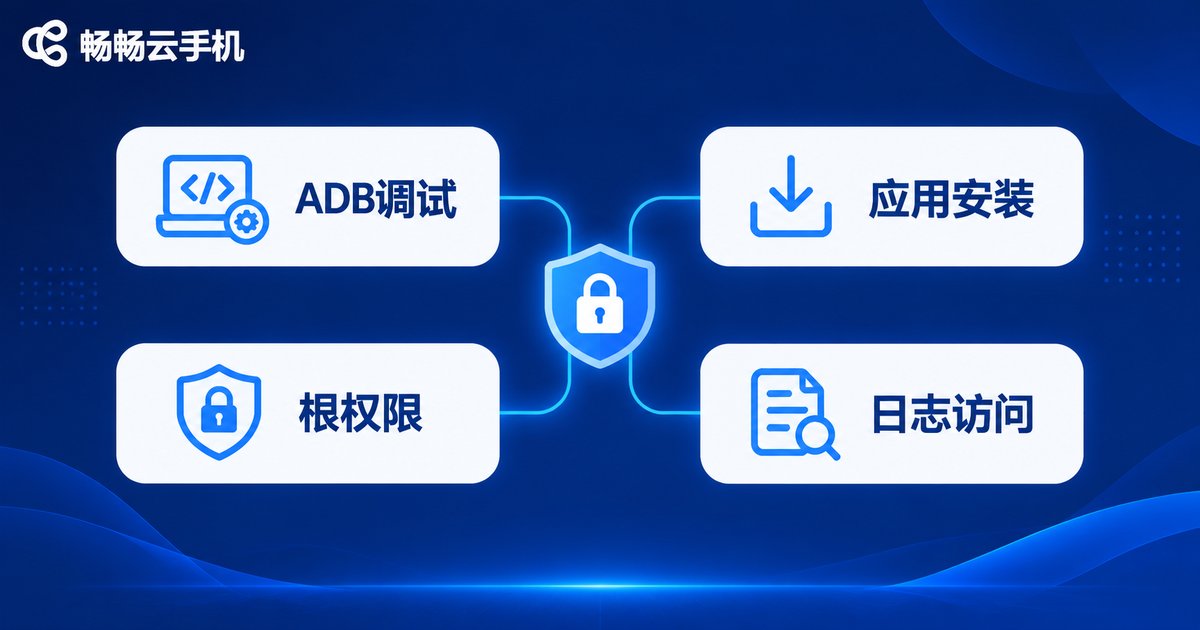
Development testing often requires installing debug builds, reading system logs, and simulating taps. Cloud phones usually provide ADB debugging, and some instances support root access. Before you start, confirm three things:
Permission scope: Can you install apps from unknown sources, read logcat, and use uiautomator? For automation scripts, also check whether accessibility services or input injection are available.
Grant method: Install permissions, overlay permissions, and notification permissions can be granted in batches with ADB commands. For example:
adb shell pm grant com.example.app android.permission.CAMERA
adb shell appops set com.example.app SYSTEM_ALERT_WINDOW allow
Compliance boundaries: Only debug apps you own or are authorized to test. Do not read user privacy data or bypass app security mechanisms. The broader the debug permission, the more you should log your operations.
Issue Reproduction: Turn Intermittent Bugs into Stable Cases
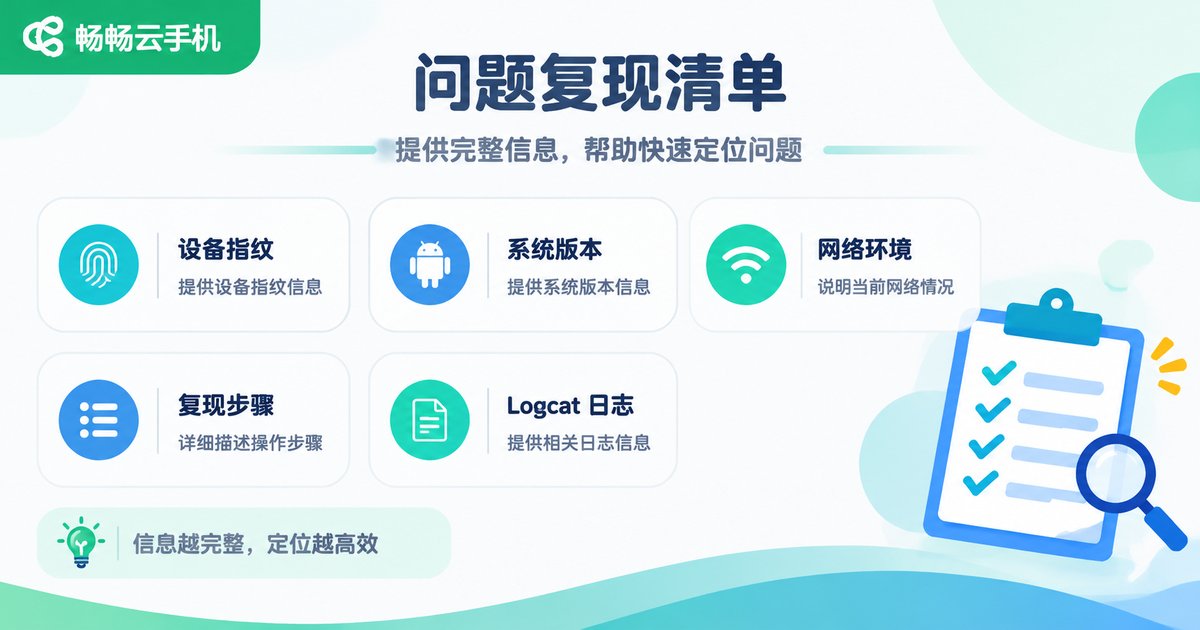
The hardest part of an intermittent issue is that it cannot be reproduced. On a cloud phone, you can turn reproduction factors into a checklist: device fingerprint, system version, app version, network type, operation steps, foreground and background state, and log timestamps. Align these variables before each attempt.
Suggested workflow:
Record screen and logs together: Start screen recording before the operation and capture logs with logcat at the same time. Mark the timestamp immediately after reproduction so the log is not overwritten.
adb logcat -v time > bug-20250101.log
adb shell screenrecord /sdcard/repro.mp4
Preserve the scene: Do not reset the instance right away. Export logs, screenshots, and the current page structure first, then decide whether to clear data and retry.
Minimize the steps: Break the operation into the fewest possible steps and verify them one by one. Cloud phone instances can be reset quickly, which makes them suitable for repeated controlled experiments.
| Reproduction Factor | What to Record |
|---|---|
| Device info | Instance image, resolution, Android version |
| App info | Package name, version, build type |
| Operation path | Every step from launch to the failure |
| Log evidence | logcat, screen recording, screenshots |
Practical Tips for Using ccloudphone in Development Testing
ccloudphone can be used as a cloud Android test environment. Its value is that device preparation is handled in the cloud: after creating an instance, you can connect through a client or ADB, install apps, check logs, and run basic verification. For teams that need multiple devices in parallel, you can create instances per test task and release them when done, reducing environment maintenance time.
Add ccloudphone instances to your team test asset list: record the configuration, purpose, owner, and release time. This keeps the environment traceable and avoids idle resources. For specific plans and feature availability, please refer to the official ccloudphone website.

Frequently Asked Questions
Q1: Can cloud phones replace all physical device testing?
Not completely. Cloud phones are good for functional verification, compatibility sampling, automation debugging, and issue reproduction. Scenarios heavily dependent on cameras, sensors, or Bluetooth still need physical device testing.
Q2: Can I run automation tests without root?
Most automation tests do not require root. Installing apps over ADB, using uiautomator, and reading app logs are enough for many tasks. Higher privileges are only needed for system-level operations.
Q3: Are debug permissions on cloud phones safe?
The key is how you use them. Only debug apps you are authorized to test, do not capture user privacy data, do not expose debug ports to the public internet, and release instances promptly when finished.
Q4: How can I improve reproduction rates for intermittent issues?
Fix the image and system settings, record the full operation path, capture screen recordings and logs together, and retry with minimal steps. Cloud phone instances can be reset quickly, which makes multiple reproduction rounds practical.
Q5: How should a team share cloud phones?
Assign a separate instance to each test task, use consistent naming and configuration records, and put the connection method, app build version, and log path in the task ticket to avoid multiple people competing for the same device.


