

Cloud Phone App Testing: Installation, Login, Display and Edge Cases Explained
What Cloud Phone App Testing Actually Solves
The hardest part of real-device testing is rarely the testing itself. It is not enough devices, too many models, and bugs that will not reproduce. The same app can behave completely differently on a budget phone and a flagship, yet most teams only have two or three handsets available, so testers queue for devices and then spend extra time restoring the environment after each run.
A cloud phone moves that overhead to the cloud. One cloud device is a fully remote Android phone that you open in a client or a browser, reset whenever you want, and switch between system environments freely. It does not fully replace real devices, but it dramatically lowers the cost of repetitive verification and first-pass compatibility screening.
This guide walks through four stages: installation, login, display, and edge cases. Each stage comes with a checklist you can apply directly, followed by advice on building a practical test environment with CCloudPhone (ccloudphone).
1. Installation: First Make Sure It Installs and Starts
Installation is the step most often skipped and most likely to cause trouble. Many production incidents trace back to an install failing on one Android version, or to stale local cache after an over-the-top upgrade that leads to a crash on launch.

Work through this checklist item by item:
- Clean install: does it install successfully on the target Android version, and how long does it take?
- Over-the-top upgrade: after upgrading from an older build, are the session, local cache, and database migration intact?
- First launch: does the splash screen hang, and do the permission prompts (storage, notifications, location) match the product copy?
- Failure feedback: when the package is corrupt or storage is full, is there a clear message, or does it sit on parsing forever?
- Uninstall and reinstall: is residual data cleaned up, and does the fresh install still show dirty state?
This is where cloud phones save real time: a device can be reset to a clean state in one click. No manual cache clearing and no factory reset dance, so the next round starts seconds after the last one ends.
2. Login: The First Gate for Retention
Login failure is one of the fastest ways to lose users. It touches SMS delivery, third-party authorization, local storage, and server sessions, so there are many places to break, and problems often appear only on specific devices.
Cover these paths:
- Username and password: handling of wrong passwords, empty input, very long input, and special characters.
- Verification code: does the code arrive, is the countdown accurate, does repeated tapping send duplicate messages?
- Third-party login: does the authorization callback return correctly, and is there a friendly message when the user cancels?
- Session persistence: after backgrounding, locking the screen, or killing the process, is the user still signed in or forced out?
- Multi-device login: when the same account signs in elsewhere, does the current device show a clear notice?
- Sign out: are local cache and tokens fully cleared afterwards?
A practical trick: run the login tests in parallel on several cloud phones with different Android versions. That quickly separates a code problem from an environment problem. If it only fails on one version, the issue is most likely platform adaptation.
3. Display and Interaction: How Fast It Feels
Visual performance is the most subjective and most overlooked area. Users never look at frame rate numbers, but they definitely feel whether an app is smooth or laggy.
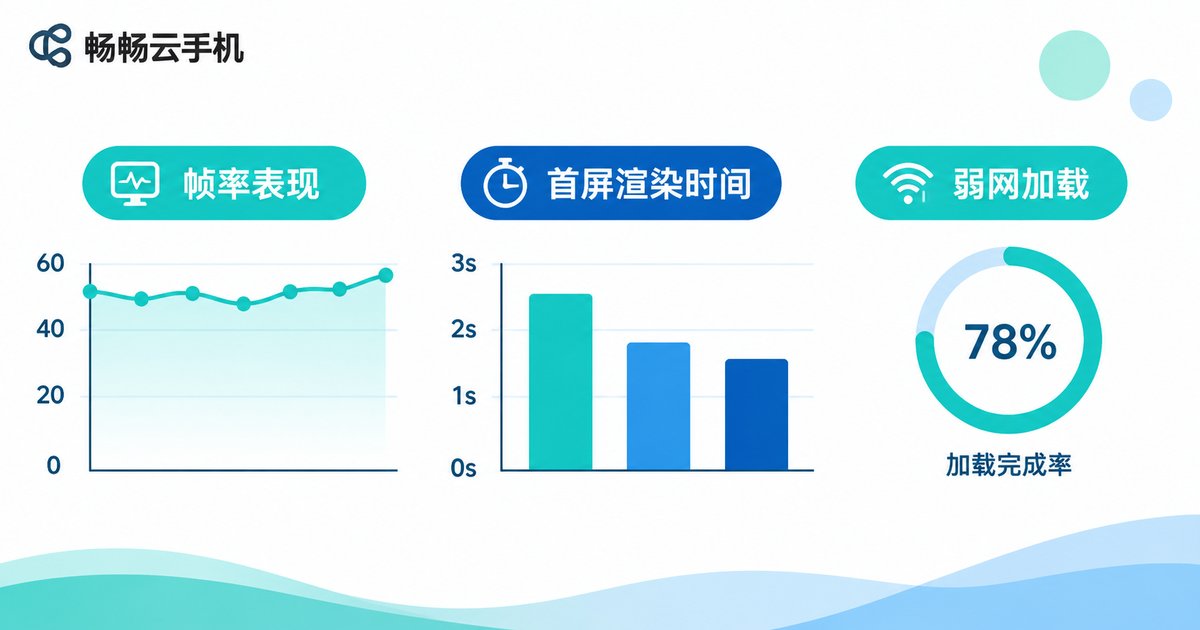
Watch for these signals:
- First screen render: how long from tapping the icon to seeing content, and is there a long white screen in between?
- List scrolling: do long lists drop frames, and do images shift or reload repeatedly?
- Page transitions: are animations smooth, and is page state preserved when returning?
- Images and video: are large images over-compressed, is video start-up time acceptable, does rotation break the layout?
- Touch response: latency on taps, long presses, and swipes, and whether some controls need two taps to register.
- Weak network: with throttling, are loading states, skeleton screens, and timeout messages complete rather than an endless spinner?
One caveat: cloud phone visuals are encoded and streamed to your client, so network quality affects the smoothness you perceive. Keep your local connection stable and treat the result as a trend signal rather than a hard performance number. For real performance baselines, use physical devices with profiling tools.
4. Edge Cases: Turn Intermittent Bugs into Reproducible Ones
Edge cases are the easiest to miss because they almost never appear in the normal happy path. The table below works as an add-on to your test cases:
| Scenario | How to simulate | Typical symptom |
|---|---|---|
| Sudden network loss | Disable network or enable airplane mode | Endless spinner, missing error copy, corrupted data after reconnect |
| Weak network and high latency | Throttle bandwidth, add delay | Duplicate submissions, double orders, silent timeouts |
| Background and lock screen | Go to home screen, lock for minutes, return | Blank page, lost session, interrupted background tasks |
| Permission denied | Tap deny on the first prompt | Feature unusable with no guidance, repeated prompts, crash |
| Storage full | Fill device storage, then use the app | Silent save failures, crash on cache write |
| Interruptions | Incoming call or notification during use | Audio or video stops, page state breaks |
| Process killed | Force stop the app | Unsaved content lost, inconsistent state after restore |
| Version mismatch | Old client against new API | Unhandled API errors, blank pages |
The biggest enemy in edge case testing is a bug you cannot reproduce. On a cloud phone, keep the failing environment alive instead of resetting immediately, so a developer can log in and inspect the exact state. That is worth more than ten screenshots.
5. Building a Workable Setup with CCloudPhone
Once you connect all four stages, you notice the real time sink is not tapping buttons. It is preparing devices, restoring environments, and switching between models. CCloudPhone (ccloudphone) helps with exactly that:
- Android runs in the cloud, reachable from a client or a browser, so it does not use storage or compute on your local phone or laptop.
- Multi-instance support lets you open several cloud devices at once and run the same test batch in parallel without interference.
- Instant environment reset returns a device to a clean state after each round, replacing manual cache clearing and factory resets.
- Long online sessions suit overnight regression and stability monitoring that need to stay connected.
- Centralized management for batch power on and off and for checking device status, which beats hunting for spare handsets.
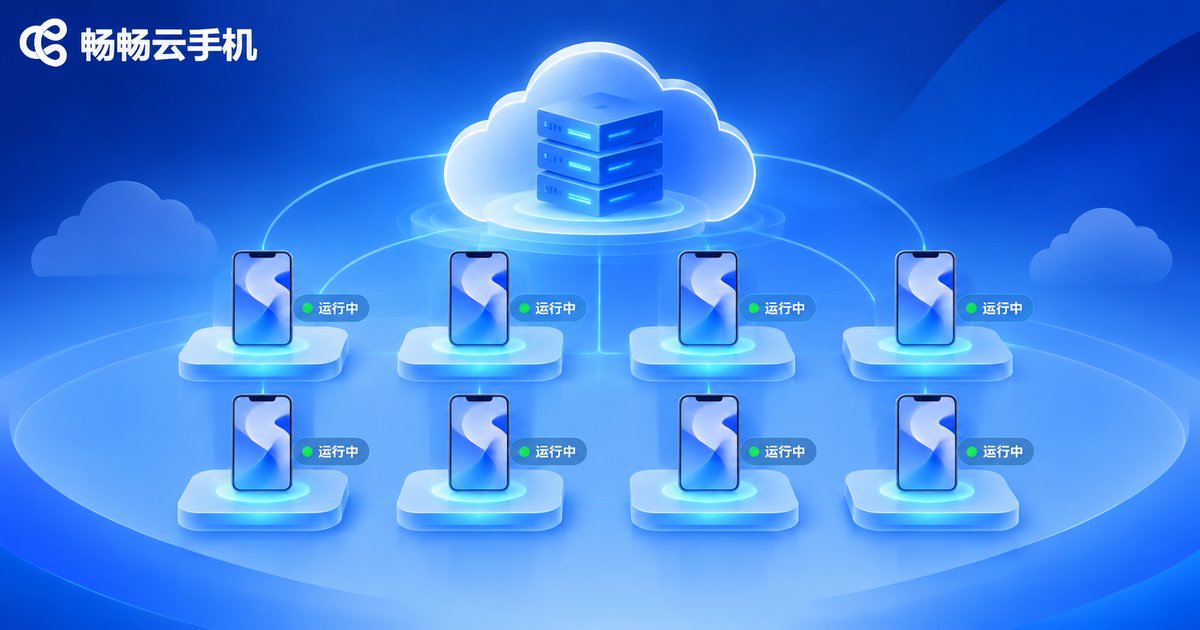
A pragmatic pattern is cloud phones for screening and regression, real devices for final acceptance. Run installation, login, and core flows across several cloud devices first to block obvious defects before handoff, then spend your limited real-device time on image quality, performance, sensors, and anything that genuinely needs hardware.
6. A Simple Execution Order
When time is short, follow this priority:
- Clean install and over-the-top upgrade: confirm it installs and starts.
- Run all three login methods, focusing on session persistence.
- Walk the core flow once and observe first render time and list scrolling.
- Pick four or five high-frequency edge cases from the table and verify them.
- Keep the failing environment along with the bug report and hand it to the developer.
This order typically catches over eighty percent of serious issues in a single round, which is the best return on effort.
Frequently Asked Questions
Q: Can cloud phones fully replace real-device testing?
No. They are ideal for installation checks, login flows, core-flow regression, and parallel version verification. Image quality, performance baselines, sensors, and camera behavior still need real hardware. The two work together.
Q: The display looks a bit laggy. Is it the app or the cloud phone?
Check your local network first. Cloud phone visuals are encoded and streamed to your client, so network jitter directly affects perceived smoothness. Compare on a stable connection and use logs and profiling tools. If behavior is consistent across environments, the app side is the likely cause.
Q: How many Android versions should installation testing cover?
You do not need every version. Cover the two or three versions your users use most, plus one older version as a lower bound. Cloud phones make a wider version matrix affordable without buying more handsets.
Q: There are too many edge cases. How do I prioritize?
Rank by business impact. Anything touching payments, login, or data saving comes first; purely presentational pages come later. Network loss, backgrounding, permission denial, and process kill are close to mandatory.
Q: How do I get started with CCloudPhone for testing?
Visit the CCloudPhone website (ccloudphone) to review available devices and access options. Start with one or two cloud devices to run installation and login flows, then migrate regression cases gradually. It keeps cost predictable and results easy to evaluate.


