
Cloud Phone Game Testing: Compatibility, Latency, Visual Quality, and Idle Stability
Why Game QA Teams Are Moving to Cloud Phones
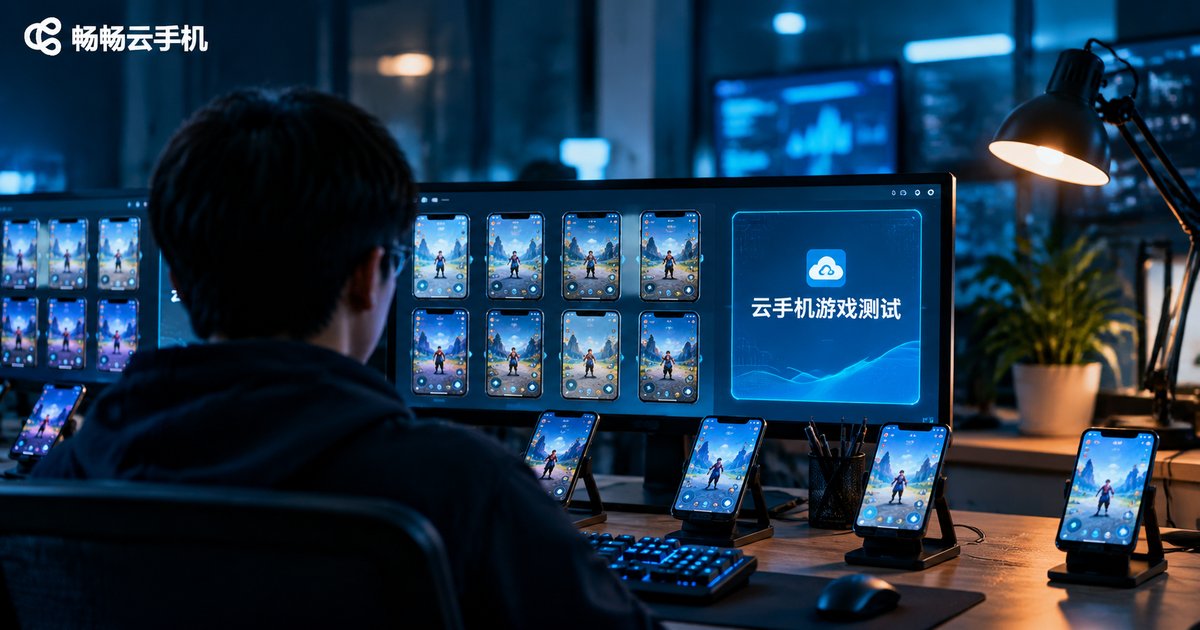
Before a mobile game ships, QA often faces dozens of physical devices: different brands, different chips, different OS versions. Devices are expensive to buy, painful to manage, and each unit can only run one test case at a time. A cloud phone turns a handset into an instance that can be created and destroyed on demand, so one engineer can run a dozen in parallel and release them when the job is done. The efficiency gap is obvious.
Whether cloud phones can actually handle game testing comes down to four hard metrics: compatibility coverage, latency behavior, visual fidelity, and long-run idle stability. Let us break each one down with methods you can reuse directly.
1. Compatibility: Move the Device Matrix to the Cloud
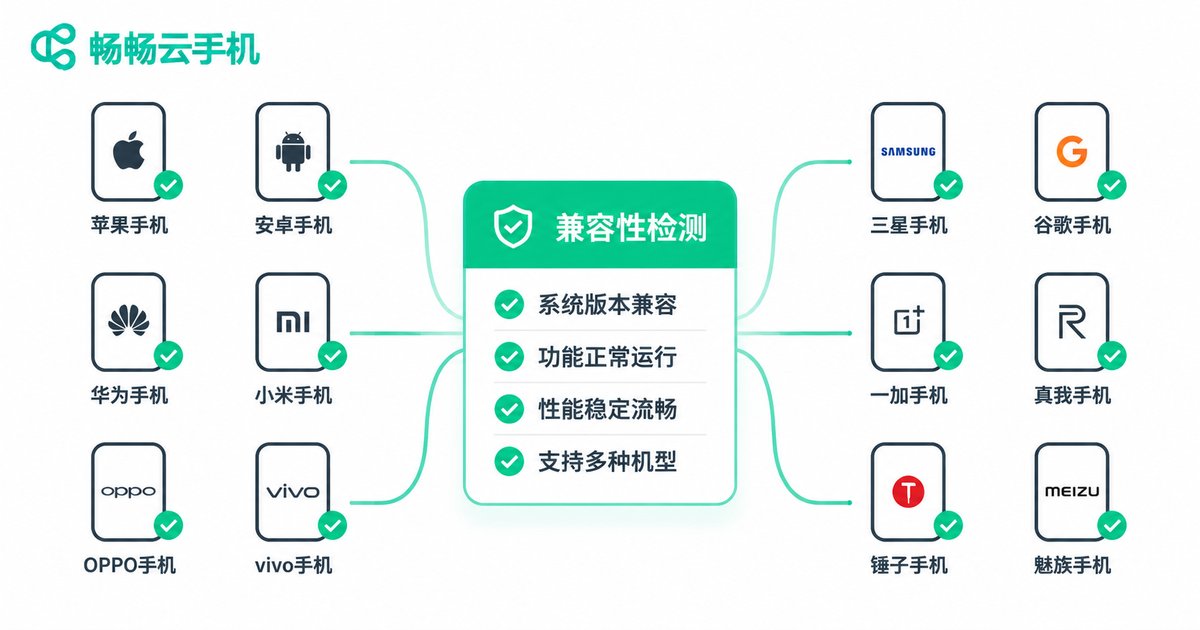
Compatibility problems are fundamentally a fragmentation problem. The same game can show very different crash rates and rendering errors across GPUs, Android versions, and screen resolutions.
The traditional answer is a drawer full of second-hand devices, which is slow to update, costly to maintain, and takes up space. With cloud phones, the approach becomes: build a device matrix by Android major version, resolution, and CPU architecture, then install, launch, and screenshot in batches with scripts.
Here is how to put that into practice:
1. Pick 6 to 10 representative device combinations that cover your main Android version range;
2. Push the build and auto-launch it over ADB in parallel;
3. Capture a screenshot 30 seconds after launch and use image diffing to catch rendering anomalies;
4. Collect crash logs and group them by device profile.
A full pass usually runs an order of magnitude faster than tapping through devices by hand, and the results are reproducible: the same matrix can be re-run identically next time.
2. Latency: Separate the Three Kinds of Lag
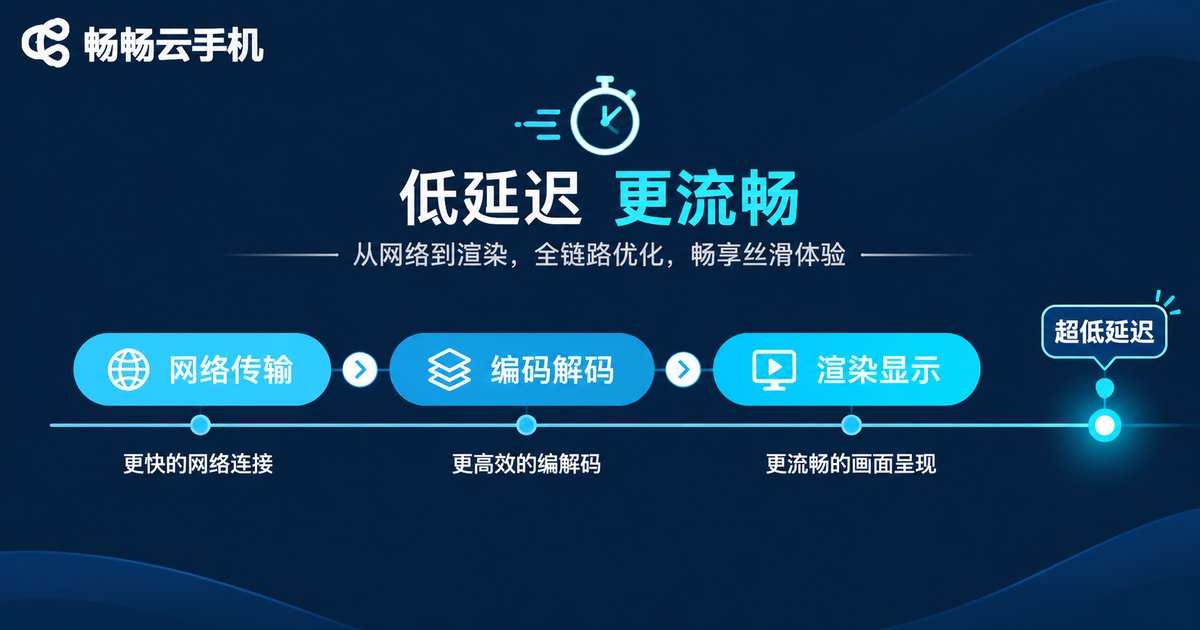
Latency is where cloud phone testing goes wrong most often. Many teams blame the network when the image does not follow their finger, but there are at least three layers:
Network round-trip time: how long an input command takes to reach the cloud instance and come back, closely tied to physical distance and route quality.
Encode and decode time: the cost of encoding frames into a video stream in the cloud and decoding them locally, driven by codec choice and bitrate.
Render and input processing time: what the game engine itself needs to handle input and produce the next frame.
There is a crude but accurate way to measure end-to-end latency: record at 120fps or 240fps and capture both the finger tap and the on-screen response in the same clip, then count the frames between them. Take the median of several runs; it is far more reliable than a single measurement.
You can also timestamp key events over ADB, such as the moment a tap is injected and the moment the first response frame arrives, then subtract to get a number you can track over time.
| Metric | Ideal range | Acceptable range | Needs investigation |
|---|---|---|---|
| Network RTT | Under 30ms | 30–60ms | Above 80ms |
| End-to-end tap response | Under 80ms | 80–150ms | Above 200ms |
| Frame rate | Steady 60fps | 45–60fps with mild variation | Frequent drops below 30fps |
Different genres tolerate latency very differently. Turn-based, card, and management games barely notice it. For shooters, MOBAs, and rhythm games, anything past 150ms end-to-end starts to feel noticeably floaty. Set your thresholds per genre instead of applying one blanket rule.
3. Visual Quality: Codec Settings Matter More Than the Word Sharp
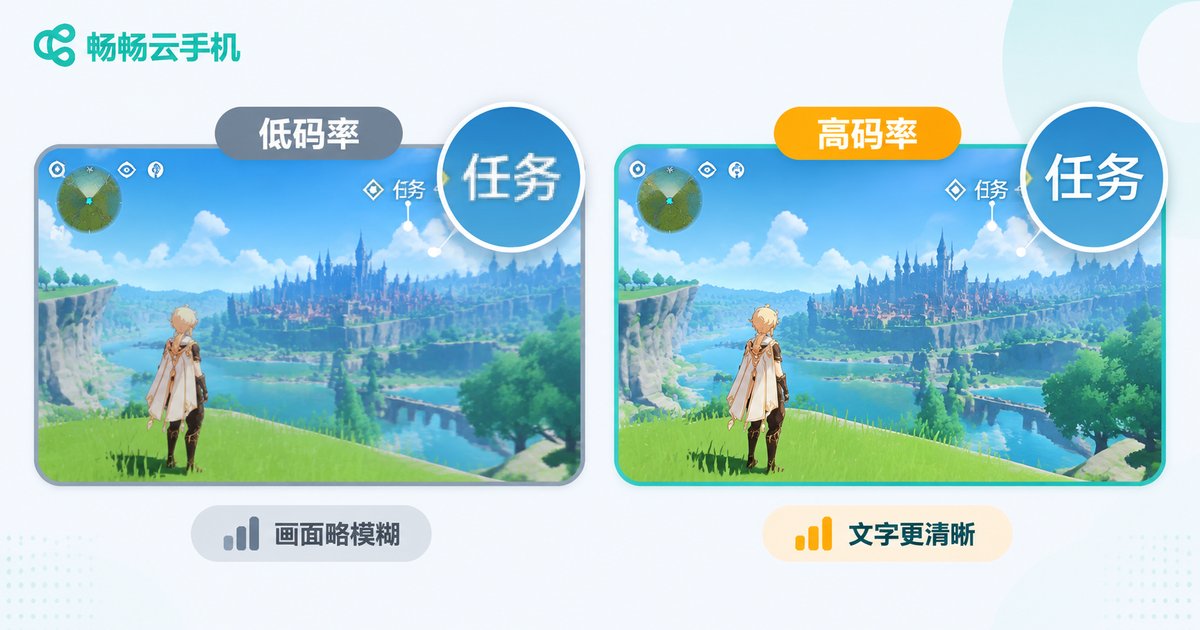
The most common visual QA mistake is glancing at a screenshot and deciding it looks fine. What actually matters is the encoding chain:
Codec: H.265 usually preserves more detail than H.264 at the same bitrate, but demands more from the decoder, so weaker clients may end up dropping frames.
Bitrate: text edges, gradient skies, and particle effects are the first casualties of compression. Too low a bitrate and they smear immediately.
Chroma subsampling: 4:2:0 is fine for large flat colors, but you can see real loss around thin colored text and health-bar edges.
For regression testing, capture fixed scenes and compare them objectively with PSNR or SSIM, then add a subjective score on top. Open the main menu, the shop page, and the battle results screen, capture one screenshot each, and re-compare after every build. That is how you catch quality that quietly degrades.
4. Idle Stability: If It Has Not Run 24 Hours, It Has Not Been Tested
Idle farming is one of the core use cases for cloud phones and also where problems surface fastest. Everything looks fine in a short session; the truth shows up after ten-plus hours, when processes get killed, connections drop, and memory creeps upward.
A complete idle stability test should run at least 24 hours, and 72 hours if you have the budget. Monitor these signals:
• Memory curve: sample process memory every 10 minutes and look for a sawtooth trend that keeps climbing;
• Connection state: log disconnects and reconnect duration, and test the reconnect logic itself;
• Business metrics: verify progress through resource output or stage counters, so you know the game is really running and not just alive;
• Periodic screenshots: keep the frames so you can trace back to the exact moment a run got stuck.
Plenty of teams skip the business metrics. The process is alive, the connection is up, but the game is frozen on a pop-up. Process liveness will never reveal that.
5. Building a Reusable Test Environment with ccloudphone
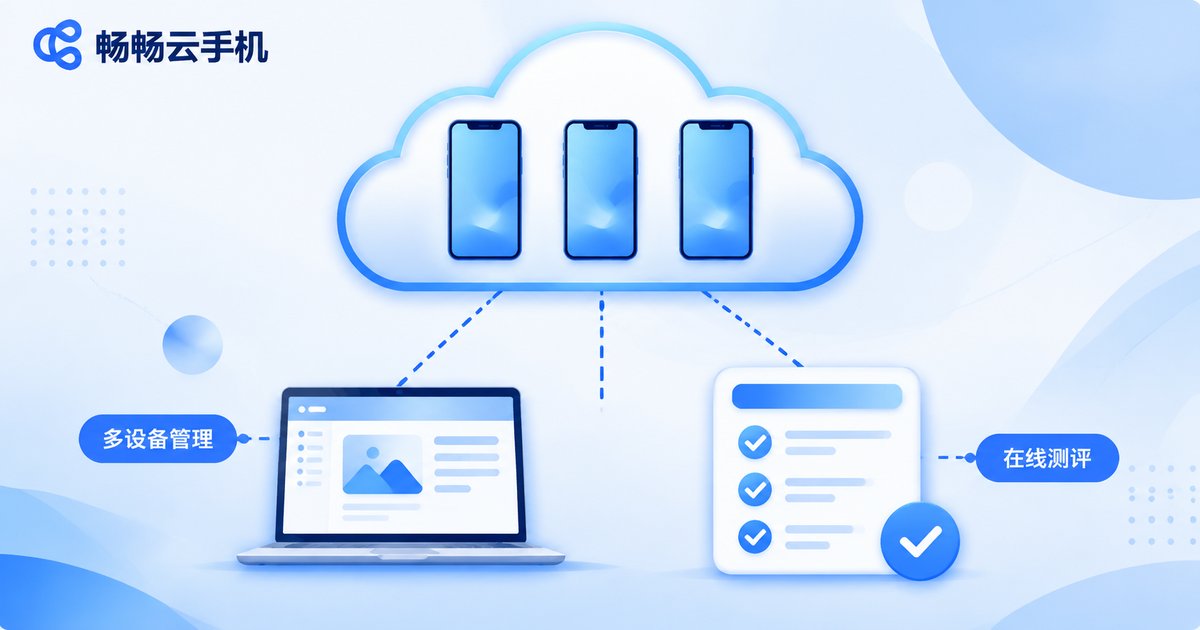
Choosing the right tool saves a lot of work once the methods above are in place. ccloudphone provides real Android instances running in the cloud that you can create on demand and use in parallel, which suits compatibility matrices and multi-person testing setups.
Three things that matter to QA teams: it supports batch management of multiple cloud phones, so you can push builds and scripts to many instances at once; instances can stay online for long periods, which fits overnight idle stability runs; and it works well with ADB debugging, so existing automation scripts usually migrate over with minimal changes.
A practical split: put the volume-driven work in the cloud, such as compatibility matrices and long idle stability runs. Keep real-time feel evaluation, controller and peripheral checks, and hands-on play sessions on local hardware. Dividing the work this way cuts both cost and turnaround time.
Frequently Asked Questions
Q: Does a cloud phone look different from a real device?
The image goes through video encoding, so there is some theoretical loss. Raising the bitrate and choosing the right codec can push that loss below what the eye can detect. For visual sign-off, compare fixed screenshots objectively rather than trusting a quick glance.
Q: Is high latency always the cloud phone's fault?
No. Rule out local network issues, Wi-Fi interference, and background downloads first, then measure network, encode/decode, and render latency separately to isolate the real bottleneck.
Q: How long should an idle stability test run?
At least 24 hours, which covers a full daily reset cycle. For a major content launch, push to 72 hours and watch both the memory curve and your in-game progress metrics.
Q: Which game tests belong on cloud phones?
Compatibility matrices, multi-instance stress testing, long idle runs, and UI automation regression are the best fits. For projects where precise feel is critical, combine local devices with cloud instances.
Q: Do automation scripts need to be rewritten?
Most ADB-based scripts can be reused as-is. You only need to point the device address at a cloud instance, which is usually a very small change.


