
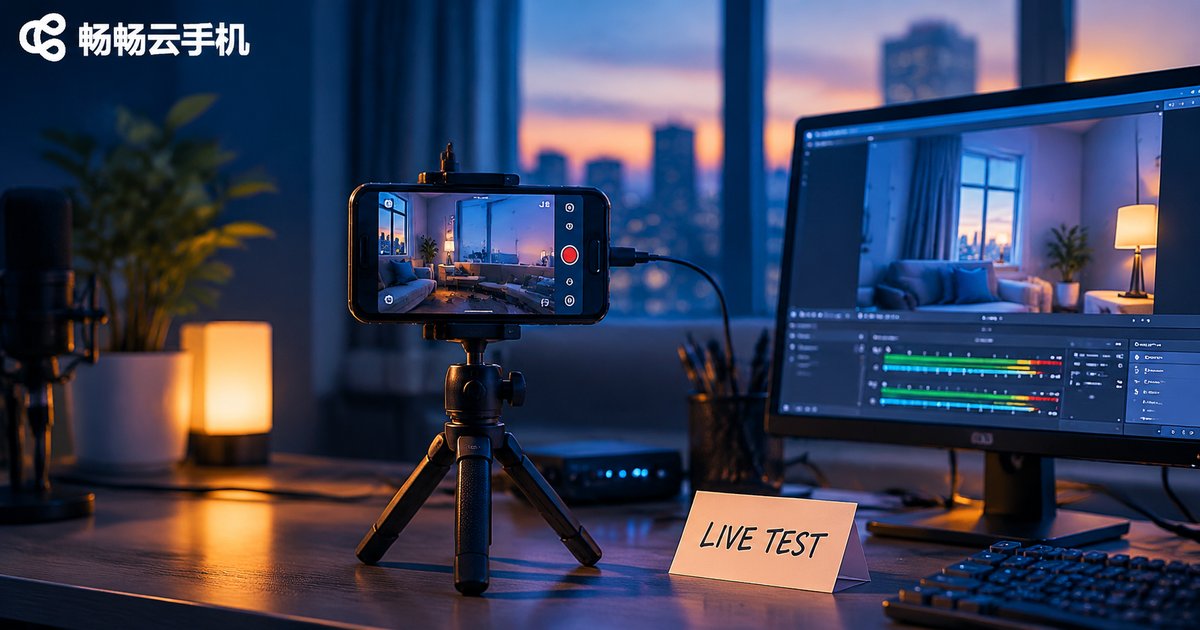
Cloud Phone Live Streaming Test: Stream, Video, Audio and Network Checks
Why Run Live Streaming Tests on a Cloud Phone
Most teams test live streaming on their own phones: insert a SIM card, connect to Wi-Fi, open the app, go live. Real-device testing runs into the same few problems every time: mixed device models, inconsistent OS versions, uncontrollable network conditions, and results that are hard to reproduce. The same streaming parameters may run smoothly on one phone and drop frames on another, and it becomes very hard to tell whether the bug is in your code or in the device.
A cloud phone narrows those variables down. Capture, encoding and stream delivery all run inside a virtual phone in the cloud, with unified hardware specs, a unified OS version and a unified network egress, turning the test environment into something you can copy. To reproduce a fault, just spin up another cloud phone with the same configuration instead of hunting for the same physical model.
This article walks through four checkpoints — stream delivery, video, audio and network — with concrete actions and pass criteria for each, then combines them into a single acceptance checklist.
Step 1: Stream Delivery — Confirm the Stream Actually Leaves
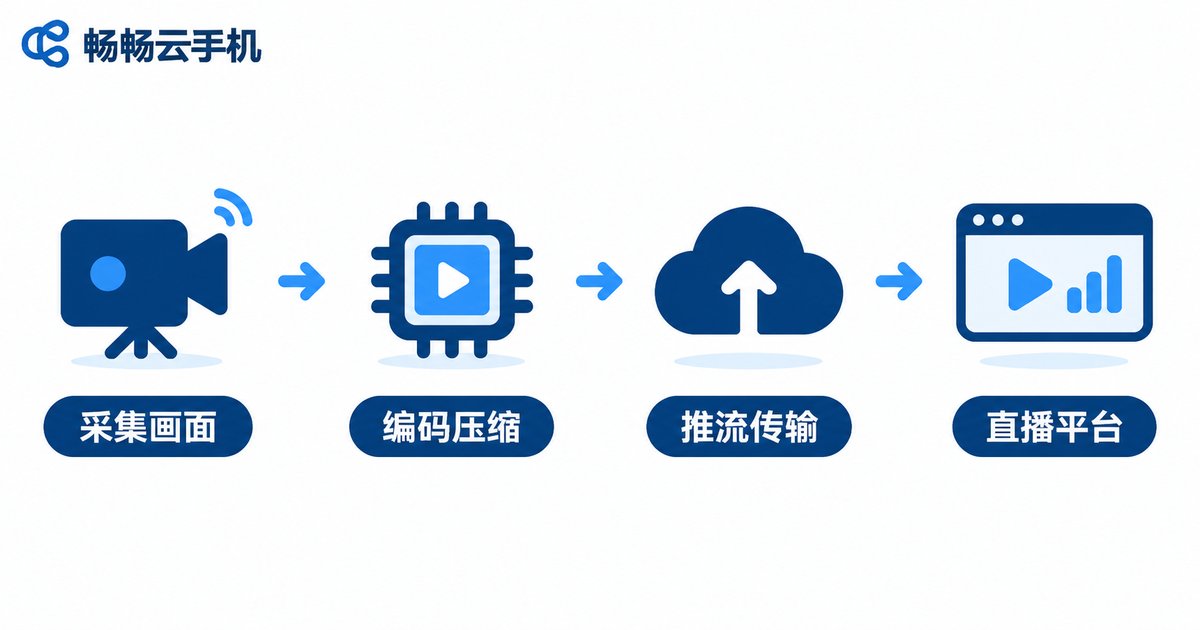
Stream delivery is the starting point of the whole chain. Don't just look at whether the app shows a “live” badge; check whether the stream actually reaches the server. Follow this order:
1. Credentials and URL: Confirm the ingest URL and stream key were copied in full, with no trailing line breaks or spaces. One wrong character and the connection hangs forever.
2. Connection setup time: From tapping Go Live to the server receiving the first frame should normally take a few seconds. If it is still connecting after ten seconds, check the network egress and ports first.
3. Bitrate stability: Watch the real-time bitrate curve on the encoder side. Ideally it fluctuates slightly around the target value. Persistently below target means upstream is insufficient; persistently above target usually means the encoding parameters never took effect.
4. Disconnect and reconnect: Cut the network for a few seconds and restore it. Can the encoder reconnect automatically, and how long does the viewer take to get the picture back? This step exposes stability problems better than anything else.
Step 2: Video — Clarity, Frame Rate and Color
Video issues can't be summed up as “is it clear or not”; you need to break them down. During testing, fix a standard set of motions: slow camera panning, fast hand waving, and holding up a poster with dense text. These three motions test how the compression algorithm handles static detail and fast movement.
Clarity: Focus on text edges and high-contrast areas. If they smear together, the image is not truly clear. No matter how high you set the resolution, an insufficient bitrate will still blur it.
Frame rate: Watch the hands during fast waving for ghosting or stutter. Dropped frames usually come from encoding pressure or insufficient upstream bandwidth.
Color and brightness: Check for color cast and overexposure, especially whether the automatic adjustment is smooth when the scene moves from dark to bright.
The following settings are a common starting point and can be tuned to your scenario:
| Scenario | Resolution | Frame rate | Bitrate reference |
|---|---|---|---|
| Vertical product selling, talking head | 720×1280 | 30fps | 2–3 Mbps |
| Gaming, fast motion | 1280×720 | 60fps | 4–6 Mbps |
| Long unattended streaming | 720×1280 | 25fps | 1.5–2 Mbps |
Step 3: Audio — Capture, Sync and Echo
Audio problems lose viewers faster than video problems. Watch three things:
Capture: Play a test tone inside the cloud phone while speaking into the microphone. Confirm both the system audio and the voice are captured, with no clipping and no overly quiet input.
Sync: Clap your hands or tap the desk and check whether the sound lines up with the motion. A deviation under half a second is barely noticeable; beyond one second it is clearly distracting.
Echo and noise floor: Speakers easily cause feedback. Turn the volume up and listen for howling; in a quiet room, listen for a constant electrical hum.
Step 4: Network — Four Metrics That Decide the Outcome
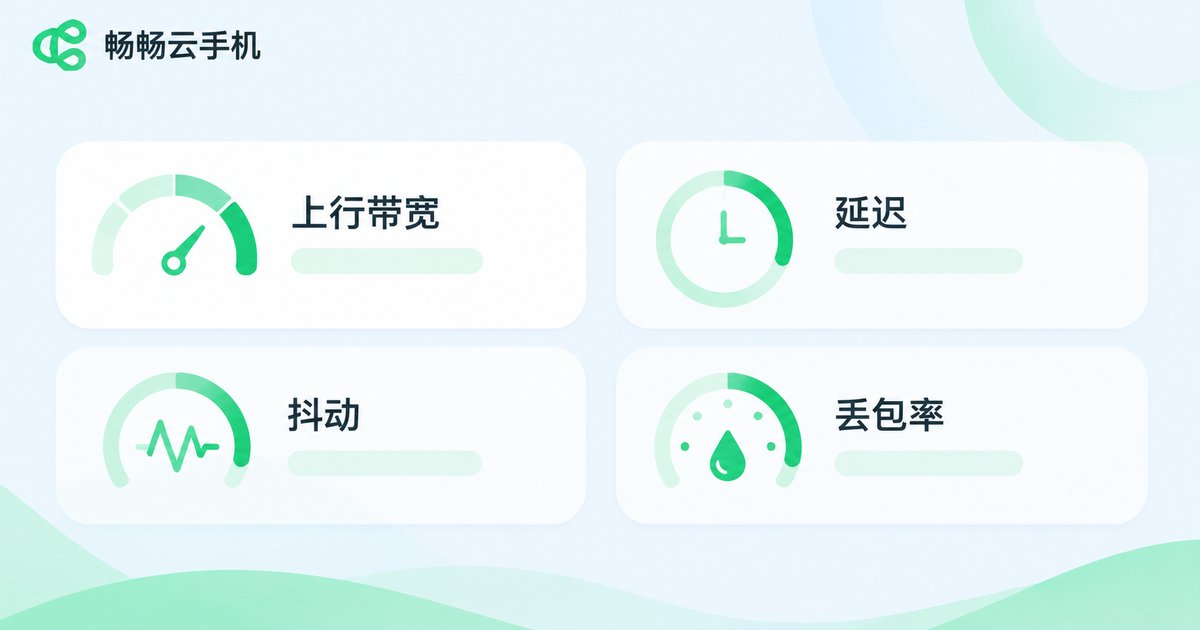
Network is the lifeline of live streaming. Inside a cloud phone the boundary is clearer: what you are measuring is the segment from the cloud device to the ingest server. Four metrics matter most:
| Metric | Normal range | Symptom when abnormal | Where to look |
|---|---|---|---|
| Upstream bandwidth | At least 1.5× the bitrate | Bitrate won't rise, automatic downscaling | Egress throttling, other processes |
| Latency (RTT) | Under 100ms | Slow start, laggy interaction | Detoured routes, node distance |
| Jitter | Under 30ms | Picture speeds up and slows down | Link congestion |
| Packet loss | Under 1% | Artifacts, stutter, dropped stream | Wireless interference, link quality |
The simplest way to test is a long ping run, watching the trend in packet loss and jitter:
ping -c 60 your-ingest-server-addressAt the same time, check whether other processes are saturating the egress. When running several cloud phones in parallel, make sure the total bandwidth is enough — otherwise each instance looks fine alone but all of them stutter together.
Step 5: Combine Everything into One Acceptance Checklist
Compress the above into a single table and tick it off on every test run, and your results become comparable:
| Stage | Key action | Pass criteria |
|---|---|---|
| Stream delivery | Verify URL, measure setup time, force one reconnect | First frame within seconds, picture recovers after reconnect |
| Video | Pan, wave, show a text poster | Sharp text edges, no ghosting, no artifacts |
| Audio | Play test tone, clap for sync, raise volume for echo | Voice and system audio both clear, sync error under 0.5s |
| Network | Long ping run, check bandwidth usage | Packet loss under 1%, jitter under 30ms |

Step 6: Fix Your Test Environment with CcloudPhone
Reproducible testing requires a consistent environment. CcloudPhone (ccloudphone) runs the phone in the cloud with unified hardware specs and a unified OS version, so the environment you test in today closely matches the one you retest in next week — no more hunting for the same physical model.
Live streaming tests often require leaving the stream running for hours to observe disconnections and stability. Cloud phones can stay online for long stretches, so your test script keeps running; when you need to test multiple accounts or platforms at once, you can start several cloud phones in parallel without interference. You can check the screen from a web console at any time, so nobody has to sit next to the device.
A recommended workflow: start with one cloud phone as a baseline, recording stream, video, audio and network data. When a problem appears, retest on a new cloud phone with identical specs. Anything that reproduces reliably is a real bug; anything that doesn't is usually just environmental noise.
Frequently Asked Questions
Q: If the test passes on a cloud phone, is a physical device guaranteed to work?
A: Not exactly, but the value is significant. A cloud phone fixes device model, OS version and network egress as constants, so you can rule out parameter configuration, network quality and encoding settings first. Whatever remains can then be verified on a real device, which narrows the search space considerably.
Q: How much bandwidth does a cloud phone live streaming test need?
A: A safe rule is to prepare upstream bandwidth at around 1.5× the streaming bitrate. For a 3 Mbps stream, leave at least 4.5 Mbps. When running several cloud phones in parallel, add up the bitrates of all instances and keep headroom on top.
Q: When the picture stutters, where should I look first?
A: Check the network first, then the encoding. Go through upstream bandwidth, packet loss and jitter in that order. If the network metrics are fine, check whether your resolution and frame rate exceed what the current bitrate can carry, and only then look at the encoding parameters themselves.
Q: What should I watch out for when testing multiple cloud phones in parallel?
A: Three things: whether the total upstream bandwidth is enough to share, whether each instance uses an independent ingest URL, and whether the test start times are staggered. Handle all three and what you measure reflects a single instance rather than a false fault caused by resource contention.


