
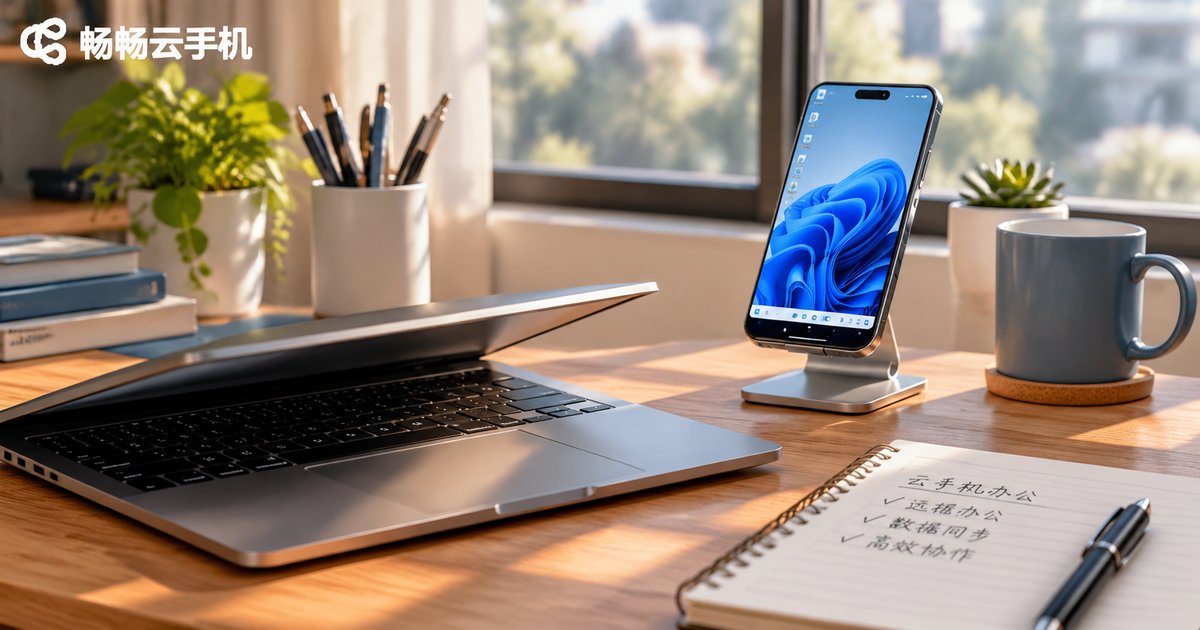
Cloud Phone for Office Work: Documents, Meetings, Remote Control and Data Security
Why Move Your Office Work to a Cloud Phone
A cloud phone is essentially an Android device running in a data center. The screen is streamed to you in real time, and your taps and keystrokes are sent back up. It uses none of your local storage or battery, and switching devices never interrupts your session. For frequent travelers, people who want a spare work device, or teams that need to spin up accounts for temporary colleagues, that form factor is genuinely appealing.
But office work is heavy lifting, and simply booting up means nothing. We ran a round of hands-on tests around four areas that actually matter: document handling, video meetings, remote control, and data security. Here is what we found.
Documents: Online Editing and Seamless Handover
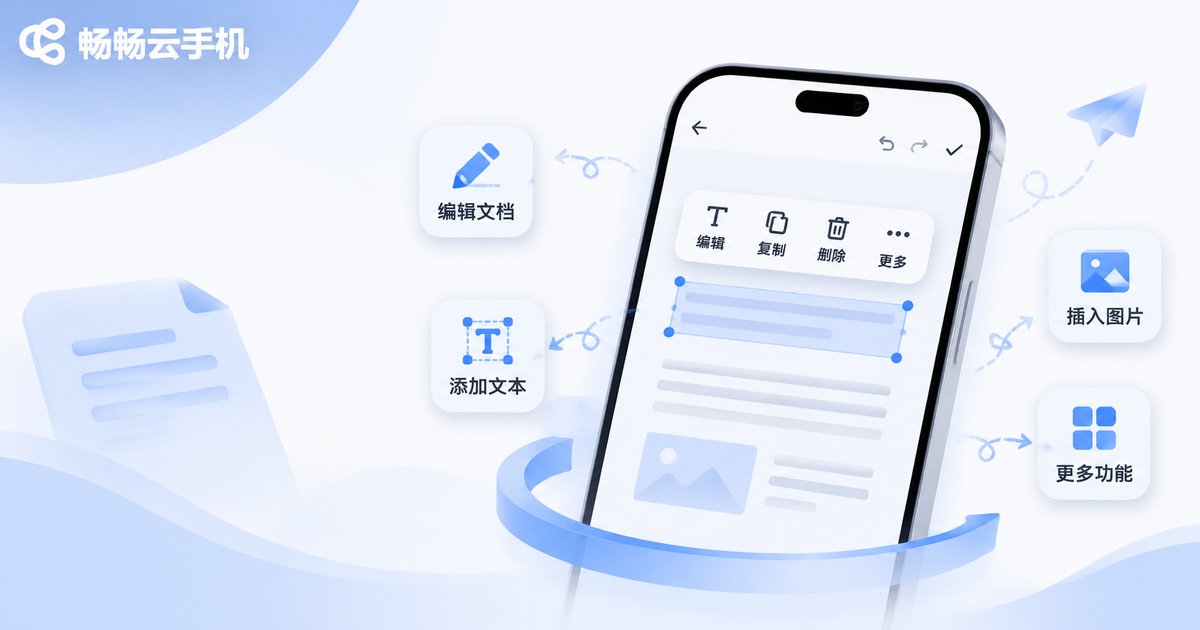
The test: open an office suite inside the cloud phone, edit a weekly report with a table, then switch devices and continue.
In practice, plain text and ordinary spreadsheets feel close to a physical phone. Input latency stays within an acceptable range, cloud saving is immediate, and opening the same file on a laptop showed the changes already synced. Be aware that complex formatting — long documents with tracked comments, deeply nested tables — is tiring on a small screen. For that kind of work, connect from a desktop instead.
A few practical tips:
1. Prefer online documents with autosave so a dropped session never costs you content.
2. Upload large files to cloud storage first and open them directly inside the cloud phone instead of downloading them repeatedly.
3. For typing-heavy tasks, pair a Bluetooth keyboard — the efficiency gain is obvious.
Meetings: Video Calls and Screen Sharing
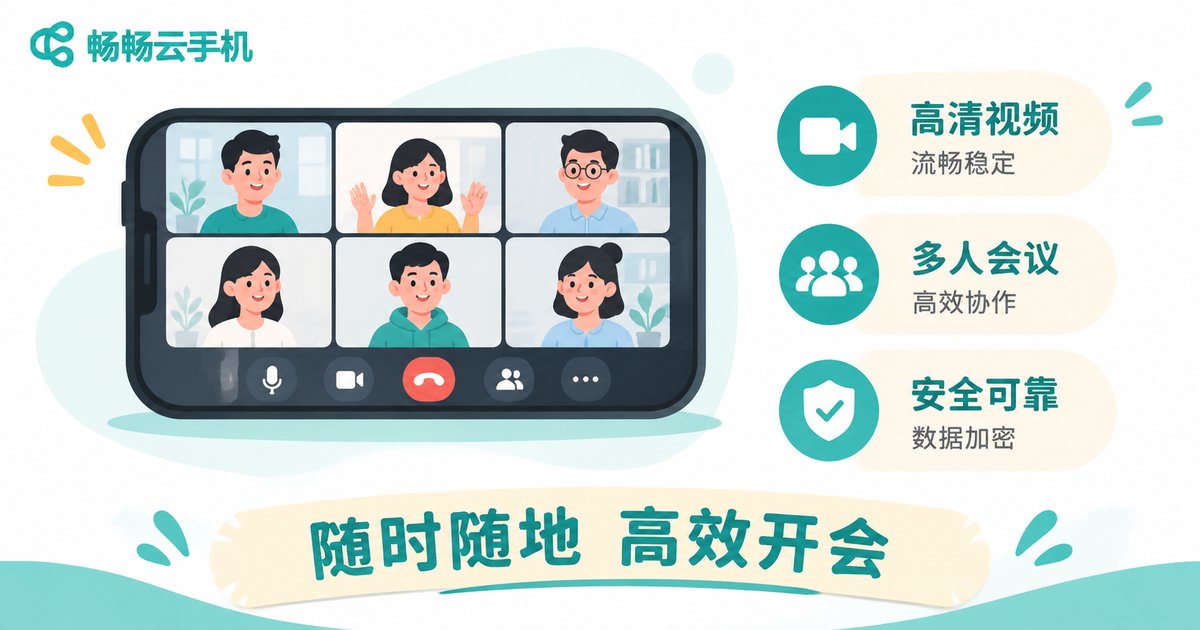
Meetings put pressure on the camera, microphone, and real-time audio-video encoding.
The result: audio meetings work flawlessly, and video calls stay clear and continuous on a stable network. A cloud phone has no physical camera, so joining with a virtual camera or simply turning video off and relying on screen sharing is actually the safer path. For everyday meetings where you listen, take notes, and share documents, this setup is more than enough.
One warning: call quality depends heavily on the network. Check your upstream bandwidth before a meeting and prefer wired or solid Wi-Fi over a weak mobile signal for anything important.
Remote Control: Operate It Like a Local Phone
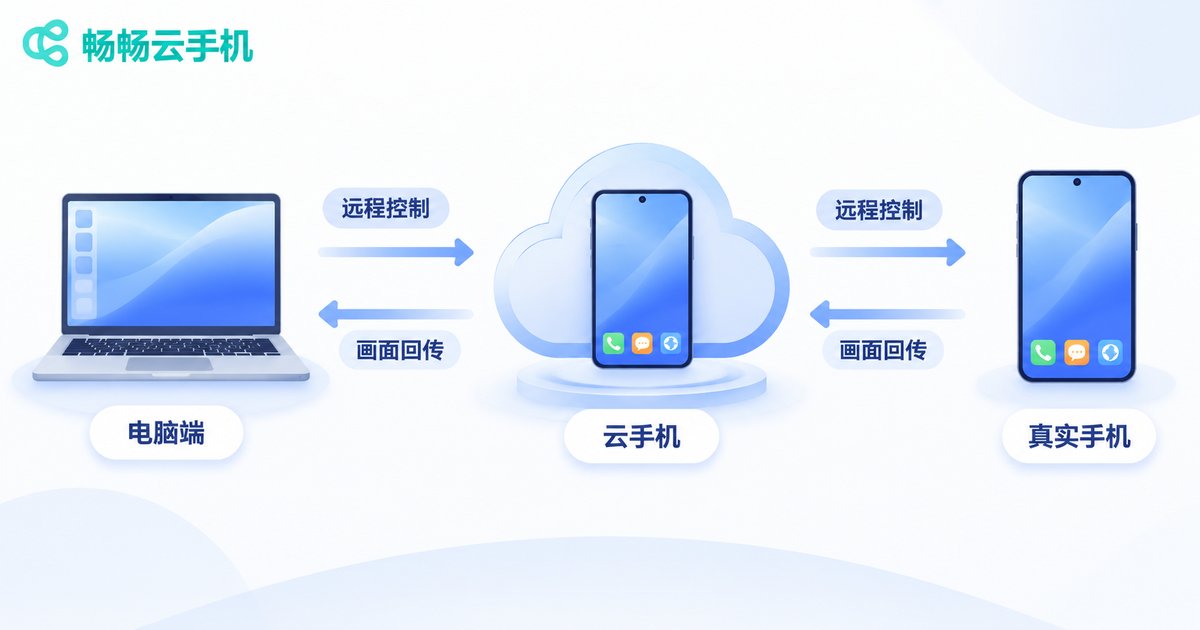
Remote access is where a cloud phone earns its keep. You can connect to the same cloud phone from a laptop, a tablet, or another phone, and app state, login sessions, and file locations all stay exactly where you left them — no re-login, no re-downloading.
Two groups benefit most: operations and support staff who juggle multiple accounts, and people on the move who want to carry one light device yet still handle phone-side tasks. In use, a mouse clicks straight into the cloud phone interface and keyboard input maps across, so the learning curve is small.
Data Security: Data Stays in the Cloud, Access Can Be Revoked
The biggest shift with cloud phone office work is that business data lives in the cloud rather than scattered across everyone's physical devices. When an employee leaves or a project ends, you revoke access to the cloud device instead of chasing down individual handsets.
In daily use, keep to these habits: assign a separate device to each member instead of sharing one; enable two-factor login; keep sensitive files in cloud storage rather than exporting them to a personal photo album; and audit who still has access on a regular basis.
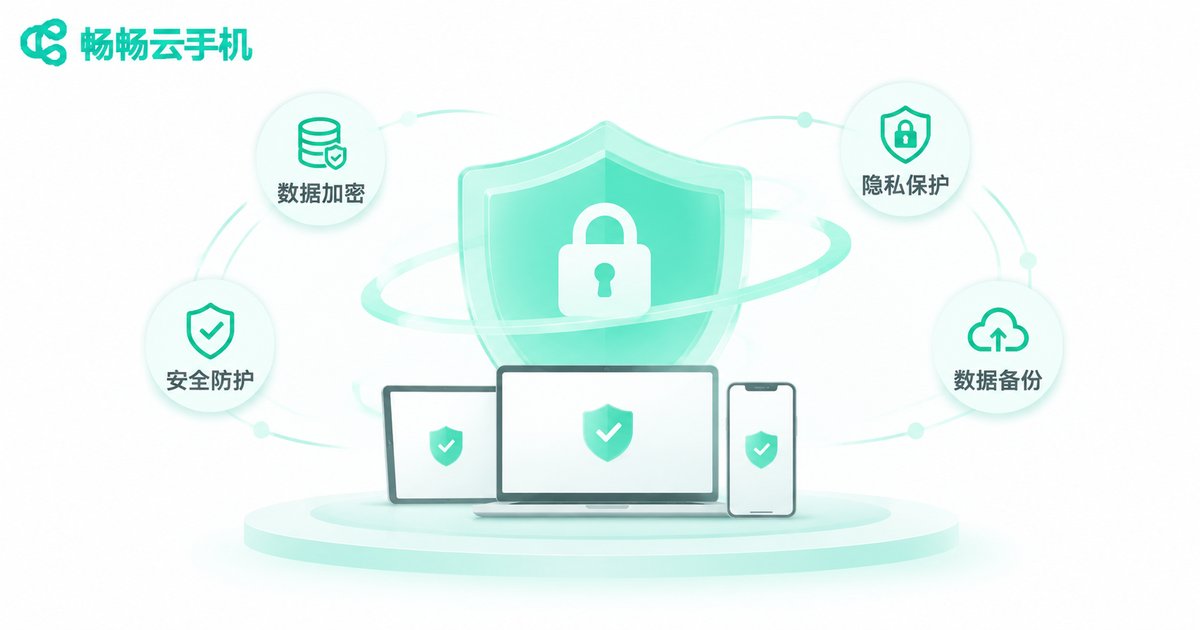
To be fair: a cloud phone solves the separation of devices and data, but it does not replace your own account governance and permission policies. Tools plus policy is the complete answer.
Side by Side: Cloud Phone vs Traditional Setups
| Criteria | Cloud Phone | Laptop | Spare Physical Phone |
|---|---|---|---|
| Carry weight | Light, access from any terminal | Heavier | One more device to carry |
| Document editing | Good for light to medium work | Strong | Average |
| Video meetings | Stable audio and sharing | Most stable | Stable |
| Remote takeover | Strong, state never breaks | Needs extra setup | Must be carried |
| Centralized data control | Strong, access revocable | Weak | Weak |
| Network dependency | High | Low | Low |
The takeaway is clear: a cloud phone is not replacing your computer, it fills the gap for “take over anywhere, keep data inside.” Heavy document creation stays on the laptop; light handling, ad-hoc takeover, and account switching go to the cloud phone. Together they are the most efficient combination.
Why We Recommend ccloudphone
If you want to put this setup into practice, ccloudphone is a straightforward place to start. It provides Android cloud phones running in the cloud with 24/7 uptime. You can connect to the same cloud device from a web browser, a desktop client, or a mobile app at any time, with apps and data stored in the cloud so your state survives a device change.
For office scenarios, the practical points are: multiple cloud phones can be managed together, which suits operations and support roles juggling several accounts; devices can be reset at any time, so handing one to the next colleague carries no leftover data risk; and access is flexible — whatever device is at hand works. For current configurations and how to get started, check the official site for the latest details.
Frequently Asked Questions
Q1: What network does cloud phone office work require?
Document editing and audio meetings are undemanding — stable Wi-Fi is fine. For video meetings, prefer a wired connection or high-quality Wi-Fi with sufficient upstream bandwidth, and avoid weak mobile signal.
Q2: Does a cloud phone drain my local battery and data plan?
Your local device only renders the picture and sends input back; the computing happens in the cloud, so power draw and heat are noticeably lower than running heavy apps locally. Data usage depends on stream quality — use Wi-Fi for long sessions.
Q3: Is data stored in the cloud safe?
Centralizing data in the cloud makes permission control and revocation far easier than leaving it scattered on personal devices. Pair it with per-member device assignment, two-factor authentication, and periodic access reviews.
Q4: What kind of work should stay off a cloud phone?
Heavily formatted long documents, design work needing serious graphics rendering, and real-time collaboration that is extremely latency-sensitive are still better done on a computer.


