
Cloud Phone Security Settings: Passwords, Verification Codes, Login Devices and Permission Management
Why a cloud phone deserves real security settings
Many people treat a cloud phone as a spare device living somewhere in the cloud, assume there is nothing important inside, and set a casual password. In reality, a cloud phone often keeps the login states of your social accounts, game accounts and payment tools, and sometimes a bound phone number. If someone else logs in, the loss can be bigger than losing a physical phone, because you cannot see what the other person is doing.
This article breaks cloud phone security into four things anyone can do right away: passwords, verification codes, login devices and permission management. Going through them once takes about ten minutes and shuts out most common risks.
1. Passwords: from usable to hard to guess
A cloud phone involves two layers of passwords: the password of your cloud phone service account, and the lock screen password of the Android system inside the cloud phone. Keep them separate and never reuse one for both.
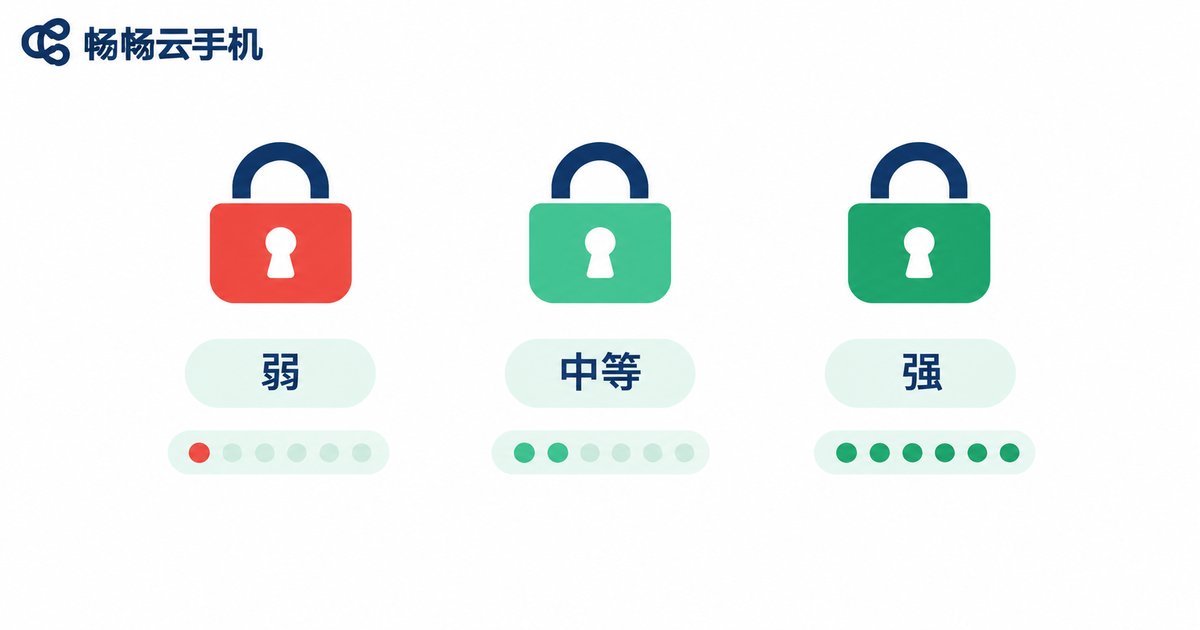
For a strong password, follow these rules: at least 12 characters; a mix of upper case, lower case, digits and symbols; no birthdays, phone numbers or name spellings; never reuse the same password across platforms; and let a password manager generate it if you can.
A common mistake is treating a verification code as a password. A password is a long-term secret you hold; a verification code is a one-time credential. They serve different purposes and cannot replace each other.
2. Verification codes and two-factor authentication: add another lock
Verification codes are your first alarm when an account is accessed from somewhere unusual. A few practical rules:
Never send a verification code to anyone, including people claiming to be customer service or platform staff. Legitimate support never asks for your code.
Never screenshot and forward a code message, especially in group chats.
If you receive a code you did not request, someone is trying to log in. Change your password immediately and check your login devices.
If the cloud phone service supports two-factor authentication, such as asking for a dynamic code or an email code at login, turn it on. It adds one step, but that step blocks the vast majority of credential-stuffing and password-guessing attacks.
3. Login device management: always know who is using your cloud phone
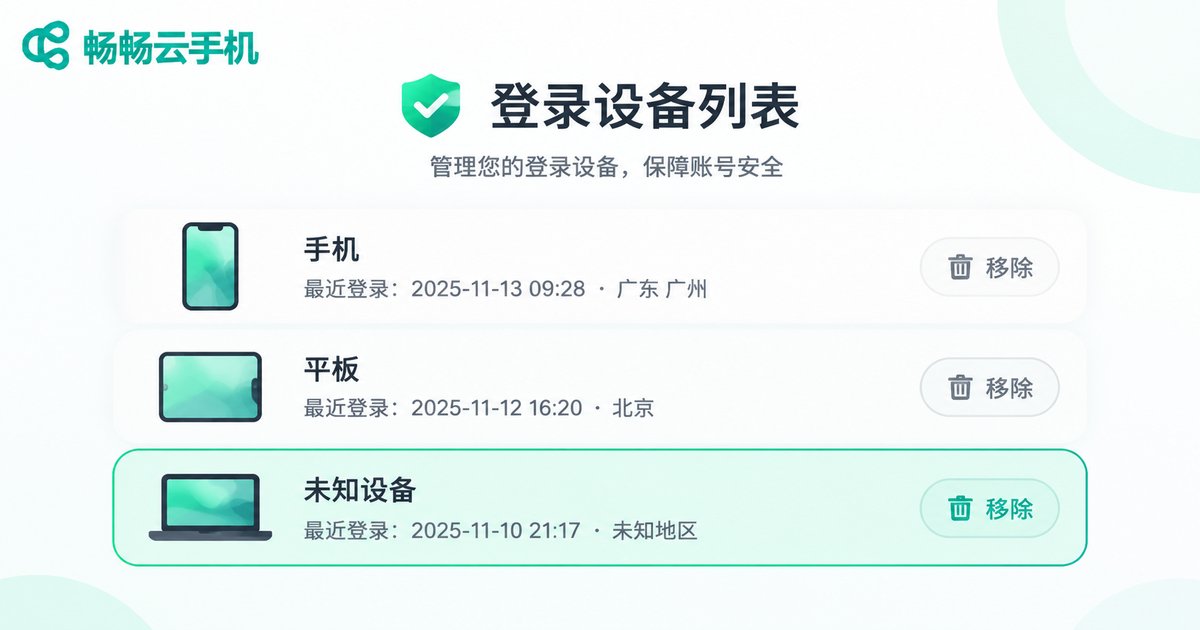
Most cloud phone services provide a login device list showing which devices logged in, when, and from which region. You should check it about as often as you check messages.
Build three habits: review the device list regularly and remove any device you do not recognize; sign out of sessions you no longer use, especially old phones, old computers and borrowed devices; enable new-device or unusual-location alerts, and when one arrives, change the password first and investigate second.
One scenario is easy to overlook: after logging in on a shared computer at an internet cafe, at the office or on a friend's phone, always sign out manually and clear the session. Do not tick remember me or auto login.
4. Permission management: control what apps can reach
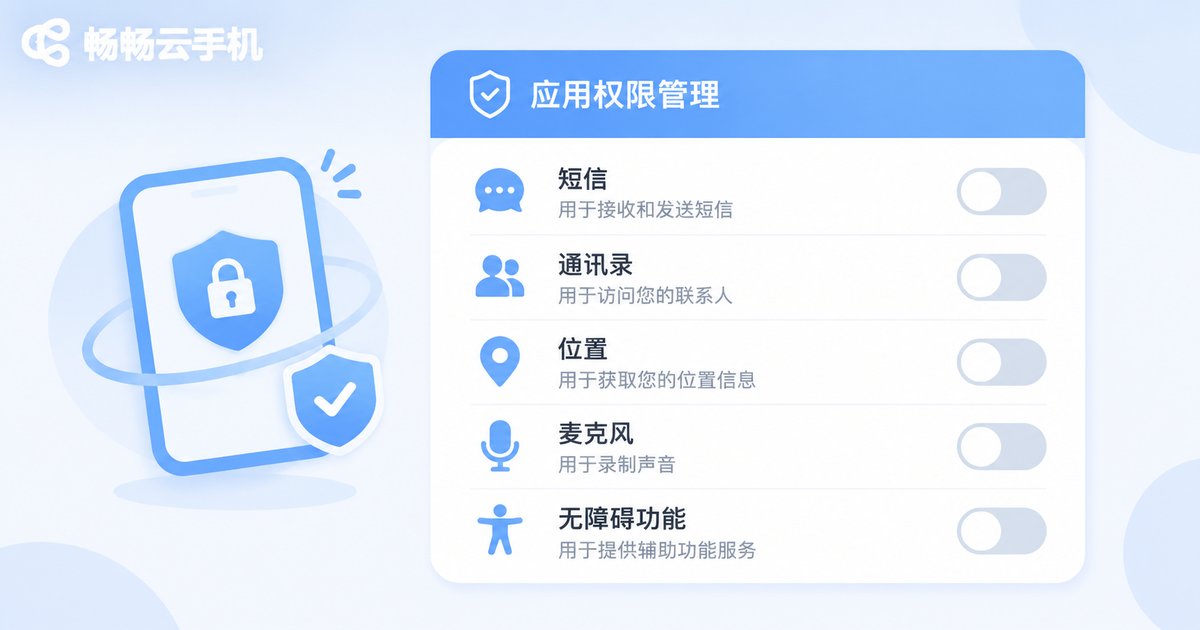
A cloud phone runs a full Android system, so installed apps request permissions just like on a physical phone. Granting too much is like handing out spare keys. Use this table as a reference:
| Permission | Recommendation | Reason |
|---|---|---|
| SMS, contacts | Do not grant unless essential | Verification codes and contacts are the most sensitive data |
| Storage, photos | Grant on demand, revoke after use | Avoid long-term reading of your files |
| Location | Allow only while in use | Background tracking reveals your routine |
| Microphone, camera | Off by default | Prevents silent access in the background |
| Overlay, accessibility service | Only for fully trusted apps | These can read and act on screen content, the highest risk |
Spend two minutes each month reviewing the permission list and switch off anything no longer needed. Download apps from official sources and avoid installing packages from unknown origins.
5. Applying these settings on ccloudphone
ccloudphone runs an Android system in the cloud, and you operate that cloud phone remotely through a client. That means account security is cloud phone security. Configure it in this order:
First, set a unique strong password for your ccloudphone account that you do not use for email or social accounts.
Second, bind a frequently used email address so you can receive security alerts and recover the account.
Third, enable two-factor authentication if the account supports it.
Fourth, review your login records regularly and remove unknown devices and expired sessions.
Fifth, open the Android settings inside the cloud phone, set a lock screen password and review the permissions of installed apps.
The advantage of a cloud phone is that it stays online and uses no local storage, but precisely because you are not watching it all day, these basics matter even more and are worth getting right once.
6. A one-page security checklist
| Item | Done when |
|---|---|
| Account password | 12+ characters, mixed types, unique and not reused |
| Cloud phone lock screen | Different from the account password and enabled |
| Two-factor authentication | Enabled where supported |
| Login devices | No unknown devices and no leftover sessions |
| Login alerts | New device or unusual location alerts enabled |
| App permissions | SMS, contacts and accessibility granted only when needed |
| Regular review | Passwords, devices and permissions checked monthly |
FAQ
Q: My cloud phone has no important files, do I still need a strong password?
Yes. Attackers usually care less about files and more about the login state and bindings of the account itself. Access to your cloud phone can affect connected accounts.
Q: Can the account password and the in-system lock screen password be the same?
Not recommended. Keeping them separate means one leaked layer still leaves the other one protecting you.
Q: I received a verification code I did not request. What should I do?
It means someone is trying to log in. Change the password first, then check the login device list and remove unknown devices. Never share the code with anyone.
Q: Is it safer to turn off all app permissions?
Not necessarily. Removing essential permissions breaks the app. Granting on demand and revoking after use is the better approach.
Q: How often should I check login devices?
Once a month is a good baseline. Check immediately if you receive a login alert, change devices or use a shared computer.


