
Cloud Phone Privacy Protection: Permission Shutdown, Data Isolation, and Usage Boundaries
Why privacy on a cloud phone is different from a regular phone
On a regular phone, privacy risk sits almost entirely at the local layer: an app asked for contacts one more time, a screenshot was never deleted, a background process keeps reading your location. A cloud phone moves the runtime environment into a cloud data center, so the screen in your hand is closer to a remote control - apps run far away, and the data stays there too.
Two things change. First, your local device no longer piles up large amounts of app data, so cleanup is simple. Second, you need to rebuild your mental model of where data lives and who can see it. Many first-time users instinctively treat a cloud phone as a phone that happens to sit in the cloud, so they load it with important files and everyday accounts - which is exactly when privacy risk is highest.
This article skips the theory and covers three practical things: which permissions to turn off, how data isolation works, and where the usage boundaries lie.
Permission shutdown: cut first, decide later
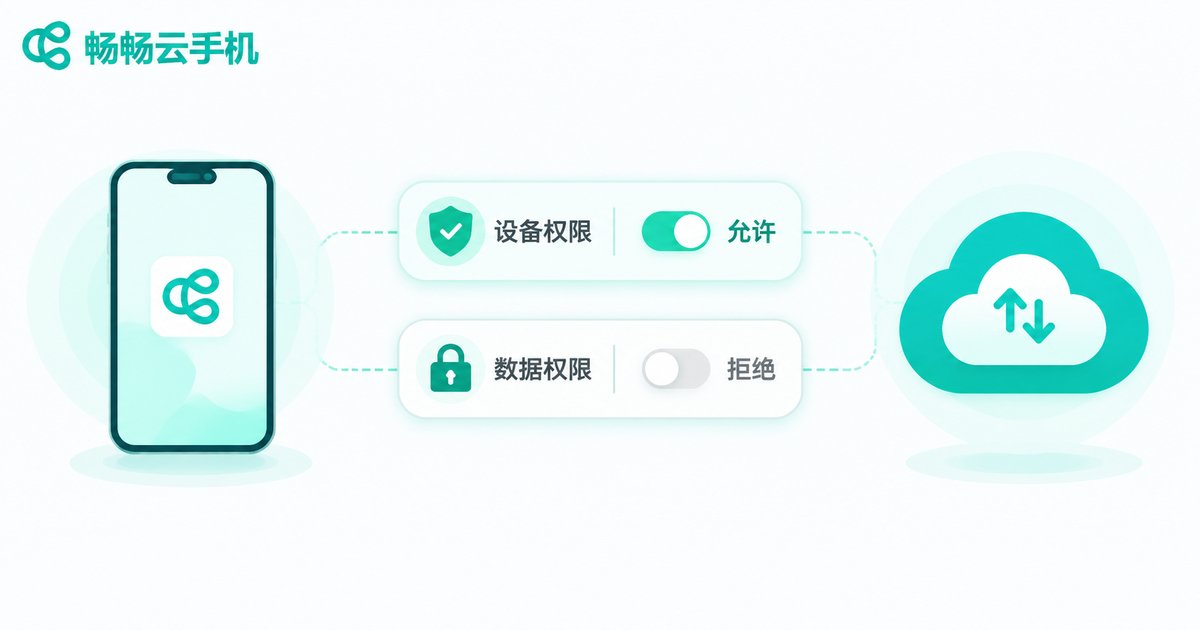
On any phone, permissions are the first gate. The difference with a cloud phone is that permissions exist on two levels: what the local client app requests, and what apps inside the cloud instance request. Many people only lock down the second layer and forget the first - while the client keeps reading their photo library and location.
The practical approach is subtraction first: grant nothing by default, then enable what you actually need. The table below is a reasonable starting point.
| Where | Permission | Typical use | Suggested setting |
|---|---|---|---|
| Local client | Storage / Photos | Uploading files to the cloud instance | Enable on demand, disable after |
| Local client | Notifications | Receiving cloud message alerts | Fine to enable |
| Local client | Microphone | Voice input, calls | Disable when not in use |
| Local client | Location | Most features do not need it | Recommended to disable |
| Inside the instance | Contacts / SMS | Binding flows for a few apps | Deny by default, grant case by case |
| Inside the instance | Storage | An app's own data reads and writes | Fine to enable |
Two details are easy to miss. One is the clipboard: passwords and verification codes copied locally may flow into a cloud app, so type sensitive values manually. The other is auto-login: it saves effort, but it also keeps your credentials sitting in the instance long term. Avoid it on shared or temporary instances.
Data isolation: know which data lives where
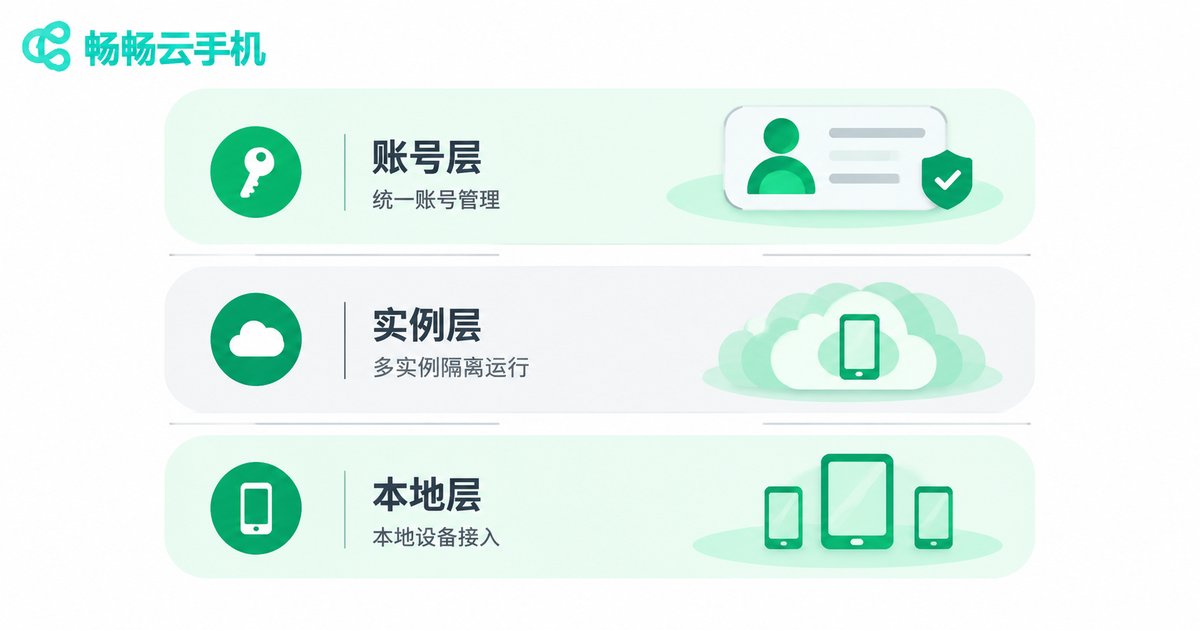
Data isolation sounds technical, but it comes down to three questions: where the data lives, who can access it, and whether deleting it actually removes it. With a cloud phone, think in three layers.
- Account layer: login credentials, binding details, subscription status. This belongs to your account, regardless of which instance you use.
- Cloud instance layer: the apps you installed, the data they produce, and runtime caches. These stay inside the cloud instance and do not flow back to your local device automatically.
- Local device layer: the client's own cache, screenshots you saved locally, files you downloaded to your phone.
Two checks tell you whether isolation is solid: whether different instances can see each other, and whether the boundary between local and cloud is clear. The first decides whether multi-account work bleeds together; the second decides whether traces remain on your device after you close the client.
A useful habit is one instance, one job. Putting work accounts, personal accounts, and test apps into separate instances is far safer than stacking everything in one. If something goes wrong in one instance, the blast radius stays small and rebuilding it is cheap.
Also remember: a cloud instance is not a backup drive. Deleting or resetting an instance usually wipes the data inside it, so keep a copy of anything important on your own storage.
Usage boundaries: what suits a cloud phone and what does not
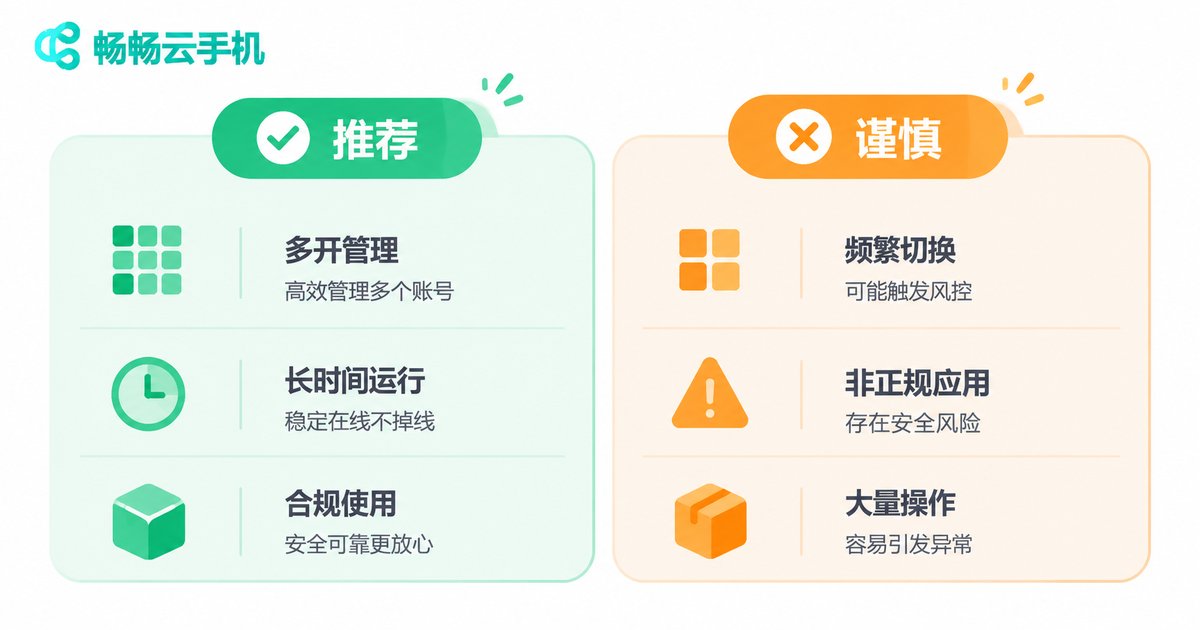
A cloud phone is not universal, and not every scenario belongs inside one. Thinking through the boundaries is more effective than stacking security settings.
| Scenario | Recommended | Notes |
|---|---|---|
| Managing multiple accounts or publishing content | Yes | Instances are independent, so switching is cheap |
| Long-running background tasks | Yes | No local battery or storage drain, survives your phone shutting down |
| Trying an unfamiliar app temporarily | Yes | Reset the instance afterwards, leaving no installer or residue locally |
| Continuing the same work across devices | Yes | Log in from another device and carry on, fewer file transfers |
| Storing the only copy of important files | No | An instance is not long-term storage; a reset means loss |
| Signing into high-value financial accounts | With caution | Confirm the provider's security model before you do |
| Handling confidential work on shared instances | No | Others may reach the instance, so the boundary is not yours to control |
| Operations that bypass platform rules | Never | Violates terms of service and the risk falls on you |
One boundary often overlooked is account responsibility. A cloud phone supplies the runtime environment, but what happens inside an account is still the account holder's responsibility. Do not lend your instance out, and do not sign into accounts of unknown origin inside one.
How to choose a cloud phone that states its boundaries clearly
Cloud phones that handle privacy well tend to share a few traits: independent instances, a clean account structure, visible device status, and documented rules for deletion and reset. You do not need to decode every buzzword - check three things.
- Are instances independent? Each instance has its own runtime space and does not interfere with others. That is the foundation of isolation.
- Are accounts and devices manageable? Can you see which instances sit under an account, what state they are in, and when they were created?
- Are the rules transparent? How long data is retained, what happens after a reset, how permissions are granted - these should be clearly described in the documentation.
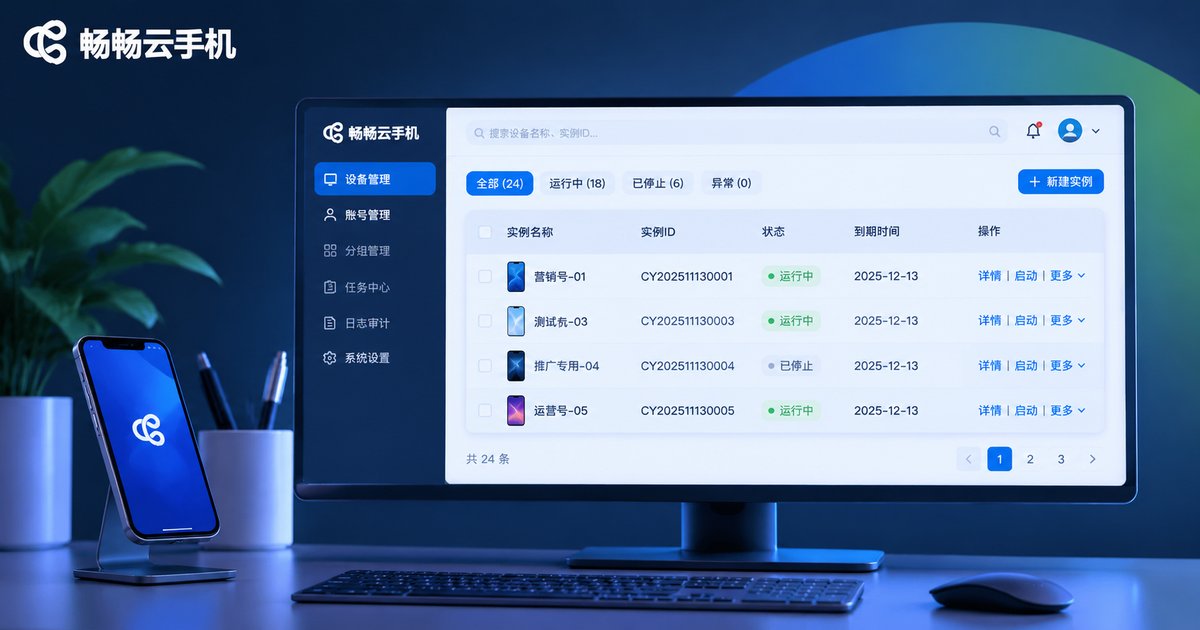
ccloudphone provides an independent cloud runtime environment where instances are isolated from each other, and account and device status can be viewed and managed in the console. For specific configurations, pricing, and feature details, please refer to the official website. If you are privacy-conscious, run through the self-check list below and turn off unnecessary authorizations before you start.
A privacy self-check list for your first session
Spend ten minutes going through this after you get your cloud phone, and you will avoid most basic risks.
- Disable location access for the local client and keep only the storage and notification permissions you truly need.
- Review app permissions inside the cloud instance one by one; deny contacts and SMS by default.
- Type sensitive passwords and verification codes manually instead of relying on clipboard sync.
- Do not enable auto-login on shared or temporary instances, and sign out when finished.
- Give each instance a single job, keeping work and personal separate.
- Keep a separate copy of important files on local or owned storage; never treat a cloud instance as the only copy.
- Do not borrow or lend instances. Your account is yours to use.
Frequently asked questions
Q: Can a cloud phone read the photos and contacts on my local phone?
It depends on which permissions you granted the local client. Without storage or photo permission, the client cannot read them, and any granted permission can be revoked in system settings at any time. The safest pattern is to enable storage only while you are actually uploading a file.
Q: Does data in the cloud instance disappear after I close the client?
Usually not. Closing the client only disconnects you; the instance keeps running in the cloud and its data remains. Clearing data normally requires deleting or resetting the instance, so check the provider's documentation for the exact rules.
Q: Can data leak between different instances?
Separate instances are designed to prevent exactly that. The simple test is whether an app and its data installed in instance A are visible in instance B. When choosing a provider, prefer one that explicitly states its instances are isolated.
Q: Does using a cloud phone automatically make me safer?
No. A cloud phone changes where data is stored and how apps run. Real safety comes from three habits: granting fewer permissions, keeping instances separate, and not cutting corners on sensitive operations. The tool is only a tool; the habits matter more.
Q: When should I avoid using a cloud phone?
Avoid it when you need to keep the only copy of important files long term, when you need to handle high-value accounts and have not confirmed the security model, and for any operation that breaks platform rules. Thinking through the boundaries beforehand costs far less than fixing things afterwards.


