
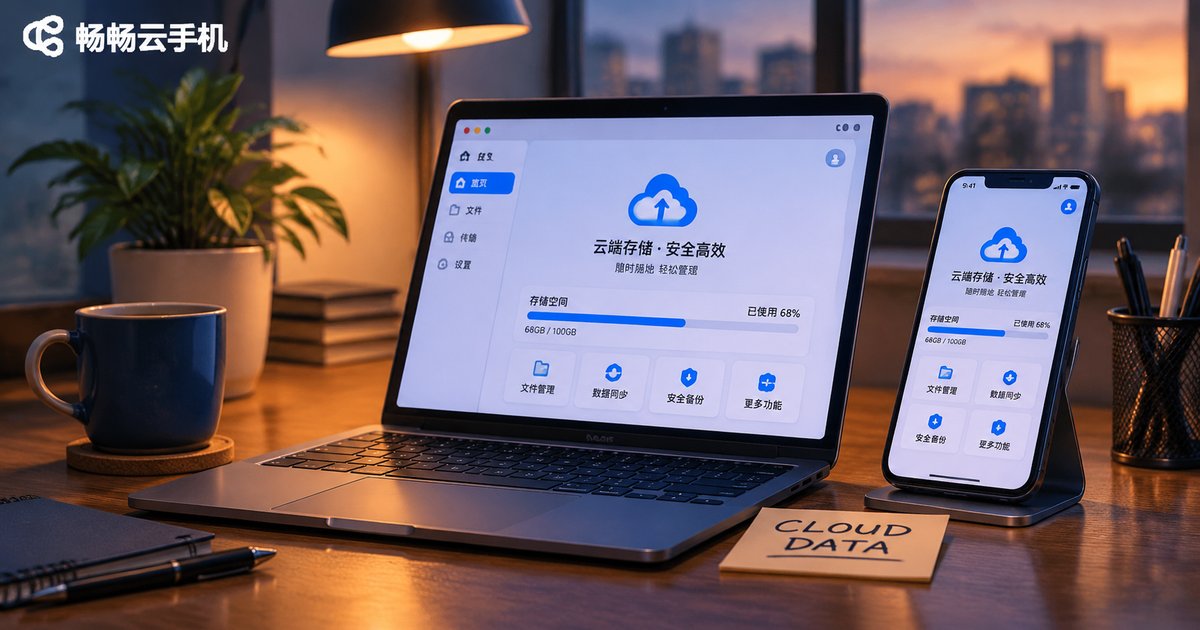
Cloud Phone Data Management: How to Upload, Download, Backup and Restore
Cloud phone data is not quite what you expect
Most people treat a cloud phone like a second physical handset the first time they use one, so they instinctively look for a file manager icon on the screen. But the real file system of a cloud phone runs on servers in a data center, and what you see is a live stream of that screen. This has a direct consequence: the files live in the cloud, so deleting, migrating and restoring them does not work exactly the same way as on a local phone.
That is why uploading, downloading, backing up and restoring each need a clear set of instructions on a cloud phone instead of a couple of intuitive taps. Below we break down all four actions, then share a set of data habits worth keeping long term.
Upload: getting local files into the cloud phone
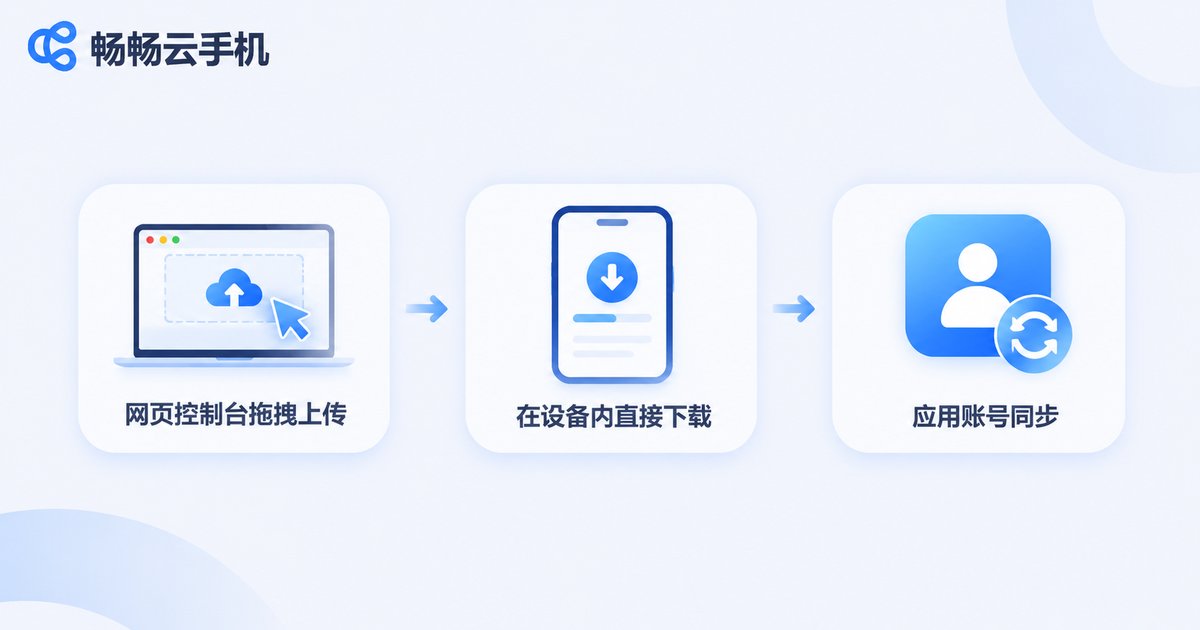
Uploading is the most frequently used of the four actions, and there are three common approaches.
1. Upload from the web console. Sign in to the cloud phone console, select the target instance and drag or choose local files through the file transfer entry. Nothing needs to be installed inside the cloud phone, which makes this ideal for installers, image assets and configuration files that you only need once.
2. Download directly inside the cloud phone. If the file comes from a cloud drive, an email or a web page, simply open the relevant app inside the cloud phone and download it there. From the cloud phone's point of view this is also an upload, just one that never passes through your local computer.
3. Use the sync built into an app. Many apps already support account sync. Sign in to the same account on both sides and the data syncs automatically, saving you the manual transfer.
| Upload method | Best for | Watch out for |
|---|---|---|
| Web console upload | Installers, assets, config files | Single-file size limits |
| In-device download | Cloud drive files, web resources | Consumes cloud phone storage |
| App account sync | Contacts, photos, documents | Same account on both sides |
The most common trap when uploading is storage space. A cloud phone has a fixed capacity, so checking the remaining space before you upload is far less painful than hitting an error and cleaning up afterwards.
Download: bringing files from the cloud phone back to your computer
The download direction is the opposite, but the logic is just as simple: open the file management entry in the console, select the target file inside the cloud phone and export it locally. Files generated by apps inside the cloud phone, such as screenshots, screen recordings and exported spreadsheets, can usually be found in their respective directories.
One thing to keep in mind is the time cost of large downloads. The cloud phone screen is streamed, but file transfers run on real bandwidth. A resource package of several hundred megabytes can take anywhere from a few minutes to over ten minutes depending on your network. Work on a stable connection and do not close the console page halfway through.
Backup: decide what you are actually protecting
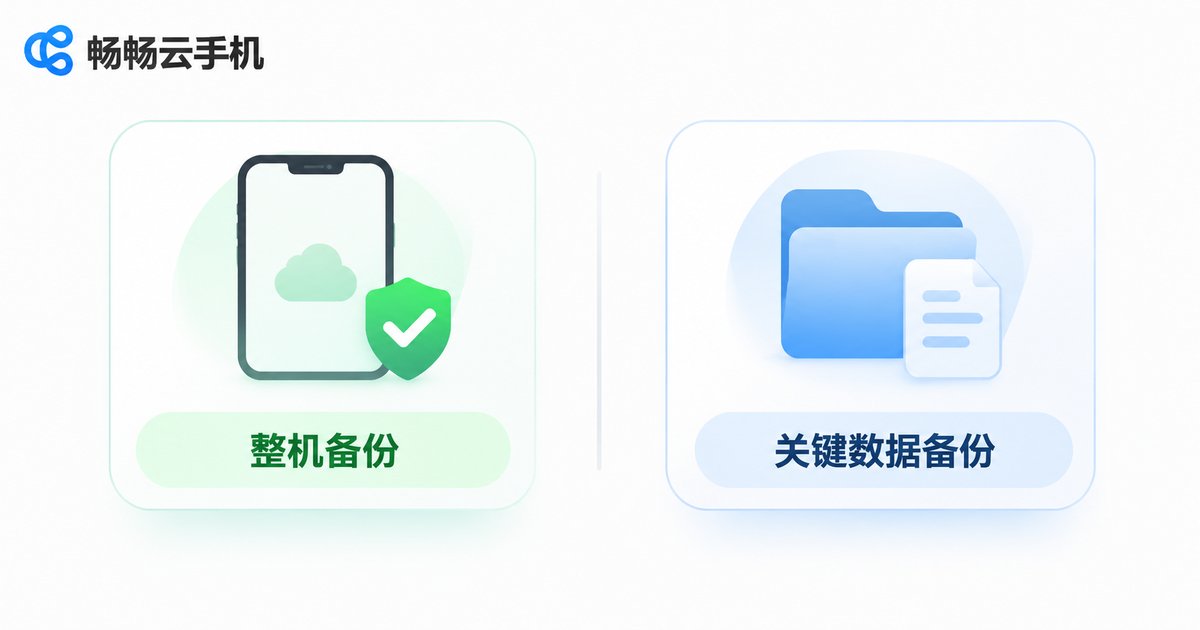
Backup is not a one-click feature so much as a strategy question. At minimum, separate two kinds of data.
Full-device backup: packages the entire state of a cloud phone instance, including installed apps, app data and system settings, so a restore can bring it back almost exactly as it was. Use it as a checkpoint before major operations such as batch app installation or a system version upgrade.
Key-data backup: protects only what really matters, such as account data, exported spreadsheets and captured assets. It is small, frequent and fast to restore, which makes it a good daily habit.
| Backup type | Coverage | Typical scenario | Restore speed |
|---|---|---|---|
| Full-device backup | System + apps + data | Before upgrades or bulk changes | Slower, full restore required |
| Key-data backup | Selected files or account data | Daily, high frequency | Fast, restore on demand |
Restore: putting a backup back safely
The key to a restore is confirming the target. Are you restoring to the original cloud phone, or to a brand-new one? The steps look similar, but the impact on existing data is completely different. Restoring to the original instance usually means overwriting it, while restoring to a new instance creates a separate copy and leaves the original environment untouched, which is the lower-risk option.
Before restoring, do two things: confirm that the backup point is really the one you need, and, if possible, restore to a new instance first to verify everything is fine before deciding whether to overwrite the original environment.
Data habits worth keeping
Chain these four actions together and you get a stable workflow.
Checkpoint before you change anything. Run a full-device backup before any operation that will significantly alter the cloud phone, so you always have a way back.
Back up only key data day to day. Export the truly important files daily or weekly instead of running a full backup every time.
Clean up regularly. Delete installers, temporary screenshots and expired assets so storage never becomes the bottleneck.
Name things consistently. Put the date and purpose in every backup file name, and you will never have to guess between backup1 and backup2 during a restore.
Data management on ccloudphone
ccloudphone puts both the running of cloud phones and their file management in the browser. Sign in to the console from any browser and you can handle the daily work without installing an extra client locally, and without using up your local device's storage or performance.
A few points that matter for data management:
Centralised file transfer. Uploads and downloads both happen in the console, with a consistent path, so you never have to dig through directories inside the cloud phone.
Runs in the cloud, stays light locally. The cloud phone keeps running online with apps and files in the cloud, so tasks continue even when your local device is switched off.
Manage instances separately. When you use several cloud phones at once, you can view and organise data per instance so files never get mixed together.
For the exact feature entries and available capabilities, refer to what the official ccloudphone website shows.
FAQ
Q: What is the most common reason an upload fails?
Usually one of three things: not enough storage on the cloud phone, a file that exceeds the size limit, or a network drop mid-transfer. Check free space first, then file size, then the connection.
Q: Are files on a cloud phone synced automatically with my local phone?
No. A cloud phone is an independent Android environment with no default sync relationship to your local phone. You need to upload, download or use app-level account sync yourself.
Q: How often should I back up?
Back up key data at least once a week. Full-device backups do not need to be frequent; one before batch app installation, a system upgrade or a major configuration change is enough.
Q: Will restoring a backup overwrite my current data?
Restoring to the original instance usually overwrites the current environment, while restoring to a new instance leaves the original untouched and is safer. When in doubt, choose a new instance.
Q: Can I recover data after resetting a cloud phone?
If you made a backup beforehand, you can restore from it. Without any backup, that data in the cloud is generally unrecoverable after a reset, which is why regular backups matter.


