
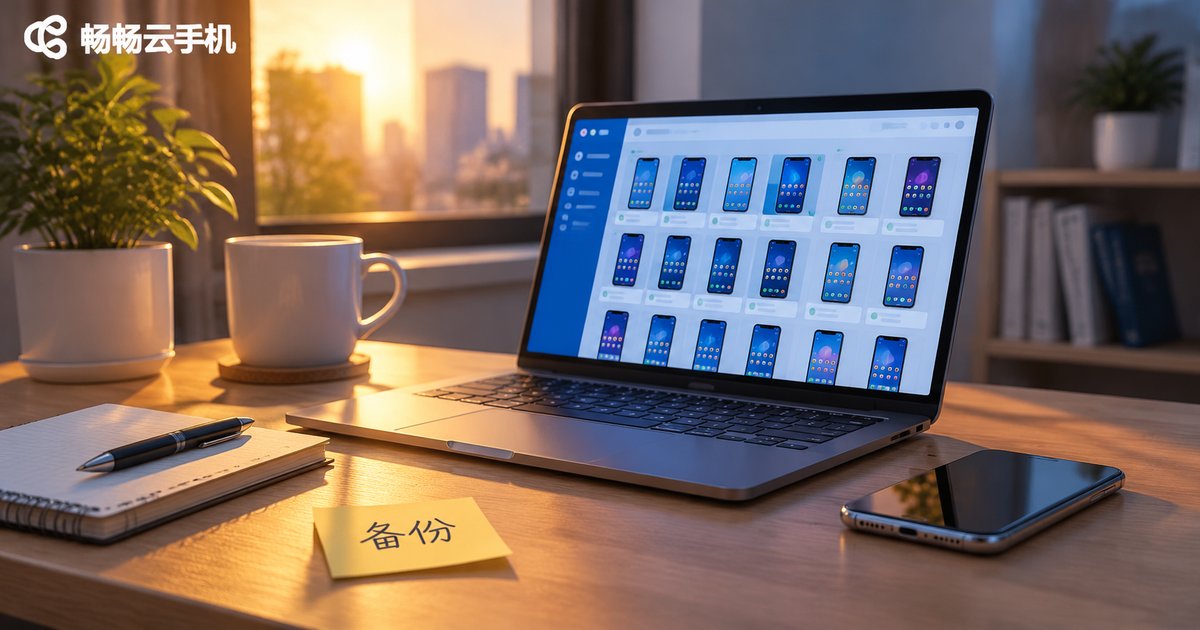
Cloud Phone Backup Guide: Organizing Files, Apps, Screenshots and Screen Recordings
Why a Cloud Phone Still Needs a Backup
A common misconception: if the data lives on a cloud phone, it is already backed up. In reality, a cloud phone only moves the running environment to the cloud — your files, screenshots, recordings and app data still need a copy you can retrieve at any time. An instance reset, an accidental delete, a broken app update or an unusual account switch can wipe out months of material in seconds.
This guide splits cloud phone data into four groups — files, apps, screenshots and screen recordings — and gives a simple, repeatable way to back up and organize each one. Do it once and you will never have to panic about missing material again.
Start With Categories: Four Data Types, Four Backup Strategies
Backing up is not about dumping everything into one folder. It starts with deciding what matters and what can be rebuilt.
| Data type | Where it usually lives | Cost of losing it | Backup frequency |
|---|---|---|---|
| Files | Download and document folders | High | Weekly |
| Apps | Installers and in-app accounts | Medium | After install or update |
| Screenshots | Screenshots album in the gallery | Medium | Daily or after each task |
| Screen recordings | Video album in the gallery | High (large files, expensive to re-record) | Right after recording |
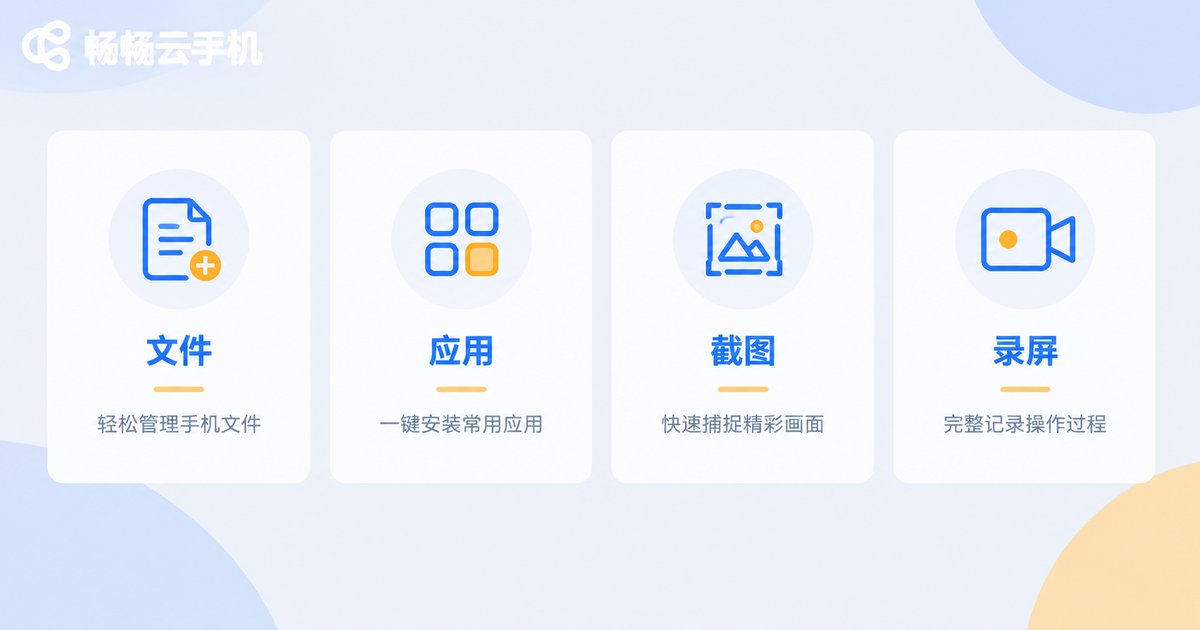
1. Files: Move the Important Documents Out of the Cloud First
Files are the easiest data to back up and the easiest to forget. Follow this order:
- Filter before you transfer: sort by modified date and back up everything you touched in the last three months first. Older files can be zipped before you move them.
- Keep at least two copies: one in the cloud (a drive or cloud storage) and one local (computer disk or external drive) for double cover.
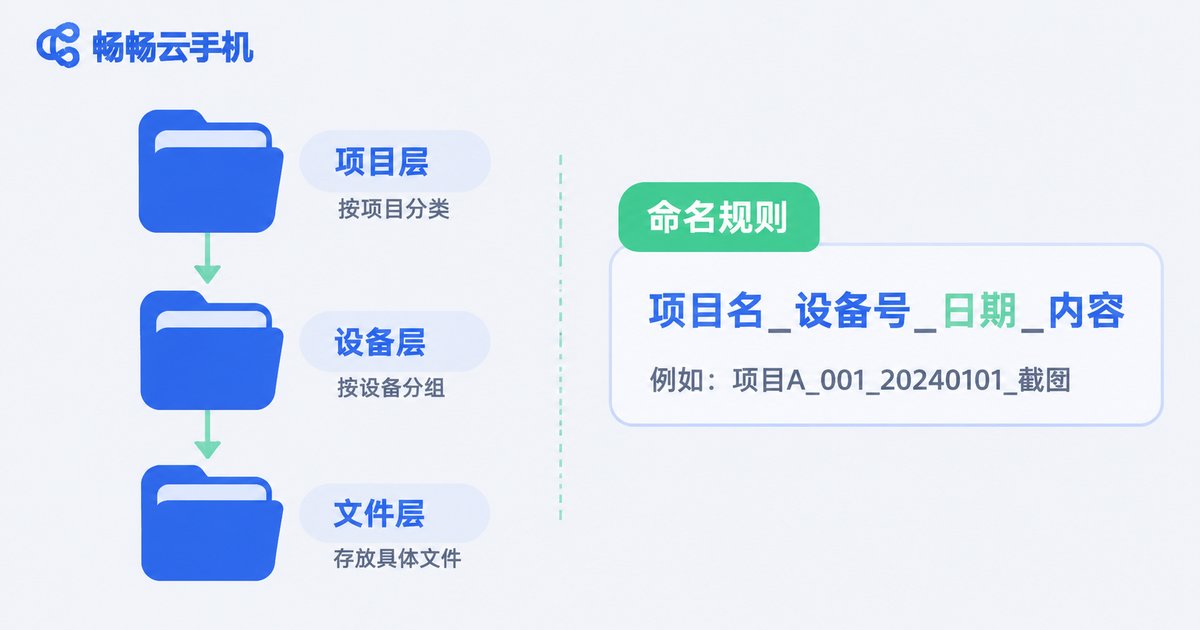
- Use one naming rule: date_project_version, for example 20250310_campaign_assets_v2.zip, so you can spot the right file at a glance when restoring.
- Verify regularly: open a few archives every quarter and make sure they still extract without errors.
2. Apps: Installer, Account and In-App Data
App backup is often mistaken for remembering a password. At minimum, protect three things:
- The installer: keep a separate copy of the APKs you rely on, so you can roll back to an older version if an app is delisted or an update breaks something.
- Accounts and bindings: the phone number, email and third-party sign-in methods tied to each app, stored in a password manager or encrypted note.
- In-app data: chat history, game saves and notes. Use the app built-in export first, then run the exported file through the file backup process above.
One small trick: keep an app inventory sheet for every cloud phone, listing which apps are installed and which account each one uses. Once you run several devices, that sheet saves a lot of guessing.
3. Screenshots: Rename, Archive, Then De-duplicate
Screenshots come in huge numbers and uneven value. Work in three steps:
- Rename immediately: 20250310_project_01.png is a hundred times easier to find than Screenshot_20250310-101532.png.
- Create one folder per project: project / date / originals. Three levels are enough — do not go deeper.
- De-duplicate and slim down: keep only the sharpest shot from a burst of screenshots and batch-delete the repeats to reclaim space.
4. Screen Recordings: Cut First, Archive Later
Recordings are large and fill up cloud storage fast. A few rules help:
- Trim right after recording: cut the waiting at the start and the dead air at the end, keep only what matters.
- Use a common format: export to something universal like MP4 so files still play on other devices.
- Archive by date: a recordings / year / month structure plus a keyword in the file name makes old material easy to find.
- Keep an offline copy of key recordings: after uploading big files to a drive, store a compressed version locally as well.
A Backup Routine You Can Actually Run
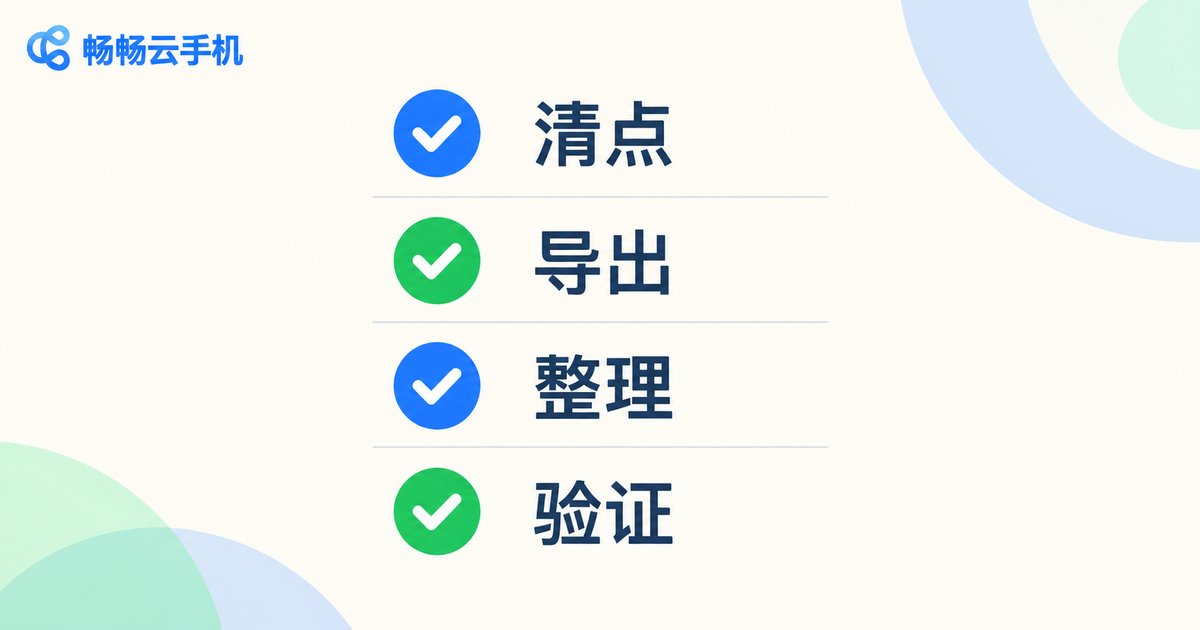
Joining the four parts together gives a fixed routine that takes about 15 minutes:
- Check: open the cloud phone and look for new items in the files, apps, screenshots and recordings folders.
- Export: download important files and app data locally, then sync screenshots and recordings to a drive.
- Organize: rename, sort and de-duplicate according to your naming rule.
- Verify: open a few files at random to confirm they work, then tick the checklist and write down the date.
Make Backup and Organization Easier With Ccloudphone
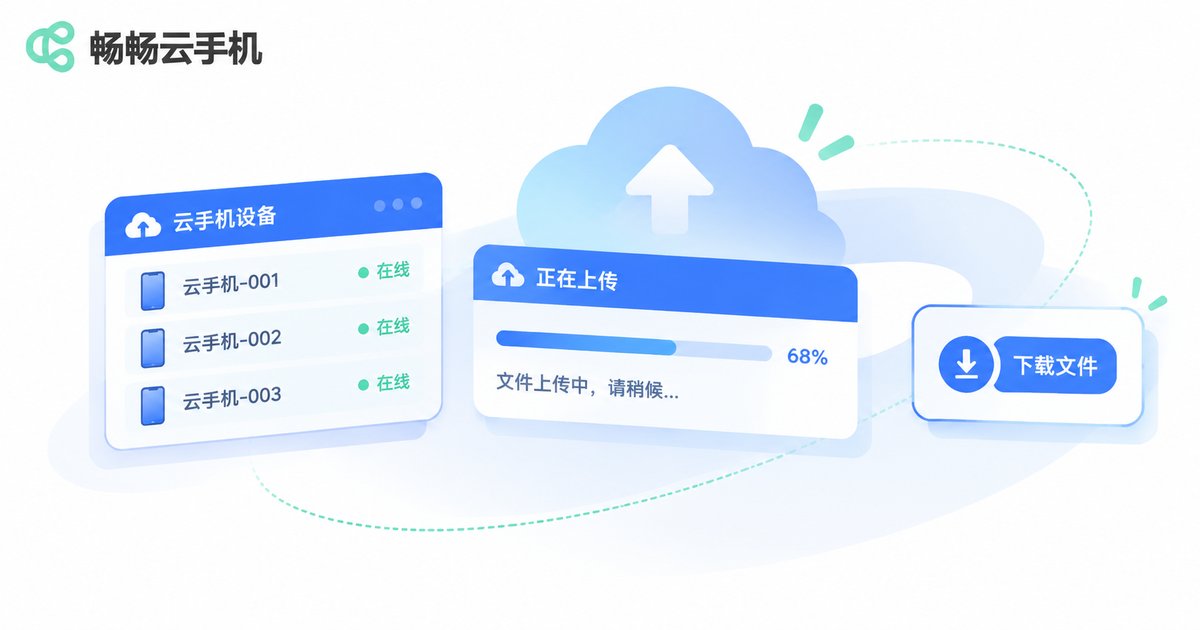
When you manage several devices at once, the hard part of backup is rarely storing — it is finding and moving things. Ccloudphone runs your devices in the cloud, so you can manage multiple cloud phones from one client: upload installers, view each screen and download the files you need, all in the same interface. That removes the endless copying between physical handsets.
In daily use, separate the device dedicated to collecting material from the device you use every day. Export and archive screenshots and recordings from the collector on a schedule, and keep only essential files on the main device. If one device ever needs a reset, your core data stays untouched.
Frequently Asked Questions
Q1: Isn-t the data already in the cloud, so why back it up?
Cloud is not the same as backup. A cloud phone provides a running environment; a reset, a wrong delete or an app failure can still remove your data, so keep a copy you can retrieve at any time.
Q2: Screenshots and recordings keep piling up — what is the fastest way to organize them?
Create a folder per project, rename everything to one rule, then batch de-duplicate. Keep that order; otherwise renamed files still end up scattered.
Q3: Can app data be exported?
Most apps offer an export or backup option for chat history, notes and saves. Export first, then treat the exported file like any other file backup.
Q4: How often should I back up?
Files weekly, screenshots and recordings daily or after each batch of tasks, and apps right after you install or update them.
Q5: Does backup take a lot of storage?
De-duplicating screenshots, trimming recordings and zipping old files usually saves more than half the space. For large material, keep just one cloud copy plus one local copy.


