

Cloud Phone Recovery Guide: Restoring Deleted Files, Account Data and Instance State
First, Understand That Cloud Phone Data Lives in Three Layers
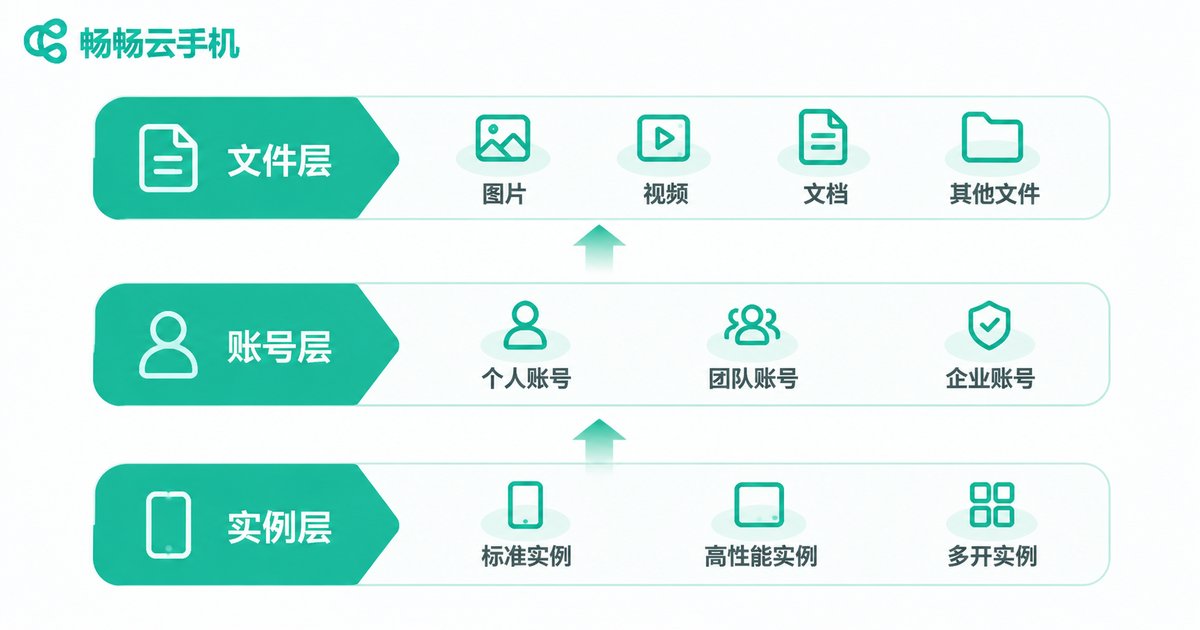
A cloud phone is not the device in your hand. It is an Android device running in a data center, and your screen is simply its display. That is why, when something goes wrong, the first reaction is usually 'it is all gone' — when in fact most situations are still recoverable. The key is to work out which layer you lost:
- File layer: screenshots, photos, downloaded installers, documents, screen recordings. This data really sits on the instance disk.
- Account layer: sign-in state inside apps, game progress, cloud saves, linked phone numbers or email addresses.
- Instance layer: the entire system state of the cloud phone, the installed app list and system settings.
Judge the layer wrong and your recovery goes in the wrong direction. Account data usually lives on the app vendor's servers, yet people spend a whole night digging through the file manager inside the instance.
Scenario One: You Deleted Files on the Cloud Phone
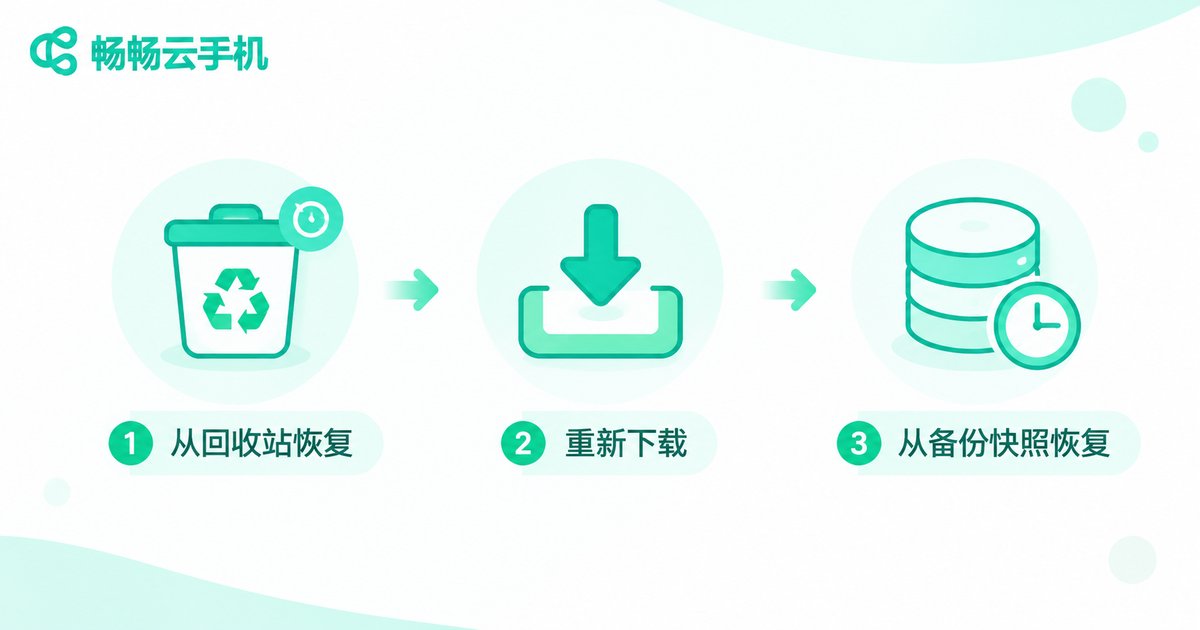
The file layer has the highest recovery rate. Work through the steps below in order and most cases are solved within ten minutes.
Step 1: Check the recycle bin. Gallery and file manager apps almost always have a 'Recently Deleted' folder that keeps items for 15 to 30 days. This is the fastest path — long-press and restore.
Step 2: Go back to the source. If the deleted item was an installer, an offline video or public material, downloading it again is often faster than recovering it. Cloud phones run on data-center bandwidth, so downloads are usually stable.
Step 3: Look inside hidden folders. Some apps only move deleted files into hidden directories such as .trash or .recycle. Turn on 'show hidden files' in the file manager and you may still find them.
Step 4: Check for a backup or snapshot. Files you previously exported to your local device or a cloud drive can simply be pulled back. If the instance supports system-level snapshots, check the instance management panel for available rollback points.
Step 5: Ask support whether a copy exists on the data-center side. Success is not guaranteed here, but it is worth asking.
Scenario Two: Account Data Seems to Have Vanished
This is the most commonly misdiagnosed case. The vast majority of apps store account data on their own servers, and the cloud phone is just an entry point. So 'lost account data' usually does not mean the data is gone — it means you are not signed into the same account.
- Check that the sign-in method matches. Phone number, email and third-party authorization are treated as three separate accounts in many apps, and their data does not cross over.
- Confirm you were not signed out. Some apps log you out after long inactivity, a login from a new location, or a password change. Signing back in usually restores everything.
- Cloud saves often need manual uploads. Many offline games keep saves only on the instance disk. If you never tap 'upload to cloud', nothing syncs, and an instance reset really does wipe it.
- A new instance is not the same as a new device. Local saves do not follow you to a freshly created cloud phone. Use the app's own cloud sync, or export and import the files manually.
One strong recommendation: record the phone numbers, email addresses and linked logins of your important accounts somewhere outside the cloud phone, such as a local note. When it comes to recovering an account, having all verification methods available is often what decides whether you get your data back.
Scenario Three: The Instance Itself Is Broken
The rule for instance-layer recovery is 'secure the data first, repair the system second'. Never reverse the order.
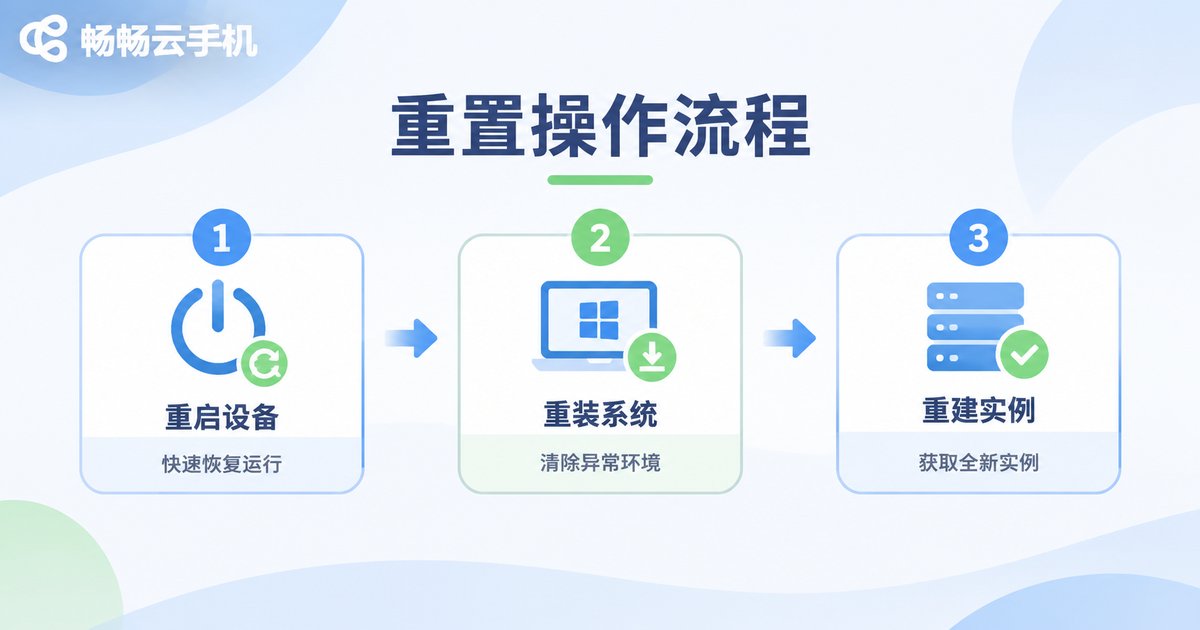
Try a soft restart first. When the instance freezes, goes black or an app stops responding, hit restart in the instance management panel and wait one to two minutes. Cloud instances restart cleanly, and the process will not be interrupted by a power cut.
Then consider a system reinstall. Most cloud phones offer two modes: an overwrite install that keeps your data, and a full reset that wipes it. If you have anything important, always pick the former and export what you can beforehand.
Rebuild the instance only as a last resort. If the instance will not boot at all, you have to create a new one, then sign back into your apps, restore cloud saves and reinstall what you need. At this point, what saves you is whether you made backups earlier.
One underrated advantage of cloud phones: an instance crash does not take your physical phone down with it. Risky operations, apps of unknown origin and system-level tinkering can all be pushed to the cloud.
The Three Recovery Paths Side by Side
| Layer | What you can get back | Typical time | Success rate |
|---|---|---|---|
| File layer (recycle bin / re-download) | Screenshots, photos, documents, installers | 2 to 10 minutes | Relatively high |
| Account layer (sign in / cloud save) | Sign-in state, game progress, membership rights | 5 to 30 minutes | Depends on linked logins |
| Instance layer (reinstall / rebuild) | System environment and installed apps | 20 to 60 minutes | System yes, local data not always |
The table makes one thing obvious: the deeper the layer, the more the outcome depends on preparation. What really decides a recovery is rarely the technique — it is whether a backup existed before things went wrong.
Five Habits That Keep Recovery Costs Low
- Export important files the same day. A cloud phone exists to run apps for you, not to store your documents. Anything资料-like should land on a local disk or a cloud drive to be safe.
- Back up before major updates. Before a system upgrade, a big app version or a batch of installs and uninstalls, export the key data first. It takes five minutes.
- Turn on automatic cloud save uploads. Enable it wherever the app allows; do not worry about the storage.
- Link multiple sign-in methods. Bind at least two of phone number, email and third-party authorization, so losing one still leaves you a way to verify.
- Separate instances by purpose. Use different instances for work, games and testing. A problem in one will not drag the others down, and it is much easier to scope the damage.
Why Running Recovery on ccloudphone Is Less Painful
ccloudphone provides Android instances that run in the cloud. You connect through the web or a client app and use them much like a local phone, but the recovery-related parts are noticeably easier:
- The process survives interruptions. Instances stay online around the clock, so shutting your laptop, losing your connection or running out of battery does not stop the work happening in the cloud.
- You can pick up where you left off. Both the web and client apps sign in to the same instance, so a recovery you started today can continue tomorrow from another device.
- No flashing needed when the system breaks. You can reinstall the system or reset the instance from the management panel, avoiding firmware hunting and bricking anxiety on local hardware.
- Instances stay isolated. If one goes down, switch to another, spreading risk instead of concentrating it.
- Zero local footprint. Cloud storage does not eat your phone's memory, and deleting files locally will not touch cloud data.
One important caveat: a cloud phone is a runtime environment, not a backup service. No cloud instance on any platform should be your only place for important material. Syncing a copy of your key files to a local device is the single most useful takeaway from this article.
Frequently Asked Questions
Q1: Can I recover photos deleted on a cloud phone?
Check the 'Recently Deleted' folder in the gallery or file manager first — within the retention window you can usually restore with one tap. After that, it depends on whether you exported a backup or have an instance snapshot. Without any backup, the chances are low.
Q2: Will I lose game progress if the instance is reset?
It depends on the game. Online games that store data on the vendor's servers can be recovered by signing in again. Offline games whose saves exist only on the instance and were never uploaded to the cloud are usually unrecoverable after a reset.
Q3: Can I move my data to a different cloud phone?
Not automatically. Use the app's own cloud sync, or export the files and import them into the new instance. Before switching, write a list of everything that must be migrated.
Q4: How long does recovery take?
The file layer usually takes minutes, the account layer depends on the verification flow, and rebuilding an instance plus reconfiguring it takes roughly twenty minutes to an hour. Most of that time goes into signing in again and reinstalling apps.
Q5: If I cannot get my account back, can the cloud phone platform help?
App accounts belong to the app vendors, and a cloud phone platform cannot operate your account data directly. Appeal through the app's official support channel and prepare details such as your linked phone number and past orders.
Q6: Is a cloud phone a good backup drive?
No. It is a cloud runtime device, not a storage service. For important files, keep at least two copies across your local device, a cloud drive and the cloud phone as a temporary hand-off point.


