
Cloud Phone File Upload: Size Limits, Format Compatibility, and Network Failure Handling
Where cloud phone uploads usually fail
Uploading a file to a cloud phone looks like a single click, but it actually involves selecting the file, opening a connection, transferring data, writing to cloud storage, and making the file accessible inside the cloud phone instance. A problem at any step can appear as an upload failure, an endless spinner, or a file that uploads successfully but cannot be opened. Do not focus only on file size. First determine whether the upload is blocked before transfer, interrupted during transfer, or unusable after transfer.
Common causes fall into three groups: size limits, format compatibility, and network or storage conditions. The sections below break them down with practical fixes you can apply directly.
Size limits: check three places before guessing numbers
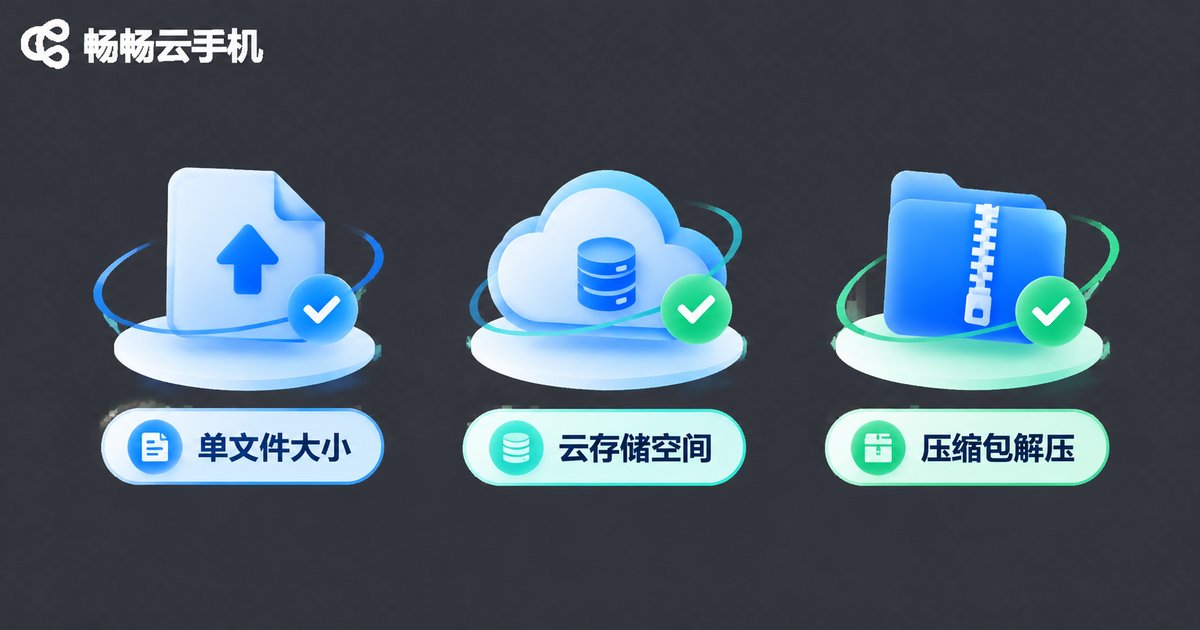
Cloud phone services do not all use the same upload limits. Limits may apply separately to single-file size, available space on the cloud phone, and the space needed to extract an archive. Instead of guessing, check the storage space and upload messages shown in the CCloudPhone (ccloudphone) console or client for your current instance. The exact limits should always be based on the official website and the actual console display.
| Limit type | Common symptom | Suggested fix |
|---|---|---|
| Single-file size | Fails halfway or near completion with a file-too-large message | Compress first; trim or transcode video; split very large files into parts |
| Available cloud phone space | Insufficient-space warning, or cannot extract after upload | Delete unused files, cache, and old installers inside the instance, then retry |
| Archive extraction space | Archive uploads, but extraction fails | Leave at least twice the archive size free, or upload in parts |
| File name and path | Upload stops or the file cannot be found | Use short English and numeric names without special characters or long paths |
Practical tip: do not upload large videos as original files. Compress them to 720p or 1080p with a common tool to reduce size significantly. For large batches of documents, create several ZIP files by project instead of one huge archive. If one upload fails, you do not have to start over from the beginning.
Format compatibility: upload success does not mean usable
A cloud phone is essentially an Android environment running in the cloud. A successful upload only means the file reached storage. Whether it can be opened depends on whether the instance has a suitable app, whether the system allows installation, and whether the codec is supported. The table below is a quick reference.

| File type | Compatibility note | What to watch |
|---|---|---|
| APK | Commonly supported | Allow unknown-source installation in cloud phone settings and confirm the package is complete |
| JPG / PNG | Commonly supported | Compress very high-resolution images to avoid oversized single files |
| MP4 / H.264 | Relatively stable | Avoid uncommon codecs; compress or trim large videos first |
| PDF / DOCX | Commonly supported | PDF preserves layout better; DOCX requires a suitable office app in the instance |
| ZIP | Commonly supported | Avoid encrypted archives and confusing split-volume names |
If an APK uploads but fails to install, first check whether the cloud phone allows installation from unknown sources, then confirm the package is complete. If a video opens to a black screen, convert it to MP4 with H.264 video and AAC audio and try again. For documents, keep a PDF copy as well to reduce layout issues caused by different app versions inside the cloud phone.
Network failure handling: six steps in order
Network problems are easily mistaken for oversized files. When an upload is interrupted, troubleshoot in this order to locate the cause quickly.
- Switch networks and retry: move between stable Wi-Fi and mobile data once to rule out current network fluctuations.
- Reduce the size per upload: split large files into smaller ones and upload the most important files first.
- Check cloud phone space: delete old installers, cached videos, and files no longer in use.
- Update the client or switch browsers: older clients may handle long connections poorly; use the latest version or a mainstream browser.
- Avoid peak network hours: upload large files when the network is less busy to reduce interruptions.
- Verify after upload: open the file to confirm it can be previewed, extracted, or installed before deleting the local copy.
If the upload always fails at the same progress point, suspect a single-file limit or insufficient storage before blaming the network. If switching networks solves the problem, the original network path was likely the cause. Record a screenshot of the error and the file size; this also helps CCloudPhone support locate the issue faster.
A reusable upload checklist
One minute of checking before uploading saves repeated retries:
- Is the file compressed to a reasonable size, and is video converted to a common codec?
- Does the cloud phone instance have enough free space, and is there room to extract archives?
- Is the file name short and free of special characters?
- Does the APK come from a trusted source, and is unknown-source installation allowed?
- Is the current network stable, and are there large downloads running?
- After upload, has the file been opened, extracted, or installed successfully for verification?

Why use CCloudPhone for file uploads
If you often need to move apps, images, videos, or documents between your local device and a cloud Android environment, CCloudPhone (ccloudphone) provides cloud Android instances and file-management related entry points so you can upload files to the cloud phone and use them inside the instance. Exact single-file limits, available space, and supported formats vary by instance configuration and client version. Always refer to the official CCloudPhone website and the actual console prompts. When an upload issue occurs, run through the checklist above first and then contact official support; this is usually more effective than repeated blind retries.
Frequently asked questions
Q: Is there a universal size limit for cloud phone file uploads?
A: No. Limits vary by service, instance configuration, and upload entry point. Use the console prompts and official documentation as the source of truth.
Q: Why does an APK upload successfully but fail to install?
A: Common causes include unknown-source installation not being allowed, an incomplete package, or an architecture mismatch. Check installation permission first, then download a complete package again.
Q: What should I do if a video will not open after upload?
A: Convert it to MP4 with H.264 video and AAC audio, and reduce resolution and bitrate before uploading again.
Q: If an upload always fails halfway, is the file too large?
A: Not necessarily. Switch networks and retry first. If it always fails at the same point, consider a single-file limit or insufficient cloud phone space.
Q: How do I handle an extraction error after uploading an archive?
A: Make sure the cloud phone has enough free space for extraction, keep archive names short, and upload all split volumes in order before extracting.


