

Cloud Phone File Download: Save Location, Download Speed, and File Management
First, understand where cloud phone downloads actually go
Many people ask the same question the first time they use a cloud phone: when I tap download inside the cloud phone, is the file saved on my own phone? The answer is clear. The file is saved on that cloud Android device first, which is a completely separate storage space from the local phone in your hand. Files only appear locally when you deliberately export them or upload and download them.
Once you understand this, save locations, download speed and file management all become much easier to reason about. A cloud phone is a full Android device running in a data center, with its own CPU, memory, storage and Android directory structure, so its download behavior is almost identical to a physical phone.
Common save locations in a cloud phone
Because it runs a full Android system, the directory structure of a cloud phone is close to a real device. These are the usual places files end up:
- /sdcard/Download: the default folder for browsers and many download tools. Most files land here.
- /sdcard/DCIM, /Pictures, /Movies: screenshots, photos and screen recordings.
- /sdcard/Android/data/package name/: caches and downloaded files managed by the app itself, such as certain video and document apps.
- The downloads entry inside an app: some apps store files in private directories that can only be viewed from within the app, not from the file manager.
The table below works as a lookup guide:
| Save location | Typical content | How to access |
|---|---|---|
| /sdcard/Download | Files saved by browsers and download tools | Download folder in the file manager |
| /sdcard/DCIM, Pictures | Screenshots, albums, screen recordings | Gallery or file manager |
| /sdcard/Android/data/package name | App private cache and downloaded data | Requires file manager permission, or open from inside the app |
| In-app downloads | Files from video and document apps | Can only be viewed and deleted inside the app |
If you cannot find a file, check in this order: first look at the completed path shown in the download tool, then sort by modification time in the built-in file manager, and only then dig into Android/data. In most cases the first step is enough.

Key factors that affect cloud phone download speed
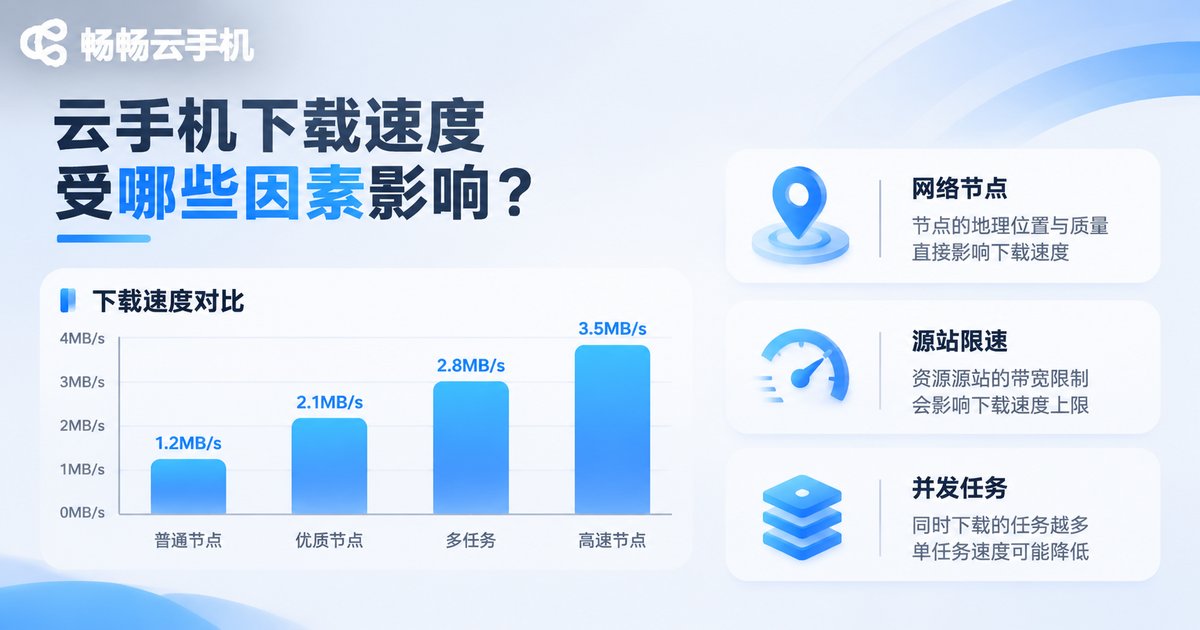
Cloud phone download speed is essentially the speed between the cloud data center and the target server. It has little to do with your home broadband unless you are exporting files to your local device. The main variables are:
| Factor | Impact | What to do |
|---|---|---|
| Cloud node and network route | Sets the speed ceiling to the source server | Choose a cloud phone service with stable networking |
| Throttling at the source | Cloud drives and video sites often limit regular users | Switch mirror sources or use tools with resume support |
| Number of concurrent tasks | Multiple large downloads compete for bandwidth | Queue large files one after another |
| Instance configuration | Low CPU or memory slows extraction and writing | Choose an instance with enough resources |
| Export to local device | This step depends on your local network | Export only the files you really need |
So when downloads suddenly feel slow, first work out which segment is slow: the download inside the cloud phone, or the export to your local device. The causes and the fixes are completely different.
Practical ways to make downloads faster
- Reduce simultaneous tasks: run only one or two large downloads at a time, and the difference is often immediate.
- Prefer direct links or stable sources: the same file can be dramatically faster from a different source.
- Enable resume support: network fluctuations will not force you to start over.
- Keep enough free space on the cloud phone: write speed drops noticeably when storage is nearly full.
- Separate downloading from exporting: finish and organize files in the cloud first, then export them together, so the two steps do not slow each other down.
- Avoid peak hours: source servers are under more pressure in the evening, so daytime downloads are usually smoother.
Four good habits for cloud phone file management
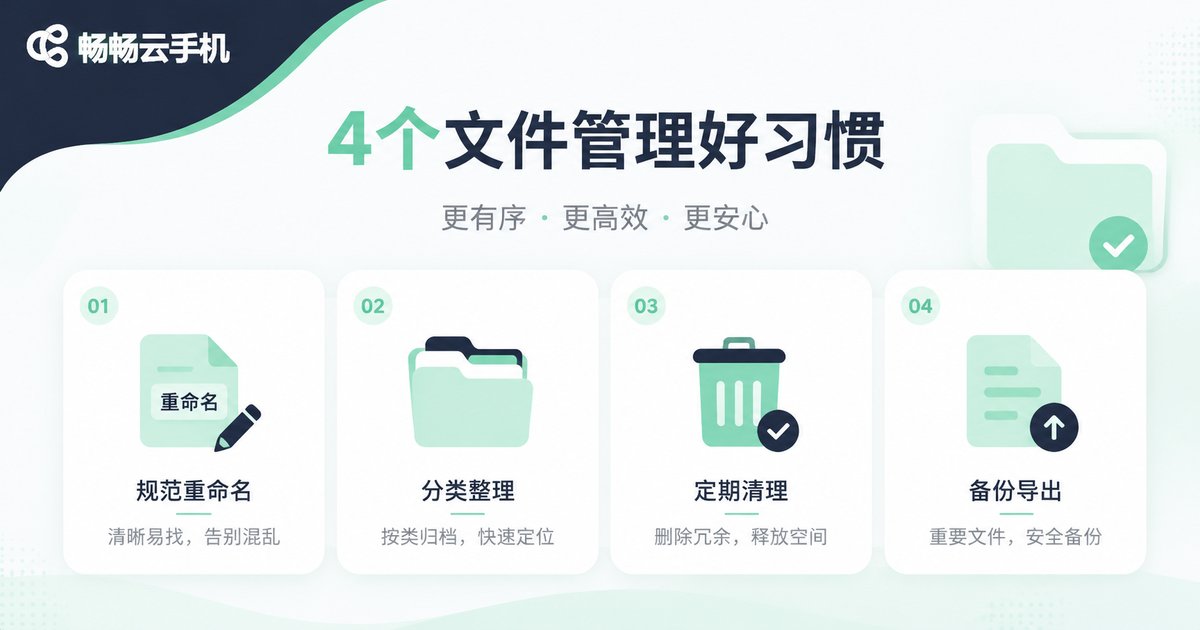
After a while, the biggest problem with a cloud phone is rarely slow downloads. It is files piling up, being impossible to find, hard to delete, and silently filling up storage. These four habits prevent most of that:
- Create a fixed folder structure: make one asset folder in the root directory, add subfolders by project or date, and move downloads into it right away.
- Use a consistent naming rule: a date plus purpose format is far easier to search than a random string.
- Clean up regularly: sort by file size in the file manager and handle the largest few first, which usually frees the most space. Clear app caches at the same time.
- Export only what you need: local storage is limited, so keep large files in the cloud and export just the important ones when required.
File management with ccloudphone
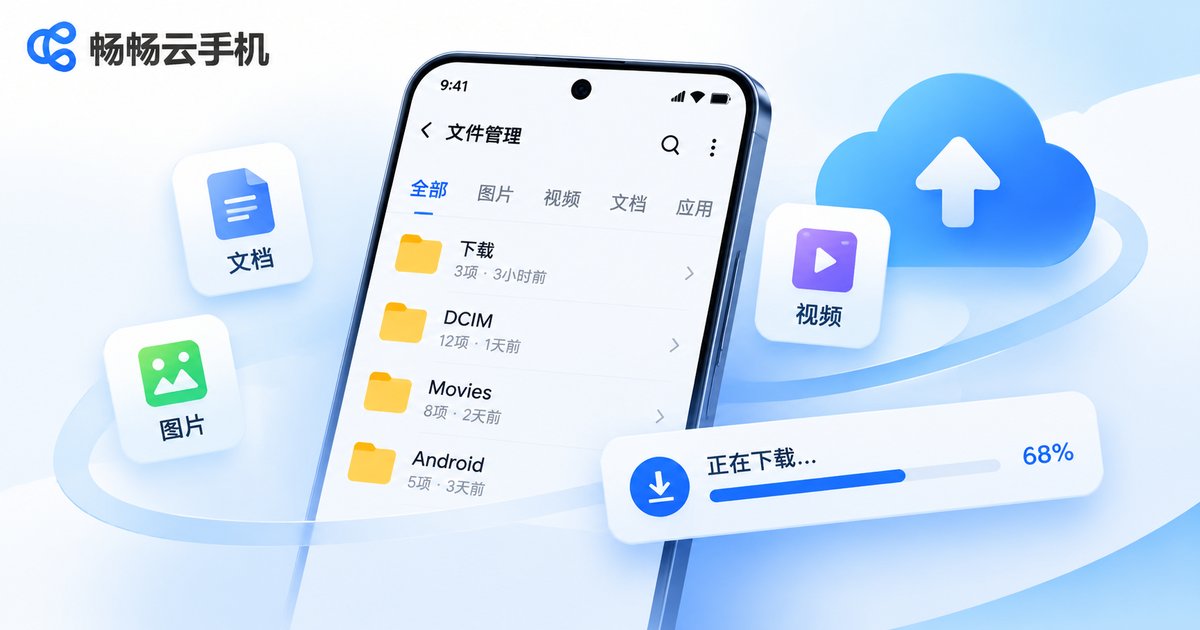
ccloudphone provides a complete cloud Android environment with a built-in file manager. You can browse directories, rename, move and delete files inside the cloud phone, and you can also upload files to it or download files from it to your local device. For users who need long-running downloads and bulk asset organization, keeping both downloading and storage in the cloud means your local phone will not be stuffed with large files, and you do not have to worry about deleting the wrong thing while cleaning up.
A convenient workflow is to create a fixed asset folder in the cloud phone, move and rename downloads into it as soon as they finish, and do the day-to-day organizing in the cloud. Only export the key files you actually need. This saves local storage and avoids repeated transfers.
Frequently asked questions
Q: Will files downloaded in a cloud phone sync to my local phone automatically?
No. The cloud phone and your local phone are two separate storage spaces. Files only appear locally when you export them or use the upload and download features.
Q: Why is the same file slower to download in a cloud phone than on my computer?
First check whether the cloud download is slow or the export to your local device is slow. If it is the former, it is usually caused by source throttling, too many concurrent tasks or an instance with limited resources. If it is the latter, your local network is the deciding factor.
Q: What if I cannot find a file I just downloaded in the cloud phone?
Check the completed path shown in the download tool first, then look in /sdcard/Download. If it is still missing, sort by modification time in the file manager, or go back to the downloads entry inside the relevant app.
Q: What should I do when cloud phone storage is almost full?
Sort by size in the file manager and delete the largest expired files first, and clear app caches at the same time. Export large files you do not need right now before deleting them to free up space efficiently.
Q: Can I send files from my local phone to the cloud phone?
Yes. Use the upload feature to send local files to a specific directory in the cloud, then move and organize them with the file manager inside the cloud phone.


