

Cloud Phone Not Receiving Verification Codes: Network Latency, Binding Status, and Frequency Checks
Start by Identifying Which Type of Problem You Have
Registering an account, signing in, or resetting a password inside a cloud phone almost always depends on an SMS verification code. When that code never arrives, the instinct is to reinstall the app or swap numbers, and after twenty minutes of effort nothing has changed. In practice, missing codes on a cloud phone come down to three categories: network latency, number binding status, and send-rate limits. Work through them in that order and most cases are diagnosed within minutes.
1. Network Latency: The Path Is Longer Than You Think
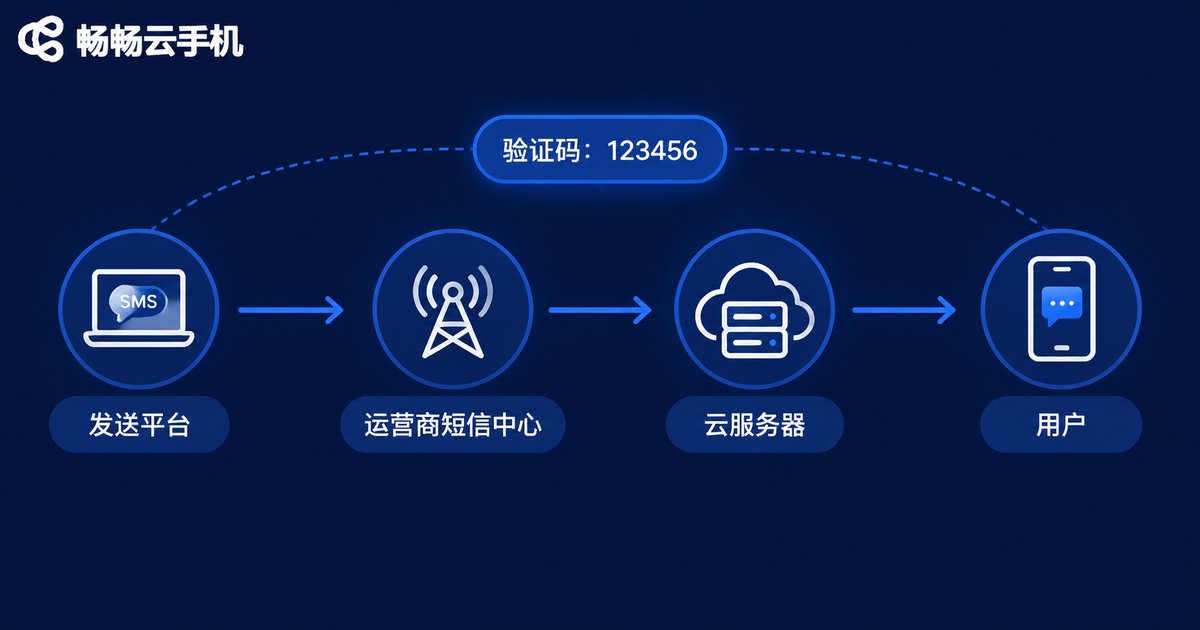
A regular handset receives an SMS over a single carrier link. A cloud phone takes a longer route: the sender's platform hands the message to the carrier's SMS center, a cloud SMS service picks it up, and it is finally pushed to your cloud phone instance over a data channel. A delay anywhere along that chain shows up on your screen as “no code.”
The classic symptom is a burst: nothing for five minutes, then two or three messages arrive at once. That is why the first thing to check is the timestamp in the SMS list. If the arrival time is more than thirty seconds after you tapped “send code,” you are looking at delivery latency rather than a message that was never sent.
What you can try:
- Switch the cloud phone's network node or reconnect once so the push channel re-handshakes;
- Log out of the cloud phone client and back in, then confirm the SMS sync toggle is on;
- Toggle airplane mode on and off inside the cloud phone to refresh network registration.
2. Binding Status: The Number May Not Be Attached to This Device at All
The second most common cause is a binding problem. Some users assume a number is bound when they only signed in elsewhere once. In other cases the number has been unbound, or it is occupied by a second device on the same account, so the code is pushed somewhere you are not looking.
Check three things:
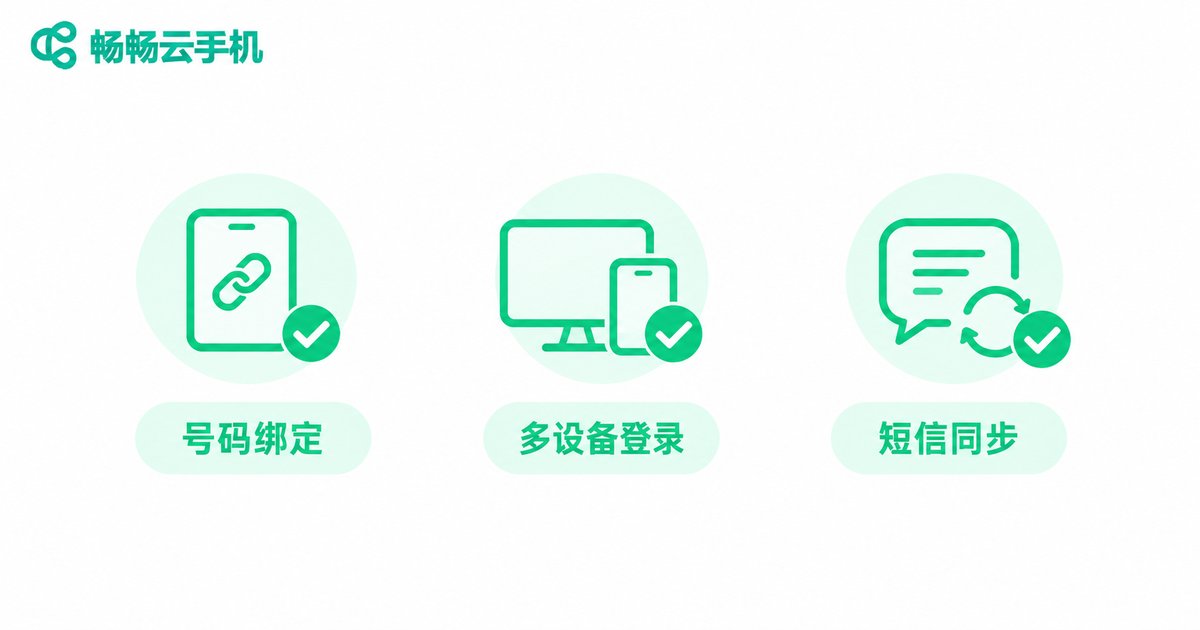
1. Is the number shown as bound? Confirm it in the number management or account settings rather than from memory.
2. Are multiple devices online at once? When the same account is signed in on several devices, the SMS may only be pushed to one of them.
3. Is SMS sync enabled? Some clients do not push messages from unknown senders by default, so the setting has to be turned on manually.
If binding looks correct but codes still do not arrive, unbind and bind again once. This usually triggers a fresh test message from the system and confirms whether the channel is healthy.
3. Frequency Checks: Send Too Often and You Get a Temporary Timeout
SMS codes cost money and invite abuse, so platforms apply anti-spam rules. Multiple taps within one minute, or too many requests across a day, get flagged as abnormal behavior and blocked for a short period. The result looks like a button that does nothing.
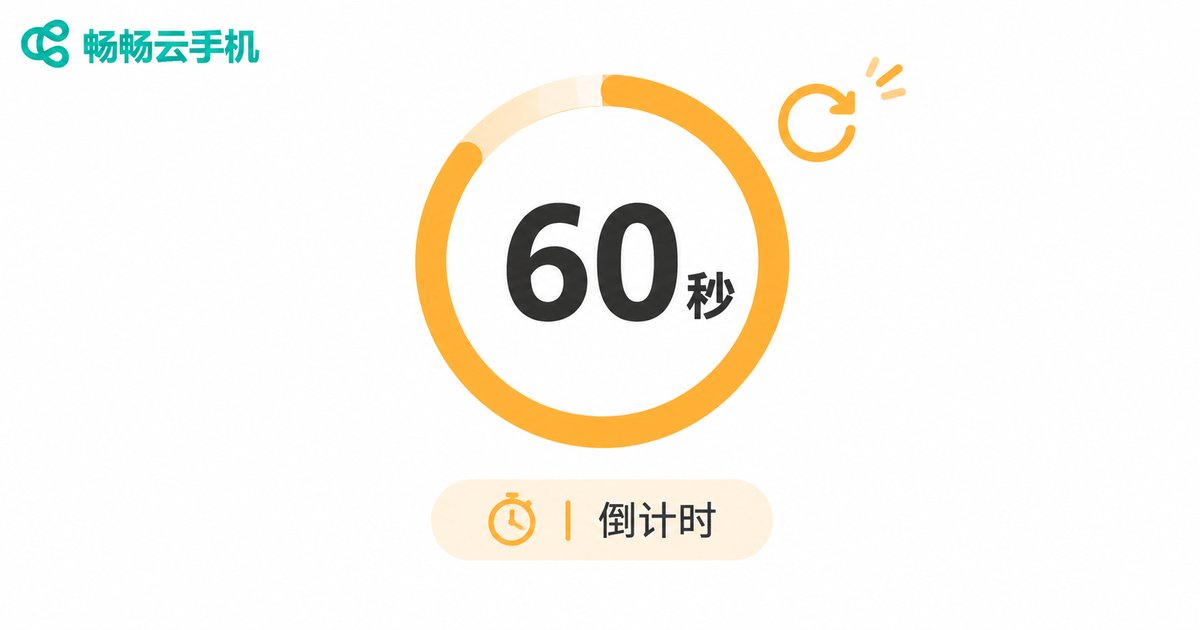
A safe rhythm is at least 60 seconds between requests, and no more than ten code requests per number per day. If you have already tapped repeatedly, the fastest recovery is to wait 10 to 30 minutes rather than continue clicking.
4. A Quick Symptom-to-Cause Table
| Symptom | Most likely cause | Recommended action |
|---|---|---|
| Code arrives several minutes late | Delivery latency | Reconnect the network node |
| No record at all in the SMS list | Number unbound or taken by another device | Check binding status, unbind and rebind |
| “Sent successfully” but nothing arrives | Rate limit triggered | Wait 10 to 30 minutes and retry |
| Some apps work, others never do | App permissions or keyword filtering | Review notification and filtering settings |
5. Details That Are Easy to Overlook
Beyond the big three, a few small things are worth a quick look: whether the SMS app inside the cloud phone is restricted from running in the background, whether notification permissions are off so messages land in the list without an alert, whether the inbox is full, and whether a specific app applies extra checks to virtual number ranges.
6. Choosing the Right Cloud Phone Saves Half the Work
Many missing-code problems are really a matter of unstable SMS delivery and weak number management in the cloud phone itself. ccloudphone provides a dedicated SMS inbox inside each cloud phone instance, keeps the number bound to that instance, and retains message history across logouts and sign-ins. With a clear number status display, you can see at a glance whether a number is online, offline, or unbound, which makes troubleshooting far more direct.
If you run several cloud phones for different tasks, assign a separate instance and number to each one so multiple devices on the same account do not compete for the same push channel. That single habit removes most “code never arrived” situations before they happen. For specific plans and features, refer to the official ccloudphone website.
FAQ
Q: How long should a cloud phone verification code normally take?
Usually 5 to 30 seconds. If more than a minute has passed, troubleshoot delivery latency first.
Q: The same app worked yesterday but not today. Why?
First confirm the number binding status has not changed, then check whether today's repeated requests triggered a rate limit.
Q: What happens if I tap “send code” many times in a row?
You will likely be blocked temporarily and the button will appear to do nothing. Stop, wait 10 to 30 minutes, and try again.
Q: With several cloud phones on one account, which device gets the code?
Usually only one of the currently online devices. Assign a separate number to each device to avoid contention.
Q: Does reinstalling the app help when codes do not arrive?
Rarely. The cause is normally in the delivery chain, the binding, or the rate limit, not the client itself.


