
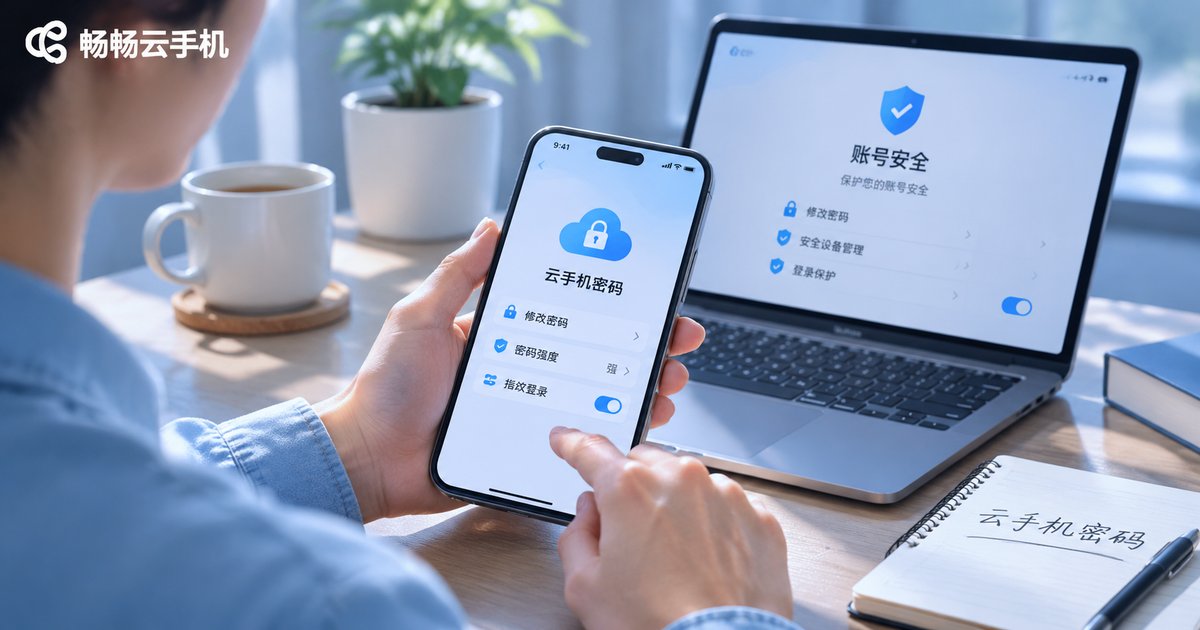
How to Change Cloud Phone Password: Security Settings, Recovery Process, and Abnormal Alerts
Why Cloud Phone Passwords Need Separate Management
A cloud phone is an Android instance running in the cloud. If the account password leaks, someone may log in to your cloud phone, view apps, photos, and chat records, or even operate the account. Many people reuse the same password everywhere for convenience, but the risk adds up. Treat the cloud phone password as an independent security key: do not reuse it on other sites, use at least 8 characters, and mix uppercase letters, lowercase letters, and numbers. If the platform supports two-factor authentication, enable it.
The following sections cover three scenarios: changing the password, recovering the password, and handling abnormal alerts. Different cloud phone platforms may use different menu names, but the logic is similar.
How to Change a Cloud Phone Password: General Steps
Before changing the password, confirm three things: you can log in normally, the bound phone number or email is still available, and you remember the current password. Then follow these steps:
Step 1: Open the official cloud phone client or website and log in.
Step 2: Go to the profile or account security page and find the change password or reset password entry.
Step 3: Verify your identity as prompted. Common methods include the current password, SMS code, and email code.
Step 4: Enter and confirm the new password. Save it, log out, and log in again to make sure it works.
Using ccloudphone as an example, you can usually enter the account security page in the client and follow the prompts to change the password. The exact entry name and verification method depend on the current client page. If the page asks you to bind a phone number or email first, complete the binding before changing the password. It will also make recovery easier later.
Security Settings: Reduce Password Risk
Changing the password is not the end. Do a quick security check. The table below is a simple checklist:
| Check item | Recommended action | Why it matters |
|---|---|---|
| Password length | At least 8 characters; 12 or more is better | Reduces the chance of guessing |
| Password complexity | Mix uppercase, lowercase, numbers, and symbols | Avoids simple combinations |
| Password reuse | Do not use the same password as email or social accounts | One leak will not affect other accounts |
| Two-factor authentication | Enable it if the platform supports it | Adds another verification step |
| Login alerts | Turn on abnormal login notifications | Spot unknown devices early |
| Regular review | Check logged-in devices every 3 to 6 months | Remove devices you do not recognize |
Also, operate on a trusted network. Do not change passwords on public Wi-Fi. Do not write passwords on sticky notes beside the screen. If several people share a computer, log out and clear browser history after changing the password.
How to Recover a Forgotten Password
If you forget the cloud phone password, do not enter account information on non-official pages. Use this process:
1. Click Forgot Password or Recover Password on the login page.
2. Choose a verification method, usually an SMS code to the bound phone number or a code to the bound email.
3. Enter the account and verification code, then set a new password as prompted.
4. Log in with the new password and check the cloud phone for unknown apps or unusual activity.
If you do not receive the code, check whether the phone number is correct, whether SMS messages are blocked, and whether the network is working. Wait a few minutes and try again. If it still does not arrive, use the support channel provided in the official ccloudphone client or website. Do not use third-party recovery services, and never send verification codes to anyone.
What to Do When You Receive an Abnormal Alert
Common abnormal alerts include login from another location, login from an unknown device, password changed, frequent verification codes, and cloud phone reset. Do not panic. Handle them in order:
Change the password first: Log in to the official client and change the password immediately. Do not make the new password similar to the old one.
Check devices next: Open the account security page, review logged-in devices, and log out of devices you do not recognize.
Keep evidence: Take screenshots of the alert and login records so you can explain the issue to official support.
Contact official support: If you cannot log in or notice unusual charges, report the issue through official channels as soon as possible.
If you occasionally receive a verification code but no login occurs, someone may have entered the wrong number. Do not click unknown links in SMS messages, do not reply with the code, and simply ignore the message while watching the account.
Good Habits for Using ccloudphone
ccloudphone provides cloud Android instances, and account security still deserves serious attention. Download the client from official channels, do not share the account with others, and do not store ID photos, bank card photos, or other sensitive files in the cloud phone for a long time. Change passwords, check login devices, and handle abnormal alerts inside the official client whenever possible. If a page looks unfamiliar, exit and open it again from the official website or official client.
If you manage multiple cloud phones, set a unique password for the account and review logged-in devices regularly. After completing the security settings, store key steps in a password manager instead of a chat history.
Frequently Asked Questions
Q: Is the cloud phone password the same as the phone lock screen password?
No. The cloud phone password is used to log in to the cloud account, while the lock screen password unlocks your local phone. Manage them separately for better security.
Q: Do I need to log in again on all devices after changing the password?
Usually yes. After changing the password, check logged-in devices in the account security page, log out of unknown devices, and log in again on trusted devices with the new password.
Q: What if I forget the password and no longer use the bound phone number?
Try email recovery first. If none of the bound methods work, submit identity verification information through the official support channel and follow official instructions. Do not trust third-party recovery services.
Q: What if I receive an abnormal login alert and I am not sure whether it is real?
Do not click links in the SMS. Open the account security page directly from the official client or website, review login records, and change the password if necessary. Contact official support when needed.
Q: How often should I change the password?
There is no fixed rule. Review it every 3 to 6 months, or change it immediately after an abnormal alert or suspected leak. Do not make the new password differ from the old one by only one number.
Q: Where can I change the ccloudphone password?
Usually in the account security or profile page of the official client. Verify your identity as prompted and change the password. The exact entry depends on the current client page.


