

Cloud Phone Script Tutorial: Installation, Configuration, Execution Failures and Loop Control
First, understand how a script actually runs on a cloud phone
A cloud phone is fundamentally an Android instance running on a data center server. You view the screen and tap through a client, while the script is installed inside the instance itself. It runs just as it would on a physical device, except it does not require your real phone to keep its screen on. This matters: whether a script stays stable over time depends heavily on whether the instance itself stays online, not just on how clever the script is.
So this tutorial follows a clear order: prepare the instance environment, install the script and configure it, then learn to read errors and fix looping logic. Finish these three steps and you have a script that can run all day.
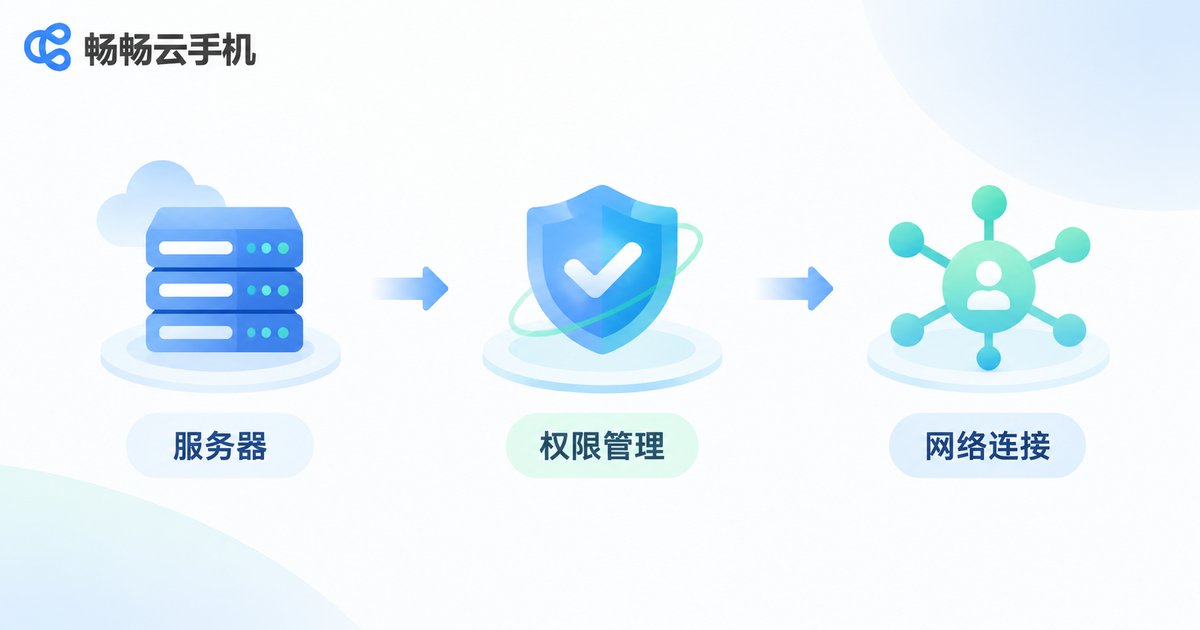
Three things to check before installing: environment, permissions, network
Many people upload a script and hit run immediately, then fail on the very first step. Confirm the following three points first and you will avoid most wasted troubleshooting later.
One: the Android version and architecture of the instance. Most automation frameworks rely on accessibility services or the ADB debugging interface. An Android version that is too old lacks the required APIs, and an architecture mismatch means the package simply will not install. Check the system version when creating the instance and choose your toolchain to match.
Two: grant permissions once, completely. From Android 11 onward, missing any one of accessibility service, floating window, background running and battery optimization whitelist can get your script killed mid-run. Open each of them in Settings right after installation instead of hunting for them after an error appears.
Three: make sure the network path works. If the script calls external APIs, open a browser inside the instance and confirm pages load. If you connect over ADB, verify that the port mapping matches the connection details shown in the console.
Installing and configuring the script, step by step
Installation itself is not hard. The difficulty is getting the connection and startup parameters right. Using the common ADB approach, the console gives you the connection address and port for the instance. Get the connection working first, then worry about the script.
# Step 1: confirm you can reach the cloud phone instance
adb connect 127.0.0.1:5555
adb devices

# Step 2: install the automation runtime or script APK
adb install -r automation-env.apk

# Step 3: push the config file and script into the instance
adb push config.json /sdcard/script/config.json
adb push main.py /sdcard/script/main.py
Once connected, turn the device address, wait durations and target package name into configurable values rather than hard-coding them. When you switch instances or apps later, you only edit the config file instead of the code. This is the dividing line between a script you can maintain and one you have to rewrite.
import json
import time
import uiautomator2 as u2

with open('/sdcard/script/config.json', 'r', encoding='utf-8') as f:
    cfg = json.load(f)

# Connect to the instance using the address from the config file
d = u2.connect(cfg['device'])

# Start the target app and wait for the UI to settle
d.app_start(cfg['package'])
time.sleep(cfg['startup_wait'])

# Check whether the key element has appeared
if d(text=cfg['ready_text']).exists(timeout=10):
    print('UI ready')
else:
    print('UI not ready, needs investigation')
A useful habit: start with print-only logging and no taps. Log the result of each check, confirm the script can actually see the UI, and only then add actions. Debugging becomes much faster.
Execution failed? Troubleshoot in this order
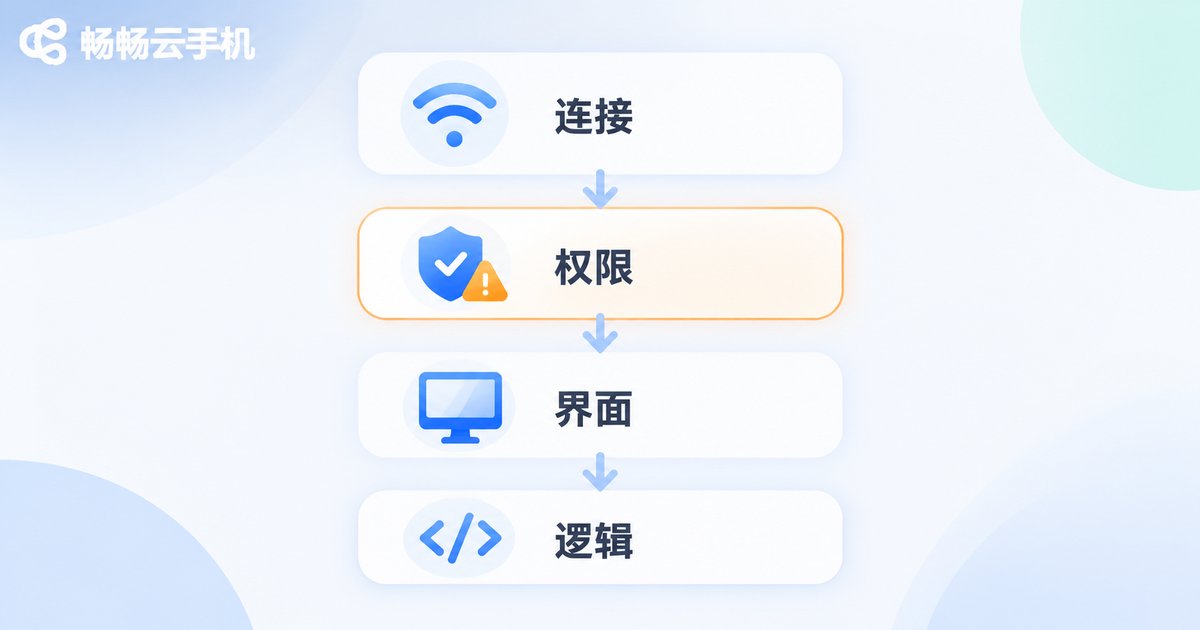
When a script throws errors, the worst approach is changing random lines. Work top-down through connection, permissions, UI, then logic. Most problems are identified at the second layer.
| Symptom | Common cause | What to do |
|---|---|---|
| Connection refused immediately | Wrong address or port, instance not running | Recheck the connection details in the console and confirm the instance is running |
| Script exits a few seconds after launch | Accessibility service off, process killed by system | Enable accessibility and background whitelist, remove battery optimization limits |
| Element not found, timeout error | UI not loaded yet, or text changed in an update | Increase wait time, locate by id or hierarchy instead of text |
| Works sometimes, fails other times | Network jitter or delayed rendering | Add retry logic with exponential backoff |
| Freezes after running a while | Memory growth, log files filling storage | Clear cache and logs on a schedule, restart the app periodically |
One point that is easy to overlook: always write logs to a file. Watching the screen through a client never tells you which step failed. Record a timestamp and result for every step and troubleshooting time drops from hours to minutes.
Three loop patterns and when to use them
Loop control is where scripts break most often. There are three classic problems: an endless loop that runs out of control, an exception that takes the whole script down, and a task that finishes without knowing how to stop. The three patterns below cover roughly ninety percent of cases.
Pattern one: a fixed-count loop. Good for tasks that run a set number of rounds and then exit. It is the safest and the easiest to control.
for i in range(cfg['rounds']):
    print('Round %s starting' % (i + 1))
    do_task()
    time.sleep(cfg['interval'])
print('All rounds finished, exiting')
Pattern two: a while loop with a retry cap. Good when the UI loads unreliably and you want to keep trying until success, but must also prevent infinite retries.
max_retry = cfg['max_retry']
retry = 0
success = False

while retry < max_retry and not success:
    try:
        if d(text=cfg['ready_text']).exists(timeout=5):
            do_task()
            success = True
        else:
            retry += 1
            time.sleep(min(2 ** retry, 30))   # exponential backoff, capped at 30s
    except Exception as e:
        retry += 1
        print('Exception %s: %s' % (retry, e))
        time.sleep(5)

if not success:
    print('Retry limit reached, skipping task')
Pattern three: a main loop with a heartbeat check. Good for long unattended runs. Each round checks whether the instance is healthy and whether the task queue still has work. On failure, restart the app rather than the whole script.
while True:
    if not is_instance_alive():
        restart_app()
        time.sleep(10)
        continue

    if not has_pending_task():
        print('Task queue empty, exiting safely')
        break

    run_one_task()
    time.sleep(cfg['interval'])
The real difference between these patterns is the exit condition and the error fallback. Before writing any loop, ask yourself two questions: when does it stop, and who cleans up when something goes wrong? Answer both and your script will not run away.
Small habits that keep it running all day
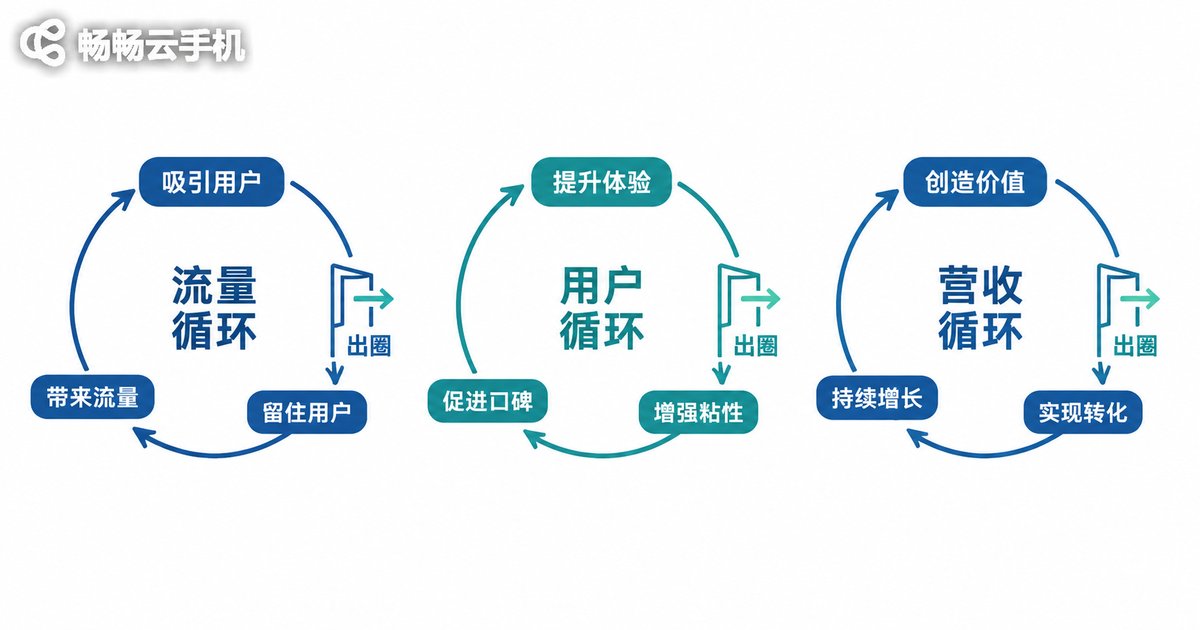
Getting a script to run is only the start; running all day is the goal. A few cheap habits with high returns:
First, make wait times tunable parameters so you can adjust them for different network conditions without rebuilding. Second, clear logs and cache on a schedule, because a full instance fails in strange and varied ways. Third, add a heartbeat check inside the loop so the script recovers when the instance drops instead of waiting forever. Fourth, take screenshots at key steps so you have visual evidence when something goes wrong.
Also, if your script needs to stay online around the clock, choosing a stable cloud Android instance is more effective than endlessly optimizing the script. ccloudphone provides cloud Android instances that keep running on the server side, and you can check the live screen from the client whenever you like. Combined with the retry and heartbeat logic inside your script, long unattended runs become noticeably more reliable. Install the script, set the parameters, and let it run in the cloud.

Frequently asked questions
Q: The script installed successfully but crashes right after opening. What now?
Check that the architecture and Android version match, then confirm accessibility, floating window and background running permissions are all enabled. Most crashes come from missing permissions.
Q: Why does the script work on my local phone but fail to find elements on the cloud phone?
Usually it is resolution and wait times. The cloud instance renders at a different speed, so increase your timeouts and locate elements by id or hierarchy instead of by text.
Q: How do I stop a loop from dragging the instance down?
Give every loop an explicit iteration cap or timeout, increment a counter in the exception branch, and exit with a log entry once the cap is reached. Never write a while True with no exit.
Q: After a few hours the script slows down or freezes. Why?
Usually memory growth plus logs filling storage. Restarting the target app every fixed number of rounds and clearing the log directory regularly resolves most of it.
Q: What retry interval should I use inside a loop?
Avoid hammering with a fixed one second. Use exponential backoff starting at two seconds and doubling up to a cap such as thirty seconds, so you avoid rate limits without wasting too much time.


