

Cloud Phone Accessibility Features Guide: Efficiency Scenarios, Operating Boundaries and Risk Reminders
Many people hear the phrase 'accessibility features' on a cloud phone and assume it means the accessibility options built for users with visual impairments. In the cloud phone world, however, these features are better understood as a toolbox that saves you effort: auto-tapping, batch operations, scheduled tasks and multi-device sync. Used well, repetitive work drops to a minimum. Used carelessly, tasks fail at best and accounts get restricted at worst. This guide covers the scenarios, the boundaries and the risks in one go.
1. What cloud phone accessibility features actually are
A cloud phone runs on a server in a data centre, and the handset or laptop in front of you is really just a screen. Because compute and interface are separated, these features generally come in three layers:
- System layer: accessibility service, simulated taps, pointer control. The foundation that turns 'tap here' into an executable instruction.
- Task layer: scheduled tasks, loops, conditional logic. Lets a sequence of actions run automatically on a timer or on a condition.
- Device layer: multi-instance grouping, batch pushing, file transfer. Now you are managing a fleet, not a single device.
Only when these three stack up do you get what people call an efficient cloud phone setup. The layering matters because most risk sits in the third layer: messing up one device is a small problem, but pushing a bad action to a whole fleet is not.
2. The three most common efficiency scenarios
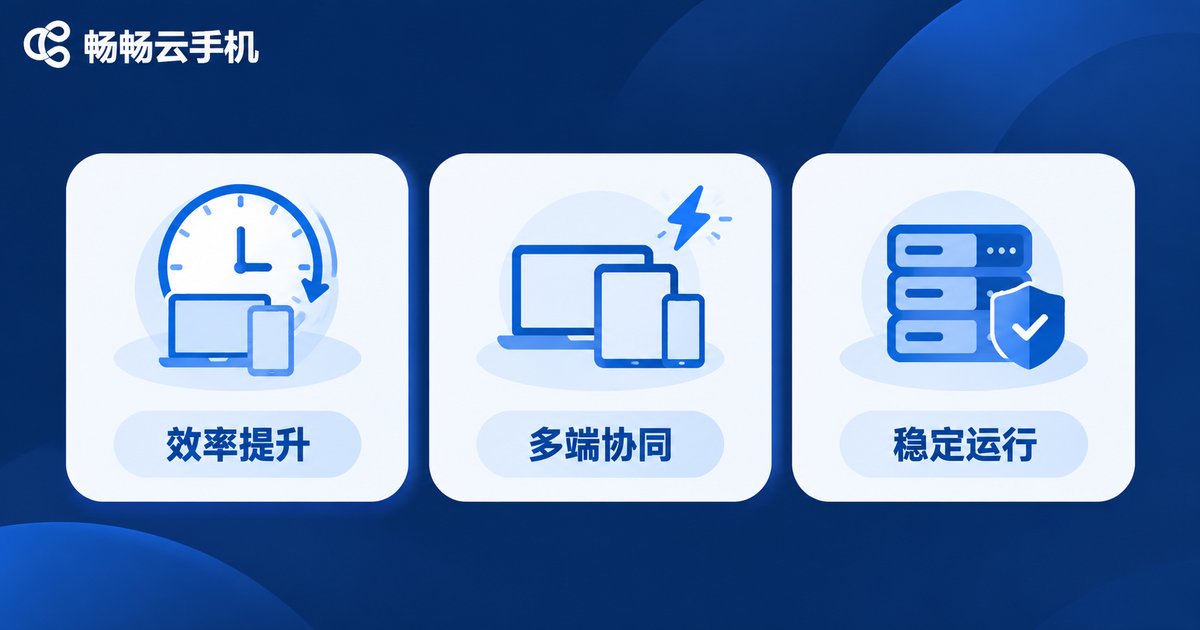
Not everything that can be automated is worth automating. These three scenarios deliver the clearest return in practice.
Scenario one: repetitive daily maintenance. Check-ins, claims, data sync, cache clearing. The rules are fixed and the frequency is stable, which makes them ideal for scheduled tasks. Set it once and it runs at the same time every day while you only review the result.
Scenario two: consistent operations across devices. Suppose five cloud phones need the same app installed and the same settings applied. Doing it one by one is slow and easy to get wrong, while batch pushing finishes in one pass and cuts human error sharply.
Scenario three: stable long-running sessions. Anything that needs to stay online simply cannot rely on a local phone that must not power off, must not lose network and must not overheat. A cloud phone handles this naturally, and paired with a low-frequency scheduled task it is far more stable than local hardware.
On the flip side, operations that require on-the-spot judgement and flexibility are poor candidates. The more complex the rule, the more fragile the script, and the maintenance cost ends up exceeding the time saved.
3. Operating boundaries: what to do and what to avoid
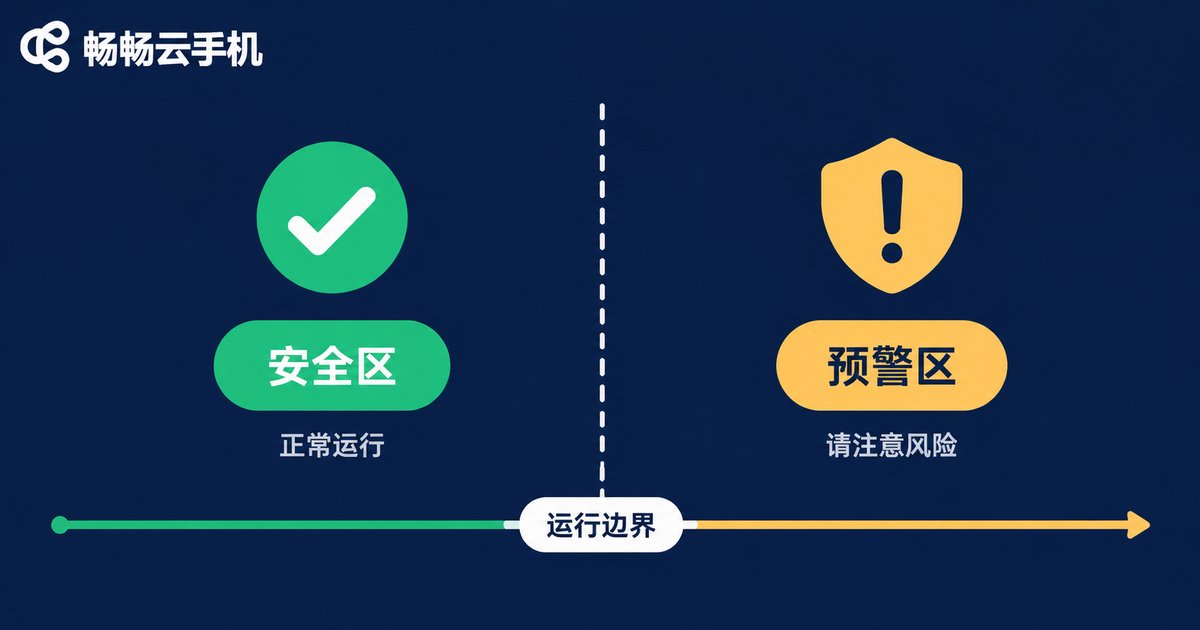
The features themselves are neutral. What decides whether a use is acceptable is the scenario and the target platform. Use this table as a quick self-check:
| Operation | Verdict | Notes |
|---|---|---|
| Scheduled check-ins and backups on your own account | Fine | Clear rules and reasonable frequency, normal efficiency work |
| Batch organising your own files and assets | Fine | Stays inside your own account, no third-party rules involved |
| Scripts that farm tasks or rewards | Avoid | Explicitly banned by most platforms and accounts get limited |
| High-frequency taps designed to bypass risk control | Avoid | This is exactly what risk control looks for |
| Managing other people's accounts | Caution | Involves authorisation and data responsibility, get explicit consent |
| Installing third-party scripts of unknown origin | Avoid | Scripts can read the screen and your input, risk is unquantifiable |
One simple test: if an operation only works when nobody is watching, it probably should not be done. Legitimate automation never needs to hide.
4. Four risk reminders people overlook
1. Script origin risk. Free scripts and cracked plugins floating around online usually demand very high permissions. If they can read what is on screen, they can read what you type. Before installing, ask yourself who wrote this code and why they are giving it away.
2. Abnormal frequency risk. Even a legitimate action looks suspicious ten times a second. Set intervals close to human rhythm; slower is safer than pushing for maximum speed.
3. Account linkage risk. Multiple devices sharing the same network exit and the same behavioural fingerprint are easy for a platform to cluster as one batch. Keep device groups and isolation tidy instead of lumping everything together for convenience.
4. Data retention risk. Files, screenshots and login states on a cloud phone live on the remote side. Clear unnecessary caches and screenshots regularly and never leave sensitive information in the cloud long term.
5. Enabling and managing these features on CCloudPhone
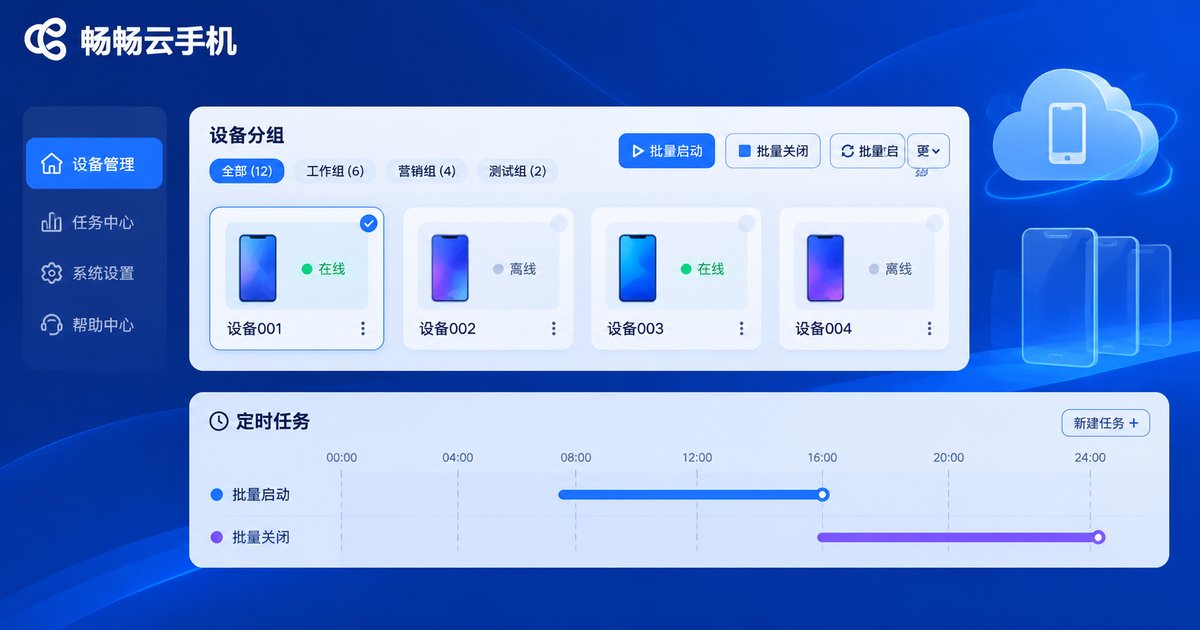
CCloudPhone (ccloudphone) turns these capabilities into a visual control panel, so you do not need to write code. A few practical points:
- Group devices by purpose. Put cloud phones running the same task into one group so later batch operations and batch installs apply to the whole group instead of one device at a time.
- Start scheduled tasks simple. Run one task with a generous interval for a few days, confirm it is stable, then tighten it gradually rather than going maximum intensity on day one.
- Grant only the permissions you need. When enabling the accessibility service, tick only what the current task actually requires and leave everything else off.
- Check the running state regularly. A task that started does not mean it is still working. Get into the habit of reviewing execution logs so problems surface early.
- Rely on official capability descriptions. For which features exist and which parameters they take, refer to the latest documentation on the CCloudPhone official site rather than copying old tutorials found online.
Frequently asked questions
Q1: Are cloud phone accessibility features the same as the accessibility service?
Not exactly. The accessibility service is only the bottom layer, handling simulated taps and interface reading. What actually saves time is the scheduling and batch management built on top of it.
Q2: Will auto-tapping get my account banned?
It depends on what you do and how. Scheduled operations permitted by the rules inside your own account are usually fine. Farming tasks with scripts or bypassing risk control is explicitly prohibited by platforms, and the risk is yours.
Q3: Why do my scheduled tasks keep failing?
Three common causes: an aggressive interval that triggers rate limiting, an interface redesign that invalidates tap coordinates, and an instance whose resources are exhausted. Lower the frequency first, then check whether the interface changed, then look at instance load.
Q4: Do I need to configure each cloud phone separately?
No. Once devices are in the same group, batch installing and batch pushing finish in one pass, which is exactly where a cloud phone beats juggling several physical handsets.
Q5: Can I install third-party scripts?
Technically yes, practically it is not recommended. Scripts of unknown origin hold screen-reading and input-control permissions. If abused, the loss is your account and your data, and that loss is usually irreversible.
Q6: Where should a beginner start?
Start with something like a scheduled check-in: simplest rules, lowest cost when it fails. Get one complete flow working and understand the execution logic before moving on to more complex batch scenarios.


