

How to Use Cloud Phone Automation: Common Workflows, Execution Logs, and Failure Handling
Why Cloud Phones Are a Good Fit for Automation
Automation scripts fear two things: a device that disconnects halfway through, and finishing a run without knowing whether it actually worked. A cloud phone runs the Android system in the cloud, so instances do not depend on the phone on your desk. Tasks keep running in the background even if your laptop shuts down, loses connection, or you switch machines. Stable uptime plus traceable results is exactly what automation needs most.
Compared with controlling a rack of physical phones, cloud phones mean no hardware purchases, no cables, no devices sitting on chargers. When you need to scale, you simply spin up new instances. For teams handling repetitive work like daily check-ins, batch tasks, data collection, or game idling, the real saving is long-term maintenance effort rather than a one-off hardware cost.
Three Things to Prepare Before You Start
First, define the task boundary. Be clear about what the script does each day, how many times it runs, when it runs, and what counts as done. Vague boundaries turn into middle-of-the-night troubleshooting later.
Second, prepare a reproducible operation path. Break the manual work into fixed steps, each with a clear signal: which button to tap, which screen to wait for, which text confirms success. The more deterministic the steps, the fewer misjudgments the script makes.
Third, set up observability first. Wire up logs and screenshots before writing the logic. Automation without observability is guesswork, and when something breaks your only option is rerunning everything, which is costly and tells you nothing.

Five Common Automation Workflows
Most team requirements fall into the five categories below. Identify which one you are in first, then decide on scheduling and fault tolerance.
| Workflow | Typical use | Key actions | Suggested frequency |
|---|---|---|---|
| Daily check-in | Points, membership tasks | Start at a fixed time, walk fixed entry points | Once or twice a day |
| Account nurturing | Content browsing, activity upkeep | Randomize intervals and order | Spread across the day |
| Data collection | Price, ranking, stock monitoring | Scheduled capture, auto screenshot on anomaly | Every 30 to 60 minutes |
| Game idling | Daily quests, resource gathering | Loop plus reconnect handling | Segmented, all day |
| App testing | Device compatibility, regression | Run the same test batch across instances | Before and after each release |
Fault tolerance differs by workflow: a missed data collection can be filled in next round, while a missed check-in breaks a streak. The former can retry loosely, the latter deserves failure alerts.
Execution Logs: Did the Task Really Succeed?
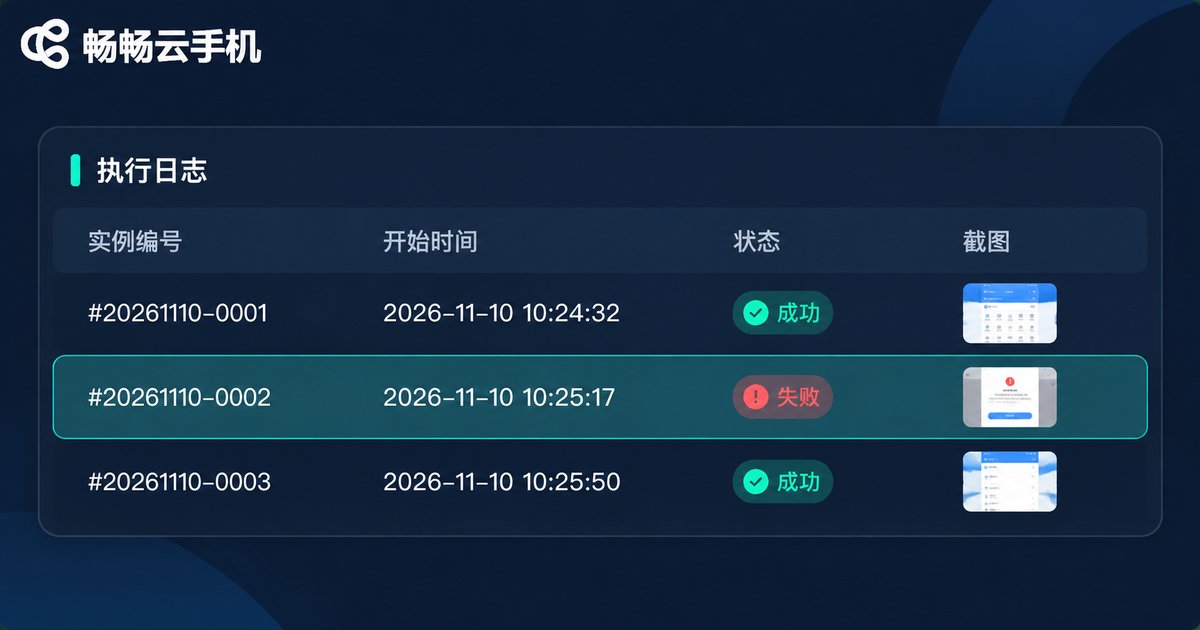
Many automations look like they are running when they are really only pretending to succeed: the script walks through the flow, but the page never loaded. To avoid this, every execution record should capture instance ID, task name, start and end time, final status, key step screenshots, and the on-screen text at the moment of failure.
Do not judge success by absence of errors alone. Add a result check: after check-in, confirm the points changed; after collection, confirm the record count is not zero; after idling, confirm the task list is cleared. Exit code 0 only means the program finished, not that the business step worked.
Records should also be filterable by instance and time. When only a few instances fail, you need to pull those logs out immediately instead of searching through thousands of output lines.
Failure Handling: Classify First, Then Act
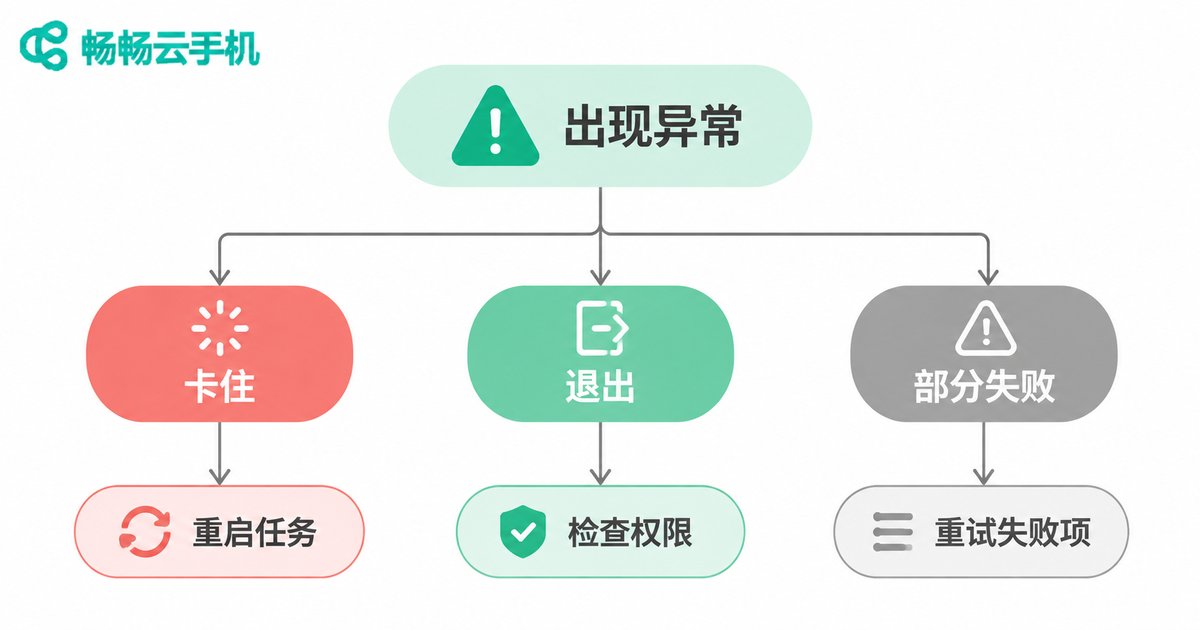
Failures usually cluster into a small number of categories. Instead of opening instances one by one, classify by symptom and respond accordingly.
| Symptom | Likely cause | What to do |
|---|---|---|
| Instance online but the script hangs | Slow UI load, target element never appears | Add explicit waits and timeouts, restart the task on timeout |
| Task exits right after starting | Expired login, permission or popup blocking | Check login state, add login retries and popup handling |
| Some instances pass, some fail | Network jitter or environment differences | Rerun only the failed instances, never the whole batch |
| Screenshots are black or blank | Captured too early, frame not rendered yet | Wait for the first frame, restart the instance if it persists |
| Success rate suddenly drops | App update changed button positions or copy | Update element locators, validate on a small batch first |
Three rules for handling failures: cap your retries, or one broken instance will hold resources forever; make reruns idempotent, so repeated execution does not create duplicate submissions; record the cause, so the next occurrence of the same problem can be handled by lookup instead of investigation.
Habits That Keep Automation Stable
Run new scripts on a small batch for a day or two before rolling out widely; it saves a lot of concentrated debugging. Keep tasks loosely coupled so one workflow failing does not stop the others. Retain logs long enough to look back at least two weeks of runs. Finally, add failure alerts to critical tasks so problems surface before they become incidents.
If you are choosing an environment, ccloudphone (畅畅云手机) provides cloud Android instances manageable from both web and desktop clients, which suits running these workflows on the cloud over the long term without tying up local devices.

FAQ
Q: Do I need to write code for cloud phone automation?
Not always. Simple scheduled tap tasks can be done with the platform's built-in operations; only complex decision logic needs scripts. Start with the simplest workflow and add complexity once it runs smoothly.
Q: Can one cloud phone run several tasks at the same time?
Tasks on the same instance should run sequentially to avoid fighting over the interface. For parallelism, spin up more instances, one workflow each, which also makes debugging clearer.
Q: Should I rerun everything after a failure?
No. A full rerun wastes resources and may cause duplicate submissions. Read the execution logs, find the failed instances, and rerun only those.
Q: How do I know the automation truly succeeded?
Check business results, not just whether the program errored. Verifiable changes such as points, record counts, and task list states are the real proof.
Q: What if the success rate drops after running for a while?
Classify by symptom first, then check whether an app update broke your element locators. Once identified, validate the fix on a few instances before rolling it out.


