
Cloud Phone Control Panel Guide: Multi-Instance Management, Operation Logs, and Exception Handling
What Is a Cloud Phone Control Panel?
If you only manage one or two cloud phones, a web or desktop client for a single device is enough. But when the fleet grows to dozens or hundreds of devices, opening them one by one, copying and pasting, and checking status manually quickly becomes a bottleneck. A cloud phone control panel is a centralized management backend built for exactly this situation: it puts many cloud phones into one interface, so you can view them together, run batch operations, log every action, and get notified when something goes wrong.
The problem it solves is not whether a single device works, but whether you can still keep things under control once you scale up.
Multi-Instance Management: Same Workflow from One Device to Hundreds
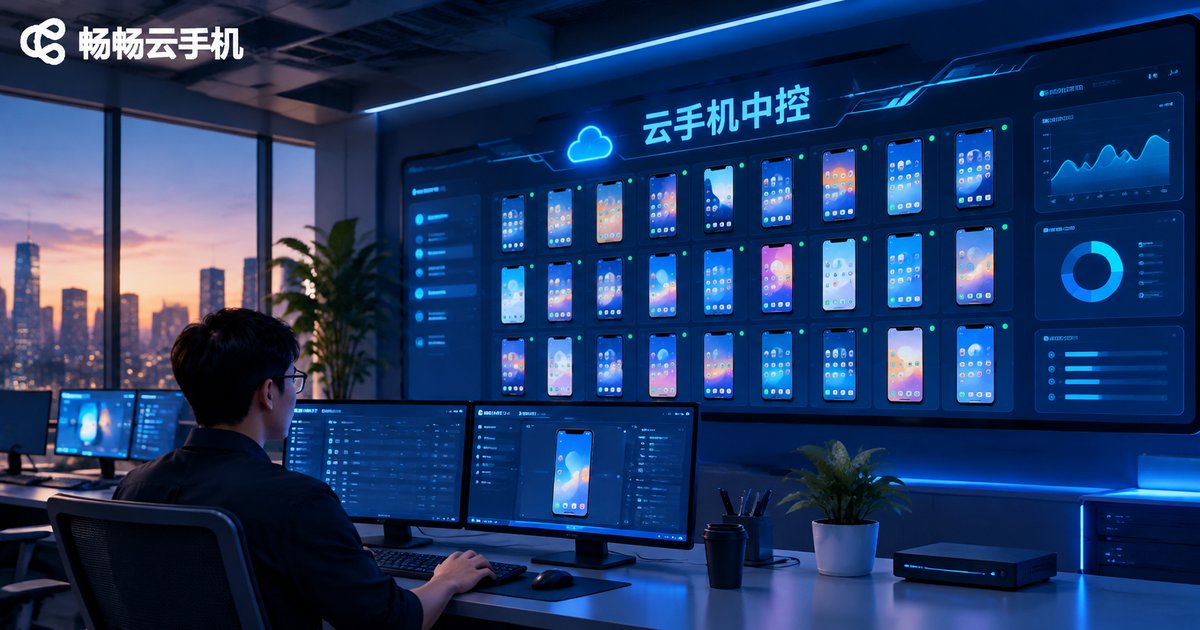
Multi-instance management is the core capability of a control panel. When you open the console, all cloud phones appear in a list or grid view, with status, name, group, and online duration visible at a glance.
Common features include:
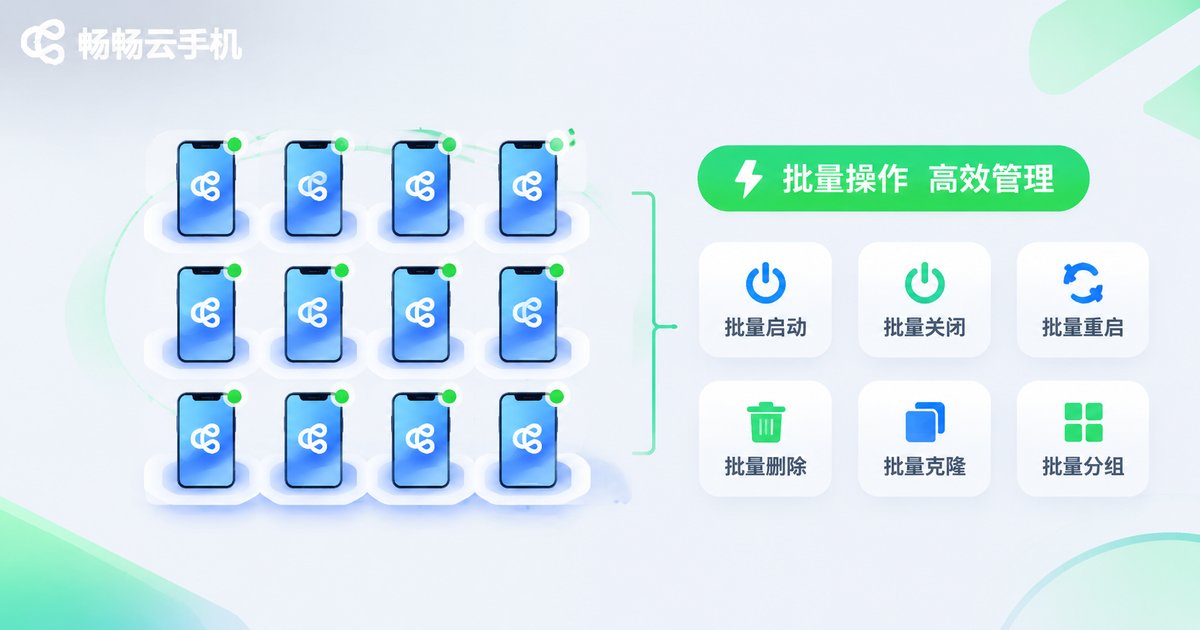
- Batch power on, power off, and restart: select multiple devices and send one command instead of operating each one.
- Group management: tag devices by project, account type, or stage, and organize them into folders for easier lookup and scheduling.
- Batch app installation and file push: choose multiple instances and install or update them together.
- Synchronized operation: actions performed on one device can be mirrored to other devices in the same group, which suits repetitive tasks.
- Real-time preview: the grid view shows multiple device screens at once, so you can quickly spot which one needs attention.
Combined, these features make managing 10 devices and managing 100 devices almost the same process. The only difference is how many you select.
Operation Logs: Every Step Leaves a Trace
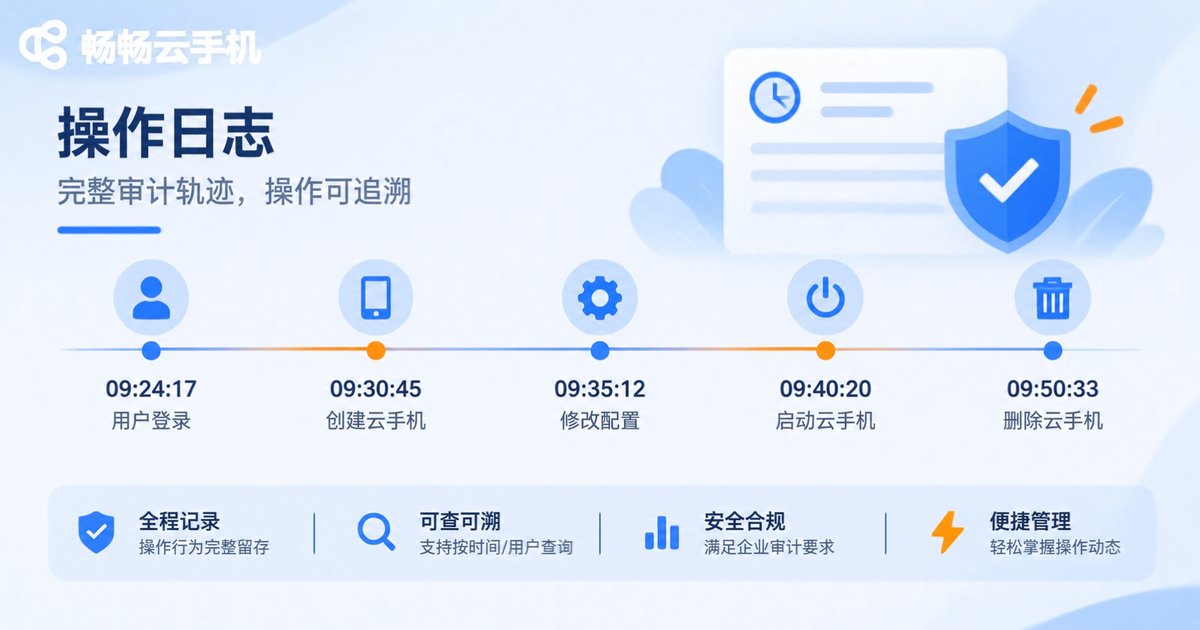
When several people manage devices together, the biggest risk is not being able to say who changed what and when. The operation log module records key actions, including:
- Login and logout records;
- Device control actions such as power on, power off, and restart;
- App installation, uninstallation, and file push;
- Group changes and device renaming;
- Execution time, operator, and result of batch tasks.
Logs can be filtered by time, device, and operation type, which makes review and troubleshooting easier. For team collaboration, operation logs serve as both an audit reference and a form of shared knowledge—new members can review history to understand how devices are typically used.
Exception Handling: Dealing with Disconnections, Lag, and Failed Tasks
Cloud phones run in the cloud, so network fluctuations, app crashes, and task timeouts can happen. A control panel's exception handling generally covers three things: detection, alerting, and recovery.
Detection: the system continuously checks device online status, CPU and memory usage, and task results. Abnormal devices are highlighted in the list.
Alerting: you can set alert rules so that when a device stays offline beyond a threshold or a task fails repeatedly, the responsible person is notified through in-app messages or email, preventing problems from sitting unnoticed.
Recovery: one-click restart, reconnect, and re-sending failed tasks are usually supported. In some scenarios, automatic reconnection policies can reduce manual intervention.
A practical approach is to handle exceptions in three layers: for a single device, try automatic reconnection first; for batch issues, check network and resources; for persistent issues, go back to the operation logs to determine whether the cause is an action or the environment.
Comparison: Centralized Control vs Manual Operation
| Item | Manual per-device operation | Centralized control panel |
|---|---|---|
| Time to manage 10 devices | About 30 minutes | About 3 minutes |
| Batch app installation | One by one, easy to miss | Select once and push together |
| Device status check | Open each device | Grid view at a glance |
| Operation traceability | Relies on memory | Automatic logs with filters |
| Exception detection | Only after the fact | Real-time alerts |
The time figures are estimates for typical scenarios and will vary with device count and task complexity, but the efficiency gap is clear.
How ccloudphone Approaches Control Panel Management
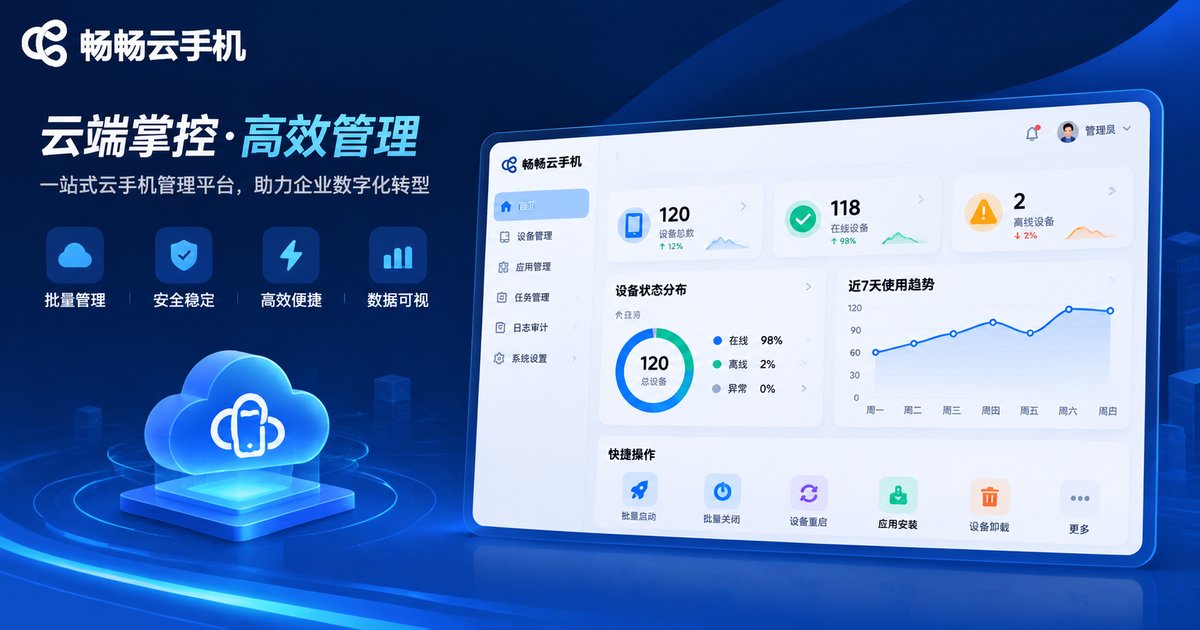
ccloudphone provides a console designed for multi-device management, bringing instance management, batch operations, operation logs, and exception alerts into one interface. For teams that need to run multiple app instances at the same time, this centralized approach reduces repetitive work and makes device status more transparent.
Practical tips:
- Group devices by project or purpose before configuring batch tasks;
- Set offline alerts for critical devices to avoid task interruptions;
- Review operation logs regularly to spot recurring issues and working habits;
- Test batch operations on a small scale before running them across the full fleet.
For specific features and available configurations, refer to the official ccloudphone website, and validate on a small scale before full adoption.
Frequently Asked Questions
Q1: What is the difference between a cloud phone control panel and a regular cloud phone?
A regular cloud phone focuses on remote use of a single device, while a control panel focuses on managing many devices together, including batch operations, logging, and exception alerts.
Q2: How many devices do I need before using a control panel?
There is no fixed threshold. Once manual operation starts taking noticeable time or multiple people need to collaborate, a control panel becomes valuable.
Q3: How long are operation logs retained?
Retention policies vary by platform. Refer to the official ccloudphone documentation, and export important logs for backup if needed.
Q4: Will a device reconnect automatically after going offline?
Most control panels support reconnection. The exact triggers and retry limits depend on platform settings, which can be checked and adjusted in the console.
Q5: What should I do if a batch operation fails?
Check the failure reason in the operation logs first, then retry the failed devices individually. If the cause is network or resource related, schedule the task for a quieter period.


