

Cloud Phone Group Control Tutorial: Batch Operations, Task Distribution and Status Monitoring
Why group control matters: from clicking one by one to clicking once
The advantage of cloud phones is that the devices run in the cloud, so your local computer does not need to stay on all day. But once the number of devices grows, a new problem appears: with ten cloud phones, every device needs the same app installed, the same login flow completed, and a quick check that nothing has frozen. Done manually, that eats half a day, and the chance of a missed click rises with every extra device.
Group control solves exactly this: it turns repetitive actions into a single batch instruction. A complete group control setup usually covers three capabilities: batch operations, task distribution and status monitoring. These are not parallel features but an ordered workflow. Here is the sequence you will actually follow.
Step 1: Organise your devices before you batch anything
Many people start by selecting every device and hitting sync, then one device goes offline and the whole batch fails, leaving you to work out which one caused it. The right order is to group first, then execute.
Group by purpose, for example Account Group A, test devices, and long-running devices. Keep each group reasonably small so that a problem only affects one group and your search radius shrinks immediately. Before running anything, confirm three things:
- All devices are online. Remove offline instances from the batch first, otherwise one instruction will half succeed and half time out.
- System versions are close. Large version gaps cause coordinate drift during synchronised taps.
- App state is consistent. Within a group, install apps and log in to the same point before you start syncing.
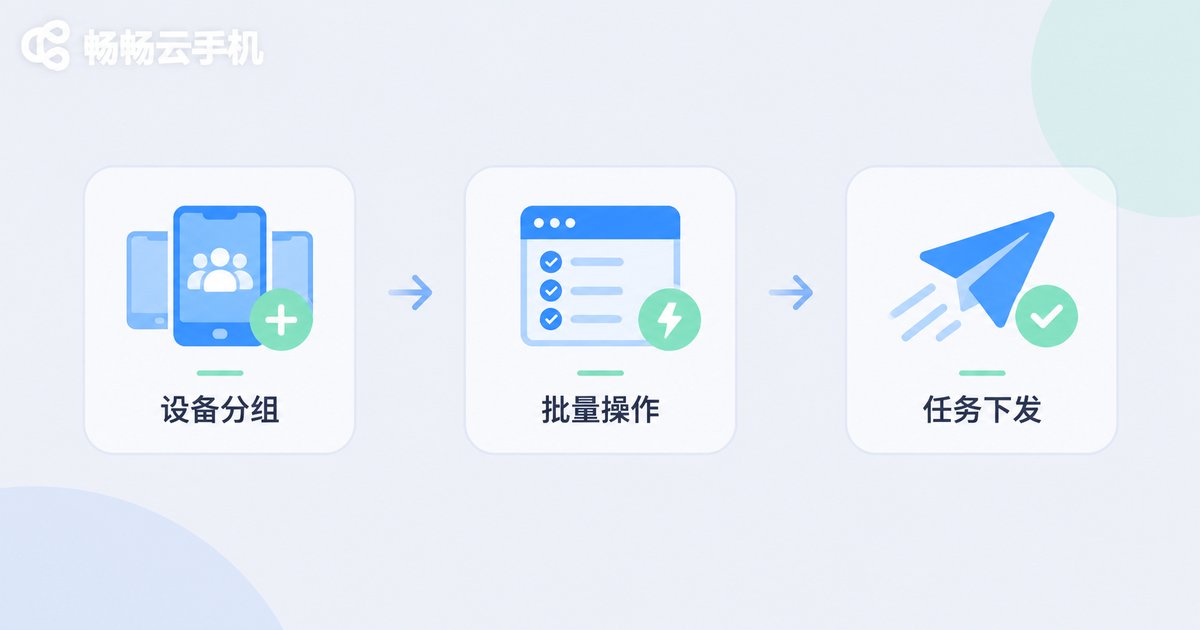
Step 2: Batch operations, one action across many devices
Batch operations look simple but come in two forms, and using the wrong one wastes time. Synchronised operation mirrors your taps, swipes and typing from the master device onto every device in the group in real time. Batch dispatch sends actions such as installing an app, pushing a file, restarting or changing settings to many devices at once, and each device carries them out without you watching the screen.
| Method | Best for | What to watch |
|---|---|---|
| Synchronised operation | Identical tap and typing flows across devices | Keep resolution and system versions close within the group |
| Batch dispatch | Installing apps, pushing files, restarting, unified settings | Split into small batches and verify on a few devices first |
| Single device takeover | One device that needs manual attention | Remove it from the sync group afterwards or it will repeat the flow |
A useful habit: test every batch action on two devices first. Once the flow works on two, expand to the full group and you will avoid a lot of rework.
Step 3: Task distribution, giving different work to different machines
Not every device should do the same thing. Some browse, some reply, some simply stay online. Task distribution fits better than synchronised operation here: you assign a task template to each device or group, the system runs it, and you do not need to sit in front of the screen.
A simple task template usually holds four kinds of information: what action to perform, how long to run, which devices to run on, and whether to retry on failure. Written as a configuration, it looks roughly like this:
Task template: {
  'task_name': 'daily_browse',
  'action': 'open app → browse → stay 30s → back',
  'duration': '15 minutes',
  'target_group': 'Account Group A',
  'retry': 1
}
Three details matter when distributing tasks:
- Stagger the start times. Ten devices doing the same thing in the same second is neither natural nor friendly to the servers you interact with.
- Keep templates short. A template with a dozen steps is hard to debug when something breaks.
- Define the failure policy. Decide in advance whether to retry once automatically or mark the task as failed for review, so tasks never loop forever.
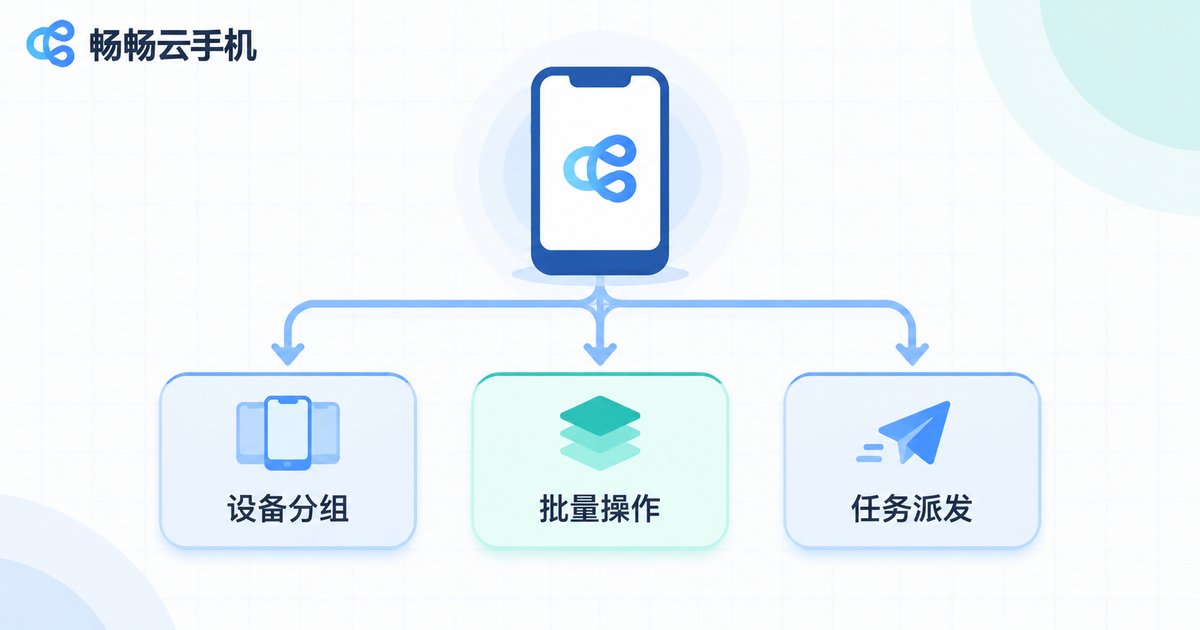
Step 4: Status monitoring, see at a glance who is running and who is stuck
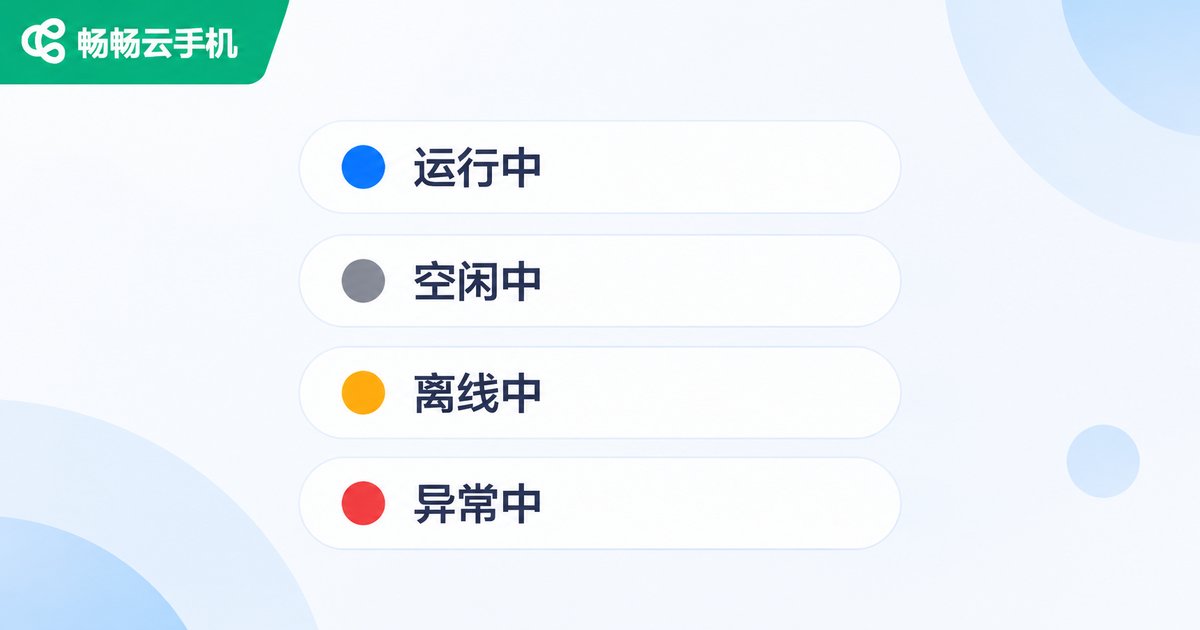
The most common trap in group control is assuming a task is running. The device looks online but the task stopped long ago. Check the status panel regularly, and know what you are looking at:
| Status | Meaning | Suggested action |
|---|---|---|
| Running | The task is executing normally | No action, spot-check the screen occasionally |
| Idle | Device online but no task assigned | Check whether you missed an assignment, or the last task finished |
| Offline | The cloud instance dropped or is reconnecting | Reconnect, confirm it is back, then rejoin the batch |
| Task failed | App crash, target not found, timeout | Reproduce on one device, confirm the cause, then resend in bulk |
Beyond the dashboard, do one more thing: take periodic screenshots. A running status does not prove the screen is in the right place. Checking two or three devices each day is far cheaper than fixing the consequences later.
Step 5: Habits that make the workflow stable
Once you know the tool, the difference comes from operating habits rather than feature count.
- Roll out in stages. Run a new workflow on a small group for a day, then copy it to the rest.
- Use consistent naming. Apply one naming rule to devices, groups and tasks so you can locate anything instantly.
- Keep a control device. Leave one device out of the batch so you can reproduce issues and tell whether the fault is the device or the workflow.
- Debug one device first. When a batch fails, run a single device before resending to the whole group.
Using ccloudphone as your group control base
Group control is only as stable as the cloud phones underneath it. ccloudphone runs Android instances in the cloud and lets you manage multiple devices from a web console, with device grouping, batch operations and task distribution suited to long-running, multi-device scenarios. When a device drops, you can reconnect from the console, and device and task status are shown together so you are not switching between a pile of local windows.
The recommended way to start is simple: open a small number of devices, run the full loop of grouping, batch operations, task distribution and status monitoring, confirm each step matches your working rhythm, then scale up gradually. For specific configurations and entry points, refer to the official documentation.

FAQ
Q1: Will group control cause account problems?
Group control is only a management tool; risk comes mainly from behaviour patterns. Many devices performing identical actions in the same second, at high frequency, with mechanical steps, looks unnatural. Staggering start times and adding variation to step design helps more than switching tools.
Q2: How many devices before group control becomes necessary?
Manual operation starts to strain at three devices, and grouping becomes essential beyond ten. The more devices you run, the more value grouping and task templates deliver.
Q3: Do cloud phones keep running if I close the browser?
Cloud phones run on cloud instances, so closing the local browser generally does not stop tasks already executing in the cloud. Before closing, confirm the task has started and shows as running. Refer to the product documentation for specifics.
Q4: How do I troubleshoot a failed batch operation quickly?
Work from one device to the whole group: walk through the flow manually on a single device to see where it stops, decide whether the cause is coordinate drift, app version or network, fix it, resend to a small batch, and only then run the full group.
Q5: Can two devices with different resolutions be synchronised?
You can try, but tap coordinates may drift, especially for buttons near the screen edge. The safer approach is to group devices with similar resolution and system version for synchronised operation and use task distribution for devices that differ.
Q6: What is the difference between task distribution and scheduled execution?
Scheduling answers when something runs; task distribution answers who runs what. They usually work together: assign different templates to different groups, then set staggered start times so not every device begins at once.


