

How to Run a Cloud Phone Studio: Batch Management, Permission Allocation and Usage Guidelines
Most teams start with cloud phones by ordering a handful of devices to see how it goes. Then the device count grows to dozens, and the real difficulty appears: who manages them, how they are managed, and who to call when something breaks. This article splits the problem into three parts: batch management, permission allocation and usage guidelines, so you can put them into practice right away.
What a cloud phone studio is and who uses it
Put simply, a cloud phone studio is a workspace where a group of virtual phones running in the cloud are managed together. Each cloud phone runs on a data centre server, and you can view the screen and tap around through a browser or a desktop client. No row of physical phones on the desk, no worries about power cuts or overheating.
There are three typical user groups:
· Content teams: running short-video matrices and account incubation, needing many devices online at once;
· R&D and QA teams: verifying how an app behaves across system versions and regions;
· Operations teams: running e-commerce, customer service and community accounts in parallel.
What these groups share is a high device count, repetitive operations and multi-person collaboration. So a studio is not a device warehouse, it is an ordered operating platform. Without order, more devices only means more chaos.
Step one: build the foundation with naming and grouping
Before any batch operation, spend half an hour on two small things that will save you dozens of hours later.
1) Give every device a consistent name. Do not rely on the random default IDs. Use a pattern such as purpose-batch-number, for example DY-2601-07 for a short-video project, batch 2026-01, device 07. The purpose in the name is readable by anyone, and the batch lets you investigate a whole group at once.
2) Group devices by project. Grouping is not decoration. It decides the scope of every batch operation you run later: batch restarts, batch installs and scripted actions all target a group.
Skip these two steps and a month later you will face a screen of identical device names, relying on memory to tell them apart. This is the most common rework in cloud phone studios.
Batch management: treat 50 devices as one
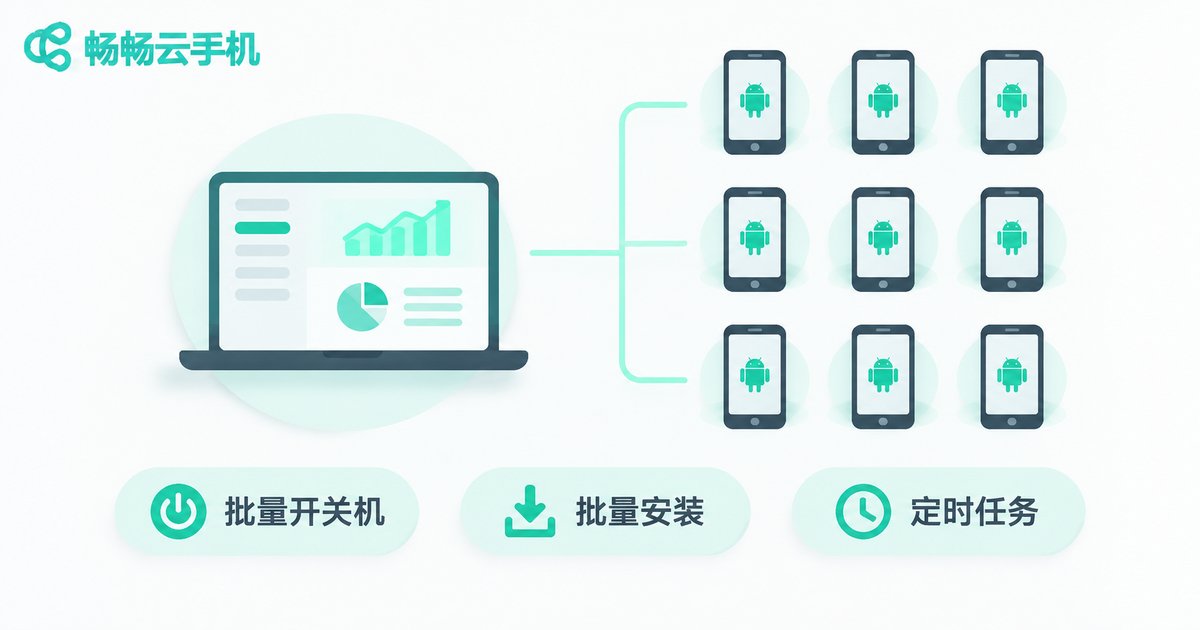
The idea behind batch management is to take repetitive actions out of human hands. Day-to-day operations usually fall into a few categories:
| Operation | Typical scenario | Frequency | Recommended practice |
|---|---|---|---|
| Batch power on/off | Morning start, night sleep | Daily | One click per group, never device by device |
| Batch install / uninstall | New project onboarding, version updates | Weekly | Same version across the same group |
| Batch synchronised actions | Same action across many accounts | Per task | Test on 3 devices first, then run in full |
| Batch screenshots / inspection | Check online status and screen health | Daily | Run on a schedule, isolate the abnormal ones |
| Scheduled tasks | Actions at fixed times | Ongoing | Automate them, reduce manual standby |
A few practical lessons:
Always pilot before scaling. Test any batch operation on 3 devices first. Batch actions go wrong in bulk, and a pilot run catches most incidents.
Keep batches small. Do not run heavy operations on 50 devices at once. Split into batches of 10 so problems are easier to locate and resources are not contended.
Automate inspection. Run a full status or screenshot check at a fixed time each day and pick out the offline, black-screen or stuck devices. Far faster than clicking through them manually.
Keep an operation log. One line recording who ran which batch action on which group and when. When something breaks, that line can shrink your investigation from 50 devices to 5.
Permission allocation: three roles, one table
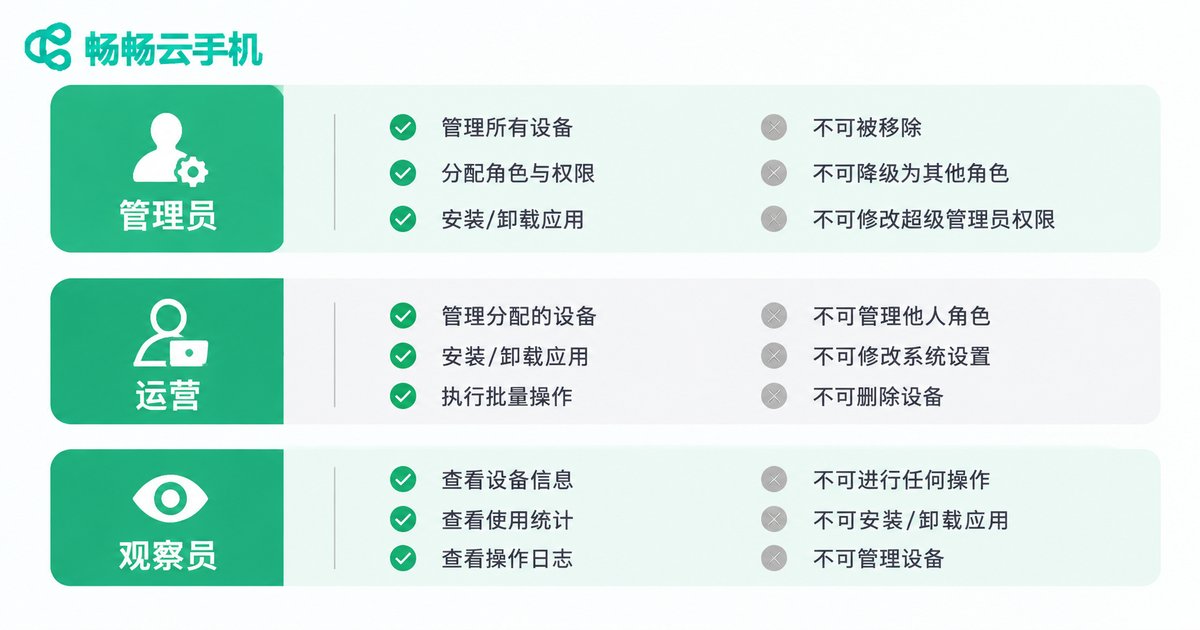
Most studio incidents are not technical, they come from giving out too much access. Interns deleting devices and contractors editing accounts are extremely common failures.
The recommended approach is to define only three roles. Anything more granular and nobody remembers it.
| Role | Who it suits | Can do | Cannot do |
|---|---|---|---|
| Administrator | Studio lead, technical owner | Create and delete devices, assign permissions, change groups, view all data | Nothing by default, but keep an operation log |
| Operator | Daily operators, content executors | Control devices in their own group, run tasks, upload files | Cannot delete devices, change permissions or work across groups |
| Observer | Supervisors, clients, external reviewers | View screens, reports and inspection results | Cannot perform any operation |
Three principles to apply:
Authorise by group, not by person. Attach permissions to project groups. When people change, you swap the person and keep the permissions, which makes handover cheap.
Start with the least access. New joiners begin as observers and move up to operators once they are fluent. Downgrading later causes friction and mistakes.
Require double confirmation for critical actions. Deleting devices, bulk restores and data wipes should need a second person to confirm. Thirty extra seconds saves days of rework.
Usage guidelines: the discipline that keeps a studio stable
Guidelines sound boring, but they decide whether a studio scales smoothly from 20 devices to 100. These are the ones worth writing into your team documentation.
1) One account per device, no sharing. Keep an account pinned to a single cloud phone instead of moving it around. Constantly changing login environments is one of the most common causes of account issues.
2) Clear device status daily. Before wrapping up, review online status, abnormal devices and pending tasks, and log them in the handover notes. Do not let problems overnight.
3) Keep versions consistent. Every device in a group should run the same app version. Mismatched versions generate endless why-does-it-work-for-them discussions.
4) Keep sensitive data off personal devices. Account details, assets and reports stay in the cloud workspace, never downloaded to personal laptops or phones.
5) Revoke access on the last day. Prepare a revocation checklist in advance so the person, the form and the access all leave together. This beats any technical control.
6) Have a plan for anomalies. Decide up front what to do when a device disconnects, a task fails or an account behaves unusually. Write a three-step response for each so anyone can follow it.
7) Review cost monthly. Check device utilisation and idle capacity once a month and reclaim long-idle devices. This is the most overlooked expense in most studios.
Why CcloudPhone makes a solid studio foundation

The methods above are tool-agnostic, but choosing the right foundation saves real effort. CcloudPhone (ccloudphone) runs cloud phones in the cloud and lets you access and control them through a browser or client, which makes it a practical base for a studio:
Centralised management without physical hardware. Devices run in the cloud, so a single ordinary computer is enough on site. No more worrying about heat, power or network cabling.
Batch operations by group. Put devices from the same project into one group and run power, install and task actions against that group. Combined with the naming rules above, the efficiency gain is obvious.
Multi-person collaboration with layered permissions. Team members share the same device pool by role: administrators see everything, operators work inside their group, observers look but do not touch. It maps directly onto the three-role model.
24/7 uptime, tasks keep running. Cloud devices stay online, so night and weekend tasks do not need someone watching. Check the results the next morning.
A sensible onboarding path: run one complete workflow on one or two devices first, confirm that naming, grouping and permissions all work, then expand in batches. Studio stability depends on management order, not on scale.
Frequently asked questions
Q: What is the minimum team size for a cloud phone studio?
It depends on device count. Under 20 devices, one administrator plus one or two operators is enough. Above 50, dedicate someone to inspection and handover, otherwise issues pile up.
Q: Can batch operations damage devices?
Batch operations themselves do not damage devices. The risk is that a mistake gets multiplied. Always pilot on 3 devices before running in full.
Q: Does tight permissions slow the team down?
Slightly at first, but it is faster over time. The cost of untangling a permissions mess far exceeds the cost of requesting access once.
Q: How long does it take a new hire to get up to speed?
If naming rules, grouping and response plans are documented clearly, half a day is enough for daily operations. Without documentation, a week of training will not help.
Q: How do I know when to scale the studio?
Watch for two signals: existing devices are consistently fully loaded and tasks are queuing, or the team is patching process gaps by hand. If either appears, improve the management approach before adding devices.


