

How to Do Cloud Phone Automation Script Recording and Playback: From Manual Operations to Reusable Workflows
Opening the same app, tapping the same buttons, filling in the same forms every single day — these repetitive actions look trivial, but they quietly consume hours of your week. If you manage multiple devices, doing it all by hand on each phone is even worse. The good news: with cloud phone script recording and playback, you can turn one manual operation into an automated flow you can run anytime. This guide walks you through the complete journey, from your first recording to a fully reusable workflow.
What Are Script Recording and Playback?
Think of it as a flight recorder for your operations. During recording, the system captures every action you take on the cloud phone screen: tap positions, swipe paths, text input and pauses. During playback, the script replays those steps automatically and reproduces the entire flow.
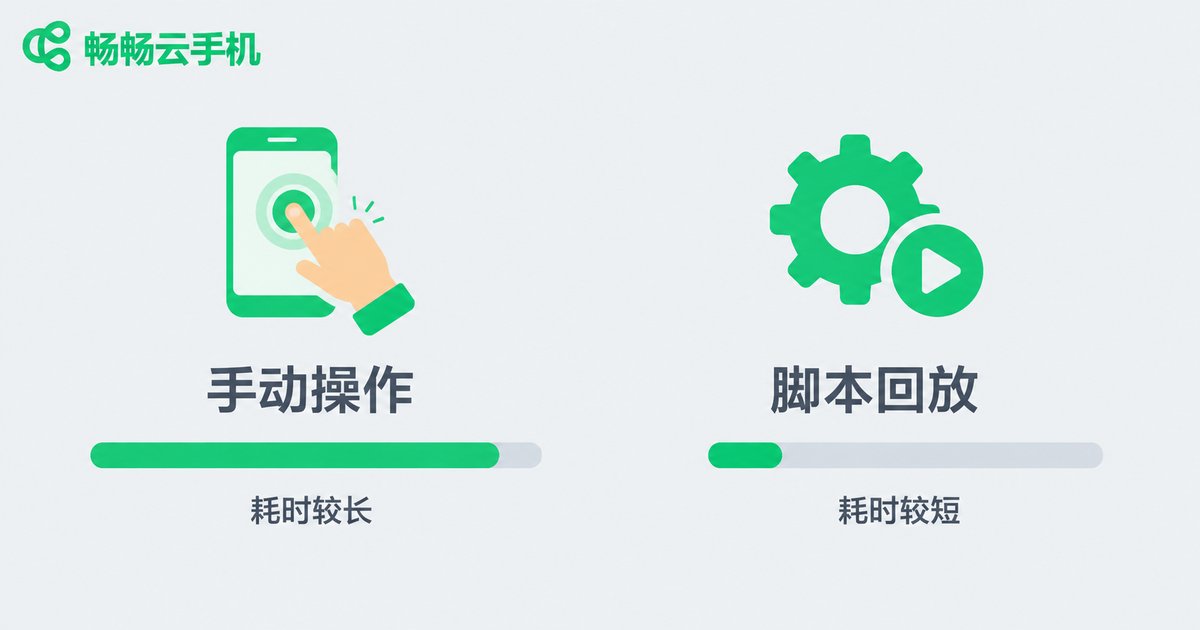
The core value is record once, reuse forever: a manual routine that takes 10 minutes often replays in under a minute, with no missed steps and no mis-taps.
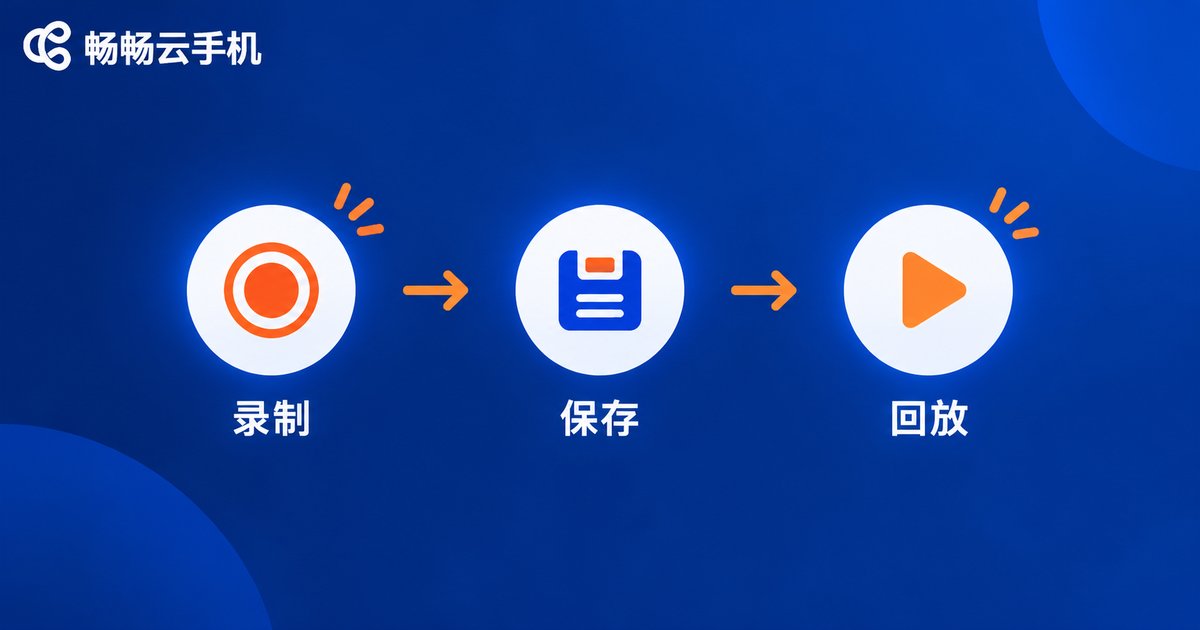
Three Things to Prepare Before Recording
1. Map out the workflow: list every step in order and define a clear start and end point, so you never hesitate mid-recording.
2. Clean up the environment: close pop-ups, notifications and background apps so the recorded path stays clean and playback is never interrupted.
3. Fix the starting state: always begin from the same screen (for example, return to the home screen first) so the script reliably hits its targets.
Record and Replay in Four Steps
On ccloudphone, the whole process is refreshingly simple:
Step 1 — open the automation tool: log in to ccloudphone, launch your target cloud phone instance and locate the script or automation feature.
Step 2 — start recording: tap record and use the phone exactly as you normally would; every tap, swipe and keystroke is logged in real time.
Step 3 — stop and save: finish the flow, stop recording and give the script a clear name. A purpose-plus-date naming habit keeps your script library tidy.
Step 4 — verify with a replay: trigger one manual replay and watch each step; if anything drifts, re-record that segment or extend the wait time.
From One-Off Scripts to Reusable Workflows
Record and replay solves repetition. The real productivity leap comes from upgrading scripts into reusable workflows:
Parameterization: turn fixed content such as keywords or account names into variables, so one script serves many scenarios.
Loops: apply a loop to list-based actions — process 50 items one by one instead of recording 50 takes.
Scheduled triggers: run the workflow automatically at a fixed time each day and take your hands off the wheel entirely.
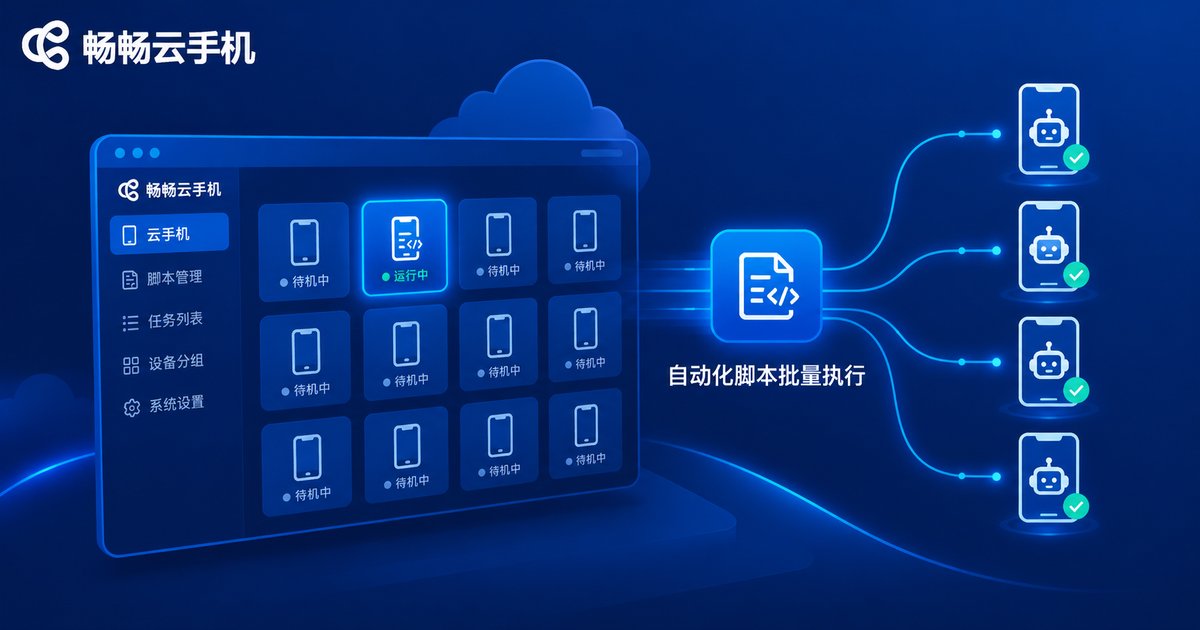
Multi-device distribution: on ccloudphone, a single script can be pushed to multiple cloud phones and executed in sync, so batch tasks finish in one go.
Efficiency Comparison in Real Scenarios
| Scenario | Manual | Script replay | Gain |
|---|---|---|---|
| Daily check-ins | ~5 min per device | ~30 sec per device | ~10x |
| Bulk content publishing | ~20 min per device | ~2 min per device | ~10x |
| App status inspection | ~15 min per device | ~1 min per device | ~15x |
Note: figures are rough estimates for common scenarios; actual time depends on flow complexity and device count.
Four Tips for More Stable Scripts
1. Pace your recording: do not rush; pause briefly on page loads to build waiting room into the script.
2. One script, one job: split complex flows into small scripts and chain them in order, so failures are easy to locate.
3. Maintain regularly: update scripts after app or interface changes to avoid playback failures.
4. Validate before scaling: run every new script end to end on one device before pushing it to the whole fleet.
Why Run Automation on ccloudphone
Stable automation starts with a device that never drops offline and never lags. ccloudphone provides cloud-based Android devices that stay online 24/7, so once a task is dispatched it keeps running without your local computer. Multi-instance management makes distributing and monitoring batch jobs effortless. Whether you are an individual keeping daily routines on track or a team publishing content at scale, it all runs reliably in the cloud.
If you are still repeating the same taps day after day, visit the ccloudphone website and try the full record-to-replay flow yourself — hand the busywork to the cloud and keep your time for what matters.
FAQ
Q: Do I need coding skills to record a script?
No. Recording is what-you-see-is-what-you-get: just use the phone normally and the script is generated for you, zero code required.
Q: Playback fails because pages load slowly. What should I do?
Pause briefly after key steps while recording, or increase the wait time between steps in the playback settings; success rates improve dramatically.
Q: Can one script run on multiple cloud phones at once?
Yes. On ccloudphone, a script can be dispatched to multiple instances and executed in sync, ideal for batch check-ins and bulk publishing.
Q: The app updated and my script broke. How do I fix it?
Interface changes affect target matching, so re-record the affected steps. Splitting long flows into small scripts also lowers maintenance cost.
Q: Will scripts keep running after I close my local computer?
Yes. Cloud phones run on cloud servers, so once a task is dispatched you can close your browser and the script follows its schedule.


