
Can Cloud Phone Scripts and Physical Phone Scripts Be Shared? Compatibility Explained
Quick Answer: Most Scripts Can Be Shared, With a Few Conditions
Many people doing game farming or app automation run into this question: I already have a script that runs steadily on my physical phone, will it work on a cloud phone? The answer is: most scripts can be shared, but it depends on how the script works. If the script relies on screen image recognition and fixed coordinate taps, you need to watch out for resolution and system version matching. If it is based on accessibility services or protocol-level automation, compatibility is usually much better and migration is nearly seamless.
Four Key Factors That Determine Compatibility
Whether a script can run smoothly on a cloud phone mainly depends on the following:
| Key Factor | Impact on Scripts | Risk Level |
|---|---|---|
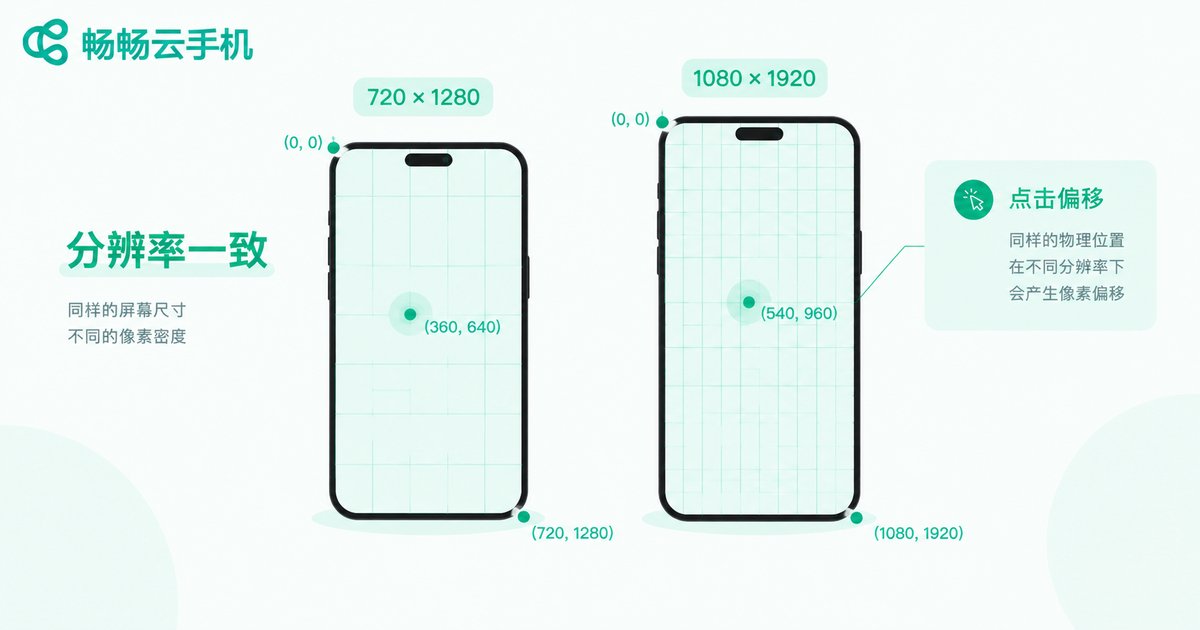
| Resolution and DPI | Coordinate-based scripts are extremely sensitive to resolution; different DPI also causes tap offsets | High |
| Android Version | Some scripts only support specific system versions; version gaps may break interfaces | Medium |
| Permission Environment | Scripts requiring root or special permissions depend on how open the cloud phone is | Medium |
| CPU Architecture | ARM scripts cannot run directly on x86; mainstream cloud phones are ARM-based, so risk is low | Low |
Compatibility of Different Script Types
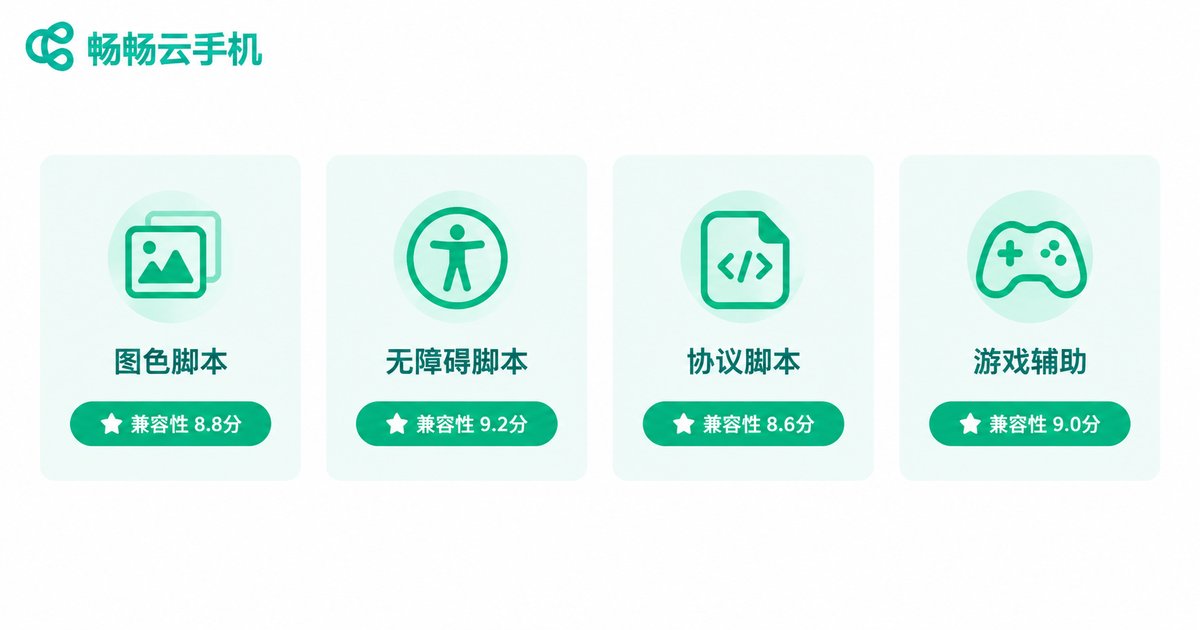
Image recognition scripts: They locate elements by capturing screenshots and searching for images or colors. As long as the cloud phone resolution matches the physical phone, the recognition logic can be reused directly; otherwise you need to re-capture images or scale coordinates proportionally.
Accessibility scripts: Based on Android accessibility services that read UI controls, they do not rely on fixed coordinates. Compatibility is the best, and they usually work out of the box on cloud phones.
Protocol and injection scripts: These require root or framework support. Cloud phones have a more open system with lower permission barriers, making them actually easier to deploy such scripts than physical phones.
Game assist scripts: Beyond the script itself, you also need to consider the game's environment detection strategy. Test on a single cloud phone first, then scale up to multiple accounts once everything is stable.
Why Resolution Is the Most Common Pitfall
Physical phone screens vary widely, and script authors usually only optimize for their own device's resolution. Cloud phones typically offer multiple preset resolutions such as 720x1280 and 1080x1920. Choosing a resolution that matches the script's target environment is the first step to running it successfully. Even with the same resolution, different DPI settings change the size and position of UI elements, causing image matching failures or tap offsets. When a script fails to run, check these two settings first.
How to Migrate Scripts to a Cloud Phone
If you plan to move existing scripts to a cloud phone, follow this troubleshooting order:
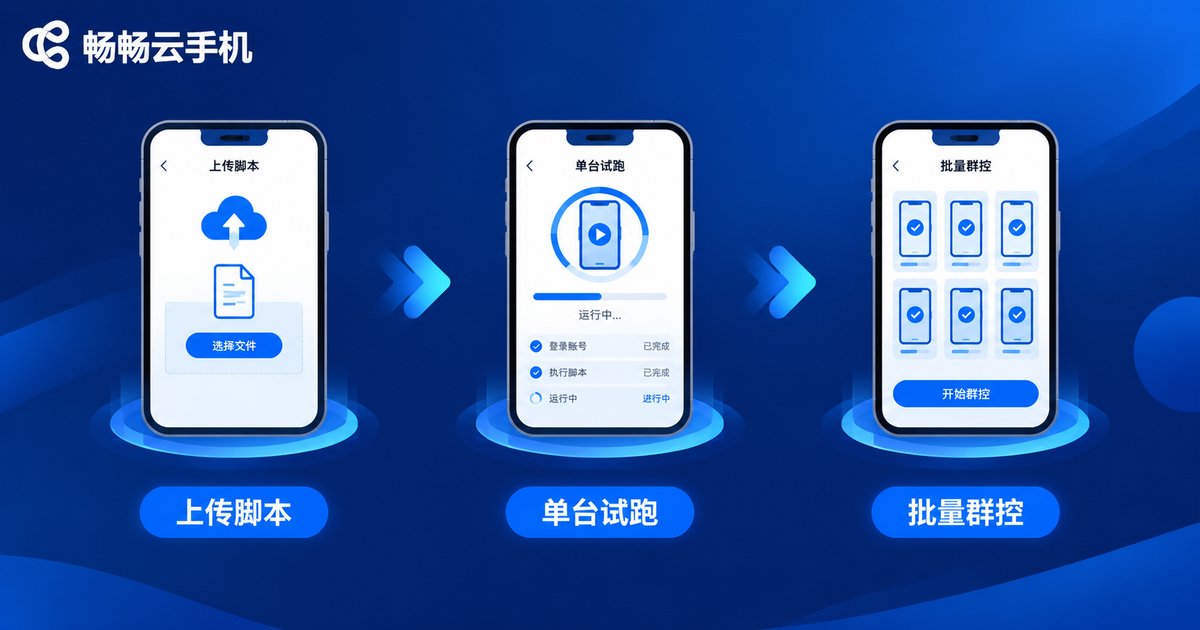
1. Confirm the Android version and resolution the script was built for, then select the matching device profile in the cloud phone console;
2. After uploading the script, run a full test cycle on a single device first, checking image matching, taps, and login flows;
3. Check permissions: make sure the accessibility service is enabled and root permission is granted;
4. Once a single device passes, replicate the setup across multiple devices and manage them centrally with group control.
Why Run Scripts on CCloudPhone
For long-running automation tasks, CCloudPhone (ccloudphone) offers several clear advantages:
Online 24/7: Cloud phones keep running in the cloud without depending on your local device. Network or power interruptions at home do not affect your tasks, so scripts can run stably around the clock.
Multi-instance and group control: Run multiple cloud phones simultaneously and operate them in batch with group control, which is far more efficient than managing physical phones one by one.
Flexible configuration: Choose different device profiles and resolutions based on script requirements. Adjusting a cloud phone is much easier than changing a physical phone's setup.
Predictable cost: No need to buy a separate physical phone for each account. Provision cloud phone devices on demand and greatly reduce hardware investment and depreciation.
If you are still running scripts on a pile of physical phones, try a small-scale migration test on CCloudPhone first, verify compatibility, then switch over gradually.
FAQ
Q: Can the same script run on a physical phone and a cloud phone at the same time?
Yes. If the script is not device-bound, it can run in parallel on both without interference. Manage accounts and authorizations separately to avoid conflicts.
Q: What should I do if image matching fails on a cloud phone?
First check whether the cloud phone's resolution and DPI match the script's target environment, then confirm the screenshot method (accessibility or root-based) is supported. Most matching failures come from resolution mismatch.
Q: Do cloud phones support root?
Mainstream cloud phone products usually provide root access or a high-privilege environment. For details, refer to the official documentation of CCloudPhone (ccloudphone). Compared with physical phones, the permission barrier is much lower.
Q: How many scripts can run on one cloud phone?
It depends on script resource usage and the device configuration. We recommend one core script per device; scale by adding more devices and manage them with group control for better stability.
Q: Will scripts on cloud phones be detected?
Legitimate cloud phones run a real Android environment with device parameters close to physical phones, so the detection risk is much lower than traditional emulators. Actual results vary by app; verify on a small scale first.


