
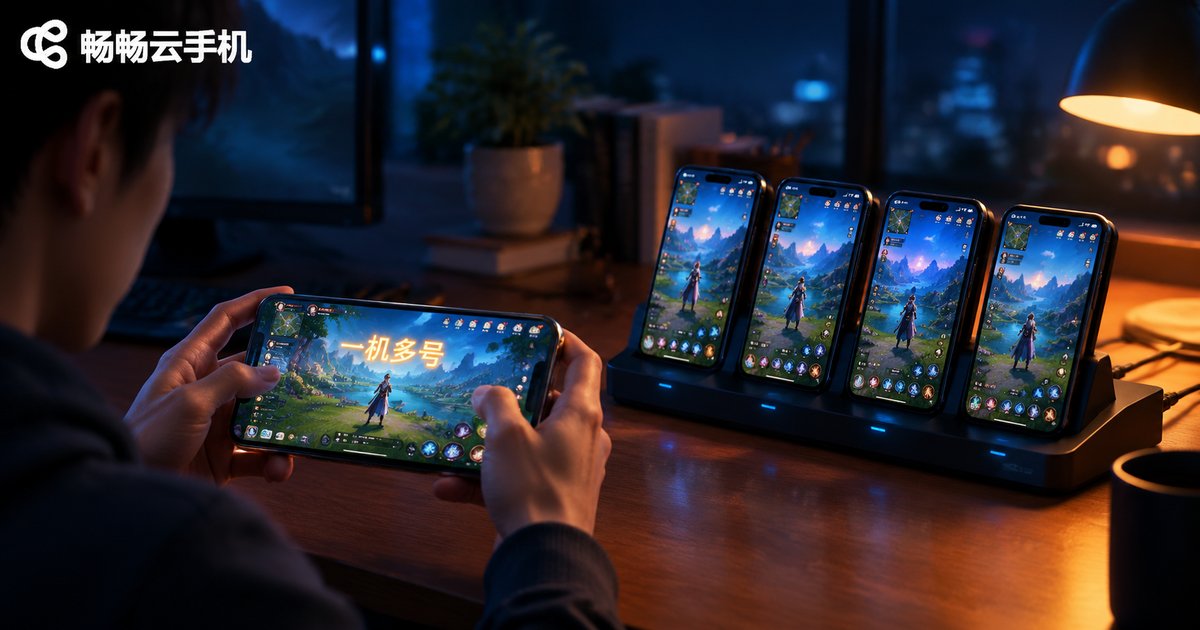
Can Cloud Phones Run Multiple Instances? A Complete Guide to One-Device Multi-Account
Can a Cloud Phone Run Multiple Instances? The Short Answer
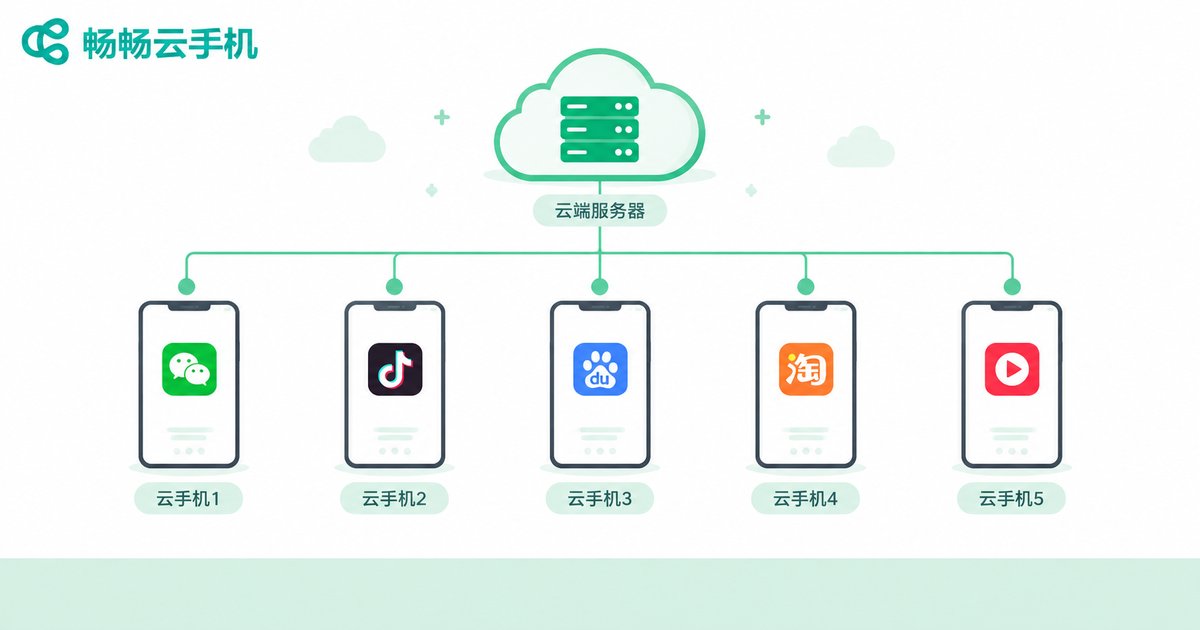
Yes—and multi-opening is actually one of the core strengths of cloud phones. A cloud phone runs on remote servers, and each cloud phone is a complete, independent Android environment. By creating multiple cloud phones under one account, you effectively own several 'invisible phones' at once—isolated from each other, each able to log into a different game, social media, or store account. That is true one-device, multi-account management.
Even better, cloud phones stay online 24/7 in the cloud without consuming your physical phone's memory, battery, or data. Even if your real phone is powered off, all your cloud instances keep running.
Why Cloud Phones Make Multi-Account Management So Easy
On a physical phone, multi-opening relies on built-in 'app cloning' or third-party dual-app tools, all crammed into a single device. Open two or three instances and you quickly hit lag, overheating, and disconnects—with almost no room to scale.
Cloud phones move the computing power to the cloud: each cloud phone is an independently isolated Android system on the server, with its own storage and runtime environment. The account on cloud phone A and the account on cloud phone B are, at the system level, two 'different phones'—clean environments that never interfere with each other. Your multi-open capacity simply depends on how many instances you activate; need more accounts? Just add more instances.
3 Ways to Achieve One-Device, Multi-Account
Method 1: Create Multiple Cloud Phone Instances (Most Common and Stable)
This is the most straightforward approach. Taking ChangChang Cloud Phone (ccloudphone) as an example, the workflow is simple:
Step 1: Register and log in to ChangChang Cloud Phone
Step 2: Create as many cloud phone instances as you need
Step 3: Install your apps on each instance and log in with different accounts
Step 4: Switch accounts anytime by opening the corresponding instance
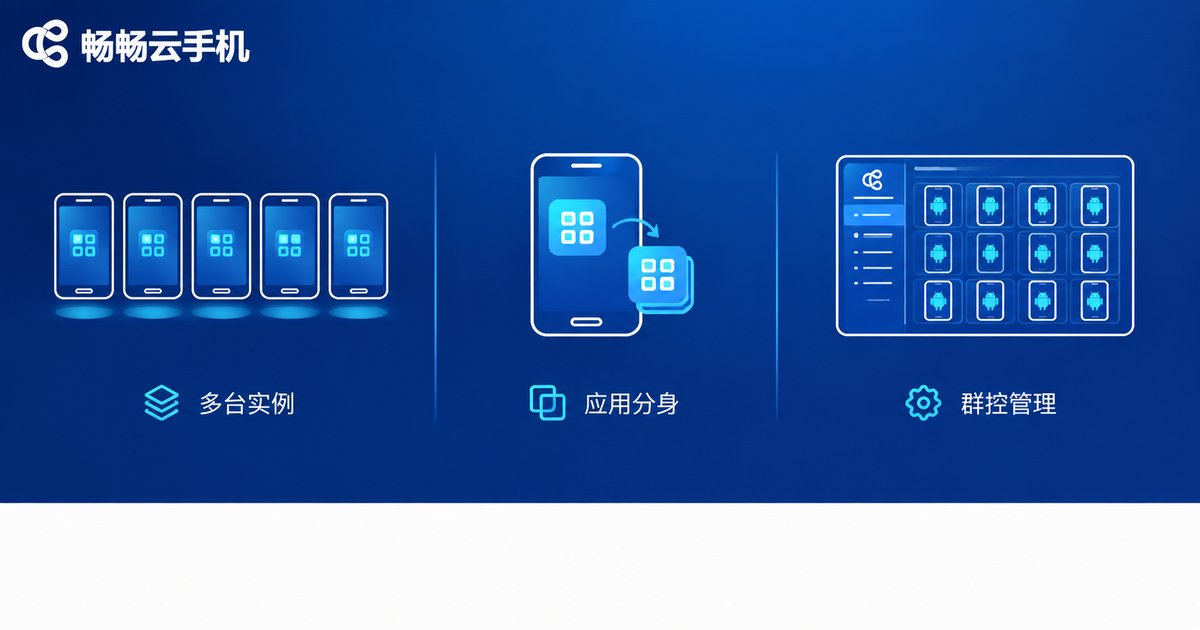
Each instance is a fully independent environment—one device, one account. This offers the highest stability and suits long-term account nurturing and multi-boxing in games.
Method 2: In-Phone App Cloning
Many cloud phone services also support cloning apps within a single cloud phone, letting one app run two instances at the same time. This works well for users with only a few extra accounts who want to control costs: run fewer instances and fill the gap with clones. The downside is that in-phone cloning is limited in number and shares one environment, so isolation is weaker than with separate instances.
Method 3: Group Control for Batch Management (Great for Studios)
When you need to operate dozens or even hundreds of accounts simultaneously, tapping through them one by one is far too slow. Group control and batch management let you command all your cloud phones from a single screen: install apps in bulk, sync identical actions, and launch tasks across every device at once—compressing repetitive work to a minimum. ChangChang Cloud Phone supports batch management across multiple devices, and combined with multiple instances, it handles studio-scale multi-account operations with ease.
Cloud Multi-Opening vs Local Multi-Opening: What's the Difference?
| Dimension | Local Phone Multi-Opening | Cloud Phone Multi-Opening |
|---|---|---|
| Hardware demand | Eats local resources; lags and heats up easily | Uses cloud computing power; local device is just a controller |
| Uptime | Depends on your phone staying powered on | Online 24/7 in the cloud, even when your phone is off |
| Account isolation | All accounts squeezed into one device environment | Each cloud phone is an isolated environment—one device, one account |
| Scaling cost | More accounts mean buying more physical phones | Activate instances on demand and scale anytime |
| Efficiency | Manual switching between accounts | Batch management—control many devices from one screen |
Best Use Cases for One-Device, Multi-Account
Game multi-boxing and farming: Run multiple cloud phones to handle daily quests, grinding, and idle farming simultaneously, centralizing alt-account output while your main device stays untouched.
Social media matrix operations: Keep each platform account on its own cloud phone for posting and engagement, so content and interactions never cross wires.
E-commerce multi-store support: Park each store and customer-service account in its own cloud phone so no message or alert slips through.
App testing and idle tasks: Offload check-ins, reward claims, and other long-running tasks to the cloud while your physical phone stays free for everything else.
3 Things to Check Before You Multi-Open
1. Follow platform rules: A cloud phone is a legitimate runtime environment, but your account behavior still needs to comply with the rules—avoid bulk violations that could get accounts banned.
2. Keep login environments stable: Try to keep each account on one fixed cloud phone instead of logging in and out across devices frequently, which reduces security flags.
3. Choose a reliable provider: The whole point of multi-opening is 'stable uptime.' A provider with frequent disconnects ruins idle tasks, so check reviews and stability records before committing.
Want Hassle-Free Multi-Opening? Try ChangChang Cloud Phone
Among the many cloud phone services available, ChangChang Cloud Phone (ccloudphone) is well worth trying: independent, isolated Android environments, multiple cloud phones online simultaneously, and smooth, stable performance. Whether it's game multi-boxing, daily multi-account management, or studio-scale batch operations, it handles the job well. Visit the official ChangChang Cloud Phone website to learn more, choose the number of instances that fits your needs, start small, and scale up as you grow.
FAQ
Q: How many accounts can one cloud phone handle?
For the best stability and safety, run one main account per cloud phone. Need more accounts? Simply activate additional instances; if you only have a few extra accounts, in-phone app cloning can serve as a supplement.
Q: Will multi-opening on a cloud phone get my accounts banned?
A cloud phone is a normal app runtime environment—bans depend on how you behave, not the device type. As long as you follow game and platform rules and operate normally, the risk is the same as using a physical phone.
Q: If my physical phone is off, do cloud phones keep running?
Yes. Cloud phones run on remote servers, and your local device is just a control panel. Powering off or losing connection locally doesn't stop cloud-side tasks.
Q: Does multi-opening require a powerful local device?
Hardly. Multi-opening consumes cloud resources; your local phone or computer only needs a stable internet connection and smooth screen rendering. That's exactly why cloud multi-opening is far less stressful than local multi-opening.


