
Cloud Phone Script Can't Recognize the Screen: Screenshot Quality, Permissions, and Compatibility Checks
First, Separate 'Can't See' from 'Sees It Wrong'
When an automation script fails on a cloud phone, the first instinct is usually 'the script is broken.' In reality, the same script often runs perfectly on a local physical device and only fails on a cloud instance. In the vast majority of cases the logic is fine — the frame the script receives is not the frame it assumes it is receiving.
Split the failure into three buckets first; everything after that gets faster:
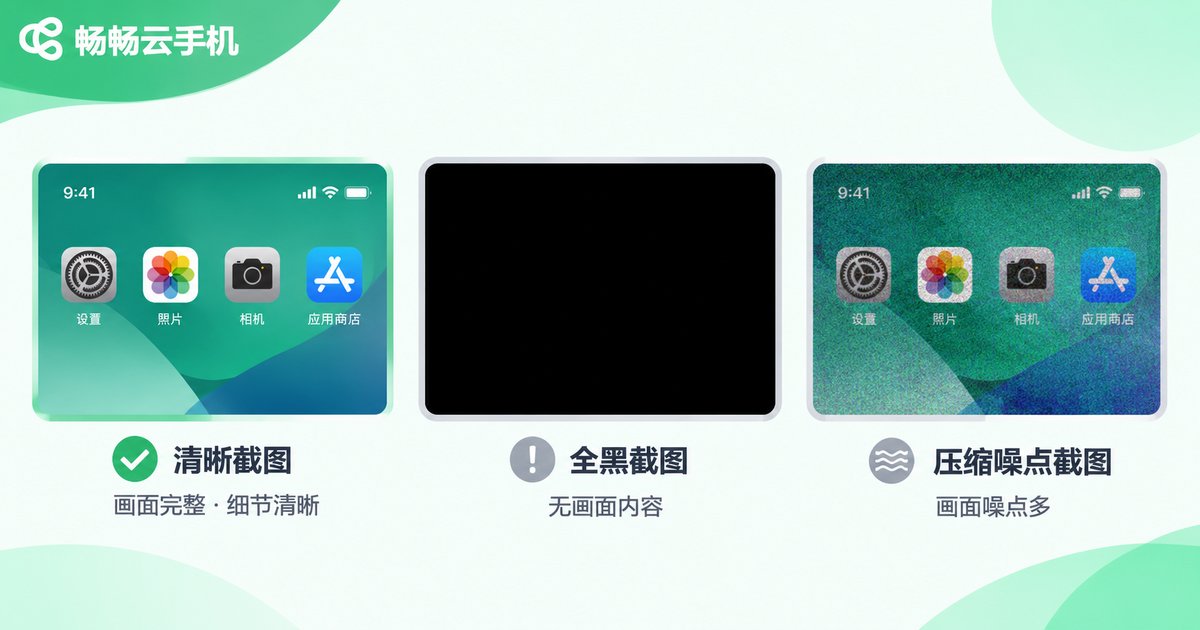
Bucket one: the screenshot itself is broken. Pure black, fully transparent, or full of noise. No amount of image matching will fix that.
Bucket two: the screenshot is fine but permissions are missing. The capture call is denied or simulated taps never land. The script thinks it clicked; the screen never moved.
Bucket three: screenshot and permissions are fine, but the environment is inconsistent. Resolution, OS version, dark mode, or rendering mode changed, so templates no longer match and scores fall below the threshold.
Work through these layers in order. Skipping ahead is risky because layer one often masks the symptoms of layers two and three.
Layer One: Screenshot Quality — Are the Script's Eyes Clear?
The screenshot is the entry point of the whole pipeline. If the entry point is dirty, every downstream decision is unreliable. The test is simple: save the actual image the script captured and look at it yourself, instead of only reading 'no match found' in the log.
1. Pure black or fully transparent. Cloud phone instances usually rely on GPU hardware rendering, and some capture methods cannot read the framebuffer from that layer — you get a black image. Switch to the platform's own screenshot interface or the system screen-capture authorization channel, and the picture usually comes back.
2. The image is downscaled. Some environments downsample the stream to save bandwidth, turning 1920×1080 into 1280×720. Templates captured at native resolution no longer fit, so matching fails. Check the real pixel dimensions and keep templates aligned with the runtime resolution.
3. Color channel mismatch. If a screenshot with an alpha channel is treated as three-channel, colors shift globally and dark buttons can look light gray. Converting to RGB or grayscale before matching avoids most of this.
4. Compression noise. At high compression ratios, JPEG creates artifacts around text edges, and template matching is most sensitive exactly there. Prefer PNG, or use a matching method that tolerates noise better.
5. Transition frames. Screenshotting mid-animation gives you a half-faded button. Add a stability check: capture two frames in a row and, if they differ too much, wait briefly and capture again.
| Capture method | Typical behavior | Best for | Watch out for |
|---|---|---|---|
| System screenshot command | Fast, may be fully black under GPU rendering | Standard app screens | Verify you got a real frame first |
| Screen capture authorization channel | Real frames, requires one-time confirmation | Games and video surfaces | Authorization may reset after a reboot |
| Platform-native screenshot API | Stable and consistent with instance rendering | Batch automation | Check the returned format and encoding |
A quick sanity check before touching the script:
adb shell screencap -p /sdcard/shot.png
adb pull /sdcard/shot.png ./shot.png
If the pulled image is black, change the capture channel — don't rewrite the script.
Layer Two: Permissions — The Passport for Capture and Taps
Permission problems are sneaky because the script rarely throws an error. It just quietly does nothing. Go through this checklist item by item.
Screen capture permission. When using the system capture channel, first use requires manual confirmation, and many cloud instances reset that grant after a reboot or wake from sleep. Your script goes blind overnight. Add the grant state to a daily check.
Accessibility service. Solutions that find controls through accessibility must confirm the service is enabled and has not been killed by battery-saving policies.
Overlay permission. Visual control bars and status indicators depend on it. Without it, scripts may exit right after launch.
Storage permission. Screenshots must be written to disk before they can be read. When storage is denied the capture function returns empty, while the log only says 'recognition failed.'
Background survival. Add the script process to the battery optimization whitelist, otherwise it gets frozen after an idle period and the frame freezes on the last rendered image.
Debug channel. Command-line driven setups need the instance's debugging switch enabled and port mapping working.
Turn all of the above into a startup self-check that runs automatically on every boot. It is far faster than post-mortem guessing.

Layer Three: Compatibility — When the Environment Changes, Templates Die
If the first two layers pass and recognition still fails, the issue is almost always compatibility.
OS version differences. Control hierarchy, animation timing, and default font size can change between Android releases. A button that sits flush to the edge on an older version may gain padding on a newer one, shifting your coordinates. Across versions, prefer image matching plus relative positioning over absolute coordinates.
Resolution and pixel density. Change an instance spec from 720p to 1080p and every template becomes invalid. Store the resolution in your config and pair templates with a specific spec.
Rendering mode. Hardware rendering is fast but less capture-friendly; software rendering is more compatible but animations may stutter and cause bad frame grabs. Test both before committing.
Dark mode and eye-comfort mode. Both change the overall palette. A light template's match score collapses in dark mode. Pin the system appearance to one setting at script startup.
Orientation and soft keyboard. Tapping an input field raises the keyboard and pushes the page up, shifting every template. Wait for the keyboard to settle before capturing.
Don't just drop the threshold when tuning — that only makes the script guess wrong. Convert to grayscale first, and print the score so you can see the trend:
import cv2

screen = cv2.imread('shot.png')
gray = cv2.cvtColor(screen, cv2.COLOR_BGR2GRAY)
tpl = cv2.imread('btn.png', 0)
res = cv2.matchTemplate(gray, tpl, cv2.TM_CCOEFF_NORMED)
_, max_val, _, max_loc = cv2.minMaxLoc(res)
print('score', round(max_val, 3), 'at', max_loc)
Healthy matches usually score above 0.9. A steady 0.7–0.85 means slight visual differences. Below 0.6 you are almost certainly looking at a screenshot or environment problem, not a threshold problem.
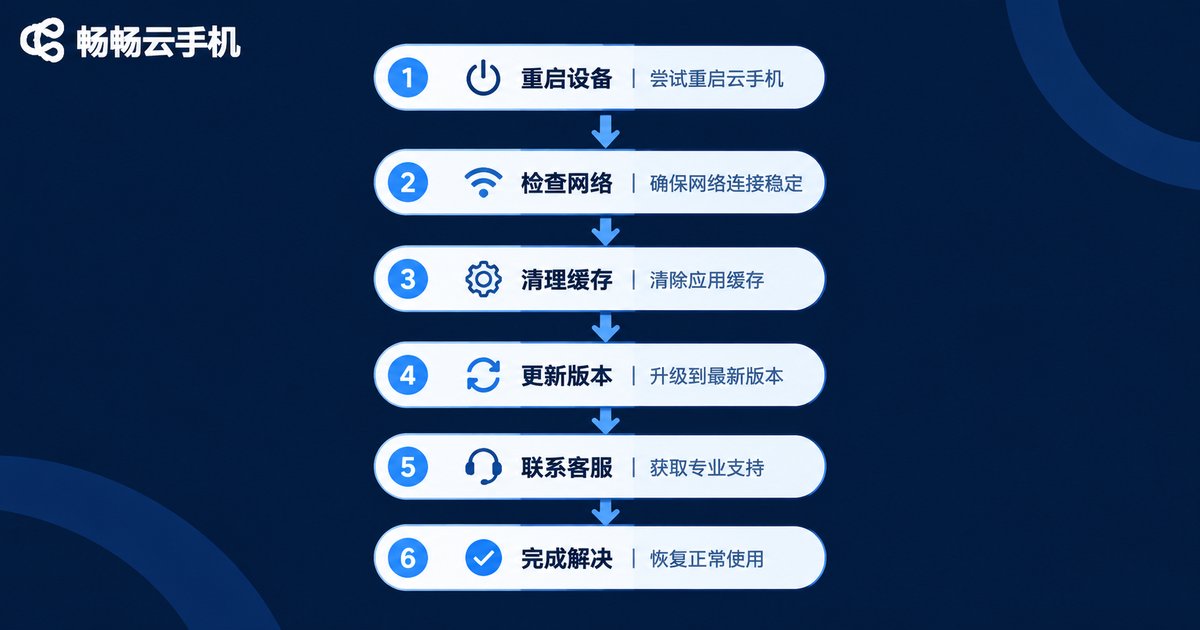
The Full Troubleshooting Order in One Table
| Step | Check | Fast verification | Typical conclusion |
|---|---|---|---|
| 1 | Is the screenshot valid? | Open the captured file yourself | Black means change the capture channel |
| 2 | Does resolution match? | Compare template and screenshot size | Mismatch means rebuild templates |
| 3 | Is capture authorization valid? | Check grant state and reboot history | Expired means re-authorize |
| 4 | Accessibility and storage | Inspect system settings | Disabled means enable and whitelist |
| 5 | OS version and appearance | Compare UI screenshots | Unify version and dark mode |
| 6 | Match score trend | Print the score | Low score means go back to step 1 |
Follow this order and roughly eight out of ten problems are pinned down before step four, with no code changes at all.
Fixing the Environment Beats Re-tuning Forever
After enough troubleshooting you realize the real cost isn't any single debugging session — it's that the environment is different every day. Resolution changed today, a grant dropped tomorrow, an instance rebooted the day after. The script never changed, yet results are inconsistent.
The practical answer is to standardize the runtime. ccloudphone provides cloud Android instances you operate remotely through a client, designed for long-running online tasks. In its console, batches of instances can be created and managed with a consistent spec, so key parameters such as resolution and OS version stay aligned and templates built once can be reused instead of re-tuned per machine.
A few concrete habits:
1. Put the instance spec into your script config. Record resolution, density, and OS version in a config file. On startup the script self-checks and raises an alert on mismatch instead of running on wrong assumptions.
2. Fix one capture channel. Once you find a method that reliably returns real frames, don't switch casually. Mixing methods is the main source of black screenshots.
3. Automate the startup self-check. Verify screenshot validity, permission states, and resolution on every boot, and log the result. During an incident you read the log instead of guessing.
4. Centralize templates. Store them in directories keyed by resolution and swap the whole directory when moving instances, so nothing gets left behind by manual replacement.
Nail these four and stability improves noticeably. What remains after that is real algorithm optimization.

Frequently Asked Questions
Q: The script works on a local device but fails on a cloud phone. What is the most likely cause?
Check whether the screenshot is valid first. Cloud phones mostly use hardware rendering, and some capture methods return black frames. Save the image and look at it — that usually settles it.
Q: The screenshot looks fine but the match score hovers around 0.5. What should I do?
Almost certainly a resolution or scaling mismatch. Compare screenshot and template dimensions, rebuild templates at the runtime resolution, and convert to grayscale before matching. Scores usually return above 0.9.
Q: It worked yesterday but fails after booting today. What changed?
Most often the screen capture grant was reset by an instance reboot, or the system appearance switched to dark mode. Making grant state and appearance part of the startup self-check saves a lot of time.
Q: What match threshold should I use?
Don't go below 0.7. Too low a threshold turns 'cannot recognize' into 'clicked the wrong place,' which is harder to debug. If the score won't rise, go back to screenshot quality and environment consistency.
Q: Running on several cloud phones, why do some pass and others fail?
First confirm the instances share identical specs — resolution, OS version, and rendering mode. With mixed specs, one set of templates and coordinates only works on some machines. Standardize instance specs before batch deployment.


