
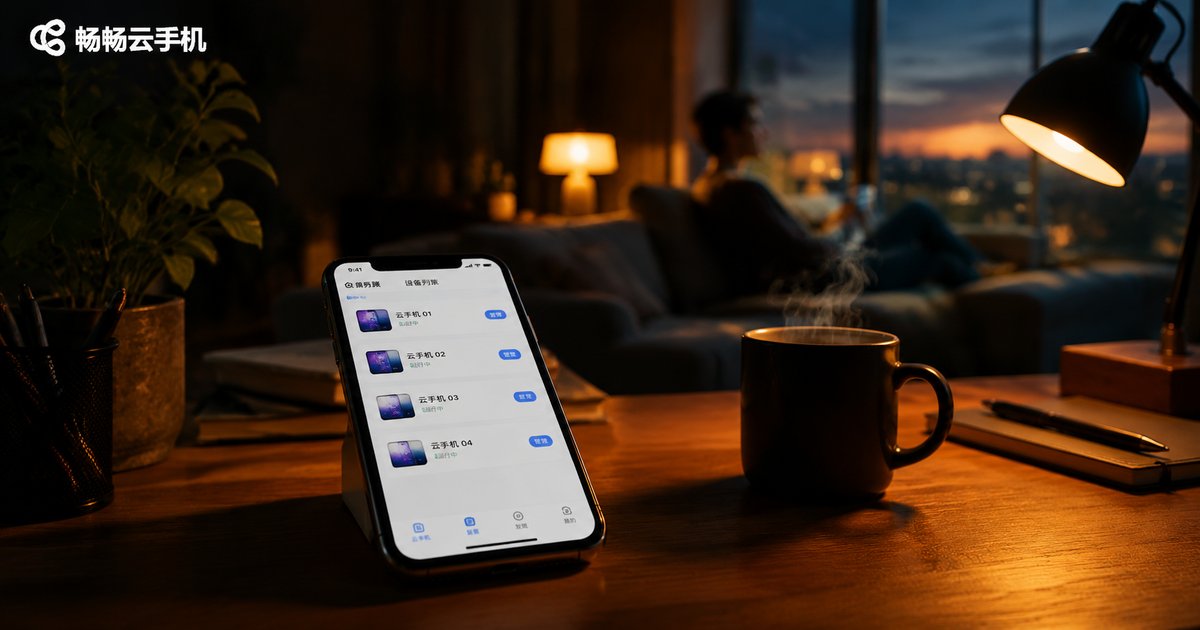
How to Use Cloud Phone Scripts to Automate Daily Tasks: A Beginner-Friendly Recording Tutorial
What Is Cloud Phone Script Automation?
Imagine this: you wake up every morning and your game's daily check-ins, stamina collection, and routine dungeons are already done, and every app's sign-in reward has been claimed—all handled automatically by your cloud phone while you slept. Cloud phone script automation means 'recording' your repetitive mobile operations and letting the cloud phone repeat them tirelessly, 24/7, on remote servers. You don't need any programming knowledge—if you can tap and swipe, you can do this.
Why Is a Cloud Phone Better Than Your Real Phone for Scripts?
Many people's first reaction to script automation is: 'Can't I just install a tool on my own phone?' In reality, running scripts on a real device has serious drawbacks, and a cloud phone solves them all:
| Factor | Real Device | Cloud Phone |
|---|---|---|
| Device usage | Must stay on with screen unlocked | Your real phone stays completely free |
| Uptime | Limited by battery and screen lock | Online 24/7 in the cloud, never runs out of power |
| Multi-instance | One phone, one task | Run multiple cloud phones simultaneously |
| Network | Depends on local connection | Data-center-grade network, stable and low-latency |
Simply put, a cloud phone is like a spare phone that is always online and never runs out of battery, dedicated to handling your tedious repetitive chores.
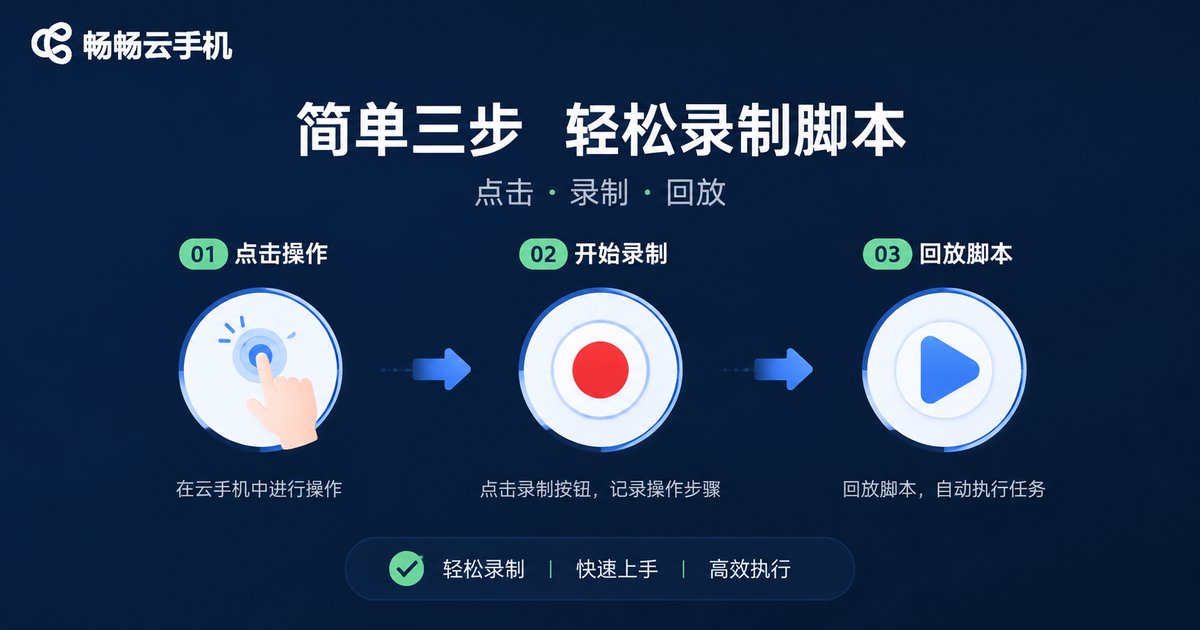
A Three-Step Recording Tutorial for Beginners
Scripts sound technical, but 'recorded scripts' work much like screen recording—you do it once, it remembers, and then it replays automatically. Here is the complete walkthrough.
Step 1: Enter your cloud phone and prepare the recording tool
Open the ccloudphone app and connect to your cloud phone desktop. Install the apps you want to automate, then get your script recording tool ready (most recording tools run as an always-available floating window).
Step 2: Record your actions once
Tap 'Start Recording' and manually perform the operation once, just like you normally would. For example: open the game → tap check-in → claim rewards → enter the dungeon → sweep → exit. When finished, tap 'Stop Recording' and this action sequence is automatically saved as a script.
Step 3: Configure the parameters and launch
Name your script, set the execution count, loop interval, and start time, then launch it with one tap. The cloud phone will repeat this routine automatically in the cloud—you can close the app, shut down your computer, or even go on vacation, and the tasks keep running.
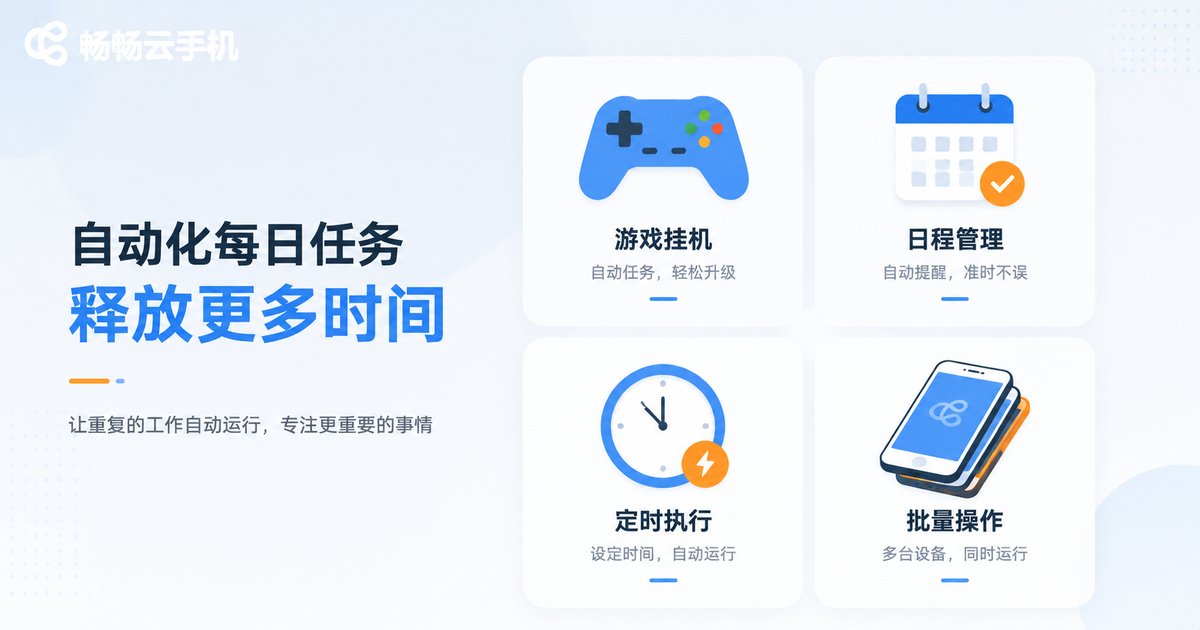
Which Daily Tasks Are Best Suited for Scripts?
Not every operation deserves a script. These categories of high-frequency, repetitive, fixed-step tasks are the best candidates:
- Game dailies: daily check-ins, stamina collection, routine dungeons, idle farming, harvesting resources
- App sign-ins: daily check-ins and streak rewards across various apps
- Scheduled actions: opening a specific app at a fixed time and running a set routine
- Batch operations: performing the same set of actions across multiple cloud phones
The rule of thumb is simple: if you do it every day and the steps are always identical, it belongs to a script.
Practical Tips for Running Scripts on ccloudphone
ChangChang Cloud Phone (ccloudphone) provides a stable cloud environment and multi-device management, making it an ideal choice for running scripts. Here are a few practical tips:
- Test small first: run a new script a few times to confirm every step works before scaling up
- Set reasonable intervals: leave buffer time between actions so the rhythm feels natural and runs stay stable
- Check status regularly: open your cloud phone occasionally to review execution and fix issues early
- Use multi-instance wisely: assign different tasks to different cloud phone instances so they never interfere
FAQ
Q: I know nothing about programming. Can I really use scripts?
A: Yes. Recorded scripts require zero coding—you perform the actions once manually, and the cloud phone remembers and repeats them, as simple as screen recording.
Q: Will running scripts on a cloud phone drain my real phone's battery?
A: No. Scripts run on remote servers; your real phone is only used occasionally to check status.
Q: If I close the app or lose internet, will the script keep running?
A: Yes. The cloud phone keeps running in the cloud regardless of your local device's state—powering off or going offline does not affect it.
Q: Can one script run on multiple cloud phones at the same time?
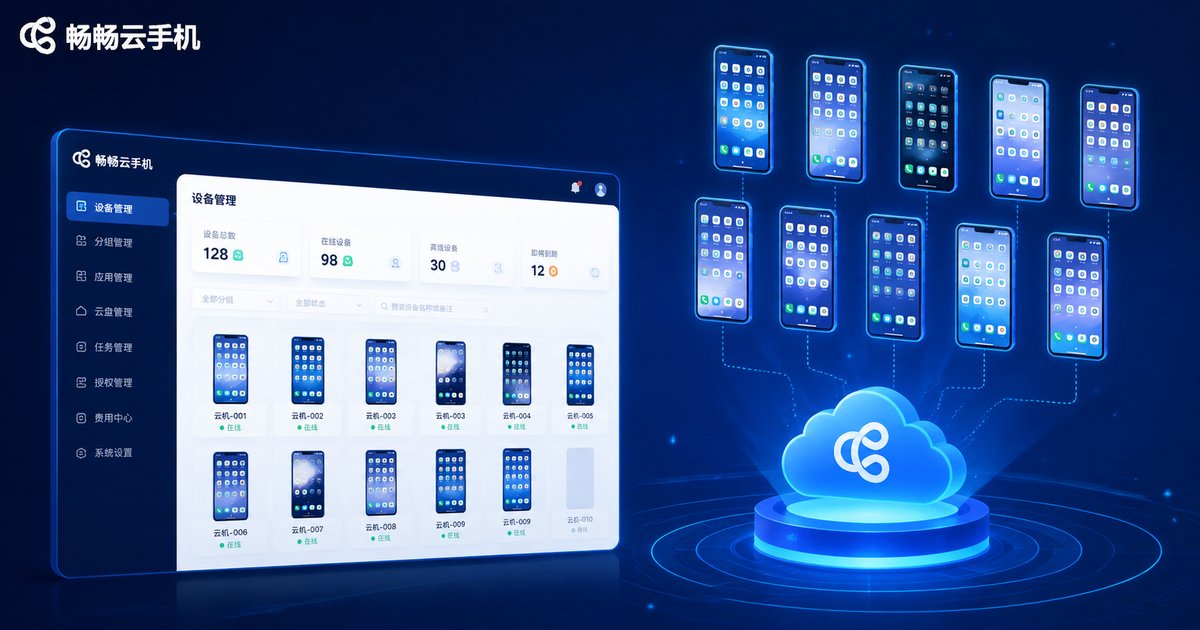
A: Yes. Sync the script to multiple cloud phone instances to execute the same daily tasks in batch and multiply your efficiency.
Q: Can I modify a script after recording it?
A: Yes. If a step is wrong, simply re-record to overwrite it; parameters like execution count and interval can be adjusted anytime.


