
Cloud Phone Screenshot and Screen Recording Guide: Clarity Settings and File Management
Why Screenshots and Screen Recording Matter on a Cloud Phone
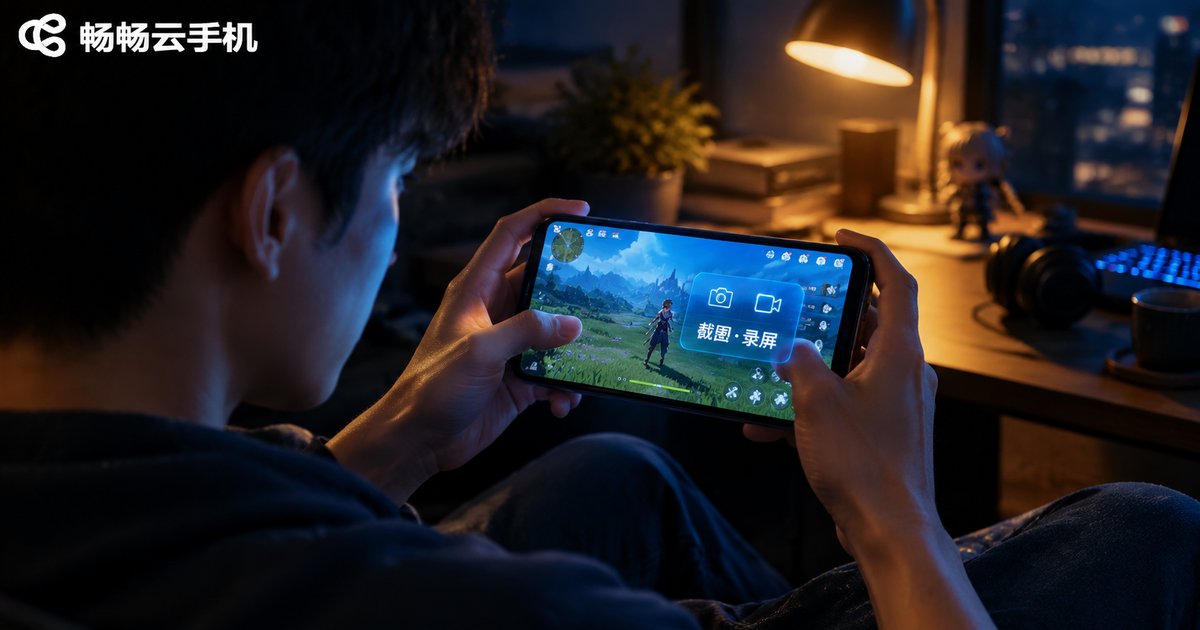
When you play games, keep apps running overnight, or manage multiple accounts on a cloud phone, there are always moments worth keeping: a highlight play, important account details, or a strategy screen you want to share with friends. That is exactly what screenshots and screen recording are for.
Unlike a regular phone, a cloud phone runs on remote servers, so screenshots and recordings are saved to the cloud by default. Even if you switch devices, your files stay safe. This guide walks you through capturing screenshots and recording the screen on a cloud phone, choosing clarity settings that keep images sharp without bloated files, and managing everything you capture.
Three Common Ways to Take a Screenshot
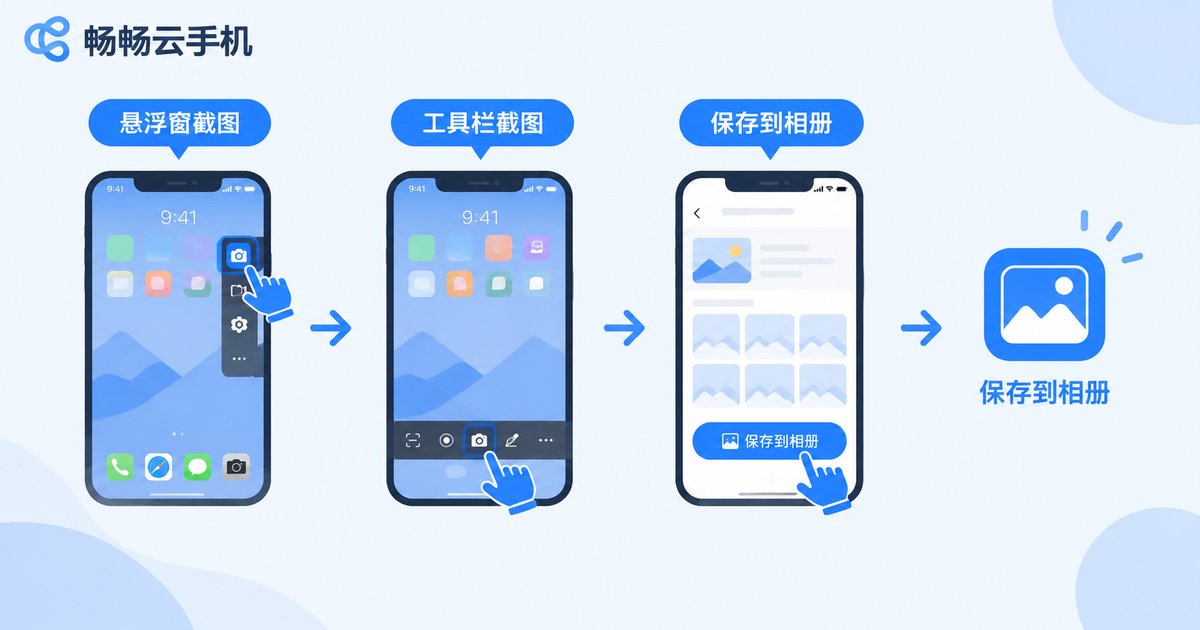
Most cloud phones offer more than one way to capture the screen. The three most common methods are:
1. Floating window screenshot: open the floating toolbar on the edge of the screen and tap the screenshot button to save the current view instantly;
2. Toolbar screenshot: find the screenshot entry in the cloud phone control toolbar and capture the cloud screen with one tap;
3. In-app capture: some apps and games have built-in screenshot features that work just as well.
Once captured, images are saved automatically to the cloud phone's gallery, where you can view, edit, or export them at any time.
Screen Recording: Capturing the Action
Recording is better suited for full processes, such as game walkthroughs or app tutorials. The basic flow is simple:
1. Open the floating window or toolbar and tap the record button to start;
2. Carry on with your operations while the recording runs in the background;
3. Tap the record button again to stop, and the video is saved to the gallery automatically.
Keep in mind that the longer the recording, the larger the file. Try to keep each clip within a reasonable length so it stays easy to manage and export.
Clarity Settings: Balancing Quality and File Size
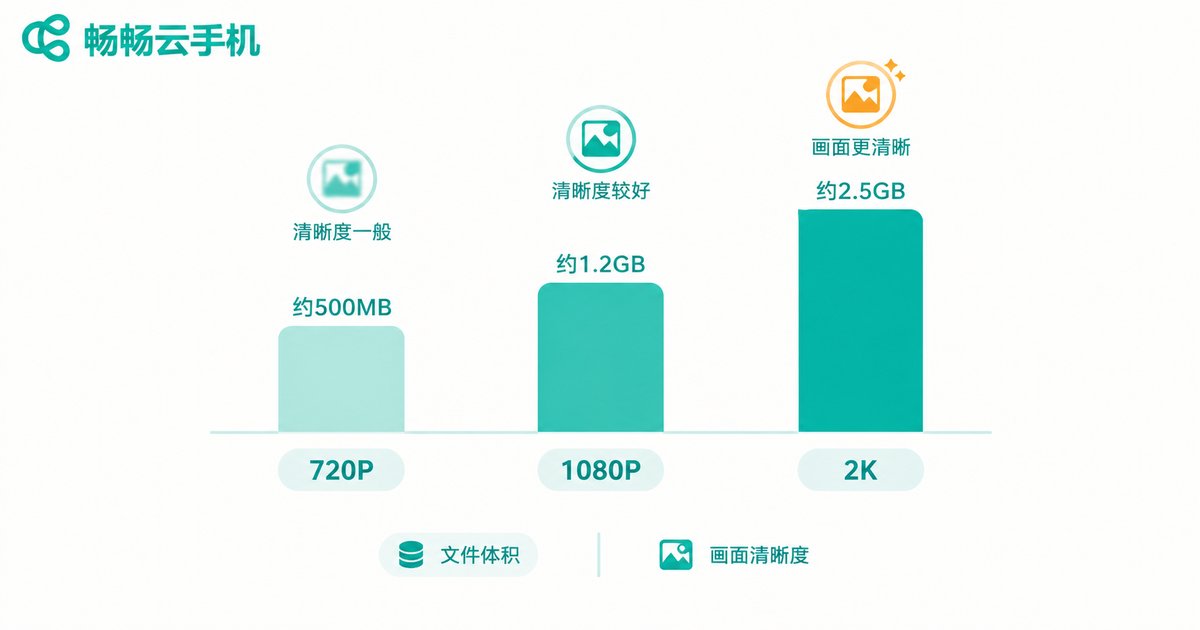
The clarity level directly affects both how good your captures look and how much space they take. Cloud phones usually offer several levels, as compared below:
| Clarity Level | Image Quality | File Size | Best For |
|---|---|---|---|
| SD 720P | Basically clear | Small | Everyday notes, quick sharing |
| HD 1080P | Rich details | Medium | Game highlights, tutorials |
| FHD+ 2K | Ultra sharp | Large | High-quality demos, fine details |
Quick advice: 1080P is the sweet spot for daily use, balancing sharpness and size. Pick a higher level when recording fine details such as game graphics or interface demos, and stick with 720P for casual notes to save cloud storage. For frame rate, 24-30 fps is smooth enough for tutorials, while fast-paced games look better at higher frame rates without motion blur.
File Management: Where Files Live and How to Export Them
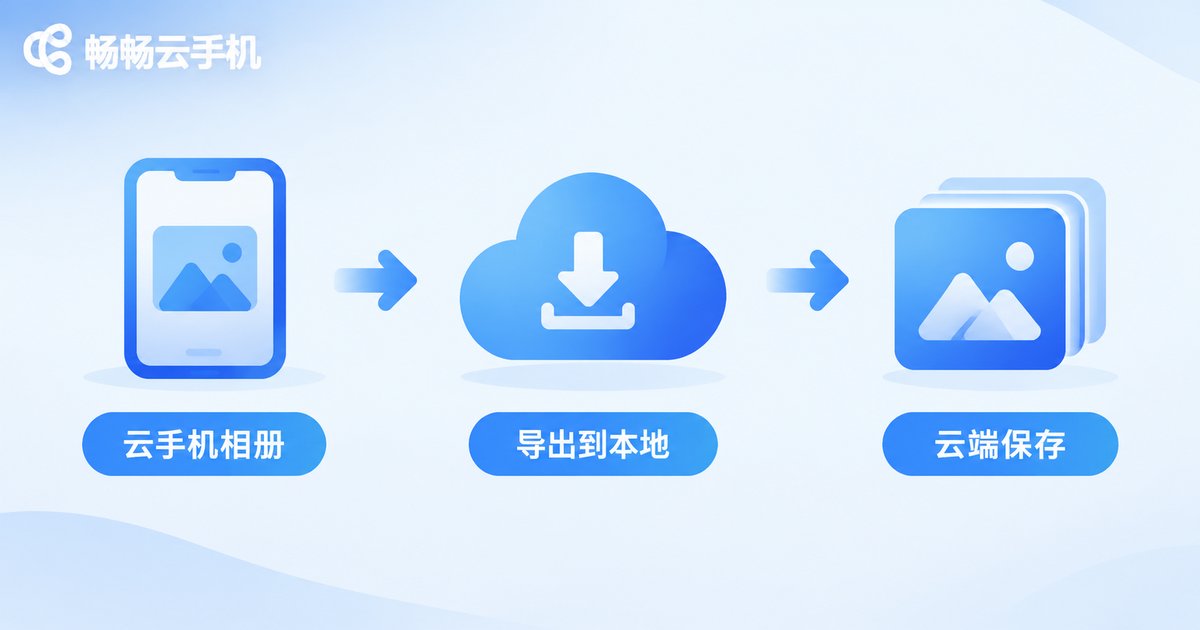
Screenshots and recordings on a cloud phone are stored in the cloud phone gallery by default. Managing them comes down to three actions:
1. View and organize: open the cloud phone gallery, browse screenshots and videos by time or type, and delete files you no longer need to keep your cloud storage tidy.
2. Export to your local device: select files in the gallery and use the export feature to transfer them to your local phone, ready for social media, group chats, or further editing.
3. Cloud backup: the biggest advantage of cloud storage is that files survive device switches and app reinstalls—log in anytime and everything is still there.
Pro tip: if you export files often, build a habit of regular cleanup, archiving weekly or per project to save space and find things faster.
Why Choose ChangChang Cloud Phone
If you are looking for a cloud phone with a smooth capture experience and hassle-free file management, try ChangChang Cloud Phone (ccloudphone). It moves a complete Android system to the cloud, keeping your apps online 24/7. Screenshots and recordings are one tap away, files stay safe in the cloud, and game AFK running plus multi-account management consume none of your local phone's battery or storage. Visit the official ChangChang Cloud Phone website to learn more.
FAQ
Q: Where are cloud phone screenshots saved?
They are saved in the cloud phone's gallery by default. Open the Gallery app on the cloud phone desktop to view them, or export them to your local device.
Q: Can screen recordings capture audio?
Yes. Recording captures in-app audio from cloud apps (such as game sounds or video audio). Make sure the audio option is enabled in settings before you start.
Q: Why is my recording file so large?
Higher clarity, higher frame rate, and longer duration all increase file size. Lower the clarity level in the recording settings or shorten each recording session.
Q: Do cloud phone screenshots look blurry?
With proper clarity settings, screenshot quality is nearly identical to a local phone. If images look soft, raise the clarity level and capture again.
Q: Will my screenshots remain if I log in from another phone?
Yes. Files are stored in the cloud. Log in with the same account on any device and your screenshots and recordings are still there to view and export.


